Modern Frontend Development with React and TypeScript
1. Introduction to React and TypeScript
1.1 Overview of React: Component-Based Architecture
React is a JavaScript library designed to build user interfaces by breaking the UI into smaller, reusable pieces called components. This approach contrasts with traditional methods where the UI is often built as a monolithic structure. Components in React encapsulate both the structure (HTML), style (CSS), and behavior (JavaScript) needed to render a part of the UI.
At its core, React’s component-based architecture means that the UI is composed of a tree of components. Each component manages its own state and props, and React efficiently updates and renders only the parts of the UI that need to change.
Mind Map: React Component-Based Architecture
Components: The Building Blocks
A React component can be a function or a class (though function components with hooks are now the standard). Each component returns JSX, a syntax extension that looks like HTML but allows embedding JavaScript expressions.
Example of a simple functional component:
import React from 'react';

interface GreetingProps {
  name: string;
}

const Greeting: React.FC<GreetingProps> = ({ name }) => {
  return <h1>Hello, {name}!</h1>;
};

export default Greeting;
This component takes a name prop and renders a greeting message. Notice how the component is self-contained: it receives data via props and returns UI.
Component Tree and Composition
Components can be nested to form a tree. For example, an App component might render a Header, Content, and Footer component, each responsible for a part of the UI.
const App: React.FC = () => {
  return (
    <div>
      <Header />
      <Content />
      <Footer />
    </div>
  );
};
This composition makes the UI modular and easier to maintain.
State and Props
- Props are read-only inputs passed from parent to child components. They allow data flow down the component tree.
- State is managed inside a component and can change over time, triggering re-renders.
Example with state:
import React, { useState } from 'react';

const Counter: React.FC = () => {
  const [count, setCount] = useState(0);

  return (
    <div>
      <p>Count: {count}</p>
      <button onClick={() => setCount(count + 1)}>Increment</button>
    </div>
  );
};
Here, the Counter component manages its own state and updates the UI when the button is clicked.
Virtual DOM and Efficient Rendering
React uses a Virtual DOM, an in-memory representation of the real DOM. When state or props change, React creates a new Virtual DOM tree and compares it with the previous one (a process called reconciliation). It then updates only the parts of the real DOM that have changed, improving performance.
Mind Map: Data Flow in React
Summary
React’s component-based architecture encourages building UIs as a collection of small, focused components. Each component handles its own data and rendering, and components are composed to form complex interfaces. This modularity simplifies development, testing, and maintenance. Understanding how components, props, state, and the Virtual DOM work together is fundamental to working effectively with React.
1.2 Why TypeScript? Benefits in Frontend Development
TypeScript is a superset of JavaScript that adds static typing to the language. This means you can declare types for variables, function parameters, and return values, which the TypeScript compiler checks before your code runs. This upfront checking helps catch errors early, reducing bugs that might otherwise appear at runtime.
Mind Map: Benefits of TypeScript in Frontend Development
Early Error Detection
JavaScript allows variables to hold any type, which can lead to unexpected behavior. TypeScript forces you to be explicit about types, so mistakes like passing a string where a number is expected are caught before the app runs.
function multiply(a: number, b: number): number {
  return a * b;
}

multiply(5, '10'); // Error: Argument of type 'string' is not assignable to parameter of type 'number'.
Without TypeScript, this would silently fail or produce unexpected results at runtime.
Improved Code Readability
Explicit types act as documentation. When you see a function signature with types, you immediately understand what inputs it expects and what it returns.
interface User {
  id: number;
  name: string;
  email?: string; // optional
}

function getUserDisplayName(user: User): string {
  return user.name;
}
This clarity helps new team members or your future self quickly grasp the code’s purpose.
Better Tooling Support
Editors like VSCode use TypeScript’s type information to provide better autocomplete, inline documentation, and error highlighting.
const user: User = { id: 1, name: 'Alice' };
user.email?.toLowerCase(); // Autocomplete suggests 'email' and string methods
This reduces guesswork and speeds up development.
Enhanced Maintainability
As projects grow, keeping track of data shapes and function contracts becomes harder. TypeScript enforces consistency, making refactoring safer.
function updateUser(user: User, newName: string): User {
  return { ...user, name: newName };
}

// If User interface changes, TypeScript will highlight all affected code
This reduces bugs introduced by changes and helps maintain a clean codebase.
Integration with Modern Frameworks
React and other modern frontend libraries have embraced TypeScript. Many popular libraries provide type definitions, enabling seamless integration.
import React from 'react';

interface ButtonProps {
  label: string;
  onClick: () => void;
}

const Button: React.FC<ButtonProps> = ({ label, onClick }) => (
  <button onClick={onClick}>{label}</button>
);
This combination improves developer experience and code quality.
In summary, TypeScript adds a layer of safety and clarity to frontend development. It catches errors early, improves readability, enhances tooling, supports maintainability, and fits well with React. These benefits make it a practical choice for building robust web applications.
1.3 Setting Up a React + TypeScript Project with Create React App
Starting a new React project with TypeScript can be straightforward thanks to Create React App (CRA), which provides a ready-to-go environment with sensible defaults. This section walks through the setup process step-by-step and highlights key points to keep your project clean and maintainable from the start.
Step 1: Installing Node.js and npm
Before anything else, ensure you have Node.js installed. CRA relies on Node and npm (or yarn) to scaffold and manage your project. You can check your versions by running:
node -v
npm -v
CRA generally works well with Node.js version 14 or later.
Step 2: Creating the React + TypeScript Project
CRA supports TypeScript out of the box. To create a new project, run:
npx create-react-app my-app --template typescript
npxruns the package without installing it globally.my-appis your project folder name.--template typescripttells CRA to set up TypeScript configuration.
This command generates a folder with all the necessary files, including a tsconfig.json file and .tsx files instead of .jsx.
Step 3: Exploring the Project Structure
Once created, your project folder looks like this:
my-app/
├── node_modules/
├── public/
│   └── index.html
├── src/
│   ├── App.css
│   ├── App.test.tsx
│   ├── App.tsx
│   ├── index.css
│   ├── index.tsx
│   ├── react-app-env.d.ts
│   ├── reportWebVitals.ts
│   └── setupTests.ts
├── package.json
├── tsconfig.json
└── README.md
src/App.tsxis the main component.src/index.tsxis the entry point.tsconfig.jsonconfigures TypeScript compiler options.react-app-env.d.tsprovides TypeScript definitions for React scripts.
Step 4: Running the Development Server
Navigate into your project folder and start the development server:
cd my-app
npm start
This opens your app in the browser at http://localhost:3000. The server watches for file changes and reloads automatically.
Step 5: Understanding TypeScript Configuration
The tsconfig.json file controls how TypeScript compiles your code. CRA provides a default configuration optimized for React:
{
  "extends": "react-scripts/tsconfig.json",
  "compilerOptions": {
    "strict": true
  },
  "include": ["src"]
}
- Extending
react-scripts/tsconfig.jsonmeans CRA manages most settings. - Enabling
strictmode enforces stricter type-checking, which is a good practice. - Only the
srcfolder is included for compilation.
Step 6: Writing Your First Typed Component
CRA’s template includes a simple example in App.tsx. Here’s a quick look at a typed functional component:
import React from 'react';

interface GreetingProps {
  name: string;
}

const Greeting: React.FC<GreetingProps> = ({ name }) => {
  return <h1>Hello, {name}!</h1>;
};

export default Greeting;
This example demonstrates:
- Defining a props interface.
- Using
React.FCto type the component. - Destructuring props with types.
Step 7: Mind Map of Setup Process
Step 8: Best Practices During Setup
- Use the latest stable Node.js version to avoid compatibility issues.
- Keep
strictmode enabled intsconfig.jsonfor better type safety. - Organize components and types logically within the
srcfolder. - Avoid modifying CRA’s internal config unless necessary; use
react-scriptsdefaults. - Commit your initial setup to version control before adding features.
This setup process lays a solid foundation for building React applications with TypeScript. It ensures your environment is ready for type-safe development and helps you avoid common pitfalls early on.
1.4 Understanding JSX and TSX Syntax Differences
JSX and TSX are closely related syntaxes used in React development, but they serve slightly different purposes due to TypeScript’s type system. Both allow you to write HTML-like code within JavaScript, but TSX adds type safety and some syntax nuances.
What is JSX?
JSX stands for JavaScript XML. It’s a syntax extension that lets you write markup directly in JavaScript files. React uses JSX to describe UI components in a way that looks like HTML but compiles down to JavaScript function calls.
Example of JSX:
const element = <h1>Hello, world!</h1>;
What is TSX?
TSX is the TypeScript equivalent of JSX. It supports all JSX features but adds the ability to use TypeScript’s static typing. Files using TSX syntax typically have a .tsx extension.
Example of TSX:
interface GreetingProps {
  name: string;
}

const Greeting: React.FC<GreetingProps> = ({ name }) => {
  return <h1>Hello, {name}!</h1>;
};
Key Syntax Differences
| Feature | JSX (JavaScript) | TSX (TypeScript) |
|---|---|---|
| File extension | .jsx or .js | .tsx |
| Type annotations | Not supported | Supported (interfaces, types, generics) |
| Props typing | No static typing | Static typing enforced |
| Event handler types | Implicit, no type checking | Explicit event types available |
| Generics in components | Not supported | Supported |
Mind Map: JSX vs TSX Syntax Overview
Typing Props in TSX
In TSX, you define interfaces or types for component props. This is not possible in plain JSX.
Example:
interface ButtonProps {
  label: string;
  onClick: (event: React.MouseEvent<HTMLButtonElement>) => void;
}

const Button: React.FC<ButtonProps> = ({ label, onClick }) => {
  return <button onClick={onClick}>{label}</button>;
};
Why TSX Requires More Explicit Syntax
TypeScript’s static analysis needs explicit information to check types. This means you often write more code upfront, but it catches errors before runtime.
For example, event handlers in TSX require explicit typing:
const handleClick = (event: React.MouseEvent<HTMLButtonElement>) => {
  console.log(event.currentTarget);
};
In JSX, this would be untyped and potentially error-prone.
Mind Map: Event Handling Differences
Embedding Expressions
Both JSX and TSX allow embedding JavaScript expressions inside curly braces {}.
Example:
const name = "Alice";
const element = <p>Hello, {name.toUpperCase()}!</p>;
In TSX, TypeScript checks that name is a string and that toUpperCase() is a valid method.
Handling HTML Attributes
Most HTML attributes work the same in JSX and TSX, but TSX enforces correct types.
Example:
<input type="text" value={inputValue} onChange={handleChange} />
Here, handleChange must have the correct event type in TSX, or the compiler will complain.
Summary
- JSX is JavaScript with XML-like syntax, no type safety.
- TSX is JSX plus TypeScript’s static typing.
- TSX files use
.tsxextensions. - TSX requires explicit typing for props, state, and events.
- TSX improves developer experience with better error detection and IDE support.
Understanding these differences helps you write safer, more maintainable React components when using TypeScript.
1.5 Best Practices: Organizing Your Project Structure
A well-organized project structure is the backbone of maintainable React and TypeScript applications. It helps you and your team find files quickly, understand the app’s layout, and scale the codebase without chaos. Let’s break down key principles and examples to keep your project tidy.
Core Principles
- Separation of Concerns: Group files by their purpose or feature, not just by file type.
- Scalability: Structure should accommodate growth without major refactoring.
- Clarity: Names and folder hierarchy should clearly communicate intent.
- Reusability: Components or utilities meant for reuse should be easy to locate.
Common Folder Structure Patterns
There are two main approaches: Feature-Based and Type-Based. You can mix them, but understanding each helps make informed decisions.
Feature-Based Structure
This groups files by feature or domain. It’s great for large apps with multiple distinct features.
root/
├── src/
│   ├── features/
│   │   ├── auth/
│   │   │   ├── components/
│   │   │   ├── hooks/
│   │   │   ├── types.ts
│   │   │   └── authSlice.ts
│   │   ├── dashboard/
│   │   │   ├── components/
│   │   │   ├── utils.ts
│   │   │   └── dashboardAPI.ts
│   ├── common/
│   │   ├── components/
│   │   ├── hooks/
│   │   ├── utils/
│   │   └── types.ts
│   ├── app/
│   │   ├── store.ts
│   │   └── rootReducer.ts
│   └── index.tsx
Why it works:
- Each feature folder encapsulates related logic.
- Shared/common code lives in a dedicated folder.
- Easier to onboard new developers who can focus on one feature at a time.
Type-Based Structure
This groups files by their type (components, hooks, utils).
root/
├── src/
│   ├── components/
│   │   ├── Button/
│   │   │   ├── Button.tsx
│   │   │   ├── Button.test.tsx
│   │   │   └── Button.styles.ts
│   │   └── Navbar/
│   ├── hooks/
│   │   └── useAuth.ts
│   ├── utils/
│   │   └── formatDate.ts
│   ├── types/
│   │   └── global.d.ts
│   ├── services/
│   │   └── apiClient.ts
│   └── index.tsx
Why it works:
- Clear separation by file type.
- Easy to find all components or hooks in one place.
- Can become unwieldy as features grow and files multiply.
Hybrid Approach
You can combine both by grouping features but keeping shared components and utilities separate.
root/
├── src/
│   ├── features/
│   ├── components/
│   ├── hooks/
│   ├── utils/
│   └── types/
Example: Organizing a Simple Todo App
src/
├── features/
│   ├── todos/
│   │   ├── TodoList.tsx
│   │   ├── TodoItem.tsx
│   │   ├── todosSlice.ts
│   │   └── types.ts
│   └── filters/
│       ├── FilterBar.tsx
│       └── filterUtils.ts
├── components/
│   └── Button.tsx
├── hooks/
│   └── useLocalStorage.ts
├── utils/
│   └── dateHelpers.ts
└── index.tsx
This keeps feature logic together but separates generic components and utilities.
Naming Conventions
- Use PascalCase for component and hook filenames (e.g.,
TodoList.tsx,useAuth.ts). - Use camelCase for utility functions and variables.
- Use clear, descriptive names that reflect the file’s responsibility.
TypeScript-Specific Tips
- Keep types close to where they are used, usually inside the feature folder or component folder.
- For shared types, create a
typesfolder or atypes.tsfile incommonorshared. - Use
.d.tsfiles only for global or third-party type declarations.
Mind Map: Project Structure Overview
Mind Map: Feature Folder Details
Practical Example: Component Folder
Inside a component folder, keep related files together:
Button/
├── Button.tsx       # Component implementation
├── Button.styles.ts # Styled components or CSS modules
├── Button.test.tsx  # Tests
└── index.ts         # Barrel export
This pattern makes imports cleaner:
import Button from './components/Button';
instead of
import Button from './components/Button/Button';
Barrel Files
Use index.ts files to re-export modules. This reduces import path complexity and improves readability.
Example index.ts in components folder:
export { default as Button } from './Button';
export { default as Navbar } from './Navbar';
Then import elsewhere as:
import { Button, Navbar } from './components';
Summary
- Choose a structure that fits your app size and team.
- Keep related files close to each other.
- Use clear naming conventions.
- Separate reusable code from feature-specific code.
- Use barrel files to simplify imports.
- Organize types thoughtfully to avoid clutter.
A clean project structure saves time and reduces frustration. It’s worth the upfront thought.
2. TypeScript Fundamentals for React Developers
2.1 Basic Types and Interfaces in TypeScript
TypeScript adds static typing to JavaScript, which helps catch errors early and improves code clarity. Understanding the basic types and interfaces is essential for writing predictable and maintainable React components.
Basic Types
TypeScript provides several built-in types that cover most everyday needs. Here’s a quick overview:
- boolean: true or false
- number: all numeric values (integers, floats)
- string: text data
- array: a collection of values of a specific type
- tuple: fixed-length array with known types at each position
- enum: a set of named constants
- any: opt-out of type checking (use sparingly)
- void: absence of any type, usually for functions that don’t return anything
- null and undefined: absence of value
Mind Map: Basic Types
Examples
// Boolean
let isActive: boolean = true;

// Number
let count: number = 42;

// String
let username: string = "alice";

// Array of numbers
let scores: number[] = [10, 20, 30];

// Tuple: fixed length and types
let userInfo: [string, number] = ["Bob", 25];

// Enum
enum Direction {
  Up,
  Down,
  Left,
  Right
}
let move: Direction = Direction.Up;

// Any (avoid if possible)
let randomValue: any = 5;
randomValue = "now a string";

// Void function
function logMessage(): void {
  console.log("Hello, world!");
}
Interfaces
Interfaces define the shape of an object. They describe what properties and methods an object should have, including their types. This is especially useful in React when defining props or state.
An interface is like a contract: if an object claims to implement it, it must have all the specified members.
Mind Map: Interfaces
Defining and Using Interfaces
interface User {
  id: number;
  name: string;
  email?: string; // optional property
  isAdmin: boolean;
  login(): void;
}

const user: User = {
  id: 1,
  name: "Jane",
  isAdmin: false,
  login() {
    console.log(`${this.name} logged in`);
  }
};

user.login();
Optional Properties
Notice the email? property. The question mark means it’s optional. Objects implementing the interface may or may not have this property.
Extending Interfaces
Interfaces can extend others, allowing composition and reuse.
interface Person {
  name: string;
  age: number;
}

interface Employee extends Person {
  employeeId: string;
  department: string;
}

const employee: Employee = {
  name: "Sam",
  age: 30,
  employeeId: "E123",
  department: "Engineering"
};
Practical React Example
When defining props for a React component, interfaces make the expected data explicit.
interface ButtonProps {
  label: string;
  onClick: () => void;
  disabled?: boolean;
}

const Button: React.FC<ButtonProps> = ({ label, onClick, disabled = false }) => {
  return (
    <button onClick={onClick} disabled={disabled}>
      {label}
    </button>
  );
};
This interface clarifies what the component expects, making it easier to use and maintain.
Summary
- Use basic types to define simple variables and arrays.
- Use interfaces to describe object shapes, including props and state.
- Optional properties add flexibility.
- Interfaces can extend others to build complex types.
- Applying these concepts in React improves code safety and readability.
2.2 Typing React Components: Function vs Class Components
When working with React and TypeScript, one of the first decisions you’ll face is how to type your components. React supports two main component types: function components and class components. Both have their own typing patterns and nuances. This section explains how to type each kind clearly, with examples and mind maps to illustrate the concepts.
Function Components
Function components are the modern standard in React development. They are simpler and more concise, especially with hooks. Typing function components in TypeScript mainly involves specifying the type of props.
Typing Props
You define an interface or type for the props and then annotate the function parameter accordingly.
import React from 'react';

interface GreetingProps {
  name: string;
  age?: number; // optional prop
}

const Greeting: React.FC<GreetingProps> = ({ name, age }) => {
  return (
    <div>
      <p>Hello, {name}!</p>
      {age && <p>You are {age} years old.</p>}
    </div>
  );
};
Here, React.FC (or React.FunctionComponent) is a generic type that takes the props type as a parameter. It provides type checking and also automatically types children if you use them.
Mind Map: Typing Function Components
Notes on React.FC
React.FCis optional. You can type props directly on the function parameter:
const Greeting = ({ name, age }: GreetingProps) => { ... }
- Some developers avoid
React.FCbecause it adds implicit children and can interfere with defaultProps.
Example without React.FC
const Greeting = ({ name, age }: GreetingProps): JSX.Element => {
  return <div>Hello, {name}!</div>;
};
Class Components
Class components are less common in new React code but still important, especially for legacy projects. Typing class components requires specifying types for props and state.
Typing Props and State
You define interfaces for props and state, then pass them as generic parameters to React.Component.
import React, { Component } from 'react';

interface CounterProps {
  initialCount?: number;
}

interface CounterState {
  count: number;
}

class Counter extends Component<CounterProps, CounterState> {
  state: CounterState = {
    count: this.props.initialCount || 0,
  };

  increment = () => {
    this.setState({ count: this.state.count + 1 });
  };

  render() {
    return (
      <div>
        <p>Count: {this.state.count}</p>
        <button onClick={this.increment}>Increment</button>
      </div>
    );
  }
}
Mind Map: Typing Class Components
Notes
- If your component does not use state, you can pass
{} or undefinedas the second generic parameter.
class Simple extends Component<{ message: string }> {
  render() {
    return <div>{this.props.message}</div>;
  }
}
- Typing event handlers inside class components requires attention to the event type.
Comparing Function and Class Component Typing
| Aspect | Function Components | Class Components |
|---|---|---|
| Props typing | Interface/type + React.FC or direct typing | Interface + generic parameters |
| State management | useState hook with generics | State interface + this.state |
| Lifecycle methods | Hooks (useEffect, etc.) | Class lifecycle methods (componentDidMount, etc.) |
| Children prop | Included automatically with React.FC | Explicitly typed if used |
| Syntax verbosity | More concise | More verbose |
Practical Tips
- Prefer function components for new code; they are easier to type and test.
- Use interfaces for props and state to keep types explicit and reusable.
- Avoid overusing
React.FCif you want to control children explicitly. - When typing event handlers, use React’s synthetic event types (e.g.,
React.MouseEvent<HTMLButtonElement>).
Example: Typed Event Handler in Function Component
interface ButtonProps {
  onClick: (event: React.MouseEvent<HTMLButtonElement>) => void;
}

const Button: React.FC<ButtonProps> = ({ onClick }) => {
  return <button onClick={onClick}>Click me</button>;
};
Example: Typed Event Handler in Class Component
class Button extends React.Component<{ onClick: (e: React.MouseEvent<HTMLButtonElement>) => void }> {
  render() {
    return <button onClick={this.props.onClick}>Click me</button>;
  }
}
Typing React components with TypeScript is straightforward once you understand the patterns. Function components focus on typing props, while class components require typing both props and state. Both approaches benefit from clear interfaces and explicit types, making your code more predictable and easier to maintain.
2.3 Using Props and State with TypeScript
When working with React and TypeScript, typing props and state correctly is essential to catch errors early and improve code clarity. Props are inputs to components, while state holds data that can change over time within a component. Both need explicit typing in TypeScript to leverage its benefits.
Typing Props
Props are passed from parent to child components. To type them, you define an interface or type alias describing the shape of the props object.
interface GreetingProps {
  name: string;
  age?: number; // optional prop
}

const Greeting: React.FC<GreetingProps> = ({ name, age }) => {
  return (
    <div>
      <p>Hello, {name}!</p>
      {age && <p>You are {age} years old.</p>}
    </div>
  );
};
Here, GreetingProps specifies that name is required and age is optional. The component uses destructuring to access props.
Mind Map: Typing Props
Typing State
State can be typed by providing a generic type argument to the useState hook. This ensures the state variable and its setter function are correctly typed.
const Counter: React.FC = () => {
  const [count, setCount] = React.useState<number>(0);

  return (
    <div>
      <p>Count: {count}</p>
      <button onClick={() => setCount(count + 1)}>Increment</button>
    </div>
  );
};
Here, useState<number>(0) tells TypeScript that count is a number. If you omit the generic, TypeScript infers the type from the initial value.
Mind Map: Typing State
Complex State Types
When state holds objects or arrays, define interfaces or types to describe their structure.
interface User {
  id: number;
  name: string;
  email: string;
}

const UserProfile: React.FC = () => {
  const [user, setUser] = React.useState<User | null>(null);

  React.useEffect(() => {
    // Simulate fetching user data
    setUser({ id: 1, name: 'Alice', email: '[email protected]' });
  }, []);

  if (!user) return <div>Loading...</div>;

  return (
    <div>
      <h1>{user.name}</h1>
      <p>Email: {user.email}</p>
    </div>
  );
};
Using User | null allows the state to start as null and later hold a User object.
Mind Map: Complex State
Props and State Together
Combining typed props and state is common. Here’s a component that receives initial count as a prop and manages count state internally.
interface CounterProps {
  initialCount?: number;
}

const CounterWithProps: React.FC<CounterProps> = ({ initialCount = 0 }) => {
  const [count, setCount] = React.useState<number>(initialCount);

  return (
    <div>
      <p>Count: {count}</p>
      <button onClick={() => setCount(count + 1)}>Increment</button>
      <button onClick={() => setCount(count - 1)}>Decrement</button>
    </div>
  );
};
This example shows default props values and state initialization from props.
Mind Map: Props and State Together
Best Practices Summary
- Always define explicit types or interfaces for props and state.
- Use optional properties (
?) for props that may not be passed. - For state, prefer explicit generic types with
useStateespecially when initial state is ambiguous. - Use union types (e.g.,
Type | null) to represent states like loading or empty. - Initialize state from props carefully to avoid stale values.
- Destructure props in function parameters for cleaner code.
Typing props and state clearly helps catch bugs during development and improves code readability. It also makes collaboration easier by documenting expected data shapes directly in the code.
2.4 Advanced Types: Union, Intersection, and Generics
TypeScript’s power grows significantly when you move beyond basic types. Understanding union types, intersection types, and generics allows you to write flexible, reusable, and type-safe code. Let’s explore each concept with clear examples and mind maps.
Union Types
Union types let a variable hold one of several types. This is useful when a value can be more than one type but you want to restrict it to a known set.
function formatId(id: number | string) {
  if (typeof id === 'string') {
    return id.toUpperCase();
  } else {
    return id.toFixed(0);
  }
}
Here, id can be either a number or a string. TypeScript narrows the type inside the conditional branches.
Mind map:
Intersection Types
Intersection types combine multiple types into one. The resulting type has all properties of the intersected types.
type Person = { name: string };
type Employee = { employeeId: number };

type Staff = Person & Employee;

const staffMember: Staff = {
  name: 'Alice',
  employeeId: 1234
};
Staff must have both name and employeeId.
Mind map:
Generics
Generics let you write components or functions that work with any type, while still preserving type safety.
function identity<T>(arg: T): T {
  return arg;
}

const num = identity<number>(42);
const str = identity<string>('hello');
Here, T is a placeholder for a type that gets specified when the function is called.
Generics can also be constrained:
interface Lengthwise {
  length: number;
}

function logLength<T extends Lengthwise>(arg: T): T {
  console.log(arg.length);
  return arg;
}

logLength('test'); // OK, string has length
// logLength(10); // Error, number has no length
Mind map:
Combined Example
Let’s combine these concepts in a React component example.
import React from 'react';

type ButtonProps<T> = {
  label: string;
  onClick: (event: React.MouseEvent<T>) => void;
  as?: T;
};

function Button<T extends HTMLElement = HTMLButtonElement>({ label, onClick, as }: ButtonProps<T>) {
  const Component = as || 'button';
  return <Component onClick={onClick}>{label}</Component>;
}

// Usage:
<Button label="Click me" onClick={e => console.log(e.currentTarget)} />
<Button as="a" label="Link" onClick={e => console.log(e.currentTarget.href)} />
Here, Button is a generic component that can render different HTML elements (button, a, etc.). The generic type T extends HTMLElement, ensuring the event type matches the rendered element.
Summary
- Union types allow variables to be one of several types, with type narrowing for safety.
- Intersection types combine multiple types into one, requiring all properties.
- Generics enable reusable, type-safe components and functions with flexible types.
Mastering these advanced types helps you write clearer, safer, and more adaptable React and TypeScript code.
2.5 Best Practices: Writing Reusable and Type-Safe Components
Creating reusable and type-safe React components with TypeScript is a key skill for building scalable frontend applications. It reduces bugs, improves maintainability, and makes your codebase easier to understand. Here are some concrete practices, illustrated with examples and mind maps, to help you write components that are both reusable and strongly typed.
Mind Map: Core Principles for Reusable, Type-Safe Components
Define Clear and Explicit Prop Types
Start by defining an interface or type for your component props. This makes the contract explicit and helps TypeScript catch mistakes early.
interface ButtonProps {
  label: string;
  onClick: () => void;
  disabled?: boolean; // optional prop
}

const Button: React.FC<ButtonProps> = ({ label, onClick, disabled = false }) => (
  <button disabled={disabled} onClick={onClick}>
    {label}
  </button>
);
Here, disabled is optional and has a default value. This pattern keeps the component flexible without sacrificing type safety.
Use Generics for Flexible Components
Generics allow components to work with different data types while preserving type safety.
type ListProps<T> = {
  items: T[];
  renderItem: (item: T) => React.ReactNode;
};

function List<T>({ items, renderItem }: ListProps<T>) {
  return <ul>{items.map((item, index) => <li key={index}>{renderItem(item)}</li>)}</ul>;
}

// Usage example:
<List
  items={[{ id: 1, name: 'Alice' }, { id: 2, name: 'Bob' }]}
  renderItem={item => <span>{item.name}</span>}
/>
This pattern avoids duplicating components for different data shapes and keeps your code DRY.
Provide Default Props and Mark Optional Props Explicitly
Default props prevent undefined values and clarify intent.
interface CardProps {
  title: string;
  showBorder?: boolean;
}

const Card: React.FC<CardProps> = ({ title, showBorder = true, children }) => {
  return (
    <div style={{ border: showBorder ? '1px solid black' : 'none' }}>
      <h3>{title}</h3>
      {children}
    </div>
  );
};
Explicit optional props with defaults reduce the need for null checks inside the component.
Favor Composition Over Inheritance
React encourages composing components rather than extending them. Use children or render props to create flexible APIs.
interface ModalProps {
  isOpen: boolean;
  onClose: () => void;
  children: React.ReactNode;
}

const Modal: React.FC<ModalProps> = ({ isOpen, onClose, children }) => {
  if (!isOpen) return null;
  return (
    <div className="modal">
      <button onClick={onClose}>Close</button>
      <div>{children}</div>
    </div>
  );
};
This pattern lets consumers decide what content goes inside the modal, increasing reusability.
Avoid Using any Type
Using any defeats the purpose of TypeScript. Instead, use precise types or generics. If you must accept multiple types, use union types.
interface InputProps {
  value: string | number;
  onChange: (value: string | number) => void;
}

const Input: React.FC<InputProps> = ({ value, onChange }) => {
  return (
    <input
      value={value}
      onChange={e => {
        const val = e.target.value;
        onChange(isNaN(Number(val)) ? val : Number(val));
      }}
    />
  );
};
This preserves type safety while allowing flexible input types.
Use Discriminated Unions for Mutually Exclusive Props
When a component accepts different prop sets that are mutually exclusive, discriminated unions help TypeScript enforce correct usage.
type AlertProps =
  | { type: 'success'; message: string; onConfirm?: never }
  | { type: 'error'; message: string; onConfirm: () => void };

const Alert: React.FC<AlertProps> = props => {
  if (props.type === 'success') {
    return <div style={{ color: 'green' }}>{props.message}</div>;
  }
  return (
    <div style={{ color: 'red' }}>
      {props.message}
      <button onClick={props.onConfirm}>Retry</button>
    </div>
  );
};
This pattern prevents passing incompatible props and clarifies component behavior.
Consistent Naming Conventions
Use clear and consistent names for props. Prefix boolean props with is or has to indicate their type.
interface ToggleProps {
  isOn: boolean;
  onToggle: () => void;
}

const Toggle: React.FC<ToggleProps> = ({ isOn, onToggle }) => (
  <button onClick={onToggle}>{isOn ? 'On' : 'Off'}</button>
);
This makes the code self-explanatory and easier to read.
Document Complex Props with JSDoc
For props that are not immediately obvious, add comments to explain their purpose.
interface TooltipProps {
  /** Text to display inside the tooltip */
  content: string;
  /** Position of the tooltip relative to the target element */
  position?: 'top' | 'bottom' | 'left' | 'right';
}

const Tooltip: React.FC<TooltipProps> = ({ content, position = 'top', children }) => {
  // Implementation here
  return <div>{children}</div>;
};
This helps teammates and your future self understand the intent without guessing.
By combining these practices, you build components that are easy to reuse, maintain, and extend. TypeScript’s type system acts as a safety net, catching errors early and improving developer confidence. Writing reusable and type-safe components is less about complex tricks and more about clear contracts, thoughtful design, and consistent typing.
3. Component Design and State Management
3.1 Functional Components and React Hooks Overview
Functional components are the most straightforward way to define components in React. They are JavaScript functions that accept props as arguments and return JSX to describe the UI. Unlike class components, functional components do not have lifecycle methods or internal state by default, but React Hooks fill that gap.
What is a Functional Component?
A functional component is simply a function:
import React from 'react';

interface GreetingProps {
  name: string;
}

const Greeting: React.FC<GreetingProps> = ({ name }) => {
  return <h1>Hello, {name}!</h1>;
};

export default Greeting;
This component takes a name prop and renders a greeting. It’s concise and easy to read.
Why Hooks?
Hooks let you use React features like state and lifecycle inside functional components without converting them to classes. They were introduced to simplify component logic and promote code reuse.
Common React Hooks
useState: Adds state to functional components.useEffect: Runs side effects after render.useContext: Accesses React context.useReducer: Manages complex state logic.
Mind Map: Functional Components and Hooks
Example: Using useState in a Functional Component
import React, { useState } from 'react';

const Counter: React.FC = () => {
  const [count, setCount] = useState<number>(0);

  return (
    <div>
      <p>Count: {count}</p>
      <button onClick={() => setCount(count + 1)}>Increment</button>
    </div>
  );
};

export default Counter;
Here, useState initializes count to 0 and provides setCount to update it. Clicking the button increases the count.
Mind Map: useState Hook
Example: Using useEffect for Side Effects
import React, { useState, useEffect } from 'react';

const Timer: React.FC = () => {
  const [seconds, setSeconds] = useState<number>(0);

  useEffect(() => {
    const interval = setInterval(() => {
      setSeconds(prev => prev + 1);
    }, 1000);

    return () => clearInterval(interval); // Cleanup on unmount
  }, []); // Empty dependency array means run once

  return <div>Seconds elapsed: {seconds}</div>;
};

export default Timer;
This example sets up a timer that increments every second. The cleanup function clears the interval when the component unmounts.
Mind Map: useEffect Hook
Key Points to Remember
- Functional components are simpler and preferred in modern React.
- Hooks bring state and lifecycle features to functional components.
- Always declare hooks at the top level of the component.
- Use TypeScript to type state and props explicitly.
- Clean up side effects in
useEffectto avoid memory leaks.
This foundation sets the stage for building interactive, maintainable React applications with TypeScript.
3.2 useState and useEffect with TypeScript: Practical Examples
React’s useState and useEffect hooks are fundamental tools for managing state and side effects in functional components. When combined with TypeScript, they offer stronger guarantees about the data your components handle, reducing runtime errors and improving developer experience.
useState with TypeScript
The useState hook lets you add state to functional components. TypeScript can infer the type from the initial value, but sometimes you need to explicitly declare it, especially when the initial state is null or undefined.
Basic useState Example
import React, { useState } from 'react';

function Counter() {
  // TypeScript infers count as number
  const [count, setCount] = useState(0);

  return (
    <div>
      <p>Count: {count}</p>
      <button onClick={() => setCount(count + 1)}>Increment</button>
    </div>
  );
}
Here, TypeScript infers count is a number because the initial state is 0.
Explicit Type Annotation
When the initial state is null or you want to initialize without a value, you must specify the type:
const [user, setUser] = useState<{ id: number; name: string } | null>(null);
This tells TypeScript that user can be an object with id and name or null.
Mind Map: useState with TypeScript
Functional Updates
If your new state depends on the previous state, use the functional form:
setCount(prevCount => prevCount + 1);
This avoids stale closures, especially in asynchronous scenarios.
useEffect with TypeScript
The useEffect hook runs side effects after rendering. TypeScript helps by enforcing correct dependency arrays and typing any values or cleanup functions.
Basic useEffect Example
import React, { useState, useEffect } from 'react';

function Timer() {
  const [seconds, setSeconds] = useState(0);

  useEffect(() => {
    const interval = setInterval(() => {
      setSeconds(prev => prev + 1);
    }, 1000);

    // Cleanup function
    return () => clearInterval(interval);
  }, []); // Empty dependency array means run once on mount

  return <p>Seconds elapsed: {seconds}</p>;
}
Here, TypeScript infers the types of seconds and the cleanup function.
Typing useEffect Dependencies
TypeScript can’t enforce dependency correctness but helps catch errors if you use variables inside useEffect without including them in the dependency array.
If you use variables or functions from props or state, include them in the dependency array to avoid stale values.
Mind Map: useEffect with TypeScript
Practical Example: Fetching Data with useState and useEffect
import React, { useState, useEffect } from 'react';

interface User {
  id: number;
  name: string;
  email: string;
}

function UserList() {
  const [users, setUsers] = useState<User[]>([]);
  const [loading, setLoading] = useState<boolean>(true);
  const [error, setError] = useState<string | null>(null);

  useEffect(() => {
    async function fetchUsers() {
      try {
        const response = await fetch('https://jsonplaceholder.typicode.com/users');
        if (!response.ok) {
          throw new Error('Network response was not ok');
        }
        const data: User[] = await response.json();
        setUsers(data);
      } catch (err) {
        setError((err as Error).message);
      } finally {
        setLoading(false);
      }
    }

    fetchUsers();
  }, []);

  if (loading) return <p>Loading users...</p>;
  if (error) return <p>Error: {error}</p>;

  return (
    <ul>
      {users.map(user => (
        <li key={user.id}>{user.name} ({user.email})</li>
      ))}
    </ul>
  );
}
This example shows:
- Defining interfaces for data shape
- Using multiple
useStatehooks with explicit types - Async function inside
useEffect - Error handling with typed error state
Mind Map: Data Fetching with useState and useEffect
Summary
- Use TypeScript’s type inference for simple
useStateinitializations. - Explicitly type state when initial value is ambiguous or complex.
- Use functional updates in
setStatewhen new state depends on previous state. useEffectruns side effects; always clean up subscriptions or timers.- TypeScript helps catch errors in state and effect usage but does not enforce dependency correctness.
- Combining
useStateanduseEffectwith TypeScript leads to safer, more predictable React components.
3.3 Managing Complex State with useReducer and TypeScript
When your component’s state grows beyond simple values or multiple independent pieces, useReducer offers a structured way to manage it. Unlike useState, which handles isolated state updates, useReducer centralizes state logic in a reducer function, making complex state transitions clearer and easier to maintain.
Why useReducer?
- Centralized state logic: All state changes happen in one place.
- Predictable state transitions: Actions describe what changes, and the reducer decides how.
- Better for complex state: When state depends on previous state or involves multiple sub-values.
Basic Structure of useReducer
const [state, dispatch] = useReducer(reducer, initialState);
state: Current state object.dispatch: Function to send actions to the reducer.reducer: Function that takes current state and action, returns new state.initialState: Initial value of the state.
Mind Map: useReducer Workflow
Defining Types for useReducer in TypeScript
To use useReducer effectively with TypeScript, define types for:
- State: Shape of your state object.
- Action: Discriminated union representing all possible actions.
- Reducer: Function signature tying state and action types.
Example:
type State = {
  count: number;
  loading: boolean;
  error: string | null;
};

type Action =
  | { type: 'increment' }
  | { type: 'decrement' }
  | { type: 'reset' }
  | { type: 'setLoading'; payload: boolean }
  | { type: 'setError'; payload: string | null };

const reducer = (state: State, action: Action): State => {
  switch (action.type) {
    case 'increment':
      return { ...state, count: state.count + 1 };
    case 'decrement':
      return { ...state, count: state.count - 1 };
    case 'reset':
      return { ...state, count: 0, error: null };
    case 'setLoading':
      return { ...state, loading: action.payload };
    case 'setError':
      return { ...state, error: action.payload };
    default:
      return state;
  }
};

const initialState: State = { count: 0, loading: false, error: null };
This pattern ensures that every action is explicit and type-checked.
Example: Counter with Loading and Error State
import React, { useReducer } from 'react';

// Types from above

const Counter: React.FC = () => {
  const [state, dispatch] = useReducer(reducer, initialState);

  const incrementAsync = () => {
    dispatch({ type: 'setLoading', payload: true });
    setTimeout(() => {
      dispatch({ type: 'increment' });
      dispatch({ type: 'setLoading', payload: false });
    }, 1000);
  };

  return (
    <div>
      <p>Count: {state.count}</p>
      {state.loading && <p>Loading...</p>}
      {state.error && <p style={{ color: 'red' }}>{state.error}</p>}
      <button onClick={() => dispatch({ type: 'increment' })}>Increment</button>
      <button onClick={() => dispatch({ type: 'decrement' })}>Decrement</button>
      <button onClick={incrementAsync} disabled={state.loading}>
        Increment Async
      </button>
      <button onClick={() => dispatch({ type: 'reset' })}>Reset</button>
    </div>
  );
};

export default Counter;
This example shows how useReducer can handle multiple state variables and asynchronous updates in a clear, type-safe way.
Mind Map: Complex State Management with useReducer
Tips for Using useReducer with TypeScript
- Use discriminated unions for action types to get exhaustive type checking.
- Keep reducer functions pure: no side effects inside.
- Use spread operator to update nested state immutably.
- When state shape grows, consider splitting reducers or using
useReducerwithuseContextfor global state.
Summary
useReducer paired with TypeScript provides a robust way to manage complex state in React components. It enforces clear state transitions through typed actions and a centralized reducer. This pattern improves maintainability and reduces bugs in state updates, especially when multiple related state values or asynchronous logic are involved.
3.4 Context API: Typed Global State Management
The React Context API provides a way to share values like state or functions between components without passing props manually at every level. When combined with TypeScript, it ensures type safety and clarity, reducing runtime errors and improving developer experience.
Why Use Context API?
- Avoids “prop drilling” where props are passed through many layers unnecessarily.
- Centralizes state or functions that many components need.
- Works well for themes, user authentication status, language settings, or any global data.
However, Context is not a replacement for state management libraries in complex scenarios but fits well for moderate global state needs.
Mind Map: Context API with TypeScript
Step 1: Define the Context Type
Start by defining the shape of the data or functions you want to share. For example, a user authentication context might look like this:
interface AuthContextType {
  user: { id: string; name: string } | null;
  login: (username: string, password: string) => Promise<void>;
  logout: () => void;
}

const defaultAuthContext: AuthContextType = {
  user: null,
  login: async () => {},
  logout: () => {}
};
Here, the interface describes the user object and two functions, login and logout.
Step 2: Create the Context
Use React’s createContext with the defined type. Provide a default value to satisfy TypeScript.
import React, { createContext, useContext, useState } from 'react';

const AuthContext = createContext<AuthContextType>(defaultAuthContext);
Step 3: Build the Provider Component
The provider holds the actual state and methods, passing them down via the context.
const AuthProvider: React.FC = ({ children }) => {
  const [user, setUser] = useState<{ id: string; name: string } | null>(null);

  const login = async (username: string, password: string) => {
    // Simulate login
    const fakeUser = { id: '123', name: username };
    setUser(fakeUser);
  };

  const logout = () => {
    setUser(null);
  };

  return (
    <AuthContext.Provider value={{ user, login, logout }}>
      {children}
    </AuthContext.Provider>
  );
};
This component manages the user state and exposes login/logout functions.
Step 4: Consume Context in Components
Use the useContext hook with the typed context to access state and methods.
const UserProfile: React.FC = () => {
  const { user, logout } = useContext(AuthContext);

  if (!user) {
    return <div>Please log in.</div>;
  }

  return (
    <div>
      <p>Welcome, {user.name}!</p>
      <button onClick={logout}>Logout</button>
    </div>
  );
};
TypeScript ensures user and logout are correctly typed, preventing common mistakes.
Best Practices
- Always define explicit types for your context value to avoid
anyor implicitundefinedtypes. - Provide a default value that matches the context type to satisfy TypeScript.
- Keep context focused: Don’t overload a single context with unrelated data.
- Memoize context value if it contains objects or functions to prevent unnecessary re-renders.
Example with memoization:
import React, { useMemo } from 'react';

const AuthProvider: React.FC = ({ children }) => {
  const [user, setUser] = useState<{ id: string; name: string } | null>(null);

  const login = async (username: string, password: string) => {
    setUser({ id: '123', name: username });
  };

  const logout = () => setUser(null);

  const value = useMemo(() => ({ user, login, logout }), [user]);

  return <AuthContext.Provider value={value}>{children}</AuthContext.Provider>;
};
- Separate concerns by creating multiple contexts if needed (e.g., AuthContext, ThemeContext).
Summary
Using React Context API with TypeScript involves defining clear types for your shared data, creating a context with those types, building a provider component to manage state, and consuming the context in child components with type safety. This approach reduces bugs, improves code readability, and keeps your global state manageable without excessive prop passing.
3.5 Best Practices: Avoiding Common Pitfalls in State Handling
Managing state in React applications can quickly become a source of bugs and confusion if not handled carefully. Here are some practical guidelines and examples to help you avoid common mistakes.
Mind Map: Common State Handling Pitfalls
Avoid Overusing State
Not everything needs to be in state. If a value can be computed from props or other state, keep it as a derived value instead of duplicating it in state.
function PriceDisplay({ price, discount }: { price: number; discount: number }) {
  // Bad: storing discountedPrice in state
  // const [discountedPrice, setDiscountedPrice] = useState(price - discount);

  // Good: compute on the fly
  const discountedPrice = price - discount;

  return <div>Discounted Price: ${discountedPrice.toFixed(2)}</div>;
}
This avoids synchronization bugs where the state might get out of sync with props.
Never Mutate State Directly
React relies on immutability to detect changes. Mutating state directly can cause subtle bugs where components don’t update as expected.
const [items, setItems] = useState<string[]>(['apple', 'banana']);

// Bad: mutating the array directly
// items.push('orange');
// setItems(items);

// Good: create a new array
setItems(prevItems => [...prevItems, 'orange']);
Always create new objects or arrays when updating state.
Keep State Flat and Simple
Deeply nested state objects are harder to update and prone to errors. Flatten state when possible.
// Complex nested state
const [user, setUser] = useState({
  profile: { name: 'Alice', age: 30 },
  settings: { theme: 'dark' }
});

// Updating nested property requires careful copying
setUser(prev => ({
  ...prev,
  profile: { ...prev.profile, age: 31 }
}));

// Consider splitting state
const [profile, setProfile] = useState({ name: 'Alice', age: 30 });
const [settings, setSettings] = useState({ theme: 'dark' });

// Updates become simpler
setProfile(prev => ({ ...prev, age: 31 }));
Splitting state into smaller pieces can make updates clearer and reduce bugs.
Beware of Stale Closures and Asynchronous Updates
State updates are asynchronous. If you use the current state value directly inside an event handler or effect, you might get stale data.
const [count, setCount] = useState(0);

function increment() {
  // Bad: might use stale count if called multiple times quickly
  // setCount(count + 1);

  // Good: use functional update to get latest state
  setCount(prevCount => prevCount + 1);
}
Using functional updates ensures you always work with the latest state.
Avoid Unnecessary State Updates
Updating state triggers re-renders. Avoid updating state if the new value is the same as the old one.
const [text, setText] = useState('');

function onChange(e: React.ChangeEvent<HTMLInputElement>) {
  const newValue = e.target.value;
  // Avoid setting state if value hasn't changed
  setText(prev => (prev === newValue ? prev : newValue));
}
This can prevent needless re-renders and improve performance.
Use Reducers for Complex State Logic
When state updates become complex or depend on previous state, useReducer can help organize logic clearly.
type Action = { type: 'increment' } | { type: 'decrement' };

function counterReducer(state: number, action: Action): number {
  switch (action.type) {
    case 'increment':
      return state + 1;
    case 'decrement':
      return state - 1;
    default:
      return state;
  }
}

const [count, dispatch] = useReducer(counterReducer, 0);

// Usage
dispatch({ type: 'increment' });
Reducers centralize update logic and make state changes predictable.
Summary Mind Map: Best Practices for State Handling
Following these guidelines will help keep your React state management clean, predictable, and easier to maintain.
4. Handling Events and Forms in React with TypeScript
4.1 Typing Event Handlers: Mouse, Keyboard, and Form Events
When working with React and TypeScript, typing event handlers correctly is essential for both code safety and developer experience. React’s synthetic event system wraps native browser events, providing a consistent interface across browsers. TypeScript offers specific types for these synthetic events, allowing you to annotate handlers precisely.
Mind Map: Typing Event Handlers in React + TypeScript
Mouse Events
Mouse events cover clicks, mouse movement, and button presses. The type React.MouseEvent<T> is generic, where T is the HTML element the event is attached to.
Example:
import React from 'react';

function ClickableButton() {
  const handleClick = (event: React.MouseEvent<HTMLButtonElement>) => {
    console.log('Button clicked:', event.currentTarget);
  };

  return <button onClick={handleClick}>Click me</button>;
}
Here, event.currentTarget is typed as HTMLButtonElement, so you get autocompletion and type safety when accessing button properties.
Keyboard Events
Keyboard events include key presses and releases. Use React.KeyboardEvent<T> to type these handlers.
Example:
function TextInput() {
  const handleKeyDown = (event: React.KeyboardEvent<HTMLInputElement>) => {
    if (event.key === 'Enter') {
      console.log('Enter key pressed');
    }
  };

  return <input type="text" onKeyDown={handleKeyDown} />;
}
The event.key property is a string representing the key pressed, and TypeScript ensures the event target is an HTMLInputElement.
Form Events
Form events are triggered on form submission or input changes. Use React.FormEvent<T> for typing.
Example:
function SimpleForm() {
  const handleSubmit = (event: React.FormEvent<HTMLFormElement>) => {
    event.preventDefault();
    console.log('Form submitted');
  };

  return (
    <form onSubmit={handleSubmit}>
      <button type="submit">Submit</button>
    </form>
  );
}
For input changes, you might use React.ChangeEvent<T> instead, which is more specific for input, select, and textarea elements.
Example:
function ControlledInput() {
  const [value, setValue] = React.useState('');

  const handleChange = (event: React.ChangeEvent<HTMLInputElement>) => {
    setValue(event.target.value);
  };

  return <input value={value} onChange={handleChange} />;
}
Event Handler Signature
A typical event handler signature looks like this:
(event: React.SyntheticEvent<T>) => void
Where T is the HTML element type. Using the most specific event type (MouseEvent, KeyboardEvent, ChangeEvent, etc.) improves clarity and tooling support.
Best Practices
- Specify the exact HTML element type: This helps TypeScript provide accurate type checking and autocompletion.
- Avoid using
any: It defeats the purpose of TypeScript and can hide bugs. - Use arrow functions or named functions: This keeps handlers concise and readable.
- Leverage event properties: Use
event.currentTargetwhen you want the element the event handler is attached to, andevent.targetfor the actual element that triggered the event. - Prevent default behavior explicitly: If you need to stop form submission or link navigation, call
event.preventDefault().
Typing event handlers correctly not only prevents runtime errors but also improves developer productivity by enabling better autocompletion and documentation in your editor. React and TypeScript together provide a robust system for handling events with confidence.
4.2 Controlled vs Uncontrolled Components in Forms
When building forms in React with TypeScript, understanding the difference between controlled and uncontrolled components is key. Both approaches let you collect user input, but they differ in how React interacts with the form elements.
What Are Controlled Components?
Controlled components are form elements whose values are managed by React state. The input’s value is set explicitly by React, and any change to the input triggers an event handler that updates the state. This means React is the “single source of truth” for the input’s value.
Mind Map: Controlled Components
Example:
import React, { useState } from 'react';

function ControlledInput() {
  const [name, setName] = useState('');

  const handleChange = (e: React.ChangeEvent<HTMLInputElement>) => {
    setName(e.target.value);
  };

  return (
    <div>
      <label htmlFor="name">Name:</label>
      <input
        id="name"
        type="text"
        value={name}
        onChange={handleChange}
      />
      <p>Your input: {name}</p>
    </div>
  );
}
In this example, the input’s value is tied directly to the name state. Typing in the input updates the state, which re-renders the input with the new value.
What Are Uncontrolled Components?
Uncontrolled components let the DOM handle the form data. Instead of syncing input values with React state, you use refs to access the current value when needed. This approach is closer to traditional HTML form handling.
Mind Map: Uncontrolled Components
Example:
import React, { useRef } from 'react';

function UncontrolledInput() {
  const inputRef = useRef<HTMLInputElement>(null);

  const handleSubmit = (e: React.FormEvent) => {
    e.preventDefault();
    alert(`Input value: ${inputRef.current?.value}`);
  };

  return (
    <form onSubmit={handleSubmit}>
      <label htmlFor="name">Name:</label>
      <input id="name" type="text" ref={inputRef} />
      <button type="submit">Submit</button>
    </form>
  );
}
Here, the input value is not stored in React state. Instead, a ref points to the DOM node, and the value is read only when the form submits.
Comparing Controlled and Uncontrolled Components
| Aspect | Controlled Components | Uncontrolled Components |
|---|---|---|
| State Management | React state | DOM element |
| Data Flow | One-way, React controls input | Direct DOM access |
| Validation | Easy to validate on every change | Validation done on submit or manually |
| Boilerplate | More code (state + handlers) | Less code (refs only) |
| Performance | Can be slower with many inputs | Generally faster for large forms |
| Use Cases | Complex forms, instant validation | Simple forms, legacy code |
When to Use Which?
-
Use controlled components when you need to:
- Validate input as the user types.
- Enable or disable buttons based on input.
- Keep form data in sync with other UI elements.
- Implement complex interactions.
-
Use uncontrolled components when:
- You want quick setup for simple forms.
- You don’t need to respond to input changes immediately.
- You want to minimize React state updates.
Best Practices in TypeScript
- Always type event handlers explicitly, e.g.,
React.ChangeEvent<HTMLInputElement>. - When using refs, type them with
useRef<HTMLInputElement>(null)to avoid null errors. - For controlled components, define prop types clearly to ensure type safety.
- Avoid mixing controlled and uncontrolled inputs for the same field; it leads to unpredictable behavior.
Controlled and uncontrolled components each have their place. Controlled components offer fine-grained control and immediate feedback, while uncontrolled components keep things simple and can be more performant for straightforward forms. Understanding both lets you pick the right tool for your form’s complexity and user experience needs.
4.3 Building a Typed Form with Validation Using React Hook Form
React Hook Form (RHF) is a popular library for managing forms in React applications. It offers a simple API, excellent performance, and built-in support for validation. When combined with TypeScript, it helps maintain type safety across your form data and validation logic.
Why Use React Hook Form with TypeScript?
- Type safety: Ensures the form data matches the expected shape.
- Minimal re-renders: Improves performance by reducing unnecessary updates.
- Built-in validation: Supports schema-based and custom validation.
Mind Map: Core Concepts of React Hook Form with TypeScript
Step 1: Define the Form Data Interface
Start by defining a TypeScript interface that represents the shape of your form data. This interface will be used by RHF to enforce type correctness.
interface LoginFormInputs {
  email: string;
  password: string;
  rememberMe: boolean;
}
This interface specifies that the form expects an email and password as strings, and a boolean for the “remember me” checkbox.
Step 2: Initialize useForm with Type
Pass the interface as a generic parameter to the useForm hook. This lets RHF know the expected data structure.
import { useForm, SubmitHandler } from 'react-hook-form';

const { register, handleSubmit, formState: { errors } } = useForm<LoginFormInputs>();
registerconnects input elements to RHF.handleSubmitwraps the submission handler.errorscontains validation errors keyed by field name.
Step 3: Register Inputs with Validation Rules
Use the register function to bind inputs and specify validation rules inline.
<form onSubmit={handleSubmit(onSubmit)}>
  <input
    {...register('email', {
      required: 'Email is required',
      pattern: {
        value: /^[^@\s]+@[^@\s]+\.[^@\s]+$/,
        message: 'Invalid email address'
      }
    })}
    placeholder="Email"
  />
  {errors.email && <p>{errors.email.message}</p>}

  <input
    type="password"
    {...register('password', { required: 'Password is required', minLength: { value: 6, message: 'Minimum length is 6' } })}
    placeholder="Password"
  />
  {errors.password && <p>{errors.password.message}</p>}

  <label>
    <input type="checkbox" {...register('rememberMe')} /> Remember me
  </label>

  <button type="submit">Login</button>
</form>
- Validation rules are passed as an object to
register. - Error messages are accessed via
errorsand displayed conditionally.
Step 4: Define the Submit Handler with Type Safety
Use the SubmitHandler type from RHF to type the submission function.
const onSubmit: SubmitHandler<LoginFormInputs> = data => {
  console.log('Form Data:', data);
  // Handle login logic here
};
This ensures the data parameter matches the interface exactly.
Mind Map: Validation Flow
Step 5: Adding Custom Validation
You can add custom validation functions to fields. For example, validating that the password contains a number:
register('password', {
  required: 'Password is required',
  minLength: { value: 6, message: 'Minimum length is 6' },
  validate: value => /\d/.test(value) || 'Password must contain a number'
});
This function returns true if the value passes or a string error message otherwise.
Step 6: Handling Form Reset and Default Values
You can provide default values and reset the form programmatically:
const { reset } = useForm<LoginFormInputs>({
  defaultValues: {
    email: '',
    password: '',
    rememberMe: false
  }
});

// To reset after submit
const onSubmit: SubmitHandler<LoginFormInputs> = data => {
  console.log(data);
  reset();
};
Complete Example
import React from 'react';
import { useForm, SubmitHandler } from 'react-hook-form';

interface LoginFormInputs {
  email: string;
  password: string;
  rememberMe: boolean;
}

export const LoginForm: React.FC = () => {
  const { register, handleSubmit, formState: { errors }, reset } = useForm<LoginFormInputs>({
    defaultValues: { email: '', password: '', rememberMe: false }
  });

  const onSubmit: SubmitHandler<LoginFormInputs> = data => {
    console.log('Submitted:', data);
    reset();
  };

  return (
    <form onSubmit={handleSubmit(onSubmit)} noValidate>
      <div>
        <input
          {...register('email', {
            required: 'Email is required',
            pattern: {
              value: /^[^@\s]+@[^@\s]+\.[^@\s]+$/,
              message: 'Invalid email address'
            }
          })}
          placeholder="Email"
          aria-invalid={errors.email ? 'true' : 'false'}
        />
        {errors.email && <p role="alert">{errors.email.message}</p>}
      </div>

      <div>
        <input
          type="password"
          {...register('password', {
            required: 'Password is required',
            minLength: { value: 6, message: 'Minimum length is 6' },
            validate: value => /\d/.test(value) || 'Password must contain a number'
          })}
          placeholder="Password"
          aria-invalid={errors.password ? 'true' : 'false'}
        />
        {errors.password && <p role="alert">{errors.password.message}</p>}
      </div>

      <div>
        <label>
          <input type="checkbox" {...register('rememberMe')} /> Remember me
        </label>
      </div>

      <button type="submit">Login</button>
    </form>
  );
};
Summary
Using React Hook Form with TypeScript involves defining a clear interface for your form data, registering inputs with validation rules, and handling errors in a typed manner. This approach reduces runtime errors and improves developer experience by catching mismatches early. The library’s API encourages minimal re-renders and clean code, making it a solid choice for typed form management in React projects.
4.4 Managing Form State and Errors with TypeScript
Managing form state and errors effectively is a crucial part of building reliable React applications with TypeScript. Forms often involve multiple fields, validation rules, and user feedback, so organizing this logic clearly helps maintain both developer sanity and user experience.
Understanding Form State Structure
At its core, form state typically consists of:
- Values: The current input values keyed by field names.
- Errors: Validation messages or flags for each field.
- Touched: Flags indicating whether a user has interacted with a field.
- IsSubmitting: A boolean to track submission status.
Here’s a simple mind map to visualize these components:
Typing the Form State in TypeScript
To keep things type-safe, define interfaces for your form data and errors. For example, consider a login form:
interface LoginFormValues {
  email: string;
  password: string;
}

interface LoginFormErrors {
  email?: string;
  password?: string;
}
Notice that errors are optional because a field might not have an error at all times.
Managing State with useState
You can manage form values, errors, and touched fields using separate useState hooks or combine them in a single state object. Here’s a straightforward approach using separate states:
const [values, setValues] = React.useState<LoginFormValues>({ email: '', password: '' });
const [errors, setErrors] = React.useState<LoginFormErrors>({});
const [touched, setTouched] = React.useState<{ [K in keyof LoginFormValues]?: boolean }>({});
const [isSubmitting, setIsSubmitting] = React.useState(false);
Handling Input Changes and Blur Events
Update values and touched flags as the user interacts:
const handleChange = (e: React.ChangeEvent<HTMLInputElement>) => {
  const { name, value } = e.target;
  setValues(prev => ({ ...prev, [name]: value }));
};

const handleBlur = (e: React.FocusEvent<HTMLInputElement>) => {
  const { name } = e.target;
  setTouched(prev => ({ ...prev, [name]: true }));
  validateField(name as keyof LoginFormValues, values[name as keyof LoginFormValues]);
};
Validation Logic
Create a validation function that returns an error message or undefined:
const validateField = (field: keyof LoginFormValues, value: string): void => {
  let error: string | undefined;

  switch (field) {
    case 'email':
      error = value.includes('@') ? undefined : 'Invalid email address';
      break;
    case 'password':
      error = value.length >= 6 ? undefined : 'Password must be at least 6 characters';
      break;
  }

  setErrors(prev => ({ ...prev, [field]: error }));
};
You can also validate all fields at once on form submission.
Mind Map: Validation Flow
Handling Form Submission
On submit, validate all fields, set isSubmitting, and handle asynchronous submission:
const validateAll = (values: LoginFormValues): LoginFormErrors => {
  const errors: LoginFormErrors = {};

  if (!values.email.includes('@')) {
    errors.email = 'Invalid email address';
  }
  if (values.password.length < 6) {
    errors.password = 'Password must be at least 6 characters';
  }

  return errors;
};

const handleSubmit = (e: React.FormEvent) => {
  e.preventDefault();
  const validationErrors = validateAll(values);
  setErrors(validationErrors);
  setTouched({ email: true, password: true });

  if (Object.keys(validationErrors).length === 0) {
    setIsSubmitting(true);
    // Simulate async submission
    setTimeout(() => {
      alert('Form submitted successfully!');
      setIsSubmitting(false);
    }, 1000);
  }
};
Displaying Errors
Show errors only for touched fields to avoid premature feedback:
<input
  name="email"
  value={values.email}
  onChange={handleChange}
  onBlur={handleBlur}
/>
{touched.email && errors.email && <div style={{ color: 'red' }}>{errors.email}</div>}
Mind Map: Error Display Logic
Summary
Managing form state and errors with TypeScript involves:
- Defining clear interfaces for values and errors.
- Using React state hooks to track values, errors, touched fields, and submission status.
- Writing validation functions that return typed error messages.
- Updating errors on blur and on submit.
- Displaying errors conditionally based on user interaction.
This approach keeps your forms predictable, type-safe, and user-friendly without adding unnecessary complexity.
4.5 Best Practices: Accessibility and User Experience in Forms
Forms are the gateway for users to interact with your application, so making them accessible and user-friendly is essential. Accessibility ensures that people with disabilities can use your forms effectively, while good user experience (UX) reduces friction for all users.
Mind Map: Key Areas for Accessible and User-Friendly Forms
Semantic HTML and Labels
Always associate inputs with labels using the htmlFor attribute in React (or for in plain HTML). This connection helps screen readers announce the input purpose clearly.
<label htmlFor="email">Email Address</label>
<input id="email" type="email" />
For groups of related inputs, such as radio buttons or checkboxes, wrap them in a <fieldset> with a <legend> to provide context.
<fieldset>
  <legend>Choose your subscription plan</legend>
  <label>
    <input type="radio" name="plan" value="basic" /> Basic
  </label>
  <label>
    <input type="radio" name="plan" value="premium" /> Premium
  </label>
</fieldset>
Keyboard Navigation and Focus Management
Users who rely on keyboards need a logical tab order. The natural DOM order usually suffices, but avoid elements that trap focus or skip inputs unintentionally.
Ensure visible focus indicators are present. Browsers provide default outlines, but if you customize styles, keep some visible focus cue.
input:focus, button:focus {
  outline: 2px solid #005fcc;
  outline-offset: 2px;
}
Error Handling and Messaging
Errors should be clear and specific. Avoid vague messages like “Invalid input”. Instead, say “Email address is required” or “Please enter a valid email address.”
Use ARIA attributes to link error messages to inputs. For example, aria-describedby points to an element containing the error text.
const [emailError, setEmailError] = React.useState<string | null>(null);

return (
  <>
    <label htmlFor="email">Email</label>
    <input
      id="email"
      type="email"
      aria-describedby={emailError ? "email-error" : undefined}
      aria-invalid={!!emailError}
      onBlur={(e) => {
        const value = e.target.value;
        if (!value) setEmailError("Email is required.");
        else if (!value.includes("@")) setEmailError("Please enter a valid email.");
        else setEmailError(null);
      }}
    />
    {emailError && <div id="email-error" role="alert" style={{ color: 'red' }}>{emailError}</div>}
  </>
);
Using role="alert" ensures screen readers announce the error immediately.
Input Types and Attributes
Use HTML5 input types like email, tel, number, and url to trigger appropriate keyboards on mobile devices and enable built-in validation.
Attributes like required, minlength, and maxlength provide native validation hints.
<input type="password" required minLength={8} maxLength={20} />
Visual Design Considerations
Contrast between text and background should meet WCAG standards (at least 4.5:1 for normal text). This helps users with low vision.
Input fields should have clear borders and visible focus styles.
Avoid relying solely on color to convey information. For example, don’t just color borders red for errors; add icons or text as well.
Real-Time Validation and Feedback
Validating inputs as users type can prevent frustration. However, avoid overly aggressive validation that interrupts typing.
Show success messages or subtle indicators when inputs are valid.
Example: a green checkmark icon next to a valid email.
Accessibility APIs and ARIA
Use ARIA roles and properties sparingly and only when native HTML cannot provide the needed semantics.
For example, use aria-live regions to announce dynamic content changes.
<div aria-live="polite">Form submitted successfully!</div>
Summary Mind Map: Accessibility and UX in Forms
By combining semantic markup, clear error handling, keyboard accessibility, and thoughtful visual design, your forms will be usable by a wider audience and provide a smoother experience for everyone.
5. Styling React Components Effectively
5.1 CSS Modules with TypeScript: Setup and Usage
CSS Modules offer a way to scope CSS by automatically generating unique class names, reducing the risk of style collisions. When combined with TypeScript, they provide type safety and autocompletion, improving developer experience.
Why Use CSS Modules?
- Encapsulation: Styles apply only to the component they belong to.
- Predictability: No global namespace pollution.
- Type Safety: TypeScript can verify class names.
Setting Up CSS Modules in a React + TypeScript Project
-
File Naming: Use the
.module.cssextension for CSS files you want to treat as modules. -
TypeScript Configuration:
- TypeScript needs to understand CSS imports. Create or update a declaration file, e.g.,
src/styles.d.ts:
- TypeScript needs to understand CSS imports. Create or update a declaration file, e.g.,
declare module '*.module.css' {
  const classes: { [key: string]: string };
  export default classes;
}
This tells TypeScript that importing a .module.css file yields an object with string keys and string values.
- Importing Styles:
import styles from './Button.module.css';

function Button() {
  return <button className={styles.primary}>Click me</button>;
}
- Build Tool Support:
- If using Create React App, CSS Modules are supported out of the box.
- For custom setups, ensure your bundler (Webpack, Vite, etc.) is configured to handle CSS Modules.
Example: Creating a Simple Button Component
Button.module.css
.primary {
  background-color: #007bff;
  color: white;
  padding: 8px 16px;
  border: none;
  border-radius: 4px;
  cursor: pointer;
}

.primary:hover {
  background-color: #0056b3;
}
Button.tsx
import React from 'react';
import styles from './Button.module.css';

interface ButtonProps {
  label: string;
  onClick: () => void;
}

const Button: React.FC<ButtonProps> = ({ label, onClick }) => {
  return (
    <button className={styles.primary} onClick={onClick}>
      {label}
    </button>
  );
};

export default Button;
This example demonstrates importing CSS classes as a typed object and applying them to JSX elements.
Mind Map: CSS Modules with TypeScript
Handling Multiple Classes and Dynamic Class Names
You can combine multiple CSS module classes by joining them with a space:
<button className={`${styles.primary} ${styles.rounded}`}>Click me</button>
For conditional classes, a common pattern is:
<button className={`${styles.primary} ${isActive ? styles.active : ''}`}>Click me</button>
Alternatively, use utility libraries like clsx or classnames for cleaner syntax:
import clsx from 'clsx';

<button className={clsx(styles.primary, { [styles.active]: isActive })}>Click me</button>
Best Practices
- Keep CSS Modules Small: One module per component or feature helps maintain clarity.
- Name Classes Clearly: Use descriptive class names reflecting their purpose.
- Use TypeScript Declarations: Always have a
.d.tsfile to avoid type errors. - Avoid Inline Styles for Complex Styling: Use CSS Modules for maintainability.
- Combine with Theming Carefully: For dynamic theming, consider CSS variables or styled-components.
Troubleshooting
- Class Names Not Applied: Check if the build tool supports CSS Modules and the file is named correctly with
.module.css. - TypeScript Errors on Import: Ensure the declaration file is present and correctly configured.
- Styles Not Updating: Clear cache or restart the development server.
CSS Modules with TypeScript strike a balance between scoped styling and type safety. They fit naturally into React’s component model and help keep styles predictable and manageable.
5.2 Styled Components and Emotion: Typed Theming
When working with React and TypeScript, styled-components and Emotion are popular choices for CSS-in-JS solutions. Both libraries support theming, which allows you to define a consistent design system and reuse styles across your app. Typed theming means your theme object has a TypeScript type, enabling autocompletion and type safety when accessing theme properties.
Why Typed Theming?
- Prevents typos in theme keys.
- Provides autocomplete in IDEs.
- Ensures consistent use of design tokens like colors, fonts, and spacing.
Mind Map: Typed Theming with styled-components and Emotion
Defining a Theme Interface
Start by defining the shape of your theme. This example covers basic colors and font sizes:
// theme.ts
export interface Theme {
  colors: {
    primary: string;
    secondary: string;
    background: string;
    text: string;
  };
  fontSizes: {
    small: string;
    medium: string;
    large: string;
  };
}

export const lightTheme: Theme = {
  colors: {
    primary: '#0070f3',
    secondary: '#1c1c1e',
    background: '#ffffff',
    text: '#333333',
  },
  fontSizes: {
    small: '0.8rem',
    medium: '1rem',
    large: '1.5rem',
  },
};
Module Augmentation for styled-components
styled-components uses its own DefaultTheme type. To make TypeScript aware of your theme shape, augment the module:
// styled.d.ts
import 'styled-components';
import { Theme } from './theme';

declare module 'styled-components' {
  export interface DefaultTheme extends Theme {}
}
This tells styled-components that DefaultTheme matches your Theme interface.
Using ThemeProvider
Wrap your app with ThemeProvider and pass the theme object:
import { ThemeProvider } from 'styled-components';
import { lightTheme } from './theme';

function App() {
  return (
    <ThemeProvider theme={lightTheme}>
      <YourComponent />
    </ThemeProvider>
  );
}
Accessing the Theme in Styled Components
Inside styled components, you can access the theme via the props.theme object, which is now typed:
import styled from 'styled-components';

const Button = styled.button`
  background-color: ${({ theme }) => theme.colors.primary};
  color: ${({ theme }) => theme.colors.background};
  font-size: ${({ theme }) => theme.fontSizes.medium};
  padding: 0.5rem 1rem;
  border: none;
  border-radius: 4px;
  cursor: pointer;

  &:hover {
    background-color: ${({ theme }) => theme.colors.secondary};
  }
`;
Because of the type declaration, if you mistype theme.colors.prmary, TypeScript will flag an error.
Mind Map: Emotion Theming Differences
Typed Theming with Emotion
Emotion has a similar approach but uses a different module for augmentation.
Define your theme interface (can reuse the same Theme interface):
// theme.ts (same as above)
Augment Emotion’s theme type:
// emotion.d.ts
import '@emotion/react';
import { Theme } from './theme';

declare module '@emotion/react' {
  export interface Theme extends Theme {}
}
Wrap your app with Emotion’s ThemeProvider:
import { ThemeProvider } from '@emotion/react';
import { lightTheme } from './theme';

function App() {
  return (
    <ThemeProvider theme={lightTheme}>
      <YourComponent />
    </ThemeProvider>
  );
}
Use the useTheme hook or the theme prop in styled components:
/** @jsxImportSource @emotion/react */
import { css, useTheme } from '@emotion/react';

const buttonStyle = (theme: Theme) => css`
  background-color: ${theme.colors.primary};
  color: ${theme.colors.background};
  font-size: ${theme.fontSizes.medium};
  padding: 0.5rem 1rem;
  border: none;
  border-radius: 4px;
  cursor: pointer;

  &:hover {
    background-color: ${theme.colors.secondary};
  }
`;

function Button() {
  const theme = useTheme();
  return <button css={buttonStyle(theme)}>Click me</button>;
}
Best Practices for Typed Theming
- Define your theme interface clearly and keep it updated.
- Use module augmentation to integrate with styled-components or Emotion.
- Always wrap your app in a
ThemeProvider. - Access theme properties through the typed
themeobject. - Avoid hardcoding colors or sizes; use theme tokens.
- Consider splitting your theme into smaller logical groups (colors, typography, spacing).
Summary
Typed theming in styled-components and Emotion improves developer experience by catching errors early and providing autocomplete. Defining a clear theme interface and augmenting the library types are key steps. Once set up, your styled components can safely and consistently use design tokens, making your frontend codebase easier to maintain and scale.
5.3 Using Tailwind CSS in a TypeScript React Project
Tailwind CSS is a utility-first CSS framework that lets you style your components by applying classes directly in your JSX or TSX markup. When combined with TypeScript and React, it offers a fast and flexible way to build consistent UIs without writing custom CSS for every component.
Setting Up Tailwind CSS in a React + TypeScript Project
To start using Tailwind CSS, you first need to install it along with its dependencies and configure it properly.
npm install -D tailwindcss postcss autoprefixer
npx tailwindcss init -p
This creates a tailwind.config.js and a postcss.config.js file. In your tailwind.config.js, specify the paths to your source files so Tailwind can tree-shake unused styles:
module.exports = {
  content: ["./src/**/*.{js,jsx,ts,tsx}"],
  theme: {
    extend: {},
  },
  plugins: [],
}
Next, include Tailwind’s directives in your main CSS file (e.g., src/index.css):
@tailwind base;
@tailwind components;
@tailwind utilities;
Finally, import this CSS file in your root React component or index.tsx:
import './index.css';
Using Tailwind Classes in TypeScript React Components
Tailwind classes are just strings, so you can use them directly in the className attribute. TypeScript treats these as strings, so no special typing is needed.
Example:
import React from 'react';

interface ButtonProps {
  label: string;
  onClick: () => void;
}

const Button: React.FC<ButtonProps> = ({ label, onClick }) => {
  return (
    <button
      className="bg-blue-600 hover:bg-blue-700 text-white font-semibold py-2 px-4 rounded"
      onClick={onClick}
    >
      {label}
    </button>
  );
};

export default Button;
This button uses Tailwind utilities for background color, hover state, text styling, padding, and border radius.
Mind Map: Tailwind CSS Usage in React + TypeScript
Conditional Styling and Class Composition
Sometimes you want to apply classes conditionally based on props or state. Since className is just a string, you can use JavaScript expressions.
Example using template literals:
interface AlertProps {
  message: string;
  type: 'success' | 'error';
}

const Alert: React.FC<AlertProps> = ({ message, type }) => {
  const baseClasses = 'p-4 rounded text-white font-medium';
  const typeClasses = type === 'success' ? 'bg-green-500' : 'bg-red-500';

  return <div className={`${baseClasses} ${typeClasses}`}>{message}</div>;
};
Alternatively, you can use a utility like clsx or classnames to manage conditional classes more cleanly.
Extracting Reusable Class Sets
To avoid repeating long class strings, define reusable class sets as constants or functions.
const buttonBase = 'font-semibold py-2 px-4 rounded';
const buttonVariants = {
  primary: 'bg-blue-600 hover:bg-blue-700 text-white',
  secondary: 'bg-gray-300 hover:bg-gray-400 text-gray-800',
};

interface ButtonProps {
  label: string;
  variant?: 'primary' | 'secondary';
  onClick: () => void;
}

const Button: React.FC<ButtonProps> = ({ label, variant = 'primary', onClick }) => {
  return (
    <button className={`${buttonBase} ${buttonVariants[variant]}`} onClick={onClick}>
      {label}
    </button>
  );
};
This approach keeps your components clean and makes it easy to update styles globally.
Mind Map: Managing Tailwind Classes
Responsive Design with Tailwind
Tailwind has built-in responsive utilities using prefixes like sm:, md:, lg:, and xl:.
Example:
const Card: React.FC = () => {
  return (
    <div className="p-4 bg-white rounded shadow-md sm:max-w-md md:max-w-lg lg:max-w-xl">
      <h2 className="text-xl font-bold mb-2">Responsive Card</h2>
      <p className="text-gray-700">This card adjusts its max width based on screen size.</p>
    </div>
  );
};
This card will have different maximum widths on small, medium, and large screens.
Integrating Tailwind with TypeScript Types
While Tailwind classes themselves are strings, you can type props that control styling variants or states.
Example:
type Size = 'small' | 'medium' | 'large';

interface InputProps {
  size?: Size;
  placeholder?: string;
}

const sizeClasses: Record<Size, string> = {
  small: 'p-1 text-sm',
  medium: 'p-2 text-base',
  large: 'p-3 text-lg',
};

const Input: React.FC<InputProps> = ({ size = 'medium', placeholder }) => {
  return <input className={`border rounded ${sizeClasses[size]}`} placeholder={placeholder} />;
};
This ensures only valid sizes are used and maps them to Tailwind classes.
Summary
Using Tailwind CSS in a TypeScript React project is straightforward. Tailwind’s utility classes are plain strings, so TypeScript treats them as such without extra typing. Organize your classes with constants or utility libraries to keep your components clean and maintainable. Use TypeScript’s type system to enforce valid styling variants and props. Responsive design is built-in with Tailwind’s prefixes, making it easy to create adaptable layouts.
This combination lets you write UI code that’s both expressive and type-safe, with minimal CSS overhead.
5.4 Best Practices: Maintaining Scalable and Maintainable Styles
Maintaining scalable and maintainable styles in React projects requires thoughtful organization and consistent conventions. When styles grow alongside your app, a lack of structure can quickly lead to confusion and duplicated code. Here are some practical principles and examples to keep your styling manageable.
Modularize Styles
Break your styles into small, reusable modules that correspond to components or UI elements. This reduces global CSS conflicts and makes it easier to track where styles are applied.
// Button.module.css
.button {
  background-color: #007bff;
  color: white;
  padding: 8px 16px;
  border-radius: 4px;
  border: none;
  cursor: pointer;
}

.buttonPrimary {
  background-color: #0056b3;
}
import styles from './Button.module.css';

function Button({ primary, children }: { primary?: boolean; children: React.ReactNode }) {
  const className = primary ? `${styles.button} ${styles.buttonPrimary}` : styles.button;
  return <button className={className}>{children}</button>;
}
This approach scopes styles to components, reducing side effects and improving maintainability.
Use Naming Conventions
Consistent naming helps identify the purpose and scope of styles. BEM (Block Element Modifier) is a popular convention that works well with CSS Modules or plain CSS.
/* BEM example */
.card {
  padding: 16px;
  border: 1px solid #ddd;
}
.card__title {
  font-weight: bold;
  margin-bottom: 8px;
}
.card--highlighted {
  border-color: #007bff;
}
This naming style clearly separates blocks, elements, and modifiers, making it easier to understand and extend styles.
Leverage Theming
Centralize colors, fonts, and spacing in a theme file or object. This avoids magic numbers and makes global style changes easier.
// theme.ts
export const theme = {
  colors: {
    primary: '#007bff',
    secondary: '#6c757d',
    background: '#f8f9fa',
  },
  spacing: (factor: number) => `${factor * 8}px`,
};

// Usage in styled-components
import styled from 'styled-components';
import { theme } from './theme';

const Container = styled.div`
  background-color: ${theme.colors.background};
  padding: ${theme.spacing(2)};
`;
Centralizing design tokens reduces inconsistencies and simplifies updates.
Avoid Inline Styles for Complex Styling
Inline styles bypass CSS features like pseudo-classes and media queries. Use CSS or CSS-in-JS solutions for anything beyond trivial styling.
// Avoid this for complex styles
<div style={{ backgroundColor: 'blue', ':hover': { backgroundColor: 'darkblue' } }} />

// Instead, use styled-components or CSS modules
Organize Global Styles Carefully
Global styles like resets or typography should be isolated in dedicated files. Import them once at the app root to avoid duplication.
// global.css
body {
  margin: 0;
  font-family: 'Segoe UI', Tahoma, Geneva, Verdana, sans-serif;
  background-color: #fff;
}

// index.tsx
import './global.css';
Document and Comment
Brief comments explaining non-obvious style decisions help future you and teammates.
/* Prevent button from shrinking inside flex container */
.button {
  flex-shrink: 0;
}
Mind Map: Scalable and Maintainable Styles
Mind Map: Theming Structure
Example: Combining Theming with CSS Modules
// theme.ts
export const theme = {
  colors: {
    primary: '#007bff',
    danger: '#dc3545',
  },
};

// Button.module.css
.button {
  padding: 10px 20px;
  border-radius: 4px;
  border: none;
  cursor: pointer;
  color: white;
}

.buttonPrimary {
  background-color: var(--primary-color);
}

.buttonDanger {
  background-color: var(--danger-color);
}

// Button.tsx
import styles from './Button.module.css';
import { theme } from './theme';
import React, { useEffect } from 'react';

function setCSSVariables() {
  const root = document.documentElement;
  root.style.setProperty('--primary-color', theme.colors.primary);
  root.style.setProperty('--danger-color', theme.colors.danger);
}

export function Button({ variant = 'primary', children }: { variant?: 'primary' | 'danger'; children: React.ReactNode }) {
  React.useEffect(() => {
    setCSSVariables();
  }, []);

  const className = variant === 'danger' ? styles.buttonDanger : styles.buttonPrimary;

  return <button className={`${styles.button} ${className}`}>{children}</button>;
}
This example demonstrates how to combine CSS Modules with CSS variables driven by a theme object, making it easy to update colors globally while keeping styles modular.
Summary
- Break styles into component-scoped modules.
- Use clear naming conventions like BEM.
- Centralize design tokens in a theme.
- Avoid inline styles for anything beyond simple cases.
- Keep global styles isolated and minimal.
- Comment your styles where needed.
Following these practices helps keep your styles clean, understandable, and easy to maintain as your React and TypeScript project grows.
5.5 Example: Building a Responsive Navbar with Styled Components
In this section, we’ll build a responsive navigation bar using React, TypeScript, and styled-components. The goal is to create a clean, maintainable component with clear type safety and responsive behavior that adapts to different screen sizes.
Mind Map: Responsive Navbar Structure
Step 1: Setup and Dependencies
Make sure you have styled-components and its typings installed:
npm install styled-components
npm install --save-dev @types/styled-components
Step 2: Define Styled Components
We will create styled components for the navbar container, logo, navigation links, and hamburger menu.
import styled from 'styled-components';

// Navbar container with flex layout and padding
const NavbarContainer = styled.nav`
  display: flex;
  justify-content: space-between;
  align-items: center;
  padding: 0.5rem 1rem;
  background-color: #282c34;
  color: white;
`;

// Logo styling
const Logo = styled.div`
  font-size: 1.5rem;
  font-weight: bold;
`;

// Navigation links container
const NavLinks = styled.ul<{ open: boolean }>`
  list-style: none;
  display: flex;
  gap: 1rem;

  @media (max-width: 768px) {
    flex-direction: column;
    background-color: #282c34;
    position: absolute;
    top: 60px;
    left: 0;
    width: 100%;
    padding: 1rem 0;
    margin: 0;
    transition: max-height 0.3s ease-in-out;
    max-height: ${({ open }) => (open ? '300px' : '0')};
    overflow: hidden;
  }
`;

// Individual link styling
const NavLink = styled.li`
  cursor: pointer;
  &:hover {
    text-decoration: underline;
  }
`;

// Hamburger menu button
const Hamburger = styled.button`
  display: none;
  flex-direction: column;
  justify-content: space-around;
  width: 25px;
  height: 25px;
  background: transparent;
  border: none;
  cursor: pointer;
  padding: 0;

  div {
    width: 25px;
    height: 3px;
    background: white;
    border-radius: 2px;
    transition: all 0.3s linear;
    position: relative;
    transform-origin: 1px;
  }

  @media (max-width: 768px) {
    display: flex;
  }
`;
Step 3: Create the Navbar Component
We’ll define the component with state to toggle the mobile menu and type the props where needed.
import React, { useState } from 'react';

const Navbar: React.FC = () => {
  const [menuOpen, setMenuOpen] = useState(false);

  const toggleMenu = () => {
    setMenuOpen(prev => !prev);
  };

  return (
    <NavbarContainer>
      <Logo>MySite</Logo>
      <Hamburger onClick={toggleMenu} aria-label="Toggle menu" aria-expanded={menuOpen}>
        <div />
        <div />
        <div />
      </Hamburger>
      <NavLinks open={menuOpen}>
        <NavLink>Home</NavLink>
        <NavLink>About</NavLink>
        <NavLink>Services</NavLink>
        <NavLink>Contact</NavLink>
      </NavLinks>
    </NavbarContainer>
  );
};

export default Navbar;
Step 4: Explanation of Key Points
- Responsive Design: The
NavLinksstyled component uses a media query to switch from a horizontal flex layout on desktop to a vertical collapsible menu on smaller screens. - Stateful Hamburger Menu: The
menuOpenboolean controls whether the mobile menu is expanded or collapsed. - Accessibility: The hamburger button uses
aria-labelandaria-expandedattributes to communicate state to assistive technologies. - TypeScript Usage: The
NavLinkscomponent accepts a typed propopento control its CSS max-height, ensuring type safety.
Step 5: Enhancing the Hamburger Animation (Optional)
To add a simple animation to the hamburger icon when toggled:
const Hamburger = styled.button<{ open: boolean }>`
  /* existing styles... */

  div {
    /* existing styles... */
    &:nth-child(1) {
      transform: ${({ open }) => (open ? 'rotate(45deg)' : 'rotate(0)')};
    }
    &:nth-child(2) {
      opacity: ${({ open }) => (open ? '0' : '1')};
      transform: ${({ open }) => (open ? 'translateX(20px)' : 'translateX(0)')};
    }
    &:nth-child(3) {
      transform: ${({ open }) => (open ? 'rotate(-45deg)' : 'rotate(0)')};
    }
  }
`;

// Update usage in component
<Hamburger onClick={toggleMenu} aria-label="Toggle menu" aria-expanded={menuOpen} open={menuOpen}>
  <div />
  <div />
  <div />
</Hamburger>
This small detail improves user feedback without complicating the code.
Summary
This example demonstrates how to combine React, TypeScript, and styled-components to build a responsive navbar. We used typed props to control styles dynamically, managed state for responsive behavior, and kept accessibility in mind. The component is modular, easy to maintain, and adapts gracefully to different screen sizes.
6. Advanced Component Patterns
6.1 Higher-Order Components (HOCs) with TypeScript
Higher-Order Components (HOCs) are functions that take a component and return a new component with enhanced behavior. They are a pattern for reusing component logic in React. When using TypeScript, HOCs require careful typing to maintain type safety and proper inference of props.
What is an HOC?
An HOC is a function with this signature:
function withEnhancement<P>(WrappedComponent: React.ComponentType<P>): React.FC<P> {
  return (props: P) => {
    // add enhancement logic
    return <WrappedComponent {...props} />;
  };
}
It accepts a component WrappedComponent and returns a new functional component that renders WrappedComponent with the same props.
Mind Map: Core Concept of HOCs
Typing HOCs in TypeScript
Typing an HOC involves:
- Preserving the props of the wrapped component
- Adding or modifying props if needed
Example: A simple HOC that logs props
import React from 'react';

function withLogger<P>(WrappedComponent: React.ComponentType<P>): React.FC<P> {
  return (props: P) => {
    console.log('Props:', props);
    return <WrappedComponent {...props} />;
  };
}

// Usage example
interface ButtonProps {
  label: string;
}

const Button: React.FC<ButtonProps> = ({ label }) => <button>{label}</button>;

const ButtonWithLogger = withLogger(Button);

// ButtonWithLogger expects the same props as Button
<ButtonWithLogger label="Click me" />;
This HOC preserves the original props type P and passes them through.
Mind Map: Typing an HOC
Adding Props in HOCs
Sometimes an HOC injects additional props. For example, a theme provider HOC might add a theme prop.
interface Theme {
  primaryColor: string;
}

interface WithThemeProps {
  theme: Theme;
}

function withTheme<P extends object>(
  WrappedComponent: React.ComponentType<P & WithThemeProps>
): React.FC<P> {
  return (props: P) => {
    const theme = { primaryColor: 'blue' };
    return <WrappedComponent {...props} theme={theme} />;
  };
}

interface ButtonProps {
  label: string;
}

const Button: React.FC<ButtonProps & WithThemeProps> = ({ label, theme }) => (
  <button style={{ color: theme.primaryColor }}>{label}</button>
);

const ThemedButton = withTheme(Button);

// ThemedButton only requires ButtonProps, theme is injected
<ThemedButton label="Click me" />;
Here, the HOC adds theme to the wrapped component’s props. The wrapped component expects P & WithThemeProps, but the returned component only requires P.
Mind Map: HOC with Injected Props
Preserving Static Methods and Display Name
HOCs can obscure static methods or component names. To preserve these:
import React from 'react';

function withDisplayName<P>(
  WrappedComponent: React.ComponentType<P>
): React.FC<P> {
  const ComponentWithDisplayName: React.FC<P> = (props) => <WrappedComponent {...props} />;

  ComponentWithDisplayName.displayName =
    `WithDisplayName(${WrappedComponent.displayName || WrappedComponent.name || 'Component'})`;

  // Copy static methods
  Object.keys(WrappedComponent).forEach((key) => {
    // @ts-ignore
    ComponentWithDisplayName[key] = WrappedComponent[key];
  });

  return ComponentWithDisplayName;
}
This keeps debugging easier and static properties accessible.
Common Pitfalls
- Forgetting to type the generic parameter
<P>leads to losing prop type inference. - Overwriting props unintentionally when injecting new props.
- Not preserving static methods or display names, which can complicate debugging.
Summary
- HOCs are functions that wrap components to add or modify behavior.
- Use generics to preserve prop types.
- Injected props require extending the wrapped component’s props.
- Preserve static methods and display names for better debugging.
HOCs remain a useful pattern, especially when combined with TypeScript’s type system to ensure safety and clarity.
6.2 Render Props Pattern: Typed Implementations
The render props pattern is a technique for sharing code between React components using a prop whose value is a function. This function returns a React element and allows a component to control what to render while sharing behavior or state logic.
In TypeScript, typing render props properly ensures that the contract between the component providing the render prop and the consumer is clear and safe. Let’s explore how to implement and type render props effectively.
What is a Render Prop?
A render prop is a function prop that a component uses to know what to render. Instead of hardcoding UI inside a component, you pass a function that returns JSX, giving the component flexibility.
interface RenderPropsComponentProps {
  render: (data: { count: number; increment: () => void }) => React.ReactNode;
}

const RenderPropsComponent: React.FC<RenderPropsComponentProps> = ({ render }) => {
  const [count, setCount] = React.useState(0);
  const increment = () => setCount(c => c + 1);

  return <div>{render({ count, increment })}</div>;
};

// Usage
const App = () => (
  <RenderPropsComponent
    render={({ count, increment }) => (
      <>
        <p>Count: {count}</p>
        <button onClick={increment}>Increment</button>
      </>
    )}
  />
);
Here, RenderPropsComponent manages the state and exposes it via the render function prop. The consumer decides how to display it.
Mind Map: Render Props Pattern
Typing Render Props in TypeScript
Typing the render prop function ensures the consumer knows exactly what data is provided and what is expected in return.
interface CounterRenderProps {
  count: number;
  increment: () => void;
}

interface CounterProps {
  render: (props: CounterRenderProps) => React.ReactNode;
}

const Counter: React.FC<CounterProps> = ({ render }) => {
  const [count, setCount] = React.useState(0);
  const increment = () => setCount(c => c + 1);

  return <>{render({ count, increment })}</>;
};

// Usage
const App = () => (
  <Counter
    render={({ count, increment }) => (
      <>
        <div>Current count: {count}</div>
        <button onClick={increment}>Add</button>
      </>
    )}
  />
);
This example explicitly types the shape of the render prop’s argument, making it clear and safe.
Mind Map: Typing Render Props
Generic Render Props for Flexibility
Sometimes you want a reusable render prop component that can handle different data types. Generics help here.
type RenderProp<T> = (props: T) => React.ReactNode;

interface DataProviderProps<T> {
  data: T;
  render: RenderProp<T>;
}

function DataProvider<T>({ data, render }: DataProviderProps<T>) {
  return <>{render(data)}</>;
}

// Usage with a string
const App = () => (
  <DataProvider
    data="Hello, world!"
    render={message => <p>{message}</p>}
  />
);

// Usage with an object
interface User {
  name: string;
  age: number;
}

const user: User = { name: 'Alice', age: 30 };

const UserApp = () => (
  <DataProvider
    data={user}
    render={({ name, age }) => <p>{name} is {age} years old.</p>}
  />
);
Generics allow DataProvider to be flexible and type-safe with any data shape.
Mind Map: Generic Render Props
Best Practices for Render Props with TypeScript
- Explicitly type the render function’s argument to avoid confusion.
- Use React.ReactNode as the return type of render functions to cover all valid React elements.
- Consider generics when building reusable render prop components.
- Keep the render prop interface minimal to avoid overcomplicating the API.
- Avoid deeply nested render props to reduce prop drilling and improve readability.
Render props remain a useful pattern, especially when combined with TypeScript’s type system. They offer a clear way to share logic while keeping UI flexible and type-safe.
6.3 Compound Components: Building Flexible UI Primitives
Compound components are a React pattern that groups multiple components together to create a flexible and cohesive UI primitive. Instead of forcing users to pass many props to a single component, compound components allow you to split the UI into smaller, semantically named pieces that work together through shared state or context.
This pattern shines when you want to build reusable components that require multiple parts to interact, like tabs, accordions, or dropdowns. The main advantage is that it keeps the API clean and intuitive while offering flexibility in composition.
Mind Map: Compound Components Overview
How Compound Components Work
At the core, a parent component holds the shared state and provides it via React Context to its children. The children components consume that context to render themselves accordingly. This approach avoids prop drilling and keeps the API declarative.
Example: A simple Toggle compound component.
import React, { createContext, useContext, useState, ReactNode } from 'react';

interface ToggleContextType {
  on: boolean;
  toggle: () => void;
}

const ToggleContext = createContext<ToggleContextType | undefined>(undefined);

interface ToggleProps {
  children: ReactNode;
}

export function Toggle({ children }: ToggleProps) {
  const [on, setOn] = useState(false);
  const toggle = () => setOn(prev => !prev);

  return (
    <ToggleContext.Provider value={{ on, toggle }}>
      {children}
    </ToggleContext.Provider>
  );
}

// Custom hook for consuming the context
function useToggle() {
  const context = useContext(ToggleContext);
  if (!context) {
    throw new Error('Toggle compound components must be used within a <Toggle>');
  }
  return context;
}

// Child components
export function ToggleOn({ children }: { children: ReactNode }) {
  const { on } = useToggle();
  return on ? <>{children}</> : null;
}

export function ToggleOff({ children }: { children: ReactNode }) {
  const { on } = useToggle();
  return on ? null : <>{children}</>;
}

export function ToggleButton() {
  const { on, toggle } = useToggle();
  return <button onClick={toggle}>{on ? 'Turn Off' : 'Turn On'}</button>;
}
Usage:
<Toggle>
  <ToggleOn>The toggle is ON</ToggleOn>
  <ToggleOff>The toggle is OFF</ToggleOff>
  <ToggleButton />
</Toggle>
This example shows how the parent Toggle component manages the state and shares it with its children, which render differently based on that state. The API is clear, and the user composes the UI by nesting meaningful components.
Mind Map: Toggle Compound Component
Example: Building a Tabs Component
Tabs are a classic example where compound components fit well. The parent manages the active tab index, and children represent tab list, individual tabs, and tab panels.
import React, { createContext, useContext, useState, ReactNode } from 'react';

interface TabsContextType {
  activeIndex: number;
  setActiveIndex: (index: number) => void;
}

const TabsContext = createContext<TabsContextType | undefined>(undefined);

interface TabsProps {
  children: ReactNode;
  defaultIndex?: number;
}

export function Tabs({ children, defaultIndex = 0 }: TabsProps) {
  const [activeIndex, setActiveIndex] = useState(defaultIndex);

  return (
    <TabsContext.Provider value={{ activeIndex, setActiveIndex }}>
      {children}
    </TabsContext.Provider>
  );
}

function useTabs() {
  const context = useContext(TabsContext);
  if (!context) {
    throw new Error('Tabs compound components must be used within a <Tabs>');
  }
  return context;
}

export function TabList({ children }: { children: ReactNode }) {
  return <div role="tablist">{children}</div>;
}

interface TabProps {
  index: number;
  children: ReactNode;
}

export function Tab({ index, children }: TabProps) {
  const { activeIndex, setActiveIndex } = useTabs();
  const isSelected = index === activeIndex;

  return (
    <button
      role="tab"
      aria-selected={isSelected}
      onClick={() => setActiveIndex(index)}
      style={{ fontWeight: isSelected ? 'bold' : 'normal' }}
    >
      {children}
    </button>
  );
}

interface TabPanelProps {
  index: number;
  children: ReactNode;
}

export function TabPanel({ index, children }: TabPanelProps) {
  const { activeIndex } = useTabs();
  return activeIndex === index ? <div role="tabpanel">{children}</div> : null;
}
Usage:
<Tabs defaultIndex={0}>
  <TabList>
    <Tab index={0}>Tab 1</Tab>
    <Tab index={1}>Tab 2</Tab>
    <Tab index={2}>Tab 3</Tab>
  </TabList>

  <TabPanel index={0}>Content for Tab 1</TabPanel>
  <TabPanel index={1}>Content for Tab 2</TabPanel>
  <TabPanel index={2}>Content for Tab 3</TabPanel>
</Tabs>
This pattern keeps the API intuitive and separates concerns: Tabs manages state, TabList groups tabs, Tab handles selection, and TabPanel renders content conditionally.
Mind Map: Tabs Compound Component
Best Practices for Compound Components
- Use Context Wisely: Context is the backbone of compound components. Keep the context minimal and focused on shared state and actions.
- Custom Hooks: Provide custom hooks (like
useToggleoruseTabs) to consume context safely and improve developer experience. - Clear API: Name child components semantically to reflect their role. This makes the component easier to use and understand.
- Error Handling: Throw clear errors when compound components are used outside their parent to catch misuse early.
- Flexible Composition: Allow users to compose children in any order where possible, but document any required structure.
Compound components offer a clean, scalable way to build complex UI primitives in React with TypeScript. By splitting UI into meaningful parts connected through shared state, you create components that are both flexible and easy to use.
6.4 Custom Hooks: Creating Reusable Logic with Types
Custom hooks in React let you extract component logic into reusable functions. When combined with TypeScript, they become powerful tools that provide type safety and clarity, reducing bugs and improving maintainability.
What is a Custom Hook?
A custom hook is a JavaScript function whose name starts with “use” and that may call other hooks. It encapsulates logic that can be shared across components without repeating code.
Why Use TypeScript with Custom Hooks?
- Type Safety: Ensures inputs and outputs of your hooks are correctly typed.
- Better Autocompletion: IDEs can infer types, making development smoother.
- Clear Contracts: Consumers of your hook know exactly what to expect.
Mind Map: Anatomy of a Typed Custom Hook
Example 1: useToggle Hook
A simple hook to toggle a boolean state.
import { useState, useCallback } from 'react';

function useToggle(initialValue: boolean = false): [boolean, () => void] {
  const [value, setValue] = useState<boolean>(initialValue);

  const toggle = useCallback(() => {
    setValue(v => !v);
  }, []);

  return [value, toggle];
}

// Usage:
// const [isOpen, toggleOpen] = useToggle();
Explanation:
- The hook returns a tuple: current boolean value and a toggle function.
useCallbackmemoizes the toggle function to avoid unnecessary re-renders.- TypeScript types the state and return value explicitly.
Example 2: useFetch Hook
A more complex hook to fetch data from an API with loading and error states.
import { useState, useEffect } from 'react';

type FetchState<T> = {
  data: T | null;
  loading: boolean;
  error: Error | null;
};

function useFetch<T>(url: string): FetchState<T> {
  const [data, setData] = useState<T | null>(null);
  const [loading, setLoading] = useState<boolean>(true);
  const [error, setError] = useState<Error | null>(null);

  useEffect(() => {
    let isMounted = true;
    setLoading(true);
    fetch(url)
      .then(res => {
        if (!res.ok) throw new Error('Network response was not ok');
        return res.json() as Promise<T>;
      })
      .then(json => {
        if (isMounted) {
          setData(json);
          setError(null);
        }
      })
      .catch(err => {
        if (isMounted) setError(err);
      })
      .finally(() => {
        if (isMounted) setLoading(false);
      });

    return () => {
      isMounted = false;
    };
  }, [url]);

  return { data, loading, error };
}

// Usage example:
// const { data, loading, error } = useFetch<User[]>('/api/users');
Explanation:
- Generic type
Tallows the hook to be used with any data shape. - State variables are typed explicitly.
- The hook handles loading, success, and error states.
- Cleanup function prevents state updates on unmounted components.
Mind Map: Steps to Create a Typed Custom Hook
Example 3: useDebounce Hook
A hook that debounces a value, useful for search inputs or expensive computations.
import { useState, useEffect } from 'react';

function useDebounce<T>(value: T, delay: number): T {
  const [debouncedValue, setDebouncedValue] = useState<T>(value);

  useEffect(() => {
    const handler = setTimeout(() => {
      setDebouncedValue(value);
    }, delay);

    return () => {
      clearTimeout(handler);
    };
  }, [value, delay]);

  return debouncedValue;
}

// Usage:
// const debouncedSearchTerm = useDebounce(searchTerm, 500);
Explanation:
- Generic type
Tensures the hook works with any value type. useEffectsets a timer to update the debounced value after the delay.- Cleanup clears the timer if the value or delay changes before timeout.
Best Practices for Custom Hooks with TypeScript
- Use Generics: When your hook deals with variable data types, generics make it flexible and type-safe.
- Explicit Return Types: Always type your return values to avoid implicit any or incorrect inferences.
- Memoize Functions: Use
useCallbackoruseMemoinside hooks to prevent unnecessary re-renders. - Handle Cleanup: If your hook uses effects, ensure cleanup functions prevent memory leaks.
- Keep Hooks Focused: Each hook should do one thing well, making it easier to test and reuse.
Custom hooks with TypeScript are a practical way to share logic while keeping your codebase robust and clear. They encourage modularity and reduce duplication, all while providing the safety net of static typing.
6.5 Best Practices: Balancing Flexibility and Complexity
Balancing flexibility and complexity in React component design is a practical challenge. Too much flexibility can lead to convoluted APIs and harder-to-maintain code, while too little flexibility can make components rigid and less reusable. The goal is to find a middle ground where components are adaptable enough for various use cases but remain straightforward to understand and use.
Key Considerations
- API Surface: Keep the component’s public interface minimal. Expose only what is necessary and avoid overloading props with too many options.
- Composition over Configuration: Favor composing components together rather than creating a single component with many conditional behaviors.
- Type Safety: Use TypeScript to enforce clear contracts, which helps manage complexity by catching incorrect usage early.
- Separation of Concerns: Split logic into smaller custom hooks or utility functions to keep components focused.
Mind Map: Balancing Flexibility and Complexity
Example: Avoiding Overloaded Boolean Props
// Less flexible and harder to extend
interface ButtonProps {
  primary?: boolean;
  secondary?: boolean;
  danger?: boolean;
}

const Button: React.FC<ButtonProps> = ({ primary, secondary, danger, children }) => {
  let className = '';
  if (primary) className = 'btn-primary';
  else if (secondary) className = 'btn-secondary';
  else if (danger) className = 'btn-danger';
  else className = 'btn-default';

  return <button className={className}>{children}</button>;
};
This approach quickly becomes unwieldy as more variants are added. Instead, use a single prop with union types:
interface ButtonProps {
  variant?: 'primary' | 'secondary' | 'danger';
}

const Button: React.FC<ButtonProps> = ({ variant = 'default', children }) => {
  const className = `btn-${variant}`;
  return <button className={className}>{children}</button>;
};
This reduces complexity and makes the API clearer.
Example: Using Compound Components for Flexibility
Compound components allow users to compose UI elements while keeping internal state and logic encapsulated.
const Tabs = ({ children }: { children: React.ReactNode }) => {
  const [activeIndex, setActiveIndex] = React.useState(0);

  return (
    <div>
      {React.Children.map(children, (child, index) => {
        if (!React.isValidElement(child)) return null;
        return React.cloneElement(child, {
          isActive: index === activeIndex,
          onActivate: () => setActiveIndex(index),
        });
      })}
    </div>
  );
};

interface TabProps {
  title: string;
  isActive?: boolean;
  onActivate?: () => void;
  children: React.ReactNode;
}

const Tab: React.FC<TabProps> = ({ title, isActive, onActivate, children }) => (
  <div>
    <button onClick={onActivate} aria-selected={isActive}>
      {title}
    </button>
    {isActive && <div>{children}</div>}
  </div>
);

// Usage
<Tabs>
  <Tab title="First">Content 1</Tab>
  <Tab title="Second">Content 2</Tab>
</Tabs>
This pattern keeps the Tabs component flexible without exposing complicated props or state management to the consumer.
Example: Custom Hook for Shared Logic
Extracting logic into a custom hook can keep components simpler and promote reuse.
function useToggle(initial = false) {
  const [on, setOn] = React.useState(initial);
  const toggle = React.useCallback(() => setOn(o => !o), []);
  return { on, toggle };
}

const ToggleButton: React.FC = () => {
  const { on, toggle } = useToggle();
  return <button onClick={toggle}>{on ? 'On' : 'Off'}</button>;
};
By separating state logic, the component remains focused on rendering.
Summary
Balancing flexibility and complexity requires thoughtful API design, leveraging composition patterns, and using TypeScript to enforce clear contracts. Avoid packing components with too many responsibilities or options. Instead, break down functionality, use custom hooks, and provide clear, minimal interfaces. This approach leads to components that are easier to maintain, understand, and reuse.
7. Routing and Navigation with React Router and TypeScript
7.1 Setting Up React Router in a TypeScript Project
React Router is the go-to library for handling navigation in React applications. When combined with TypeScript, it requires some additional setup to ensure type safety and smooth integration. This section walks through setting up React Router in a TypeScript React project, with examples and mind maps to clarify the process.
Installing Dependencies
First, install React Router and its TypeScript types:
npm install react-router-dom
npm install --save-dev @types/react-router-dom
React Router v6 and above includes its own TypeScript types, so the second command is optional if you use the latest version. However, it’s good to verify your version.
Basic Project Structure
A typical React Router setup involves:
- A root component wrapping your app in a
<BrowserRouter> - Defining
<Routes>and<Route>components to map URLs to React components
Here’s a mind map to visualize this:
Example: Minimal React Router Setup with TypeScript
import React from 'react';
import { BrowserRouter, Routes, Route } from 'react-router-dom';

const Home: React.FC = () => <h2>Home Page</h2>;
const About: React.FC = () => <h2>About Page</h2>;

const App: React.FC = () => {
  return (
    <BrowserRouter>
      <Routes>
        <Route path="/" element={<Home />} />
        <Route path="/about" element={<About />} />
      </Routes>
    </BrowserRouter>
  );
};

export default App;
This example shows the core setup:
<BrowserRouter>wraps the entire app to enable routing.<Routes>groups all route definitions.- Each
<Route>maps a path to a component.
TypeScript infers the types of the components automatically here, so no extra typing is required for this simple setup.
Typing Route Components
React Router expects the element prop to be a React element. Using React.FC or functional components is standard. If your components accept props, you can type them as usual.
Example with typed props:
import React from 'react';

interface UserProfileProps {
  userId: string;
}

const UserProfile: React.FC<UserProfileProps> = ({ userId }) => {
  return <div>User ID: {userId}</div>;
};
However, React Router passes route parameters via hooks rather than props, which leads us to the next point.
Accessing Route Parameters with TypeScript
React Router v6 uses hooks like useParams to access URL parameters. To get type safety, you define a type for the params.
Example:
import React from 'react';
import { useParams } from 'react-router-dom';

interface Params {
  id: string;
}

const UserProfile: React.FC = () => {
  const { id } = useParams<Params>();

  return <div>User ID: {id}</div>;
};
Mind map for this flow:
This approach ensures TypeScript knows the shape of your parameters, reducing runtime errors.
Putting It All Together
Here’s a more complete example combining routing and typed params:
import React from 'react';
import { BrowserRouter, Routes, Route, useParams } from 'react-router-dom';

const Home: React.FC = () => <h2>Home Page</h2>;
const About: React.FC = () => <h2>About Page</h2>;

interface UserParams {
  id: string;
}

const UserProfile: React.FC = () => {
  const { id } = useParams<UserParams>();
  return <div>User Profile for ID: {id}</div>;
};

const App: React.FC = () => {
  return (
    <BrowserRouter>
      <Routes>
        <Route path="/" element={<Home />} />
        <Route path="/about" element={<About />} />
        <Route path="/users/:id" element={<UserProfile />} />
      </Routes>
    </BrowserRouter>
  );
};

export default App;
Summary Mind Map
This setup covers the essentials of integrating React Router in a TypeScript project:
- Installing dependencies
- Wrapping your app with
<BrowserRouter> - Defining routes with
<Routes>and<Route> - Typing components and route parameters
With this foundation, you can build more complex routing scenarios while keeping type safety intact.
7.2 Typing Route Parameters and Query Strings
When working with React Router in a TypeScript project, one common task is to handle dynamic route parameters and query strings. Properly typing these elements helps catch errors early and improves code clarity.
Understanding Route Parameters
Route parameters are parts of the URL that change based on the context, such as IDs or slugs. For example, in /users/:userId, userId is a route parameter.
Mind Map: Route Parameters
Example: Typing Route Parameters
import { useParams } from 'react-router-dom';

interface UserParams {
  userId: string;
}

function UserProfile() {
  const { userId } = useParams<UserParams>();

  // userId is now typed as string
  return <div>User ID: {userId}</div>;
}
Here, useParams<UserParams>() tells TypeScript what keys to expect and their types. This avoids accessing undefined keys or mistyping.
Handling Optional Parameters
Sometimes parameters are optional, for example /posts/:postId?. In this case, the parameter may be undefined.
interface PostParams {
  postId?: string;
}

const { postId } = useParams<PostParams>();

if (postId) {
  // safe to use postId
} else {
  // handle missing postId
}
Query Strings
Query strings are the part after ? in a URL, used for filters, pagination, or other options. Unlike route parameters, React Router does not parse query strings automatically.
Mind Map: Query Strings
Accessing and Typing Query Strings
import { useLocation } from 'react-router-dom';

interface SearchQuery {
  q?: string;
  page?: string;
}

function useQuery(): SearchQuery {
  const { search } = useLocation();
  const params = new URLSearchParams(search);

  return {
    q: params.get('q') || undefined,
    page: params.get('page') || undefined,
  };
}

function SearchPage() {
  const query = useQuery();

  return (
    <div>
      <p>Search term: {query.q}</p>
      <p>Page number: {query.page}</p>
    </div>
  );
}
Here, useQuery returns a typed object representing query parameters. Note that URLSearchParams.get always returns a string or null, so we convert null to undefined.
Parsing and Validating Query Parameters
Since query parameters are strings, you often need to convert them to other types, like numbers or booleans.
interface SearchQuery {
  q?: string;
  page?: number;
  showImages?: boolean;
}

function useQuery(): SearchQuery {
  const { search } = useLocation();
  const params = new URLSearchParams(search);

  return {
    q: params.get('q') || undefined,
    page: params.get('page') ? Number(params.get('page')) : undefined,
    showImages: params.get('showImages') === 'true',
  };
}
Be mindful of Number conversion: if the string is not a valid number, it returns NaN. You might want to add checks.
Combining Route Parameters and Query Strings
Often, components need both route parameters and query strings.
interface ProductParams {
  productId: string;
}

interface FilterQuery {
  color?: string;
  sort?: 'asc' | 'desc';
}

function ProductPage() {
  const { productId } = useParams<ProductParams>();
  const { search } = useLocation();
  const params = new URLSearchParams(search);

  const query: FilterQuery = {
    color: params.get('color') || undefined,
    sort: params.get('sort') === 'asc' || params.get('sort') === 'desc' ? (params.get('sort') as 'asc' | 'desc') : undefined,
  };

  return (
    <div>
      <h1>Product ID: {productId}</h1>
      <p>Filter color: {query.color}</p>
      <p>Sort order: {query.sort}</p>
    </div>
  );
}
Summary
- Use
useParams<T>()to type route parameters. - Mark optional parameters with
?in the interface. - Use
useLocationandURLSearchParamsto access query strings. - Convert query string values from strings to appropriate types carefully.
- Combine route parameters and query strings by using both hooks.
Typing route parameters and query strings improves code safety and clarity, making your React Router usage more robust and easier to maintain.
7.3 Nested Routes and Layout Components
In React Router, nested routes allow you to build a UI that reflects the hierarchical structure of your app’s pages. This means you can define parent routes that render layout components, and child routes that render specific content within those layouts. Nested routing helps keep your code organized and your UI consistent.
Why use nested routes?
- Shared layout: Parent routes can define common UI elements like headers, sidebars, or footers.
- URL structure: Nested routes naturally mirror URL paths, making navigation intuitive.
- Code reuse: Layout components reduce duplication by wrapping child routes.
Basic concept
You define a parent route with a path and an element (the layout component). Inside this layout, you place an <Outlet /> component where child routes will render. Child routes are defined as nested objects under the parent route.
Mind Map: Nested Routes Structure
Example: Defining Nested Routes
import { BrowserRouter, Routes, Route, Outlet, Link } from 'react-router-dom';

// Layout component with shared UI
const Layout: React.FC = () => (
  <div>
    <header>
      <nav>
        <Link to="dashboard">Dashboard</Link> |
        <Link to="profile">Profile</Link> |
        <Link to="settings">Settings</Link>
      </nav>
    </header>
    <main>
      <Outlet /> {/* Child routes render here */}
    </main>
    <footer>© 2026 My App</footer>
  </div>
);

const Dashboard: React.FC = () => <h2>Dashboard Content</h2>;
const Profile: React.FC = () => <h2>Profile Content</h2>;
const Settings: React.FC = () => <h2>Settings Content</h2>;

export const App: React.FC = () => (
  <BrowserRouter>
    <Routes>
      <Route path="/" element={<Layout />}>
        <Route path="dashboard" element={<Dashboard />} />
        <Route path="profile" element={<Profile />} />
        <Route path="settings" element={<Settings />} />
      </Route>
    </Routes>
  </BrowserRouter>
);
In this example:
- The
Layoutcomponent renders the header, footer, and an<Outlet />for nested routes. - The routes
dashboard,profile, andsettingsare children of the root/route. - When you navigate to
/dashboard, theDashboardcomponent renders inside theLayout.
Route Rendering Flow
- URL: /profile
- Matches Route path="/" (Layout)
- Renders Layout component
- Inside Layout’s <Outlet />
- Matches child Route path="profile"
- Renders Profile component
- Matches child Route path="profile"
- Inside Layout’s <Outlet />
- Renders Layout component
- Matches Route path="/" (Layout)
Layout Components with Nested Routes: Handling Multiple Layouts
Sometimes apps have different layouts for different sections. For example, a public layout vs. an authenticated user layout.
const PublicLayout: React.FC = () => (
  <div>
    <header>Public Header</header>
    <Outlet />
    <footer>Public Footer</footer>
  </div>
);

const PrivateLayout: React.FC = () => (
  <div>
    <header>Private Header with Navigation</header>
    <Outlet />
    <footer>Private Footer</footer>
  </div>
);

const Login: React.FC = () => <h2>Login Page</h2>;
const Dashboard: React.FC = () => <h2>User Dashboard</h2>;

export const App: React.FC = () => (
  <BrowserRouter>
    <Routes>
      <Route element={<PublicLayout />}>
        <Route path="login" element={<Login />} />
      </Route>
      <Route element={<PrivateLayout />}>
        <Route path="dashboard" element={<Dashboard />} />
      </Route>
    </Routes>
  </BrowserRouter>
);
Here, the PublicLayout wraps the login page, while the PrivateLayout wraps authenticated routes like the dashboard. This separation keeps layouts clean and context-specific.
Best Practices
- Always use
<Outlet />in layout components to render nested routes. - Keep layout components focused on UI structure, not business logic.
- Use nested routes to mirror your URL structure for clarity.
- Avoid deeply nested routes beyond 2-3 levels to keep routing manageable.
- Use index routes (
indexprop) for default child routes when needed.
Summary
Nested routes in React Router combined with layout components let you build structured, maintainable UIs. Layouts handle shared UI elements, while nested routes render specific content. This approach keeps your routing logic clean and your user interface consistent across different pages.
7.4 Programmatic Navigation and Route Guards
In React Router, navigation is often handled declaratively using <Link> components or <NavLink>. However, there are many scenarios where you need to navigate programmatically—triggering route changes based on events, user actions, or application state changes. Alongside this, route guards help control access to certain routes, ensuring users meet specific conditions before entering a page.
Programmatic Navigation
Programmatic navigation means changing routes via code rather than user clicks on links. React Router v6 provides the useNavigate hook for this purpose.
import { useNavigate } from 'react-router-dom';

function Login() {
  const navigate = useNavigate();

  function handleLogin() {
    // Imagine authentication logic here
    const isAuthenticated = true;

    if (isAuthenticated) {
      navigate('/dashboard'); // Navigate to dashboard after login
    }
  }

  return <button onClick={handleLogin}>Log In</button>;
}
Here, navigate is a function that accepts a path string or a delta number (for history navigation). It can also take an options object to replace the current entry instead of pushing a new one.
navigate('/profile', { replace: true });
This replaces the current entry in the history stack, useful for redirecting after login to avoid users going back to the login page.
Mind Map: Programmatic Navigation
Route Guards
Route guards restrict access to routes based on conditions like authentication, roles, or feature flags. React Router doesn’t have built-in route guards, but you can implement them by wrapping routes or components.
A common pattern is to create a ProtectedRoute component that checks a condition and either renders the child component or redirects.
import { Navigate } from 'react-router-dom';

interface ProtectedRouteProps {
  isAllowed: boolean;
  redirectPath?: string;
  children: React.ReactNode;
}

function ProtectedRoute({ isAllowed, redirectPath = '/login', children }: ProtectedRouteProps) {
  if (!isAllowed) {
    return <Navigate to={redirectPath} replace />;
  }
  return <>{children}</>;
}
Usage example:
// In your routing setup
<Route
  path="/dashboard"
  element={
    <ProtectedRoute isAllowed={user.isAuthenticated}>
      <Dashboard />
    </ProtectedRoute>
  }
/>
This way, if user.isAuthenticated is false, the user is redirected to /login. Otherwise, the Dashboard component renders.
Mind Map: Route Guards
Combining Programmatic Navigation and Route Guards
Sometimes, you want to guard routes and also navigate programmatically after certain actions.
Example: After login, redirect to the page the user originally tried to visit.
import { useLocation, useNavigate } from 'react-router-dom';

function Login() {
  const navigate = useNavigate();
  const location = useLocation();

  // The page user wanted to visit before login
  const from = (location.state as { from?: string })?.from || '/dashboard';

  function handleLogin() {
    // Authentication logic
    const isAuthenticated = true;

    if (isAuthenticated) {
      navigate(from, { replace: true });
    }
  }

  return <button onClick={handleLogin}>Log In</button>;
}
In the ProtectedRoute, pass the current location in state when redirecting:
import { Navigate, useLocation } from 'react-router-dom';

function ProtectedRoute({ isAllowed, redirectPath = '/login', children }: ProtectedRouteProps) {
  const location = useLocation();

  if (!isAllowed) {
    return <Navigate to={redirectPath} replace state={{ from: location.pathname }} />;
  }

  return <>{children}</>;
}
This preserves the original route, enabling a smooth user experience.
Mind Map: Combining Navigation & Guards
Summary
- Use
useNavigatefor programmatic route changes. - Use a wrapper component like
ProtectedRouteto guard routes. - Pass location state to preserve intended destinations during redirects.
- Use
replace: trueto avoid cluttering history with redirects.
This approach keeps routing logic explicit, type-safe, and easy to maintain in React + TypeScript projects.
7.5 Best Practices: Managing Route State and Lazy Loading
Managing route state and implementing lazy loading are key to building efficient and maintainable React applications with React Router and TypeScript. This section covers practical best practices, illustrated with examples and mind maps, to help you handle route state cleanly and optimize your app’s loading behavior.
Managing Route State
Route state refers to data that is tied to navigation, such as query parameters, route params, or UI state that should persist across navigation events. Managing this state well ensures your app behaves predictably and remains easy to debug.
Mind Map: Route State Management
Use Typed Route Parameters
React Router’s useParams hook returns an untyped object by default. Define TypeScript interfaces for your route parameters to avoid runtime errors.
import { useParams } from 'react-router-dom';

interface UserParams {
  id: string;
}

function UserProfile() {
  const { id } = useParams<UserParams>();
  // id is now typed as string
  return <div>User ID: {id}</div>;
}
Handle Query Parameters with URLSearchParams
Query parameters are not typed by default. Use URLSearchParams and wrap it in a custom hook to parse and type query params.
import { useLocation } from 'react-router-dom';

function useQuery() {
  return new URLSearchParams(useLocation().search);
}

function ProductList() {
  const query = useQuery();
  const filter = query.get('filter') || 'all';

  return <div>Filter: {filter}</div>;
}
For stronger typing, create helper functions that map query params to typed objects.
Use Location State for Transient Data
Sometimes you want to pass state during navigation without encoding it in the URL. React Router’s navigate function supports a state object.
import { useNavigate } from 'react-router-dom';

function ProductCard({ id }: { id: string }) {
  const navigate = useNavigate();

  function handleClick() {
    navigate(`/product/${id}`, { state: { fromDashboard: true } });
  }

  return <button onClick={handleClick}>View Product</button>;
}

function ProductDetail() {
  const location = useLocation();
  const fromDashboard = location.state?.fromDashboard ?? false;

  return <div>{fromDashboard ? 'Came from dashboard' : 'Direct visit'}</div>;
}
Synchronize Route State with Component or Global State
If your UI state depends on route parameters or query strings, synchronize them explicitly to avoid inconsistencies.
function SearchPage() {
  const query = useQuery();
  const [searchTerm, setSearchTerm] = React.useState(query.get('q') || '');

  React.useEffect(() => {
    setSearchTerm(query.get('q') || '');
  }, [query]);

  return <input value={searchTerm} onChange={e => setSearchTerm(e.target.value)} />;
}
If the state is shared across components, consider syncing route state with a global store like Context or Redux.
Lazy Loading Routes
Lazy loading improves performance by splitting your code into chunks and loading only what’s needed for the current route.
Mind Map: Lazy Loading Routes
Use React.lazy and Suspense
Wrap route components with React.lazy and use Suspense to show fallback UI while loading.
import React, { Suspense, lazy } from 'react';
import { Routes, Route } from 'react-router-dom';

const Home = lazy(() => import('./Home'));
const About = lazy(() => import('./About'));

function AppRoutes() {
  return (
    <Suspense fallback={<div>Loading...</div>}>
      <Routes>
        <Route path="/" element={<Home />} />
        <Route path="/about" element={<About />} />
      </Routes>
    </Suspense>
  );
}
TypeScript and Dynamic Imports
Ensure your dynamically imported modules have default exports typed correctly.
const Profile = lazy(() => import('./Profile') as Promise<{ default: React.ComponentType }>)
Use Error Boundaries for Lazy Loaded Routes
Suspense fallback handles loading, but errors during load need error boundaries.
class RouteErrorBoundary extends React.Component {
  state = { hasError: false };

  static getDerivedStateFromError() {
    return { hasError: true };
  }

  render() {
    if (this.state.hasError) {
      return <div>Failed to load this section.</div>;
    }
    return this.props.children;
  }
}

function AppRoutes() {
  return (
    <RouteErrorBoundary>
      <Suspense fallback={<div>Loading...</div>}>
        <Routes>{/* routes here */}</Routes>
      </Suspense>
    </RouteErrorBoundary>
  );
}
Preloading Important Routes
For routes you expect users to visit soon, preload them to improve perceived speed.
const Dashboard = lazy(() => import('./Dashboard'));

function preloadDashboard() {
  import('./Dashboard');
}

// Call preloadDashboard on hover or other user intent
Combine Route State and Lazy Loading
When lazy loading routes, ensure route state (params, query, location state) is handled consistently.
For example, if a lazy loaded route depends on a route param, type the param and access it inside the lazy component as usual.
const UserSettings = lazy(() => import('./UserSettings'));

function AppRoutes() {
  return (
    <Suspense fallback={<div>Loading...</div>}>
      <Routes>
        <Route path="/user/:id/settings" element={<UserSettings />} />
      </Routes>
    </Suspense>
  );
}

// Inside UserSettings.tsx
import { useParams } from 'react-router-dom';

interface Params { id: string }

export default function UserSettings() {
  const { id } = useParams<Params>();
  return <div>Settings for user {id}</div>;
}
Summary
- Always type your route parameters and query parameters.
- Use
location.statefor transient navigation data. - Synchronize route state with component or global state explicitly.
- Use
React.lazyandSuspensefor route-level code splitting. - Wrap lazy loaded routes in error boundaries to handle load failures.
- Preload routes based on user interaction to improve responsiveness.
- Keep route state handling consistent inside lazy loaded components.
These practices help maintain clarity in your routing logic and keep your app performant without sacrificing type safety or user experience.
8. Data Fetching and Integration
8.1 Fetch API and Axios with TypeScript: Typed Requests and Responses
When working with React and TypeScript, fetching data from APIs is a common task. Ensuring that requests and responses are properly typed improves code reliability and developer experience. This section covers how to use both the native Fetch API and Axios with TypeScript, focusing on typing requests and responses clearly.
Mind Map: Typed Data Fetching Overview
Using Fetch API with TypeScript
The Fetch API is built into modern browsers and provides a straightforward way to make HTTP requests. However, it returns a generic Response object, so you need to parse and type the response data explicitly.
Example: Fetching Typed Data
interface User {
  id: number;
  name: string;
  email: string;
}

async function fetchUser(userId: number): Promise<User> {
  const response = await fetch(`https://api.example.com/users/${userId}`);

  if (!response.ok) {
    throw new Error('Network response was not ok');
  }

  const data: User = await response.json();
  return data;
}

// Usage
fetchUser(1).then(user => {
  console.log(user.name);
});
Key Points:
- Define an interface (
User) that matches the expected response shape. - Use
await response.json()and cast the result to the interface. - Handle HTTP errors by checking
response.ok.
Handling Query Parameters and Request Options
interface Post {
  id: number;
  title: string;
  body: string;
}

async function fetchPosts(userId: number): Promise<Post[]> {
  const params = new URLSearchParams({ userId: userId.toString() });
  const response = await fetch(`https://api.example.com/posts?${params.toString()}`);

  if (!response.ok) {
    throw new Error('Failed to fetch posts');
  }

  const posts: Post[] = await response.json();
  return posts;
}
Using Axios with TypeScript
Axios is a popular HTTP client that supports promises and has built-in JSON parsing. It also supports generics, making it easier to type requests and responses.
Example: Typed Axios GET Request
import axios from 'axios';

interface Todo {
  userId: number;
  id: number;
  title: string;
  completed: boolean;
}

async function getTodo(todoId: number): Promise<Todo> {
  const response = await axios.get<Todo>(`https://jsonplaceholder.typicode.com/todos/${todoId}`);
  return response.data;
}

// Usage
getTodo(1).then(todo => {
  console.log(todo.title);
});
Key Points:
- Use the generic parameter
<Todo>withaxios.getto type the response data. - Access the typed data via
response.data.
Example: Typed POST Request with Body
interface NewPost {
  title: string;
  body: string;
  userId: number;
}

interface CreatedPost extends NewPost {
  id: number;
}

async function createPost(post: NewPost): Promise<CreatedPost> {
  const response = await axios.post<CreatedPost>('https://jsonplaceholder.typicode.com/posts', post);
  return response.data;
}

// Usage
const newPost: NewPost = {
  title: 'Hello World',
  body: 'This is a new post.',
  userId: 1
};

createPost(newPost).then(created => {
  console.log(created.id);
});
Error Handling with Typed Responses
Both Fetch and Axios can throw errors. Axios throws an error object with a response property, while Fetch requires manual checking.
Fetch Error Handling
async function fetchWithErrorHandling(url: string): Promise<User> {
  const response = await fetch(url);
  if (!response.ok) {
    throw new Error(`HTTP error! status: ${response.status}`);
  }
  const data: User = await response.json();
  return data;
}
Axios Error Handling
import axios, { AxiosError } from 'axios';

async function axiosWithErrorHandling(url: string): Promise<User> {
  try {
    const response = await axios.get<User>(url);
    return response.data;
  } catch (error) {
    if (axios.isAxiosError(error)) {
      console.error('Axios error:', error.response?.status, error.message);
    } else {
      console.error('Unexpected error', error);
    }
    throw error;
  }
}
Summary
- Define TypeScript interfaces matching your API data.
- For Fetch, parse JSON and cast to the interface.
- For Axios, use generics to type the response.
- Handle errors explicitly to avoid silent failures.
- Use
URLSearchParamsor Axios config to manage query parameters.
Typed requests and responses help catch errors early and improve code clarity. Both Fetch and Axios can be used effectively with TypeScript, depending on your project needs.
8.2 Using React Query for Server State Management
React Query is a library designed to simplify fetching, caching, synchronizing, and updating server state in React applications. It helps manage asynchronous data without the boilerplate code often associated with manual fetching and state management.
Why Use React Query?
- Automatically caches server data and keeps it fresh.
- Handles background updates and retries on failure.
- Simplifies loading and error state management.
- Works well with TypeScript for typed API responses.
Core Concepts Mind Map

Setting Up React Query
Start by installing the package:
npm install @tanstack/react-query
Then, wrap your app with the QueryClientProvider:
import { QueryClient, QueryClientProvider } from '@tanstack/react-query';

const queryClient = new QueryClient();

function App() {
  return (
    <QueryClientProvider client={queryClient}>
      {/* Your app components */}
    </QueryClientProvider>
  );
}
Basic Query Example
Suppose you want to fetch a list of users from an API endpoint /api/users.
import { useQuery } from '@tanstack/react-query';

interface User {
  id: number;
  name: string;
  email: string;
}

async function fetchUsers(): Promise<User[]> {
  const response = await fetch('/api/users');
  if (!response.ok) {
    throw new Error('Network response was not ok');
  }
  return response.json();
}

function UsersList() {
  const { data, error, isLoading, isError } = useQuery<User[], Error>(['users'], fetchUsers);

  if (isLoading) return <div>Loading users...</div>;
  if (isError) return <div>Error: {error.message}</div>;

  return (
    <ul>
      {data!.map(user => (
        <li key={user.id}>{user.name} ({user.email})</li>
      ))}
    </ul>
  );
}
Explanation:
useQuerytakes a unique key (['users']) and a fetch function.- It returns the data, loading, and error states.
- TypeScript generics ensure
datais typed asUser[]and errors asError.
Mutations for Data Modification
React Query also supports mutations to create, update, or delete data.
Example: Adding a new user.
import { useMutation, useQueryClient } from '@tanstack/react-query';

async function addUser(newUser: Omit<User, 'id'>): Promise<User> {
  const response = await fetch('/api/users', {
    method: 'POST',
    headers: { 'Content-Type': 'application/json' },
    body: JSON.stringify(newUser),
  });
  if (!response.ok) {
    throw new Error('Failed to add user');
  }
  return response.json();
}

function AddUserForm() {
  const queryClient = useQueryClient();
  const mutation = useMutation(addUser, {
    onSuccess: () => {
      queryClient.invalidateQueries(['users']);
    },
  });

  const handleSubmit = (event: React.FormEvent<HTMLFormElement>) => {
    event.preventDefault();
    const form = event.currentTarget;
    const formData = new FormData(form);
    const name = formData.get('name') as string;
    const email = formData.get('email') as string;

    mutation.mutate({ name, email });
  };

  return (
    <form onSubmit={handleSubmit}>
      <input name="name" placeholder="Name" required />
      <input name="email" type="email" placeholder="Email" required />
      <button type="submit" disabled={mutation.isLoading}>
        {mutation.isLoading ? 'Adding...' : 'Add User'}
      </button>
      {mutation.isError && <p>Error: {mutation.error?.message}</p>}
    </form>
  );
}
Key points:
useMutationhandles the POST request.- On success, it invalidates the
usersquery to refetch fresh data. - The form disables the submit button during mutation.
Mind Map for Query Lifecycle
Handling Query Options
React Query provides options to control behavior:
const { data, isLoading, isError, refetch } = useQuery<User[], Error>(['users'], fetchUsers, {
  staleTime: 1000 * 60 * 5, // 5 minutes
  cacheTime: 1000 * 60 * 10, // 10 minutes
  retry: 2, // retry failed requests twice
  refetchOnWindowFocus: false,
});
staleTime: How long data is considered fresh.cacheTime: How long unused data stays in cache.retry: Number of retry attempts on failure.refetchOnWindowFocus: Whether to refetch when the window regains focus.
Combining Queries and Mutations
In a typical app, you fetch data with queries and update it with mutations. React Query keeps the UI in sync by automatically refetching or updating cached data.
Summary
React Query reduces the complexity of server state management by abstracting fetching, caching, and updating logic. Its TypeScript support ensures safer code with clear data contracts. Using queries and mutations together creates a predictable data flow, improving both developer experience and application reliability.
8.3 Handling Loading, Error, and Success States
When building frontend applications that fetch data, managing the UI states for loading, error, and success is essential for a smooth user experience. React with TypeScript allows us to handle these states explicitly and safely, reducing bugs and improving clarity.
Conceptual Mind Map
Why Manage States Explicitly?
- Loading: Users need feedback that something is happening. Without it, the UI feels unresponsive.
- Error: Network issues or server errors happen. Showing errors helps users understand and possibly retry.
- Success: Once data arrives, the UI should update to reflect the new state.
Explicit state management also helps avoid inconsistent UI states, such as showing stale data while loading new data.
Example: Basic Fetch with Loading, Error, and Success
import React, { useState, useEffect } from 'react';

interface User {
  id: number;
  name: string;
  email: string;
}

const UserList: React.FC = () => {
  const [users, setUsers] = useState<User[]>([]);
  const [loading, setLoading] = useState<boolean>(false);
  const [error, setError] = useState<string | null>(null);

  useEffect(() => {
    setLoading(true);
    fetch('https://jsonplaceholder.typicode.com/users')
      .then((response) => {
        if (!response.ok) {
          throw new Error(`Error: ${response.status}`);
        }
        return response.json();
      })
      .then((data: User[]) => {
        setUsers(data);
        setError(null);
      })
      .catch((err: Error) => {
        setError(err.message);
        setUsers([]);
      })
      .finally(() => {
        setLoading(false);
      });
  }, []);

  if (loading) return <p>Loading users...</p>;
  if (error) return <p style={{ color: 'red' }}>Failed to load users: {error}</p>;
  if (users.length === 0) return <p>No users found.</p>;

  return (
    <ul>
      {users.map((user) => (
        <li key={user.id}>
          {user.name} ({user.email})
        </li>
      ))}
    </ul>
  );
};

export default UserList;
Explanation:
loadingstarts asfalse, set totruebefore fetch.- On success, users are stored, and error reset.
- On failure, error message is set, users cleared.
finallyensures loading is set tofalseregardless.
Mind Map: State Transitions
Example: Using React Query for State Management
React Query abstracts much of this manual state handling.
import React from 'react';
import { useQuery } from 'react-query';

interface Post {
  id: number;
  title: string;
  body: string;
}

const fetchPosts = async (): Promise<Post[]> => {
  const res = await fetch('https://jsonplaceholder.typicode.com/posts');
  if (!res.ok) throw new Error('Network response was not ok');
  return res.json();
};

const PostList: React.FC = () => {
  const { data, error, isLoading, isError } = useQuery<Post[], Error>('posts', fetchPosts);

  if (isLoading) return <p>Loading posts...</p>;
  if (isError) return <p style={{ color: 'red' }}>Error: {error?.message}</p>;

  return (
    <ul>
      {data?.map((post) => (
        <li key={post.id}>
          <strong>{post.title}</strong>
          <p>{post.body}</p>
        </li>
      ))}
    </ul>
  );
};

export default PostList;
This example shows how React Query provides isLoading, isError, and data states, simplifying the UI logic.
Best Practices Summary
- Always initialize your loading, error, and data states clearly.
- Use explicit types for your state variables to catch mistakes early.
- Provide meaningful UI feedback for each state.
- Consider libraries like React Query to reduce boilerplate.
- Handle edge cases, like empty data sets, distinctly from errors.
- Use
finallyor equivalent to reset loading flags.
Managing these states carefully leads to predictable, user-friendly interfaces that gracefully handle the realities of network communication.
8.4 Integrating REST and GraphQL APIs with TypeScript
When building frontend applications with React and TypeScript, integrating APIs is a core task. Both REST and GraphQL have their places, and TypeScript helps ensure your API interactions are type-safe, reducing runtime errors and improving developer experience.
Mind Map: API Integration Overview
Integrating REST APIs with TypeScript
REST APIs revolve around endpoints and HTTP methods. TypeScript can model the shape of request payloads and responses to catch mismatches early.
Example: Fetching a list of users
interface User {
  id: number;
  name: string;
  email: string;
}

async function fetchUsers(): Promise<User[]> {
  const response = await fetch('https://api.example.com/users');
  if (!response.ok) {
    throw new Error('Network response was not ok');
  }
  const data: User[] = await response.json();
  return data;
}
Here, the User interface defines the expected shape of each user object. The function fetchUsers returns a promise resolving to an array of User. This explicit typing helps with autocomplete and prevents accidental misuse.
Handling POST requests with typed payloads:
interface NewUser {
  name: string;
  email: string;
}

async function createUser(user: NewUser): Promise<User> {
  const response = await fetch('https://api.example.com/users', {
    method: 'POST',
    headers: { 'Content-Type': 'application/json' },
    body: JSON.stringify(user),
  });

  if (!response.ok) {
    throw new Error('Failed to create user');
  }

  const data: User = await response.json();
  return data;
}
This pattern ensures the request payload matches the expected shape and the response is typed as well.
Mind Map: REST API Integration with TypeScript
Integrating GraphQL APIs with TypeScript
GraphQL differs by allowing clients to specify exactly what data they want. This flexibility requires careful typing to reflect the schema.
Example: Querying a list of users
import { gql } from '@apollo/client';
import { useQuery } from '@apollo/client';

interface User {
  id: string;
  name: string;
  email: string;
}

interface UsersData {
  users: User[];
}

const GET_USERS = gql`
  query GetUsers {
    users {
      id
      name
      email
    }
  }
`;

function UsersList() {
  const { loading, error, data } = useQuery<UsersData>(GET_USERS);

  if (loading) return <p>Loading...</p>;
  if (error) return <p>Error: {error.message}</p>;

  return (
    <ul>
      {data?.users.map(user => (
        <li key={user.id}>{user.name} ({user.email})</li>
      ))}
    </ul>
  );
}
Here, the UsersData interface matches the shape of the GraphQL response. The useQuery hook is typed with this interface, ensuring data has the expected structure.
Mutations with typed variables and responses:
interface CreateUserInput {
  name: string;
  email: string;
}

interface CreateUserData {
  createUser: User;
}

const CREATE_USER = gql`
  mutation CreateUser($input: CreateUserInput!) {
    createUser(input: $input) {
      id
      name
      email
    }
  }
`;

function AddUser() {
  const [createUser, { data, loading, error }] = useMutation<CreateUserData, { input: CreateUserInput }>(CREATE_USER);

  const handleAddUser = () => {
    createUser({ variables: { input: { name: 'Alice', email: '[email protected]' } } });
  };

  // UI omitted for brevity
}
Typing both the mutation response and variables helps catch mismatches early and improves editor support.
Mind Map: GraphQL API Integration with TypeScript

Tips for Smooth API Integration
-
Generate types from schemas: Tools like GraphQL Code Generator or OpenAPI generators can produce TypeScript types automatically, reducing manual errors.
-
Use utility types: For example,
Partial<T>orPick<T, K>can help when only some fields are required. -
Handle errors explicitly: Always check response status or GraphQL errors to avoid silent failures.
-
Keep types in sync: When backend schemas change, update your TypeScript types accordingly to prevent mismatches.
-
Use type guards: When working with dynamic data, type guards can help validate data shapes at runtime.
Integrating REST and GraphQL APIs with TypeScript is about clear contracts between your frontend and backend. TypeScript’s static typing shines here by reducing guesswork and making your code more predictable and easier to maintain.
8.5 Best Practices: Caching, Pagination, and Optimistic Updates
When building data-driven React applications with TypeScript, managing server state efficiently is crucial. Caching, pagination, and optimistic updates are three techniques that help improve user experience and performance. Let’s break down each one with examples and mind maps to clarify their roles and best practices.
Caching
Caching stores previously fetched data locally to avoid redundant network requests and speed up UI responsiveness. It reduces server load and improves perceived performance.
Key points:
- Cache data keyed by query parameters or identifiers.
- Invalidate or update cache when data changes.
- Use cache timeouts or stale-while-revalidate strategies.
Mind Map:
Example: Using React Query with TypeScript
import { useQuery, useQueryClient } from 'react-query';

interface User {
  id: number;
  name: string;
}

function fetchUser(id: number): Promise<User> {
  return fetch(`/api/users/${id}`).then(res => res.json());
}

function UserProfile({ userId }: { userId: number }) {
  const queryClient = useQueryClient();

  const { data, isLoading } = useQuery(['user', userId], () => fetchUser(userId), {
    staleTime: 5 * 60 * 1000, // cache for 5 minutes
  });

  // Invalidate cache manually after an update
  function updateUserName(newName: string) {
    // Imagine an API call here
    queryClient.setQueryData(['user', userId], (oldData: User | undefined) => {
      if (!oldData) return oldData;
      return { ...oldData, name: newName };
    });
  }

  if (isLoading) return <div>Loading...</div>;
  return <div>{data?.name}</div>;
}
Pagination
Pagination breaks large datasets into smaller chunks for easier loading and display. It improves performance by loading only necessary data and enhances usability.
Common approaches:
- Offset-based pagination (page number + limit)
- Cursor-based pagination (using a unique identifier)
Mind Map:
Example: Offset-based pagination with TypeScript
import React, { useState } from 'react';

interface Post {
  id: number;
  title: string;
}

function fetchPosts(page: number, limit: number): Promise<Post[]> {
  return fetch(`/api/posts?page=${page}&limit=${limit}`).then(res => res.json());
}

export function PostsList() {
  const [page, setPage] = useState(1);
  const [posts, setPosts] = useState<Post[]>([]);
  const [loading, setLoading] = useState(false);

  React.useEffect(() => {
    setLoading(true);
    fetchPosts(page, 10).then(data => {
      setPosts(data);
      setLoading(false);
    });
  }, [page]);

  return (
    <div>
      {loading ? <p>Loading posts...</p> : posts.map(post => <div key={post.id}>{post.title}</div>)}
      <button onClick={() => setPage(p => Math.max(p - 1, 1))} disabled={page === 1}>
        Previous
      </button>
      <button onClick={() => setPage(p => p + 1)}>
        Next
      </button>
    </div>
  );
}
Optimistic Updates
Optimistic updates improve UI responsiveness by immediately updating the UI before the server confirms the change. If the server rejects the update, the UI rolls back to the previous state.
Key points:
- Update local state immediately.
- Handle rollback on failure.
- Provide user feedback during the process.
Mind Map:
Example: Optimistic update with React Query and TypeScript
import { useMutation, useQueryClient } from 'react-query';

interface Todo {
  id: number;
  text: string;
  completed: boolean;
}

function toggleTodoAPI(todo: Todo): Promise<Todo> {
  return fetch(`/api/todos/${todo.id}/toggle`, { method: 'POST' }).then(res => res.json());
}

function TodoItem({ todo }: { todo: Todo }) {
  const queryClient = useQueryClient();

  const mutation = useMutation(toggleTodoAPI, {
    // Optimistic update
    onMutate: async (updatedTodo) => {
      await queryClient.cancelQueries('todos');

      const previousTodos = queryClient.getQueryData<Todo[]>('todos');

      queryClient.setQueryData<Todo[]>('todos', old =>
        old?.map(t => (t.id === updatedTodo.id ? { ...t, completed: !t.completed } : t))
      );

      return { previousTodos };
    },
    onError: (err, variables, context) => {
      if (context?.previousTodos) {
        queryClient.setQueryData('todos', context.previousTodos);
      }
    },
    onSettled: () => {
      queryClient.invalidateQueries('todos');
    },
  });

  return (
    <div>
      <input
        type="checkbox"
        checked={todo.completed}
        onChange={() => mutation.mutate(todo)}
      />
      {todo.text}
    </div>
  );
}
Summary
- Caching reduces unnecessary network calls and improves responsiveness by storing and reusing data.
- Pagination manages large datasets by loading data in chunks, improving performance and user experience.
- Optimistic updates provide immediate UI feedback by updating state before server confirmation, with rollback on failure.
Applying these techniques thoughtfully helps maintain a smooth and efficient frontend experience in React and TypeScript applications.
9. Testing React Components with TypeScript
9.1 Setting Up Jest and React Testing Library
Testing is a crucial part of frontend development, especially when working with React and TypeScript. Jest and React Testing Library (RTL) are popular tools that complement each other well: Jest provides the test runner and assertion framework, while RTL focuses on testing components from the user’s perspective.
Step 1: Installing Dependencies
Start by installing the necessary packages. In a TypeScript React project, you typically need:
jest: The test runner.@testing-library/react: React Testing Library for rendering components.@testing-library/jest-dom: Custom Jest matchers for DOM nodes.@types/jest: TypeScript types for Jest.ts-jest: A Jest transformer to handle TypeScript files.
Use npm or yarn:
npm install --save-dev jest @testing-library/react @testing-library/jest-dom @types/jest ts-jest
Step 2: Configuring Jest
Create a Jest configuration file, typically jest.config.js or jest.config.ts. Here’s a basic example for a TypeScript React project:
module.exports = {
  preset: 'ts-jest',
  testEnvironment: 'jsdom',
  setupFilesAfterEnv: ['<rootDir>/src/setupTests.ts'],
  moduleFileExtensions: ['ts', 'tsx', 'js', 'jsx', 'json', 'node'],
  transform: {
    '^.+\\.(ts|tsx)$': 'ts-jest'
  },
  testMatch: [
    '<rootDir>/src/**/__tests__/**/*.{ts,tsx,js,jsx}',
    '<rootDir>/src/**/*.{spec,test}.{ts,tsx,js,jsx}'
  ]
};
preset: 'ts-jest'tells Jest to use ts-jest for TypeScript files.testEnvironment: 'jsdom'simulates a browser environment.setupFilesAfterEnvpoints to a file where you can configure RTL and Jest DOM.
Step 3: Setup File for Jest DOM
Create src/setupTests.ts to import @testing-library/jest-dom matchers:
import '@testing-library/jest-dom';
This adds custom matchers like toBeInTheDocument() which improve test readability.
Step 4: Writing a Simple Test Example
Let’s write a simple test for a React component using TypeScript.
Component: Button.tsx
import React from 'react';

interface ButtonProps {
  label: string;
  onClick: () => void;
}

const Button: React.FC<ButtonProps> = ({ label, onClick }) => {
  return <button onClick={onClick}>{label}</button>;
};

export default Button;
Test: Button.test.tsx
import React from 'react';
import { render, screen, fireEvent } from '@testing-library/react';
import Button from './Button';

describe('Button component', () => {
  test('renders with correct label and responds to click', () => {
    const handleClick = jest.fn();
    render(<Button label="Click me" onClick={handleClick} />);

    const buttonElement = screen.getByText('Click me');
    expect(buttonElement).toBeInTheDocument();

    fireEvent.click(buttonElement);
    expect(handleClick).toHaveBeenCalledTimes(1);
  });
});
This test checks that the button renders with the correct label and that clicking it calls the provided handler.
Mind Map: Setting Up Jest and React Testing Library
Mind Map: Example Test Flow
Notes on Best Practices
- Keep tests focused on user behavior rather than implementation details.
- Use
screenqueries from RTL for clarity and consistency. - Use
jest.fn()to mock functions and verify interactions. - Configure Jest to recognize TypeScript and JSX/TSX files.
- Use
setupFilesAfterEnvto centralize test environment setup.
This setup forms a solid foundation for testing React components with TypeScript, combining type safety and user-centric testing patterns.
9.2 Writing Unit Tests for Typed Components
Unit testing React components written in TypeScript involves verifying that components behave as expected while leveraging TypeScript’s static typing to catch errors early. The goal is to write tests that are clear, maintainable, and precise, reflecting the component’s contract as defined by its props and state types.
Why TypeScript Matters in Unit Testing
TypeScript enforces prop types and state shapes at compile time, which reduces runtime errors. When writing tests, this means:
- Tests can rely on well-defined interfaces.
- Mock data and props are easier to construct correctly.
- Refactoring is safer because type mismatches will be caught.
Basic Setup
We typically use Jest as the test runner and React Testing Library (RTL) for rendering components and querying the DOM. Both work well with TypeScript.
// ExampleComponent.tsx
import React from 'react';

interface ExampleProps {
  title: string;
  count?: number;
  onClick: () => void;
}

const ExampleComponent: React.FC<ExampleProps> = ({ title, count = 0, onClick }) => {
  return (
    <div>
      <h1>{title}</h1>
      <p>Count: {count}</p>
      <button onClick={onClick}>Click me</button>
    </div>
  );
};

export default ExampleComponent;
Writing a Unit Test
// ExampleComponent.test.tsx
import React from 'react';
import { render, screen, fireEvent } from '@testing-library/react';
import ExampleComponent from './ExampleComponent';

describe('ExampleComponent', () => {
  it('renders title and count correctly', () => {
    render(<ExampleComponent title="Test Title" count={5} onClick={() => {}} />);
    expect(screen.getByText('Test Title')).toBeInTheDocument();
    expect(screen.getByText('Count: 5')).toBeInTheDocument();
  });

  it('calls onClick handler when button is clicked', () => {
    const handleClick = jest.fn();
    render(<ExampleComponent title="Test" onClick={handleClick} />);
    fireEvent.click(screen.getByText('Click me'));
    expect(handleClick).toHaveBeenCalledTimes(1);
  });
});
Mind Map: Writing Unit Tests for Typed Components
Handling Optional and Default Props
TypeScript lets you mark props as optional or provide defaults. Tests should cover these cases.
it('renders default count when count prop is missing', () => {
  render(<ExampleComponent title="Default Count" onClick={() => {}} />);
  expect(screen.getByText('Count: 0')).toBeInTheDocument();
});
Mocking Functions with TypeScript
When testing event handlers, use jest.fn() to create mocks. TypeScript infers the mock’s type from usage, but you can explicitly type it if needed.
const mockHandler: jest.Mock<void, []> = jest.fn();
render(<ExampleComponent title="Mock Test" onClick={mockHandler} />);
fireEvent.click(screen.getByText('Click me'));
expect(mockHandler).toHaveBeenCalled();
Testing Components with Complex Props
For components with complex prop types (e.g., objects, arrays), define mock data that matches the interface.
interface User {
  id: number;
  name: string;
}

interface UserListProps {
  users: User[];
}

const UserList: React.FC<UserListProps> = ({ users }) => (
  <ul>
    {users.map(user => (
      <li key={user.id}>{user.name}</li>
    ))}
  </ul>
);

// Test
const mockUsers: User[] = [
  { id: 1, name: 'Alice' },
  { id: 2, name: 'Bob' },
];

render(<UserList users={mockUsers} />);
expect(screen.getByText('Alice')).toBeInTheDocument();
expect(screen.getByText('Bob')).toBeInTheDocument();
Mind Map: Mocking and Typing Props
Benefits of Typed Tests
- Early error detection: TypeScript flags incorrect prop usage before running tests.
- Better documentation: Types serve as living documentation for what props are expected.
- Refactoring confidence: Changing prop types will cause test failures if mocks or tests are not updated.
Summary
Writing unit tests for typed React components means combining the strengths of static typing with runtime assertions. Use TypeScript interfaces to define clear contracts, create mocks that satisfy these contracts, and write tests that confirm the component behaves as expected. This approach leads to more robust, maintainable frontend code.
9.3 Testing Hooks and Custom Hook Logic
Testing hooks, especially custom hooks, is a crucial part of ensuring your React components behave as expected. Hooks encapsulate logic that often involves state, effects, or context, and testing them directly can help isolate issues before they affect UI components.
Why Test Hooks Directly?
- Hooks often contain business logic separate from rendering.
- Testing hooks directly avoids UI noise and focuses on logic correctness.
- It simplifies tests by isolating state changes and side effects.
Tools for Testing Hooks
- React Testing Library: Provides utilities to render components and test user interactions.
- @testing-library/react-hooks (or similar utilities): Specifically designed to test hooks by rendering them in isolation.
- Jest: For assertions, mocks, and timers.
Mind Map: Testing Custom Hooks
Example 1: Testing a Simple Counter Hook
import { renderHook, act } from '@testing-library/react-hooks';
import { useState } from 'react';

function useCounter(initialValue = 0) {
  const [count, setCount] = useState(initialValue);
  const increment = () => setCount(c => c + 1);
  const decrement = () => setCount(c => c - 1);
  return { count, increment, decrement };
}

test('should initialize counter with default value', () => {
  const { result } = renderHook(() => useCounter());
  expect(result.current.count).toBe(0);
});

test('should increment and decrement counter', () => {
  const { result } = renderHook(() => useCounter(5));

  act(() => {
    result.current.increment();
  });
  expect(result.current.count).toBe(6);

  act(() => {
    result.current.decrement();
  });
  expect(result.current.count).toBe(5);
});
Explanation:
renderHookruns the hook in a test environment.actwraps state updates to ensure React processes them correctly.- We test initial state and state transitions.
Example 2: Testing a Hook with Side Effects and Cleanup
import { renderHook, act } from '@testing-library/react-hooks';
import { useEffect, useState } from 'react';

function useWindowWidth() {
  const [width, setWidth] = useState(window.innerWidth);

  useEffect(() => {
    const handleResize = () => setWidth(window.innerWidth);
    window.addEventListener('resize', handleResize);
    return () => window.removeEventListener('resize', handleResize);
  }, []);

  return width;
}

test('should update width on window resize', () => {
  const { result } = renderHook(() => useWindowWidth());

  expect(result.current).toBe(window.innerWidth);

  act(() => {
    // Simulate window resize
    Object.defineProperty(window, 'innerWidth', { writable: true, configurable: true, value: 500 });
    window.dispatchEvent(new Event('resize'));
  });

  expect(result.current).toBe(500);
});
Explanation:
- The hook listens to window resize events.
- The test mocks a resize event and changes
window.innerWidth. - We verify the hook updates its state accordingly.
Example 3: Testing Async Logic in a Custom Hook
import { renderHook, act } from '@testing-library/react-hooks';
import { useState, useEffect } from 'react';

function useFetchData(url: string) {
  const [data, setData] = useState<null | any>(null);
  const [loading, setLoading] = useState(true);
  const [error, setError] = useState<null | Error>(null);

  useEffect(() => {
    let isMounted = true;
    setLoading(true);
    fetch(url)
      .then(res => res.json())
      .then(json => {
        if (isMounted) {
          setData(json);
          setLoading(false);
        }
      })
      .catch(err => {
        if (isMounted) {
          setError(err);
          setLoading(false);
        }
      });
    return () => {
      isMounted = false;
    };
  }, [url]);

  return { data, loading, error };
}
// Mock fetch globally
const mockJsonPromise = Promise.resolve({ message: 'hello' });
const mockFetchPromise = Promise.resolve({ json: () => mockJsonPromise });

beforeEach(() => {
  global.fetch = jest.fn(() => mockFetchPromise as any);
});

test('should fetch data successfully', async () => {
  const { result, waitForNextUpdate } = renderHook(() => useFetchData('/api/data'));

  expect(result.current.loading).toBe(true);

  await waitForNextUpdate();

  expect(result.current.loading).toBe(false);
  expect(result.current.data).toEqual({ message: 'hello' });
  expect(result.current.error).toBeNull();
});

// Test error case
beforeEach(() => {
  global.fetch = jest.fn(() => Promise.reject(new Error('fail')));
});

test('should handle fetch error', async () => {
  const { result, waitForNextUpdate } = renderHook(() => useFetchData('/api/data'));

  expect(result.current.loading).toBe(true);

  await waitForNextUpdate();

  expect(result.current.loading).toBe(false);
  expect(result.current.data).toBeNull();
  expect(result.current.error).toEqual(new Error('fail'));
});
Explanation:
- We mock
fetchto control the async response. waitForNextUpdatewaits for the hook to update after async calls.- We test both success and error paths.
Tips for Testing Custom Hooks
- Use
renderHookto isolate hook logic without UI. - Wrap state updates in
actto avoid warnings. - Mock external dependencies like APIs or timers.
- Test edge cases: initial state, error handling, cleanup.
- Keep tests focused on logic, not implementation details.
Testing hooks directly helps catch bugs early and keeps your components simpler. By focusing on the hook’s input and output, you can write clear, maintainable tests that give confidence in your app’s core logic.
9.4 Mocking API Calls and Context Providers
Testing React components often requires isolating them from external dependencies like APIs or global state. Mocking API calls and context providers lets you control the environment your components run in, ensuring tests are predictable and focused.
Why Mock API Calls?
- Avoid network dependency: Tests run faster and don’t fail due to network issues.
- Control responses: Simulate success, error, or loading states.
- Verify component behavior: Ensure your UI reacts correctly to different data.
Why Mock Context Providers?
- Provide controlled global state or functions.
- Test components in isolation without relying on actual context implementations.
- Simulate different context values to cover edge cases.
Mind Map: Mocking API Calls and Context Providers
Mocking API Calls with Jest and Fetch
React apps often use the Fetch API or Axios to get data. Here’s how to mock fetch in tests.
// Component that fetches user data
import React, { useEffect, useState } from 'react';

interface User {
  id: number;
  name: string;
}

export const UserProfile: React.FC = () => {
  const [user, setUser] = useState<User | null>(null);
  const [error, setError] = useState<string | null>(null);

  useEffect(() => {
    fetch('/api/user')
      .then(res => {
        if (!res.ok) throw new Error('Network error');
        return res.json();
      })
      .then(data => setUser(data))
      .catch(err => setError(err.message));
  }, []);

  if (error) return <div>Error: {error}</div>;
  if (!user) return <div>Loading...</div>;

  return <div>User: {user.name}</div>;
};
Test with mocked fetch
import { render, screen, waitFor } from '@testing-library/react';
import { UserProfile } from './UserProfile';

describe('UserProfile', () => {
  beforeEach(() => {
    global.fetch = jest.fn();
  });

  afterEach(() => {
    jest.resetAllMocks();
  });

  it('renders user data on successful fetch', async () => {
    (fetch as jest.Mock).mockResolvedValueOnce({
      ok: true,
      json: async () => ({ id: 1, name: 'Alice' }),
    });

    render(<UserProfile />);

    expect(screen.getByText(/loading/i)).toBeInTheDocument();

    await waitFor(() => {
      expect(screen.getByText(/user: alice/i)).toBeInTheDocument();
    });
  });

  it('renders error message on fetch failure', async () => {
    (fetch as jest.Mock).mockResolvedValueOnce({
      ok: false,
    });

    render(<UserProfile />);

    await waitFor(() => {
      expect(screen.getByText(/error/i)).toBeInTheDocument();
    });
  });
});
This example shows how to replace the global fetch with a jest mock function that returns controlled responses. It tests both success and failure scenarios.
Mocking Axios Calls
If you use Axios, you can mock requests with jest.mock or libraries like axios-mock-adapter. Here’s a simple jest.mock example:
import axios from 'axios';
import { render, screen, waitFor } from '@testing-library/react';
import { UserProfile } from './UserProfileAxios';
jest.mock('axios');
const mockedAxios = axios as jest.Mocked<typeof axios>;
describe('UserProfile with Axios', () => {
it('renders user data', async () => {
mockedAxios.get.mockResolvedValueOnce({ data: { id: 1, name: 'Bob' } });
render(<UserProfile />);
expect(screen.getByText(/loading/i)).toBeInTheDocument();
await waitFor(() => {
expect(screen.getByText(/user: bob/i)).toBeInTheDocument();
});
});
});
Mocking Context Providers
Context providers often hold global state or functions. To test components consuming context, you can wrap them in a mocked provider.
Example: ThemeContext
import React, { createContext, useContext } from 'react';
interface ThemeContextType {
theme: 'light' | 'dark';
toggleTheme: () => void;
}
const ThemeContext = createContext<ThemeContextType | undefined>(undefined);
export const useTheme = () => {
const context = useContext(ThemeContext);
if (!context) throw new Error('useTheme must be used within ThemeProvider');
return context;
};
export const ThemeProvider: React.FC = ({ children }) => {
const [theme, setTheme] = React.useState<'light' | 'dark'>('light');
const toggleTheme = () => setTheme(t => (t === 'light' ? 'dark' : 'light'));
return (
<ThemeContext.Provider value={{ theme, toggleTheme }}>
{children}
</ThemeContext.Provider>
);
};
Component consuming ThemeContext
export const ThemedButton: React.FC = () => {
const { theme, toggleTheme } = useTheme();
return (
<button onClick={toggleTheme}>
Current theme: {theme}
</button>
);
};
Testing with mocked context
import { render, screen, fireEvent } from '@testing-library/react';
import { ThemedButton } from './ThemedButton';
import React from 'react';
const mockToggleTheme = jest.fn();
const MockThemeProvider: React.FC<{ theme: 'light' | 'dark' }> = ({ theme, children }) => {
return (
<ThemeContext.Provider value={{ theme, toggleTheme: mockToggleTheme }}>
{children}
</ThemeContext.Provider>
);
};
describe('ThemedButton', () => {
it('renders with light theme and responds to click', () => {
render(
<MockThemeProvider theme="light">
<ThemedButton />
</MockThemeProvider>
);
expect(screen.getByText(/current theme: light/i)).toBeInTheDocument();
fireEvent.click(screen.getByRole('button'));
expect(mockToggleTheme).toHaveBeenCalled();
});
it('renders with dark theme', () => {
render(
<MockThemeProvider theme="dark">
<ThemedButton />
</MockThemeProvider>
);
expect(screen.getByText(/current theme: dark/i)).toBeInTheDocument();
});
});
This approach lets you test how the component behaves with different context values and ensures your toggle function is called correctly.
Tips for Effective Mocking
- Keep mocks minimal: Only mock what your test needs.
- Reset mocks between tests: Avoid state leakage.
- Use typed mocks: Cast mocks properly to avoid TypeScript errors.
- Test edge cases: Simulate errors, empty data, and loading.
- Mock context selectively: Override only the values relevant to the test.
Mocking API calls and context providers is essential for reliable frontend tests. It lets you simulate different scenarios without relying on real network or global state, keeping tests fast and focused on component behavior.
9.5 Best Practices: Writing Maintainable and Reliable Tests
Writing maintainable and reliable tests in a React and TypeScript environment requires a blend of clear structure, thoughtful design, and practical discipline. Here’s a breakdown of best practices that help keep your tests useful and your codebase healthy.
Mind Map: Key Areas for Maintainable and Reliable Tests
Clear Naming and Single Responsibility
Each test should have a descriptive name that explains what it verifies. Avoid vague names like test1 or renders correctly. Instead, use something like renders submit button disabled when form is invalid. This immediately tells you the test’s purpose.
Keep tests focused on one behavior or scenario. If a test tries to cover multiple cases, it becomes hard to understand and maintain. Splitting tests into smaller units helps isolate failures and clarifies intent.
Arrange-Act-Assert Pattern
Structure tests consistently:
- Arrange: Set up the component, props, and any mocks.
- Act: Perform the action, such as clicking a button or changing input.
- Assert: Check the expected outcome.
This pattern makes tests easier to read and debug.
Typed Test Data and Mocks
Leverage TypeScript to define test data and mocks with proper types. This reduces errors and ensures your test inputs align with component expectations.
interface User {
id: number;
name: string;
}
const mockUser: User = { id: 1, name: 'Alice' };
When mocking functions or modules, use typed mocks to catch signature mismatches early.
Focus on Behavior, Not Implementation
Tests should verify what the component does, not how it does it. Avoid testing internal state or private methods directly. Instead, test the rendered output, user interactions, and side effects.
For example, instead of asserting that a state variable changed, assert that the UI updated accordingly.
Avoid Over-Mocking
While mocking is essential for isolating tests, overusing mocks can make tests brittle and less meaningful. Mock only external dependencies or APIs, not the component’s internal logic.
Test Isolation and Avoiding Shared State
Each test should run independently. Avoid shared mutable state between tests to prevent flaky results. Use setup and teardown hooks to reset mocks and DOM elements.
Descriptive Assertions
Write assertions that clearly state the expected outcome. Instead of expect(value).toBe(true), prefer expect(submitButton).toBeDisabled(). This improves readability and debugging.
Avoid Testing Implementation Details
Resist the urge to test private functions or component internals. Doing so ties tests to the code structure, making refactoring painful. Focus on the public interface and user-visible behavior.
Fast Test Runs and Clear Failure Messages
Keep tests fast by avoiding unnecessary delays or heavy setup. Fast feedback encourages running tests frequently.
When a test fails, the message should help pinpoint the problem quickly. Use custom messages sparingly but effectively.
Example: Testing a Login Form Component
import { render, screen, fireEvent } from '@testing-library/react';
import LoginForm from './LoginForm';
test('submit button is disabled when username is empty', () => {
// Arrange
render(<LoginForm />);
const submitButton = screen.getByRole('button', { name: /submit/i });
const usernameInput = screen.getByLabelText(/username/i);
// Act
fireEvent.change(usernameInput, { target: { value: '' } });
// Assert
expect(submitButton).toBeDisabled();
});
test('calls onSubmit with username when form is valid', () => {
// Arrange
const handleSubmit = jest.fn();
render(<LoginForm onSubmit={handleSubmit} />);
const submitButton = screen.getByRole('button', { name: /submit/i });
const usernameInput = screen.getByLabelText(/username/i);
// Act
fireEvent.change(usernameInput, { target: { value: 'user123' } });
fireEvent.click(submitButton);
// Assert
expect(handleSubmit).toHaveBeenCalledWith({ username: 'user123' });
});
In these tests:
- Names clearly describe the behavior.
- Tests follow Arrange-Act-Assert.
- Assertions check UI state and callback calls, not internal state.
- Typed props and handlers ensure correctness.
Maintaining this discipline across your test suite will make your tests easier to understand, less prone to breaking during refactors, and more helpful when diagnosing issues.
10. Performance Optimization Techniques
10.1 React.memo and useCallback with TypeScript
React.memo and useCallback are two tools that help control when components and functions re-render or re-execute. Using them correctly can improve performance by preventing unnecessary work. TypeScript adds type safety to these patterns, making your code more predictable and easier to maintain.
React.memo
React.memo is a higher-order component that memoizes a functional component. It skips rendering when the component’s props have not changed. This is useful for components that receive the same props frequently and are expensive to render.
Mind map:
Basic example:
import React from 'react';
interface UserProps {
name: string;
age: number;
}
const UserInfo: React.FC<UserProps> = React.memo(({ name, age }) => {
console.log('Rendering UserInfo');
return (
<div>
<p>Name: {name}</p>
<p>Age: {age}</p>
</div>
);
});
export default UserInfo;
In this example, UserInfo will only re-render if name or age changes. React.memo performs a shallow comparison of props by default.
Custom comparison function:
If you need to compare props more deeply, you can provide a custom function:
const areEqual = (prevProps: UserProps, nextProps: UserProps) => {
return prevProps.name === nextProps.name && prevProps.age === nextProps.age;
};
const UserInfoMemo = React.memo(UserInfo, areEqual);
This is rarely needed unless props contain objects or arrays that might be recreated on every render.
useCallback
useCallback returns a memoized version of a callback function that only changes if its dependencies change. This is useful when passing callbacks to memoized child components to prevent them from re-rendering unnecessarily.
Mind map:
Example:
import React, { useState, useCallback } from 'react';
interface ButtonProps {
onClick: () => void;
label: string;
}
const Button: React.FC<ButtonProps> = React.memo(({ onClick, label }) => {
console.log('Rendering Button:', label);
return <button onClick={onClick}>{label}</button>;
});
const Counter: React.FC = () => {
const [count, setCount] = useState(0);
const increment = useCallback(() => {
setCount(c => c + 1);
}, []);
return (
<div>
<p>Count: {count}</p>
<Button onClick={increment} label="Increment" />
</div>
);
};
export default Counter;
Here, increment is memoized with useCallback. Without it, Button would receive a new onClick function on every render, causing it to re-render despite being wrapped in React.memo.
Combining React.memo and useCallback
When you have a memoized component that receives functions as props, useCallback ensures the function references stay stable. This prevents unnecessary re-renders.
Mind map:
Example:
const Parent: React.FC = () => {
const [value, setValue] = React.useState(0);
const handleClick = React.useCallback(() => {
console.log('Clicked');
}, []);
return (
<>
<p>Value: {value}</p>
<Child onClick={handleClick} />
<button onClick={() => setValue(v => v + 1)}>Update Value</button>
</>
);
};
interface ChildProps {
onClick: () => void;
}
const Child: React.FC<ChildProps> = React.memo(({ onClick }) => {
console.log('Child rendered');
return <button onClick={onClick}>Click me</button>;
});
In this setup, clicking “Update Value” changes the parent’s state, but Child does not re-render because handleClick remains the same function reference.
TypeScript Considerations
- Always type your props and callbacks explicitly.
- For useCallback, TypeScript infers the function type, but you can annotate it for clarity:
const increment: () => void = useCallback(() => {
setCount(c => c + 1);
}, []);
- When using React.memo with TypeScript, ensure your component props are fully typed for proper inference.
When Not to Use React.memo or useCallback
- If your component is cheap to render, memoization might add unnecessary complexity.
- Overusing useCallback can lead to harder-to-read code and subtle bugs if dependencies are incorrect.
- Profile your app before optimizing.
In summary, React.memo and useCallback are useful tools for controlling rendering behavior and function identity in React apps. TypeScript helps by ensuring your props and callbacks are correctly typed, reducing runtime errors and improving code clarity.
10.2 Code Splitting and Lazy Loading Components
Code splitting and lazy loading are techniques used to improve the performance of React applications by reducing the initial bundle size. Instead of loading the entire app at once, you load only the parts needed at startup and defer loading other parts until they are required. This reduces the time to interactive and can improve user experience, especially on slower networks.
What is Code Splitting?
Code splitting breaks your JavaScript bundle into smaller chunks that can be loaded on demand. React supports this natively through dynamic import() statements and the React.lazy API.
What is Lazy Loading?
Lazy loading means deferring the loading of a component until it is actually rendered. This is often used together with code splitting to load components only when the user navigates to them or triggers an action.
Mind Map: Code Splitting and Lazy Loading
Basic Example Using React.lazy and Suspense
import React, { Suspense } from 'react';
// Lazy load the component
const LazyComponent = React.lazy(() => import('./LazyComponent'));
function App() {
return (
<div>
<h1>Welcome to the App</h1>
{/* Suspense shows fallback until LazyComponent loads */}
<Suspense fallback={<div>Loading...</div>}>
<LazyComponent />
</Suspense>
</div>
);
}
export default App;
In this example, LazyComponent is not included in the main bundle. Instead, it is fetched only when React tries to render it. The Suspense component wraps the lazy component and displays a fallback UI while the component is loading.
Mind Map: React.lazy Workflow
Handling Multiple Lazy Components
If your app has multiple lazy-loaded components, you can wrap them all in a single Suspense or use nested Suspense components for more granular control.
const Dashboard = React.lazy(() => import('./Dashboard'));
const Settings = React.lazy(() => import('./Settings'));
function App() {
return (
<Suspense fallback={<div>Loading page...</div>}>
<Dashboard />
<Suspense fallback={<div>Loading settings...</div>}>
<Settings />
</Suspense>
</Suspense>
);
}
This approach allows you to show different loading states depending on which component is loading.
Mind Map: Nested Suspense
TypeScript Considerations
When using React.lazy with TypeScript, the dynamically imported module should have a default export that is a React component. TypeScript infers the type automatically, but you can explicitly type the component if needed.
const LazyComponent = React.lazy<React.ComponentType>(() => import('./LazyComponent'));
Usually, this is not necessary unless you want to be explicit or your module exports multiple components.
Code Splitting with React Router
React Router supports lazy loading routes, which is a common use case for code splitting.
import { BrowserRouter as Router, Routes, Route } from 'react-router-dom';
import React, { Suspense } from 'react';
const Home = React.lazy(() => import('./Home'));
const About = React.lazy(() => import('./About'));
function App() {
return (
<Router>
<Suspense fallback={<div>Loading page...</div>}>
<Routes>
<Route path="/" element={<Home />} />
<Route path="/about" element={<About />} />
</Routes>
</Suspense>
</Router>
);
}
export default App;
This setup loads each route component only when the user navigates to that route.
Mind Map: Code Splitting with React Router
Best Practices
- Provide meaningful fallback UI: Avoid blank screens by showing spinners, skeletons, or simple messages.
- Avoid excessive splitting: Too many small chunks can increase HTTP requests and overhead.
- Handle errors: Use error boundaries to catch loading failures.
- Combine with prefetching: For critical components, consider preloading them after initial load.
- Test loading states: Ensure fallback UI appears correctly and transitions smoothly.
Summary
Code splitting and lazy loading reduce the initial load time by splitting your app into chunks and loading them on demand. React’s React.lazy and Suspense make this straightforward. Using these techniques thoughtfully improves performance without complicating your codebase unnecessarily.
10.3 Profiling React Applications
Profiling is a key step in understanding how your React application performs during runtime. It helps identify bottlenecks, unnecessary re-renders, and expensive computations that slow down your UI. React provides built-in tools and patterns to profile your app effectively.
Why Profile?
Profiling answers questions like:
- Which components render most frequently?
- How long does each render take?
- Are there components that render without any prop or state changes?
- Where can memoization or optimization reduce wasted work?
Without profiling, optimization efforts are guesswork. Profiling pinpoints exactly where to focus.
React Developer Tools Profiler
The React DevTools extension includes a Profiler tab that records rendering behavior. It shows a flamegraph and ranked list of components by render time.
How to use:
- Open your app in the browser.
- Open React DevTools and select the “Profiler” tab.
- Click “Start profiling”.
- Interact with your app to trigger renders.
- Click “Stop profiling”.
You’ll see a breakdown of each commit, including:
- Total time spent rendering
- Component render durations
- Number of times each component rendered
This helps identify components that are expensive or render too often.
Mind Map: React Profiling Workflow
Example: Profiling a Simple Counter
Consider a Counter component that increments a number and a HeavyComponent that does some expensive calculation.
import React, { useState, useMemo } from 'react';
const HeavyComponent: React.FC<{ count: number }> = ({ count }) => {
const expensiveValue = useMemo(() => {
let total = 0;
for (let i = 0; i < 1e7; i++) {
total += i;
}
return total + count;
}, [count]);
console.log('HeavyComponent rendered');
return <div>Expensive calculation result: {expensiveValue}</div>;
};
const Counter: React.FC = () => {
const [count, setCount] = useState(0);
const [other, setOther] = useState(false);
return (
<>
<button onClick={() => setCount(count + 1)}>Increment</button>
<button onClick={() => setOther(!other)}>Toggle Other</button>
<div>Count: {count}</div>
<HeavyComponent count={count} />
</>
);
};
export default Counter;
If you profile this app and click “Toggle Other”, you’ll notice HeavyComponent re-renders even though count hasn’t changed. This is a waste of resources.
Mind Map: Identifying Unnecessary Renders
Fixing Unnecessary Renders with React.memo
Wrap HeavyComponent with React.memo to prevent re-renders when props don’t change.
const HeavyComponent = React.memo(({ count }: { count: number }) => {
const expensiveValue = useMemo(() => {
let total = 0;
for (let i = 0; i < 1e7; i++) {
total += i;
}
return total + count;
}, [count]);
console.log('HeavyComponent rendered');
return <div>Expensive calculation result: {expensiveValue}</div>;
});
Now, toggling other state won’t cause HeavyComponent to re-render, improving performance.
Profiling with the Profiler API
React also provides a Profiler component to measure render timings programmatically.
import React, { Profiler } from 'react';
const onRenderCallback = (
id: string,
phase: 'mount' | 'update',
actualDuration: number
) => {
console.log(`${id} ${phase} took ${actualDuration.toFixed(2)}ms`);
};
const App = () => (
<Profiler id="Counter" onRender={onRenderCallback}>
<Counter />
</Profiler>
);
This logs render durations for the wrapped component, useful for custom monitoring or logging.
Mind Map: Profiling Tools and Techniques
Summary
Profiling React applications is about measuring what actually happens during renders. Use React DevTools Profiler to visualize render times and frequencies. Use React.memo and hooks like useMemo and useCallback to reduce unnecessary work. The built-in Profiler API offers programmatic insight. Together, these tools help you keep your UI responsive and efficient without guesswork.
10.4 Optimizing Re-renders and Avoiding Unnecessary Updates
In React, every time a component’s state or props change, React schedules a re-render of that component and its children. While this is fundamental to React’s reactive model, unnecessary re-renders can degrade performance, especially in large applications or complex component trees. Optimizing re-renders means ensuring components only update when they truly need to.
Understanding When React Re-renders
React re-renders a component when:
- Its state changes via
setStateor a hook likeuseState. - Its props change due to a parent re-rendering and passing new values.
- Its context value changes.
However, React does not deeply compare objects or arrays passed as props; it only compares references. This means if you pass a new object or array, React treats it as changed even if its contents are the same.
Mind Map: Causes of Re-renders
Avoiding Unnecessary Re-renders: Key Techniques
- Memoizing Components with
React.memo
React.memo is a higher-order component that prevents a functional component from re-rendering if its props have not changed (shallow comparison). This is useful for pure components that render the same output given the same props.
import React from 'react';
interface UserProps {
name: string;
age: number;
}
const UserProfile: React.FC<UserProps> = React.memo(({ name, age }) => {
console.log('UserProfile rendered');
return <div>{name} is {age} years old.</div>;
});
If the parent re-renders but name and age props remain the same, UserProfile will skip rendering.
- Using
useCallbackto Memoize Callbacks
Functions passed as props often cause child components to re-render because they get recreated on every render. useCallback returns a memoized version of the function, preserving its reference unless dependencies change.
const Parent = () => {
const [count, setCount] = React.useState(0);
const increment = React.useCallback(() => {
setCount(c => c + 1);
}, []);
return <Child onClick={increment} />;
};
Without useCallback, increment would be a new function on every render, causing Child to re-render if it depends on onClick.
- Memoizing Values with
useMemo
Expensive calculations or derived data can be memoized to avoid recalculations and prevent passing new references unnecessarily.
const filteredItems = React.useMemo(() => {
return items.filter(item => item.active);
}, [items]);
This ensures filteredItems only changes when items changes.
- Avoid Inline Object and Array Literals in JSX
Passing inline objects or arrays as props creates new references each render, triggering re-renders downstream.
// Avoid
<Component style={{ color: 'red' }} />
// Prefer
const style = React.useMemo(() => ({ color: 'red' }), []);
<Component style={style} />
- Splitting Components to Isolate State
Large components with multiple state variables can cause unnecessary re-renders of unrelated parts. Splitting into smaller components localizes updates.
- Using
useReducerfor Complex State
useReducer can help manage complex state updates more predictably, reducing unnecessary updates by batching changes.
- Avoid Anonymous Functions in JSX
Passing anonymous functions inline causes new references each render.
// Avoid
<button onClick={() => doSomething()} />
// Prefer
const handleClick = React.useCallback(() => doSomething(), []);
<button onClick={handleClick} />
Mind Map: Strategies to Optimize Re-renders
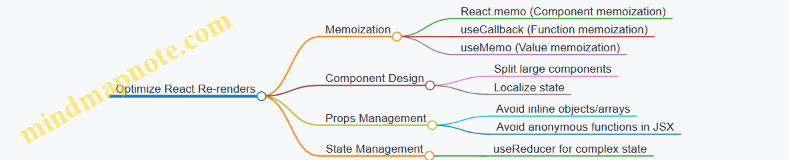
Example: Avoiding Re-renders with React.memo and useCallback
import React, { useState, useCallback } from 'react';
interface ButtonProps {
onClick: () => void;
label: string;
}
const Button: React.FC<ButtonProps> = React.memo(({ onClick, label }) => {
console.log(`Rendering button: ${label}`);
return <button onClick={onClick}>{label}</button>;
});
const Counter = () => {
const [count, setCount] = useState(0);
const [other, setOther] = useState(false);
const increment = useCallback(() => {
setCount(c => c + 1);
}, []);
return (
<div>
<p>Count: {count}</p>
<Button onClick={increment} label="Increment" />
<button onClick={() => setOther(o => !o)}>
Toggle Other ({other.toString()})
</button>
</div>
);
};
export default Counter;
In this example, toggling other state does not cause the Button component to re-render because increment is memoized with useCallback and Button is wrapped with React.memo.
When to Avoid Over-Optimization
While these techniques help, premature optimization can add complexity. Use React DevTools Profiler to identify real bottlenecks before applying memoization. Overusing React.memo or useCallback without cause can clutter code and sometimes hurt performance.
In summary, optimizing re-renders in React with TypeScript involves understanding how state and props changes trigger updates, then applying memoization and component design strategies to minimize unnecessary work. This leads to smoother user experiences and more maintainable code.
10.5 Best Practices: Balancing Performance and Readability
Balancing performance and readability in React applications using TypeScript is a practical challenge. You want your app to run smoothly without turning your codebase into a cryptic puzzle. Here’s a straightforward approach to keep both in check.
Understand When to Optimize
Not every piece of code needs micro-optimization. Premature optimization can obscure logic and slow development. Focus first on writing clear, maintainable code. Profile your app to identify real bottlenecks before applying complex performance tweaks.
Mind Map: Balancing Performance and Readability
Use Memoization Judiciously
React.memo, useCallback, and useMemo can prevent unnecessary re-renders, but overusing them can clutter your code and sometimes hurt performance due to added complexity.
Example:
import React, { useState, useCallback } from 'react';
interface ButtonProps {
onClick: () => void;
label: string;
}
const Button = React.memo(({ onClick, label }: ButtonProps) => {
console.log('Button rendered:', label);
return <button onClick={onClick}>{label}</button>;
});
const Counter = () => {
const [count, setCount] = useState(0);
// useCallback prevents re-creation of the function on every render
const increment = useCallback(() => setCount(c => c + 1), []);
return (
<div>
<p>Count: {count}</p>
<Button onClick={increment} label="Increment" />
</div>
);
};
export default Counter;
Here, React.memo avoids re-rendering the Button unless its props change. The useCallback hook ensures the onClick handler isn’t recreated on every render, which would otherwise cause Button to re-render. But if the component is simple and renders quickly, memoization might be unnecessary.
Keep Components Focused and Small
Smaller components are easier to read and optimize. They naturally limit re-render scope and make memoization more effective.
Example: Instead of one large component handling UI and logic, split it:
const UserProfile = ({ user }: { user: User }) => (
<>
<UserAvatar avatarUrl={user.avatarUrl} />
<UserDetails name={user.name} email={user.email} />
</>
);
This separation clarifies responsibilities and allows selective optimization.
Avoid Over-Complex Types
Complex TypeScript types can make code harder to read and maintain. Favor clear, simple interfaces over deeply nested generics or conditional types unless necessary.
Example:
// Clear interface
interface User {
id: string;
name: string;
email: string;
}
// Instead of complex generics for a simple list
const UserList = ({ users }: { users: User[] }) => (
<ul>{users.map(user => <li key={user.id}>{user.name}</li>)}</ul>
);
Document Non-Obvious Optimizations
When you do add performance-specific code, add comments explaining why. This helps future maintainers understand the trade-offs.
Example:
// Memoizing this component because it receives stable props and is expensive to render
const ExpensiveComponent = React.memo(({ data }: { data: DataType }) => {
// ...render logic
});
Avoid Over-Abstraction
While reusable components and hooks are good, excessive abstraction can obscure intent and make debugging harder. Balance reuse with clarity.
Summary
Balancing performance and readability means:
- Writing clear, simple code first
- Profiling before optimizing
- Applying memoization and hooks thoughtfully
- Keeping TypeScript types straightforward
- Documenting your intent
This approach keeps your codebase approachable and your app responsive.
11. Accessibility and Internationalization
11.1 Implementing ARIA Roles and Attributes in JSX
Implementing ARIA Roles and Attributes in JSX
Accessibility is a critical part of frontend development, ensuring that your React applications can be used by people with diverse abilities. ARIA (Accessible Rich Internet Applications) roles and attributes provide semantic information to assistive technologies like screen readers. When working with React and JSX, correctly applying ARIA roles and attributes helps bridge the gap between visual UI and accessibility APIs.
What Are ARIA Roles and Attributes?
- ARIA Roles define the purpose of an element (e.g., button, navigation, alert).
- ARIA Attributes provide additional information about the element’s state or properties (e.g.,
aria-expanded,aria-label).
Using these in JSX is straightforward but requires attention to syntax and semantics.
Mind Map: ARIA Roles and Attributes in JSX
Applying ARIA Roles in JSX
React uses camelCase for attribute names, so ARIA attributes must be written accordingly. For example, aria-label becomes aria-label in JSX (React supports lowercase for aria attributes), but event handlers and other attributes use camelCase.
Example: Assigning a navigation role to a <nav> element is redundant since <nav> is already recognized as a navigation landmark. However, for a <div> acting as a navigation container, explicitly adding role="navigation" helps.
function Navigation() {
return (
<div role="navigation" aria-label="Primary navigation">
<ul>
<li><a href="/home">Home</a></li>
<li><a href="/about">About</a></li>
</ul>
</div>
);
}
Here, the aria-label provides a descriptive name for the navigation region, which screen readers announce.
Common ARIA Roles and Their Usage
| Role | Description | Example Element |
|---|---|---|
button | Interactive button | <button> or <div> |
checkbox | Toggleable checkbox | <input type="checkbox"> or custom component |
dialog | Modal or popup dialog | <div> with modal content |
alert | Important, usually time-sensitive message | <div> for error or success messages |
Example: Custom button with ARIA role
function CustomButton({ onClick, label }: { onClick: () => void; label: string }) {
return (
<div
role="button"
tabIndex={0}
onClick={onClick}
onKeyDown={e => {
if (e.key === 'Enter' || e.key === ' ') {
onClick();
}
}}
aria-label={label}
style={{ padding: '8px', backgroundColor: '#eee', cursor: 'pointer' }}
>
{label}
</div>
);
}
This example shows how to make a non-semantic element behave like a button for accessibility purposes.
ARIA Attributes for State and Description
ARIA attributes often communicate dynamic states or relationships.
aria-expanded: Indicates if a collapsible element is open or closed.aria-checked: For checkboxes and toggle switches.aria-hidden: Hides content from assistive technologies.aria-describedby: Points to an element that describes the current element.
Example: Accordion component snippet
function Accordion({ title, isOpen, onToggle }: { title: string; isOpen: boolean; onToggle: () => void }) {
return (
<div>
<button
aria-expanded={isOpen}
aria-controls="accordion-content"
onClick={onToggle}
>
{title}
</button>
<div
id="accordion-content"
role="region"
aria-hidden={!isOpen}
>
{isOpen && <p>This is the accordion content.</p>}
</div>
</div>
);
}
Here, aria-expanded and aria-hidden reflect the open/closed state, enabling screen readers to understand the UI changes.
Mind Map: ARIA Attributes for Dynamic States
Best Practices Summary
- Prefer native HTML elements with inherent semantics (e.g.,
<button>,<nav>) before adding ARIA roles. - Use ARIA roles to clarify semantics when native elements are not suitable.
- Keep ARIA attributes in sync with component state to avoid misleading assistive technologies.
- Use descriptive labels (
aria-label,aria-labelledby) to provide context. - Ensure interactive elements are keyboard accessible (e.g.,
tabIndex, keyboard event handlers).
Implementing ARIA roles and attributes in JSX is a matter of combining semantic understanding with React’s syntax rules. The examples above illustrate how to make your UI components more accessible without sacrificing clarity or maintainability.
11.2 Keyboard Navigation and Focus Management
Keyboard navigation and focus management are essential for making React applications accessible to all users, including those who rely on keyboards instead of a mouse. Proper handling ensures users can navigate, interact, and understand your interface without frustration.
Why Keyboard Navigation Matters
Many users depend on keyboard navigation due to mobility impairments or preference. Screen readers and other assistive technologies also rely on logical focus order and clear focus indicators. Without proper keyboard support, interactive elements become unusable or confusing.
Mind Map: Keyboard Navigation Essentials
Focusable Elements and tabIndex
By default, HTML elements like <button>, <a href>, and form inputs are focusable. Custom components or divs are not focusable unless you add tabIndex.
tabIndex={0}makes an element focusable in the natural tab order.tabIndex={-1}makes an element programmatically focusable but skips it in tab order.
Example:
const CustomButton = () => {
return <div tabIndex={0} role="button">Click me</div>;
};
This allows keyboard users to tab to the div and interact with it.
Managing Focus Programmatically
Sometimes you want to move focus based on user actions, such as after submitting a form or opening a modal.
Use React’s useRef and the DOM focus() method:
import React, { useRef } from 'react';
const FocusExample = () => {
const inputRef = useRef<HTMLInputElement>(null);
const handleClick = () => {
inputRef.current?.focus();
};
return (
<div>
<input ref={inputRef} type="text" placeholder="Focus me" />
<button onClick={handleClick}>Focus Input</button>
</div>
);
};
This pattern improves keyboard flow by guiding focus where it’s needed.
Keyboard Event Handling
React supports keyboard events like onKeyDown and onKeyUp. Use these to add keyboard interactions beyond default behavior.
Example: Trigger an action on Enter or Space key press for a custom button:
const AccessibleButton = ({ onClick, children }: { onClick: () => void; children: React.ReactNode }) => {
const handleKeyDown = (e: React.KeyboardEvent) => {
if (e.key === 'Enter' || e.key === ' ') {
e.preventDefault();
onClick();
}
};
return (
<div
role="button"
tabIndex={0}
onClick={onClick}
onKeyDown={handleKeyDown}
style={{ padding: '8px', border: '1px solid black', display: 'inline-block' }}
>
{children}
</div>
);
};
This ensures keyboard users can activate the element just like mouse users.
Focus Order and Logical Flow
The order in which elements receive focus should match the visual and logical flow of the page. This usually means following the DOM order.
Avoid using positive tabIndex values (e.g., tabIndex={1}) as they create confusing navigation and can break expected tab order.
If you need to manage complex focus flows, consider grouping elements with landmarks (<nav>, <main>, <footer>) and using ARIA roles.
Focus Indicators
Browsers provide default focus outlines, but sometimes designers remove them, which harms accessibility.
If you customize focus styles, ensure they are clearly visible and meet contrast requirements.
Example CSS for a custom focus style:
:focus {
outline: 3px solid #005fcc;
outline-offset: 2px;
}
Managing Focus in Modals and Dialogs
When opening a modal, move focus to the first focusable element inside it. When closing, return focus to the element that triggered the modal.
Example snippet:
const Modal = ({ isOpen, onClose }: { isOpen: boolean; onClose: () => void }) => {
const closeButtonRef = useRef<HTMLButtonElement>(null);
const triggerRef = useRef<HTMLButtonElement>(null);
React.useEffect(() => {
if (isOpen) {
closeButtonRef.current?.focus();
} else {
triggerRef.current?.focus();
}
}, [isOpen]);
return (
<>
<button ref={triggerRef} onClick={() => onClose()}>Open Modal</button>
{isOpen && (
<div role="dialog" aria-modal="true">
<button ref={closeButtonRef} onClick={onClose}>Close</button>
<p>Modal content here</p>
</div>
)}
</>
);
};
Summary
- Use native focusable elements or add
tabIndex={0}for custom components. - Manage focus programmatically with refs and
.focus(). - Handle keyboard events to replicate mouse interactions.
- Keep focus order logical and avoid positive
tabIndexvalues. - Ensure visible focus indicators are present.
- Manage focus carefully in modals and dialogs.
These practices make your React app usable and friendly for keyboard users, improving overall accessibility and user experience.
11.3 Using react-i18next with TypeScript for Localization
Using react-i18next with TypeScript for Localization
Localization is essential for applications targeting users across different languages and regions. The react-i18next library is a popular choice for internationalizing React apps, and it works well with TypeScript to provide type safety and better developer experience.
Setting Up react-i18next in a TypeScript React Project
Start by installing the necessary packages:
npm install react-i18next i18next i18next-http-backend i18next-browser-languagedetector
The core of localization with react-i18next involves:
- Initializing i18next with language resources
- Wrapping your app with the
I18nextProvider(or using theuseTranslationhook) - Using translation keys in your components
Basic Initialization Example
import i18n from 'i18next';
import { initReactI18next } from 'react-i18next';
const resources = {
en: {
translation: {
welcome: "Welcome to our app!",
userGreeting: "Hello, {{name}}!"
}
},
fr: {
translation: {
welcome: "Bienvenue dans notre application!",
userGreeting: "Bonjour, {{name}}!"
}
}
};
i18n
.use(initReactI18next)
.init({
resources,
lng: 'en',
fallbackLng: 'en',
interpolation: {
escapeValue: false
}
});
export default i18n;
This setup defines English and French translations and initializes i18next with them.
Using the useTranslation Hook with TypeScript
import React from 'react';
import { useTranslation } from 'react-i18next';
interface GreetingProps {
name: string;
}
const Greeting: React.FC<GreetingProps> = ({ name }) => {
const { t } = useTranslation();
return <h1>{t('userGreeting', { name })}</h1>;
};
export default Greeting;
Here, the t function is used to fetch the localized string for userGreeting, injecting the name variable.
Typing Translation Keys for Safer Code
One challenge in localization is ensuring translation keys are valid. Without typing, a typo in a key won’t be caught until runtime.
To improve this, you can define a TypeScript type for your translation keys. For example:
type TranslationKeys = 'welcome' | 'userGreeting';
Then, create a typed wrapper around t:
import { useTranslation as useTranslationOriginal, TFunction } from 'react-i18next';
function useTranslation(): { t: (key: TranslationKeys, options?: object) => string } {
const { t } = useTranslationOriginal();
return { t };
}
This restricts t to only accept keys defined in TranslationKeys. While this is manual, it reduces errors.
Mind Map: Localization Flow with react-i18next and TypeScript
Handling Namespaces and Multiple Resource Files
For larger apps, translations are often split into namespaces (e.g., common, home, profile).
Initialization example:
const resources = {
en: {
common: { welcome: "Welcome" },
profile: { greeting: "Hello, {{name}}" }
},
fr: {
common: { welcome: "Bienvenue" },
profile: { greeting: "Bonjour, {{name}}" }
}
};
i18n.init({
resources,
ns: ['common', 'profile'],
defaultNS: 'common',
lng: 'en'
});
Using namespaces in components:
const { t } = useTranslation('profile');
return <p>{t('greeting', { name: 'Alice' })}</p>;
Mind Map: Namespace Usage
Dealing with TypeScript and Namespaces
Typing keys across namespaces can be trickier. One approach is to create a union type combining keys with namespace prefixes:
type NamespaceKeys =
| 'common:welcome'
| 'profile:greeting';
Then, a typed t function can parse keys accordingly.
Interpolation and Formatting
react-i18next supports interpolation, which lets you insert variables into translations safely.
Example:
const { t } = useTranslation();
const message = t('userGreeting', { name: 'Bob' });
TypeScript ensures the options object matches expected variables, but this requires manual typing or runtime checks.
Best Practices Summary
- Initialize i18next with clear resource structure.
- Use namespaces to organize translations.
- Define TypeScript types for translation keys to catch errors early.
- Use the
useTranslationhook to access translations in components. - Pass variables explicitly for interpolation.
- Handle missing keys gracefully (e.g., fallback strings).
Localization with react-i18next and TypeScript is straightforward but benefits from explicit typing to avoid runtime surprises. The combination helps maintain a clean, scalable codebase as your app grows.
11.4 Handling Date, Number, and Currency Formats
When building frontend applications, presenting dates, numbers, and currencies in a way that matches user expectations is crucial. Users from different regions expect different formats, and ignoring this can lead to confusion or mistrust. Fortunately, JavaScript’s Intl API provides a straightforward way to handle localization for these data types.
Mind Map: Handling Localization in React
Formatting Dates
The Intl.DateTimeFormat constructor formats dates according to locale and options.
const date = new Date('2024-06-15T13:45:30Z');
// Format date for US English
const usFormatter = new Intl.DateTimeFormat('en-US', {
year: 'numeric',
month: 'long',
day: 'numeric',
hour: '2-digit',
minute: '2-digit',
timeZoneName: 'short'
});
console.log(usFormatter.format(date)); // June 15, 2024, 09:45 AM EDT
// Format date for German
const deFormatter = new Intl.DateTimeFormat('de-DE', {
year: 'numeric',
month: 'long',
day: 'numeric',
hour: '2-digit',
minute: '2-digit',
timeZoneName: 'short'
});
console.log(deFormatter.format(date)); // 15. Juni 2024, 15:45 MESZ
Best Practice: Always specify the locale explicitly or derive it from user preferences or browser settings. Avoid relying on the default locale.
Example Component:
interface DateDisplayProps {
date: Date;
locale: string;
}
const DateDisplay: React.FC<DateDisplayProps> = ({ date, locale }) => {
const formatter = React.useMemo(() => {
return new Intl.DateTimeFormat(locale, {
year: 'numeric',
month: 'short',
day: 'numeric'
});
}, [locale]);
return <time dateTime={date.toISOString()}>{formatter.format(date)}</time>;
};
This component memoizes the formatter to avoid unnecessary recalculations.
Formatting Numbers
Numbers can have different decimal and grouping separators depending on locale.
const number = 1234567.89;
const usNumberFormatter = new Intl.NumberFormat('en-US');
console.log(usNumberFormatter.format(number)); // 1,234,567.89
const frNumberFormatter = new Intl.NumberFormat('fr-FR');
console.log(frNumberFormatter.format(number)); // 1 234 567,89
You can also control the number of fraction digits:
const preciseFormatter = new Intl.NumberFormat('en-US', {
minimumFractionDigits: 2,
maximumFractionDigits: 2
});
console.log(preciseFormatter.format(1234.5)); // 1,234.50
Best Practice: Use Intl.NumberFormat for any numeric display that might be locale-sensitive, including percentages and units.
Formatting Currency
Currency formatting is a common requirement and varies widely by locale.
const amount = 1234.56;
const usdFormatter = new Intl.NumberFormat('en-US', {
style: 'currency',
currency: 'USD'
});
console.log(usdFormatter.format(amount)); // $1,234.56
const eurFormatter = new Intl.NumberFormat('de-DE', {
style: 'currency',
currency: 'EUR'
});
console.log(eurFormatter.format(amount)); // 1.234,56 €
Best Practice: Always specify the currency code explicitly. Do not hardcode currency symbols.
Mind Map: Intl API Usage
Parsing Dates
JavaScript’s Date parsing is inconsistent across browsers and locales. For reliable parsing, prefer ISO 8601 strings or libraries (not covered here). When displaying, always format with Intl.DateTimeFormat.
Summary
- Use
Intl.DateTimeFormatfor date and time formatting. - Use
Intl.NumberFormatfor numbers and currencies. - Always specify locale and options explicitly.
- Memoize formatters in React components to improve performance.
- Avoid manual string manipulation for formatting.
These practices ensure your frontend respects user locale preferences and presents data clearly and professionally.
11.5 Best Practices: Ensuring Inclusive and Global-Ready Apps
Ensuring your React and TypeScript applications are inclusive and global-ready is more than just a checkbox; it’s about making your app usable and welcoming to a broad audience. This section focuses on practical best practices to help you build apps that respect diverse users and international contexts.
Mind Map: Key Areas for Inclusive and Global-Ready Apps
Accessibility as Foundation
Accessibility is the baseline for inclusivity. Use semantic HTML elements whenever possible. For example, prefer <button> over a clickable <div> because buttons come with built-in keyboard and screen reader support.
In React, add ARIA roles and attributes thoughtfully. For instance, if you create a custom modal component, ensure it has role="dialog" and that focus is trapped inside while open.
function Modal({ isOpen, onClose }: { isOpen: boolean; onClose: () => void }) {
if (!isOpen) return null;
return (
<div role="dialog" aria-modal="true" aria-labelledby="modal-title" tabIndex={-1}>
<h2 id="modal-title">Modal Title</h2>
<button onClick={onClose}>Close</button>
</div>
);
}
Keyboard navigation matters. Ensure all interactive elements are reachable via Tab and that focus order is logical. Avoid keyboard traps.
Localization: Language and Formatting
Use libraries or native APIs to format dates, numbers, and currencies according to the user’s locale.
Example using Intl.DateTimeFormat:
const formattedDate = new Intl.DateTimeFormat('fr-FR', { dateStyle: 'long' }).format(new Date());
// "14 septembre 2023"
For numbers and currencies:
const price = 1234.56;
const formattedPrice = new Intl.NumberFormat('de-DE', { style: 'currency', currency: 'EUR' }).format(price);
// "1.234,56 €"
Avoid hardcoding text. Store strings separately and load translations dynamically. This keeps your app flexible for multiple languages.
Cultural Sensitivity in UI
Be mindful of colors and icons. For example, red can mean danger in some cultures but prosperity in others. Avoid culturally specific idioms or jokes in UI text.
Icons should be clear and universal. For instance, a trash bin icon for delete is widely understood, but some symbols might confuse users from different backgrounds.
Input and Layout Considerations
Support input methods for different scripts, including accented characters, non-Latin alphabets, and right-to-left languages like Arabic or Hebrew.
React supports RTL layouts by setting the dir attribute on the root element:
function App() {
return <div dir="rtl">مرحبا بالعالم</div>;
}
Ensure your CSS supports mirroring for RTL. Many CSS-in-JS libraries and frameworks offer RTL support or plugins.
Testing for Inclusivity
Run accessibility audits using tools like axe-core integrated into your testing pipeline. Write tests that simulate keyboard navigation and screen reader usage.
For localization, test your app with different locales to catch layout issues caused by longer text or different date formats.
Summary
Inclusive and global-ready apps require attention to accessibility, localization, cultural context, input diversity, and thorough testing. React and TypeScript provide tools and typings that help you build with these considerations in mind. The goal is to create interfaces that work well for everyone, regardless of ability or location.
12. Deployment and Build Optimization
12.1 Configuring Webpack and Babel for React + TypeScript
When building a React application with TypeScript, setting up Webpack and Babel correctly is essential to ensure smooth development and optimized builds. Webpack handles bundling your code and assets, while Babel transpiles modern JavaScript and JSX into browser-compatible code. TypeScript adds static typing and needs to be integrated into this pipeline.
Mind Map: Core Concepts for Webpack + Babel + TypeScript Setup
Step 1: Initialize Your Project
Start by creating a new directory and initializing npm:
mkdir react-ts-app
cd react-ts-app
npm init -y
Install React, ReactDOM, and TypeScript:
npm install react react-dom
npm install --save-dev typescript @types/react @types/react-dom
Step 2: Install Webpack and Babel Dependencies
You’ll need Webpack and Babel along with their loaders and presets:
npm install --save-dev webpack webpack-cli webpack-dev-server
npm install --save-dev babel-loader @babel/core @babel/preset-env @babel/preset-react @babel/preset-typescript
npm install --save-dev html-webpack-plugin
npm install --save-dev fork-ts-checker-webpack-plugin
babel-loaderconnects Babel with Webpack.fork-ts-checker-webpack-pluginruns TypeScript type checking in a separate process to keep builds fast.
Step 3: Configure Babel
Create a .babelrc file in your project root:
{
"presets": [
"@babel/preset-env",
"@babel/preset-react",
"@babel/preset-typescript"
]
}
@babel/preset-envcompiles modern JavaScript down to a target environment.@babel/preset-reacthandles JSX syntax.@babel/preset-typescriptstrips TypeScript types (note: Babel does not perform type checking).
Step 4: Configure TypeScript
Create a tsconfig.json:
{
"compilerOptions": {
"target": "ES6",
"module": "ESNext",
"jsx": "react-jsx",
"strict": true,
"moduleResolution": "node",
"esModuleInterop": true,
"skipLibCheck": true,
"forceConsistentCasingInFileNames": true,
"noEmit": true
},
"include": ["src"]
}
Key points:
noEmit: truetells TypeScript not to output files since Babel handles transpilation.jsx: react-jsxenables the new JSX transform.
Step 5: Configure Webpack
Create webpack.config.js:
const path = require('path');
const HtmlWebpackPlugin = require('html-webpack-plugin');
const ForkTsCheckerWebpackPlugin = require('fork-ts-checker-webpack-plugin');
module.exports = {
mode: 'development',
entry: './src/index.tsx',
output: {
filename: 'bundle.js',
path: path.resolve(__dirname, 'dist'),
clean: true
},
resolve: {
extensions: ['.tsx', '.ts', '.js']
},
module: {
rules: [
{
test: /\.(ts|tsx)$/,
use: 'babel-loader',
exclude: /node_modules/
}
]
},
plugins: [
new HtmlWebpackPlugin({
template: './public/index.html'
}),
new ForkTsCheckerWebpackPlugin()
],
devServer: {
static: './dist',
hot: true,
port: 3000
}
};
Explanation:
entry: The main file where your app starts.output: Where the bundled files go.resolve.extensions: Allows importing files without specifying extensions.module.rules: Usesbabel-loaderfor.tsand.tsxfiles.HtmlWebpackPlugin: Generates an HTML file that includes the bundle.ForkTsCheckerWebpackPlugin: Runs type checking separately.devServer: Configures the development server.
Step 6: Project Structure Example
react-ts-app/
├── dist/
├── node_modules/
├── public/
│ └── index.html
├── src/
│ ├── App.tsx
│ └── index.tsx
├── package.json
├── tsconfig.json
├── webpack.config.js
└── .babelrc
index.html in public folder:
<!DOCTYPE html>
<html lang="en">
<head>
<meta charset="UTF-8" />
<meta name="viewport" content="width=device-width, initial-scale=1.0" />
<title>React TypeScript App</title>
</head>
<body>
<div id="root"></div>
</body>
</html>
src/index.tsx:
import React from 'react';
import ReactDOM from 'react-dom/client';
import App from './App';
const root = ReactDOM.createRoot(document.getElementById('root') as HTMLElement);
root.render(<App />);
src/App.tsx:
import React from 'react';
const App: React.FC = () => {
return <h1>Hello, React with TypeScript and Webpack!</h1>;
};
export default App;
Summary
- Babel handles transpiling TypeScript and JSX but skips type checking.
- Webpack bundles your code and assets, using
babel-loaderto process.tsxand.tsfiles. - TypeScript configuration focuses on type checking and JSX support, with
noEmitto avoid duplicate output. fork-ts-checker-webpack-pluginensures type checking runs alongside Webpack without slowing builds.- This setup balances fast builds with type safety and modern JavaScript features.
This configuration forms a solid base for React + TypeScript projects, letting you focus on writing components without worrying about build complexity.
12.2 Environment Variables and Configuration Management
Managing environment variables and configuration settings is a crucial part of any React + TypeScript project. It helps keep sensitive data secure, separates development from production settings, and makes your app adaptable to different deployment environments.
What Are Environment Variables?
Environment variables are key-value pairs stored outside your codebase that your application can access at runtime. They typically hold configuration details like API endpoints, feature flags, or secret keys.
In React projects created with Create React App (CRA), environment variables must start with REACT_APP_ to be accessible in the client-side code. This naming convention prevents accidental exposure of sensitive variables.
Why Use Environment Variables?
- Security: Avoid hardcoding secrets like API keys directly in your source code.
- Flexibility: Easily switch between development, staging, and production configurations.
- Maintainability: Centralize configuration to reduce duplication and errors.
Mind Map: Environment Variables in React + TypeScript
Setting Up Environment Variables
Create React App automatically loads variables from .env files placed in your project root. You can have multiple files for different environments:
.env— default for all environments.env.development— overrides for development.env.production— overrides for production
Example .env.development:
REACT_APP_API_URL=https://dev-api.example.com
REACT_APP_FEATURE_FLAG=true
Example .env.production:
REACT_APP_API_URL=https://api.example.com
REACT_APP_FEATURE_FLAG=false
When you run npm start, CRA loads .env.development by default. When you run npm run build, it loads .env.production.
Accessing Environment Variables in Code
You can access environment variables via process.env.REACT_APP_VARIABLE_NAME. TypeScript requires you to define types for these variables to avoid errors.
Example:
interface EnvVars {
REACT_APP_API_URL: string;
REACT_APP_FEATURE_FLAG: string;
}
const env = process.env as unknown as EnvVars;
console.log('API URL:', env.REACT_APP_API_URL);
const isFeatureEnabled = env.REACT_APP_FEATURE_FLAG === 'true';
Note that environment variables are always strings, so you may need to convert them (e.g., to boolean or number).
Validating Environment Variables
Since environment variables are injected at build time, missing or malformed variables can cause runtime errors. A simple validation function helps catch issues early.
Example validation:
function validateEnv(env: EnvVars) {
if (!env.REACT_APP_API_URL) {
throw new Error('Missing REACT_APP_API_URL environment variable');
}
}
validateEnv(env);
This check can be placed at the app’s entry point.
Using Environment Variables in React Components
Example of fetching data using a typed environment variable:
import React, { useEffect, useState } from 'react';
const API_URL = process.env.REACT_APP_API_URL || '';
const DataFetcher: React.FC = () => {
const [data, setData] = useState<any>(null);
const [error, setError] = useState<string | null>(null);
useEffect(() => {
if (!API_URL) {
setError('API URL is not configured');
return;
}
fetch(`${API_URL}/data`)
.then(res => {
if (!res.ok) throw new Error('Network response was not ok');
return res.json();
})
.then(setData)
.catch(err => setError(err.message));
}, []);
if (error) return <div>Error: {error}</div>;
if (!data) return <div>Loading...</div>;
return <pre>{JSON.stringify(data, null, 2)}</pre>;
};
export default DataFetcher;
Best Practices for Environment Variables and Configuration
- Never commit secrets to version control. Use environment-specific
.envfiles and add.env.localto.gitignorefor local overrides. - Use defaults or fallback values in your code to avoid crashes when variables are missing.
- Keep environment variables flat and simple. Avoid complex objects; instead, use separate variables.
- Document required environment variables clearly for your team.
- Validate variables at runtime to catch configuration errors early.
- Avoid exposing sensitive data in frontend code; remember that any variable prefixed with
REACT_APP_will be bundled and visible in the browser.
Mind Map: Configuration Management Workflow
Proper environment variable management keeps your React + TypeScript app flexible and secure. It separates configuration from code, making deployments smoother and reducing the risk of mistakes. With clear typing and validation, you can catch errors early and maintain confidence in your app’s behavior across environments.
12.3 Building and Deploying to Static Hosts and CDNs
When your React + TypeScript application is ready for the world, the next step is to build it into static assets and deploy those assets to a hosting environment. Static hosts and CDNs (Content Delivery Networks) are popular choices because they serve files quickly and reliably without the need for server-side rendering or backend infrastructure.
Building the Application
The build process converts your development code into optimized static files (HTML, CSS, JavaScript, images) that browsers can efficiently load.
-
Run the build command:
npm run buildor
yarn buildThis triggers the build script defined in your
package.json, usually powered by tools like Webpack or Vite. -
Output folder: The build artifacts typically go into a folder named
buildordist. This folder contains everything needed to deploy your app. -
What’s inside?
index.html: The main HTML file.- Bundled JavaScript files: Your React and TypeScript code compiled and minified.
- CSS files: Styles extracted and optimized.
- Static assets: Images, fonts, and other resources.
Deploying to Static Hosts and CDNs
Static hosts serve these files over HTTP(S), often backed by CDNs that cache content globally for faster delivery.
Common Deployment Steps
-
Choose a static host or CDN provider. Examples include Netlify, Vercel, GitHub Pages, AWS S3 + CloudFront, or Firebase Hosting.
-
Upload your build folder contents. This can be done via CLI tools, web dashboards, or automated pipelines.
-
Configure your domain and HTTPS. Most providers offer easy SSL setup.
-
Set routing rules if needed. For React apps using client-side routing, configure fallback to
index.htmlfor unknown paths. -
Invalidate cache or purge CDN if updating. Ensures users get the latest version.
Mind Map: Deployment Workflow
Example: Deploying to GitHub Pages
-
Install the GitHub Pages package:
npm install --save-dev gh-pages -
Add deployment scripts to
package.json:{ "scripts": { "predeploy": "npm run build", "deploy": "gh-pages -d build" } } -
Run the deploy command:
npm run deploy -
Configure GitHub repository settings:
- Set GitHub Pages source to the
gh-pagesbranch.
- Set GitHub Pages source to the
-
Access your app:
- Visit
https://<username>.github.io/<repository>/
- Visit
Mind Map: GitHub Pages Deployment
Example: Deploying to AWS S3 + CloudFront
-
Build your app:
npm run build -
Create an S3 bucket:
- Enable static website hosting.
- Set bucket policy to allow public read access.
-
Upload build files:
- Use AWS CLI:
aws s3 sync build/ s3://your-bucket-name/ --delete
- Use AWS CLI:
-
Set up CloudFront distribution:
- Point origin to your S3 bucket.
- Enable HTTPS.
- Configure default root object as
index.html.
-
Invalidate CloudFront cache after updates:
aws cloudfront create-invalidation --distribution-id YOUR_DIST_ID --paths "/*" -
Access your app via CloudFront domain or custom domain.
Mind Map: AWS S3 + CloudFront Deployment
Handling Client-Side Routing
React apps often use client-side routing (e.g., React Router). Static hosts need to serve index.html for all routes to allow React to handle navigation.
- Configure fallback:
- Netlify:
_redirectsfile with/* /index.html 200 - GitHub Pages: Use
404.htmlas fallback - AWS S3: Configure error document as
index.html
- Netlify:
This ensures that all paths load your React app instead of returning 404 errors.
Cache Control and Versioning
Browsers and CDNs cache static assets to improve performance. However, caching can cause users to see outdated files after deployment.
-
Use content hashing: Build tools generate filenames with hashes (e.g.,
main.abc123.js) to bust cache when content changes. -
Set cache headers: Configure your host or CDN to cache assets aggressively but revalidate HTML files frequently.
-
Invalidate CDN cache: When deploying, purge cached files on the CDN to force fresh content delivery.
Summary
Building and deploying React + TypeScript apps to static hosts and CDNs involves:
- Running a production build to generate optimized static files.
- Uploading those files to a static host or CDN.
- Configuring routing fallbacks for client-side navigation.
- Managing caching strategies to ensure users get the latest version.
Each hosting provider has its own setup steps, but the core principles remain consistent. Automating deployment through scripts or CI/CD pipelines can save time and reduce errors.
12.4 Analyzing Bundle Size and Tree Shaking
When building React applications with TypeScript, keeping your bundle size in check is crucial for performance and user experience. Larger bundles mean longer load times and slower interactivity. Two key techniques to manage this are bundle analysis and tree shaking.
What is Bundle Size Analysis?
Bundle size analysis is the process of inspecting the compiled output of your application to understand what contributes to its size. This helps identify large dependencies, duplicated code, or unused modules.
What is Tree Shaking?
Tree shaking is a form of dead code elimination. It removes unused exports from your final bundle, reducing size by excluding code that your app doesn’t actually use. Modern bundlers like Webpack and Rollup support tree shaking when your code and dependencies use ES module syntax.
Mind Map: Bundle Size Analysis
Mind Map: Tree Shaking

How to Analyze Your Bundle Size
- Use Webpack Bundle Analyzer
- Install it as a dev dependency.
- Add it as a plugin in your Webpack config.
- Run your build and open the generated interactive treemap.
Example Webpack config snippet:
const BundleAnalyzerPlugin = require('webpack-bundle-analyzer').BundleAnalyzerPlugin;
module.exports = {
// ...other config
plugins: [
new BundleAnalyzerPlugin(),
],
};
The treemap shows each module’s size and how it contributes to the overall bundle. Larger blocks indicate heavier modules.
- Source Map Explorer
- Works with source maps to break down your bundle.
- Run it with your built JavaScript file and source map.
Example command:
npx source-map-explorer build/static/js/main.*.js build/static/js/main.*.js.map
It outputs a visual breakdown similar to Webpack Bundle Analyzer.
Tree Shaking in Practice
Tree shaking depends on your code and dependencies using ES modules. Here’s a simple example:
// utils.ts
export function usedFunction() {
return 'I am used';
}
export function unusedFunction() {
return 'I am not used';
}
// App.tsx
import { usedFunction } from './utils';
console.log(usedFunction());
If your bundler is configured correctly, unusedFunction will be excluded from the final bundle.
Common Pitfalls
- Using CommonJS modules: Tree shaking works best with ES modules. If you import CommonJS modules, tree shaking may not remove unused code.
- Side effects: Modules that perform side effects when imported prevent tree shaking. Mark such modules correctly in your
package.jsonwith thesideEffectsfield.
Example package.json snippet:
{
"sideEffects": false
}
This tells bundlers that your code has no side effects, enabling more aggressive tree shaking.
- Dynamic imports: If you use dynamic imports or require statements, static analysis for tree shaking becomes difficult.
Tips for Effective Tree Shaking
- Prefer libraries that provide ES module builds.
- Avoid importing entire libraries when you only need parts.
For example, instead of:
import _ from 'lodash';
const result = _.debounce(() => {}, 300);
Use:
import debounce from 'lodash/debounce';
const result = debounce(() => {}, 300);
This reduces the imported code to just the debounce function.
- Use the
sideEffectsflag in your own packages or modules. - Keep your dependencies up to date, as many libraries improve tree shaking support over time.
Summary
Analyzing your bundle size and applying tree shaking are practical steps to keep your React + TypeScript app lean. Use tools like Webpack Bundle Analyzer or Source Map Explorer to visualize your bundle. Ensure your code and dependencies use ES modules and mark side effects properly to enable tree shaking. Lastly, import only what you need to avoid unnecessary bloat.
12.5 Best Practices: Continuous Integration and Delivery Pipelines
Continuous Integration (CI) and Continuous Delivery (CD) pipelines are essential for maintaining code quality and speeding up deployment cycles in modern frontend projects using React and TypeScript. A well-structured pipeline automates testing, building, and deployment, reducing manual errors and ensuring consistent releases.
Key Components of CI/CD Pipelines
Best Practices for CI/CD in React + TypeScript Projects
Use a Branching Strategy
Keep your main branch stable by using feature branches for development. Pull requests should trigger the pipeline to run tests and builds before merging.
Automate Type Checking and Linting
Run tsc --noEmit to check for type errors and use ESLint with TypeScript plugins to catch code style and potential bugs early. This prevents type-related bugs from reaching production.
# Example npm script
"lint": "eslint 'src/**/*.{ts,tsx}'",
"type-check": "tsc --noEmit"
Run Unit and Integration Tests Automatically
Use Jest and React Testing Library to write tests. Configure your pipeline to run these tests on every push or pull request. Fail the build if tests do not pass.
# Example npm script
"test": "jest --coverage"
Build and Bundle with Production Settings
Ensure the build step uses production flags to optimize the output. For example, use react-scripts build or a custom Webpack configuration with mode: 'production'.
Use Environment-Specific Configurations
Separate environment variables for development, staging, and production. Your pipeline should inject the correct variables during deployment.
Deploy to a Staging Environment First
Deploy the build to a staging environment automatically. This allows manual or automated acceptance testing before pushing to production.
Automate Production Deployment
Once staging tests pass, the pipeline should deploy to production. Use atomic deployments or blue-green deployments to minimize downtime.
Implement Rollbacks
Keep previous stable builds available so you can quickly revert if a deployment causes issues.
Monitor Builds and Deployments
Set up notifications for build failures or deployment issues via email, Slack, or other tools. Include logs and error details to speed up troubleshooting.
Example: Simple GitHub Actions Workflow for React + TypeScript
name: CI/CD Pipeline
on:
push:
branches:
- main
- develop
pull_request:
branches:
- main
jobs:
build-and-test:
runs-on: ubuntu-latest
steps:
- uses: actions/checkout@v3
- name: Use Node.js
uses: actions/setup-node@v3
with:
node-version: '16'
- name: Install dependencies
run: npm ci
- name: Type Check
run: npm run type-check
- name: Lint
run: npm run lint
- name: Run Tests
run: npm test
- name: Build
run: npm run build
- name: Deploy to Staging
if: github.ref == 'refs/heads/develop'
run: |
echo "Deploying to staging environment..."
# Add deployment commands here
- name: Deploy to Production
if: github.ref == 'refs/heads/main'
run: |
echo "Deploying to production environment..."
# Add deployment commands here
Mind Map: CI/CD Pipeline Flow
Tips for Smooth CI/CD
- Keep build times short to get quick feedback.
- Cache dependencies and build artifacts where possible.
- Use secrets management for sensitive environment variables.
- Regularly update dependencies and pipeline tools.
- Document your pipeline steps clearly for team understanding.
By integrating these practices, your React and TypeScript projects will benefit from reliable, repeatable deployments and faster iteration cycles.