Restoring Early Portable Music Players
1. Scope, Safety, and Repair Workflow
1.1 Identifying the Player Model, Generation, and Service Constraints
Before you touch a screw, you want three answers: what exact machine you have, which era it comes from, and what that implies for safe, effective service. “Model” tells you the exact layout and parts. “Generation” tells you the design choices that affect failure modes and repair approach. “Service constraints” are the practical limits: what you can access, what you can safely power, and what tools or replacements you’ll need.
What to Record First
Start with a quick bench log. Write down the model number, serial label (if present), and the power options (battery voltage, external DC jack rating, and whether it supports AC). Then note the transport type: cassette mechanism style, whether it uses a belt, and whether the capstan is direct-driven or belt-driven. Finally, record the symptom set in plain language: “no spin,” “spins but no audio,” “audio but weak,” “distortion at high volume,” or “intermittent channel.” These notes prevent you from chasing the wrong subsystem.
A simple example: two Walkman-style players can share the same brand and similar faceplates, yet one uses a belt for the reel drive while the other uses an idler and clutch. If you assume the wrong transport architecture, you’ll waste time and may damage plastic gears.
Model Identification Without Guessing
Use the physical identifiers you can see without disassembly. Common places include the back label, battery compartment sticker, and inside the cassette door. If the label is missing or illegible, use a “feature fingerprint”:
- Control layout: number and type of buttons, presence of a HOLD switch, and whether volume is a slider or rotary.
- Headphone jack type: 3.5 mm vs proprietary, and whether it’s mounted on a board or on the chassis.
- Power entry: barrel jack vs DC-in contacts, and whether there’s a separate battery eliminator path.
- Transport window: visible belt path, idler position, and whether the flywheel is exposed.
When you compare fingerprints, you’re not trying to be clever; you’re reducing uncertainty. If two candidates remain after your checks, treat the player as “unknown generation” and verify by opening only what’s necessary to confirm the transport and power circuitry.
Generation Clues That Actually Matter
Generation is less about marketing years and more about engineering patterns. Look for:
- Capacitor style: older units often use larger electrolytics and through-hole parts; later ones may use smaller, denser boards.
- Power regulation approach: some designs rely on discrete regulators; others use integrated solutions.
- Service access: early units may have more removable subassemblies; later ones may require partial board lifting.
- Switching and muting: older players may mute via mechanical contacts; others mute via transistor logic.
A practical example: if you see a cluster of small electrolytics near the headphone output, you should expect noise or channel imbalance after years of heat cycling. If those capacitors are absent and the output stage is more discrete, your likely culprits shift toward switch contacts, jack wiring, or grounding.
Service Constraints You Must Respect
Constraints are not obstacles; they’re the rules of the game.
- Power safety: confirm battery chemistry and voltage. If the player uses a DC jack, verify polarity markings before applying power. If you’re unsure, do not “test and see.”
- Capacitor discharge: if the unit has a mains adapter path or a higher-voltage regulator stage, treat it as potentially holding charge.
- Mechanical fragility: early plastics can become brittle. Plan your disassembly order so you don’t flex brittle tabs.
- Tool fit: small screws may use unusual heads. Using the wrong driver can strip plastic bosses.
- Replacement availability: if a part is unique to a model family (like a specific transport idler), you may need to source it before committing to a full rebuild.
Mind Map: Identification to Constraints
Example Workflow That Stays Systematic
On a bench, you can follow a repeatable sequence:
- Record identifiers: model number, power ratings, and transport observations.
- Classify architecture: belt-driven vs idler-driven transport, and whether the output stage is on a small daughter board.
- Set constraints: confirm polarity, plan discharge, and choose the correct driver size.
- Map symptoms to zones: “no spin” points to power-to-transport and motor drive; “spins but no audio” points to head path, preamp, muting, and output coupling.
If you do this consistently, your repair plan becomes a set of testable steps rather than a series of random fixes. That’s the difference between “working on a player” and actually restoring it.
1.2 Safety Practices for Batteries, Mains Adapters, and Capacitor Discharge
Portable cassette players often hide the most dangerous parts in plain sight: battery contacts that can short, mains adapters that can fail quietly, and capacitors that keep charge after power is removed. The goal is simple: make the device safe to handle before you touch anything else.
Battery Safety Practices
Start by treating every battery compartment as if it could short. Remove the batteries first, then inspect for bent springs, loose tabs, and corrosion. Corrosion matters because it can create a conductive path between terminals even when the switch is “off.” A quick check is to set a multimeter to continuity and confirm there is no path between the battery positive and negative rails.
If you’re cleaning terminals, avoid metal tools that can bridge the rails. Use plastic or insulated tools when scraping, and keep a finger away from both terminals at once. When reassembling, confirm the battery door presses the contacts firmly; weak contact pressure can cause intermittent power, which can stress electronics and make troubleshooting misleading.
Example: A player powers on only when you press the battery door. After cleaning contacts, you measure continuity between rails and find a partial short caused by a corroded spring. Replacing the spring restores stable power and prevents random resets during playback.
Mains Adapter Safety Practices
Many Walkman-style units use a DC input jack, but the adapter itself may be the weak link. Before connecting anything, verify the adapter’s output voltage matches the player’s label. If the label says 3V and the adapter is 6V, don’t “test it for a second.” That second is enough to damage regulator circuits.
Inspect the adapter cable for cracks near the plug and strain relief. A cable break can intermittently disconnect power, which can look like a circuit fault. If you have a multimeter, measure the adapter’s output under light load by powering the player briefly with the volume low and observing whether the voltage sags.
Example: The player plays, then cuts out when the cable moves. The adapter output voltage drops from 4.5V to 3.8V when you gently flex the cable. Replacing the adapter cable fixes the symptom without touching the player.
Capacitor Discharge Safety Practices
Capacitors can store charge in power supply and audio stages. Even after removing batteries, some capacitors remain charged long enough to cause a shock or damage sensitive parts. The safe approach is to identify the likely high-voltage or high-energy capacitors first.
Use a multimeter to measure DC voltage across large electrolytics before touching nearby components. If you see a reading, discharge safely rather than guessing. A common method is a resistor discharge using an insulated clip lead. Keep the resistor value high enough to limit current while still discharging within a reasonable time.
Example: After removing batteries, you measure 12V across a main electrolytic. You discharge it through a resistor until the voltage falls below a few hundred millivolts, then you proceed with soldering.
Mind Map: Safety Flow and Checks
Practical Discharge Method
Use a resistor discharge approach with insulated tools. Clip the resistor across the capacitor terminals, wait until the voltage drops, then re-measure. Do not short the capacitor with a screwdriver; that creates a high-current pulse and can damage the capacitor or nearby traces.
Resistor Discharge Workflow
1) Remove power sources
2) Measure capacitor voltage with multimeter
3) If voltage is present, connect a resistor across terminals
4) Wait, then re-measure voltage
5) Stop when voltage is near zero
6) Verify again before touching the area
Final Safety Checks Before Soldering
Before you heat anything, confirm two things: there is no continuity between battery rails when the switch is off, and the measured capacitor voltage is low. After reassembly, test power with the smallest practical risk: start with batteries or a correctly matched adapter, keep volume low, and watch for smoke, unusual heat, or sudden resets. If something looks wrong, stop and re-check the power path rather than continuing deeper into the circuit.
1.3 Tools, Consumables, and Test Equipment Checklist for Bench Repair
A good bench setup prevents two common problems: you either stop mid-repair because you lack a small item, or you “fix” something while actually introducing new damage. The checklist below is organized from safe handling basics to measurement tools, then to consumables and cleanup, so you can build a reliable workflow.
Core Safety and Handling Tools
Start with items that keep you from turning a repair into a scavenger hunt.
- Eye protection and ventilation: Safety glasses plus basic airflow matters when you’re cleaning contacts or removing old lubricant.
- ESD precautions: Use an ESD strap or at least an ESD-safe mat when handling boards and transistors.
- Non-marring holding tools: A small set of plastic tweezers and a soft clamp helps avoid scratching faceplates and knobs.
- Lighting: A headlamp or bench lamp with a focused beam makes small solder joints and connector pins easier to inspect.
Example: If you can’t clearly see the corrosion on a battery spring, you’ll likely clean it “until it looks better,” not until it’s electrically reliable.
Measurement and Verification Tools
These tools answer questions like “Is power actually reaching the circuit?” and “Is the output level sane?”
- Multimeter: For continuity, resistance, diode checks, and DC voltage. Prefer one with a stable DC range and audible continuity.
- Oscilloscope or audio probe: Optional but powerful for tracing distortion and verifying signal presence at the amplifier input.
- Function generator or test tone source: Useful for consistent checks when you need to compare channels or verify output coupling.
- Dummy load or safe test resistors: For headphone/line output checks without risking speakers or fragile headphones.
- Tachometer or speed reference: For transport speed verification, especially when wow and flutter are suspected.
Example: If playback is weak, measure DC rails first. If the rails are low under load, chasing audio components wastes time.
Disassembly and Mechanical Work Tools
Portable cassette players are full of small fasteners and fragile plastic.
- Screwdrivers: A set of precision bits that fit the screws without cam-out.
- Plastic spudgers and picks: For releasing clips and separating housings without gouging.
- Small needle-nose pliers: For springs, retaining rings, and awkward connector tabs.
- Magnification: A loupe or microscope helps confirm whether a solder joint is cracked or just dull.
Example: A screwdriver that’s slightly too large can deform a screw head. Then you’re forced into drilling, which is rarely repair-friendly.
Soldering and Electrical Repair Consumables
This is where repairs succeed or fail quietly.
- Soldering iron: Temperature-controlled is ideal. Use a tip size that matches the joint.
- Solder: Choose leaded solder for easier rework on older boards unless the player is already lead-free and you know the system.
- Flux: Use flux for every rework session; it improves wetting and reduces heat time.
- Desoldering braid and/or pump: For removing components cleanly.
- Isopropyl alcohol and contact cleaner: Alcohol for general cleaning; contact cleaner for switch and jack oxidation.
- Heat shrink and wire: For restoring cable repairs without bulky knots.
Example: When cleaning a corroded battery contact, flux and solder won’t help until the corrosion is removed. Clean first, then tin.
Cleaning, Lubrication, and Transport Materials
Transport reliability depends on the right materials in the right places.
- Lint-free swabs and microfiber: For head and guide cleaning without leaving fibers.
- Cotton buds and soft brushes: For removing dust from belt paths and reel areas.
- Appropriate lubricant: Use only where the mechanism specifies it. Many transports need grease on specific gears and light oil on bearings.
- Belt dressing avoidance: Don’t “revive” belts with random liquids; replace when speed is unstable.
Example: Grease on a capstan or pinch roller turns into a speed problem. The fix is cleaning and correct lubrication placement.
Replacement Consumables and Small Parts
Keep these on hand so you can finish the job.
- Batteries and battery springs: For testing power behavior and confirming contact reliability.
- Switch contact cleaner and conductive-safe tools: For mode switches and volume controls.
- Zip ties, cable clips, and strain relief parts: For restoring cable routing and preventing intermittent faults.
- Screws and standoffs: Small hardware is easy to lose; having spares prevents improvisation.
Mind Map: Bench Repair Toolchain
Example Checklist Layout for Your Bench
Use a single page so you can tick items off during a repair.
- Before opening: glasses, ventilation, ESD setup, lighting
- Before testing: multimeter, dummy load, reference tone source
- Before soldering: flux, braid/pump, correct tip, alcohol for cleanup
- Before reassembly: correct lubricant placement, strain relief restored, screws accounted for
Example: If you notice a missing screw after reassembly, stop and correct it. A loose standoff can shift a board and create intermittent audio faults that appear only when the case is closed.
1.4 Documenting Symptoms, Measurements, and Repair Steps for Repeatability
Repeatability starts with a record that answers three questions: What happened, what you measured, and what you changed. A good log also prevents the classic “I fixed it once” problem—where the fix can’t be reproduced because the details were never written down.
Foundational Logging Rules That Keep You Sane
Write entries in the same order every time: Symptom → Context → Checks → Measurements → Actions → Results. Keep the wording concrete. Instead of “audio is bad,” write “left channel is quieter by ~10 dB at 1 kHz with volume at 50%.”
Use a consistent measurement format:
- Frequency and level: “1 kHz, 200 mV at headphone jack.”
- Conditions: “AC adapter connected, batteries removed, volume at 50%, no cassette.”
- Pass/fail thresholds: “Speed test passes if wow/flutter is visibly stable and pitch returns to baseline within 2 seconds.”
If you’re working on multiple units, label them clearly. Even a simple tag like “WM-1 bench unit” beats “the Walkman.”
Symptom Capture That Leads to the Right Fix
Start by describing the symptom in terms of what changes and when it changes.
- Power-related: “No sound and backlight absent” vs “sound fades after 30 seconds.”
- Transport-related: “Tape doesn’t move in Play” vs “tape moves but stops after engaging Record.”
- Audio-related: “Distortion only on right channel” vs “distortion increases with volume.”
Add context that narrows the fault domain:
- Battery type and state (fresh alkaline vs tired NiMH).
- Power source (batteries vs external adapter).
- Mode (Play, Record, Fast Forward, Rewind).
- Control positions (volume, balance if present, tone switch).
A helpful habit is to record the “first observable difference” you notice. For example: “Motor starts but capstan doesn’t reach stable speed” is more actionable than “it seems weak.”
Measurement Plan from Quick Checks to Deeper Tests
Use a staged approach so you don’t waste time chasing ghosts.
- Visual and mechanical checks: corrosion at battery contacts, cracked belt, loose head connector.
- Electrical presence checks: verify rails at the amplifier board, confirm switch/mute signals.
- Signal path checks: compare head output to amplifier input, then to headphone/line output.
- Performance checks: speed stability, channel balance, noise floor.
When you measure, record both the number and the method. “Measured DC at TP3: 3.2 V using multimeter on DC range” is better than just “3.2 V.”
Repair Step Records That Make Rework Possible
Every action should be logged with three fields: what, where, and why.
- What: “Cleaned volume potentiometer track with contact cleaner.”
- Where: “On main board, VR1.”
- Why: “Low output on left channel; scratchy sound when rotating volume.”
After each action, record the immediate result. If the symptom changes, note the direction and magnitude. If nothing changes, write that too—silence is still data.
Use a “change log” style section at the end of each session:
- Step 1: cleaned battery contacts; symptom unchanged.
- Step 2: replaced belt; speed improved; distortion persists.
- Step 3: recapped coupling capacitor C12; distortion reduced; noise floor improved.
Mind Map: Repeatable Documentation Flow
Example Log Entry with Integrated Reasoning
Date: 2026-02-15
Unit: “WM-1 bench unit”
Symptom: “In Play, left channel is ~8–12 dB quieter than right at 1 kHz; distortion increases when volume exceeds 60%.”
Context: “Batteries installed (fresh), volume at 50% for baseline, tone switch neutral, no record.”
Checks Performed:
- “Cleaned headphone jack contacts; no change in channel imbalance.”
- “Inspected head connector; reseated ribbon; no change.”
Measurements:
- “Head output: L and R measured at head connector show similar AC amplitude at 1 kHz.”
- “Amplifier input at preamp stage: L reduced relative to R.”
Actions:
- “Cleaned and reflowed switch contacts feeding the preamp input; L level returned toward R.”
Result:
- “At volume 50%, channel difference reduced to ~2–3 dB; distortion at high volume reduced.”
Acceptance Criteria Met:
- “Playback stable for 2 minutes; channel balance within 3 dB at 1 kHz.”
Example: Transport Symptom Logged for Speed Diagnosis
Symptom: “Tape moves briefly then slows; Fast Forward engages but takes up is weak.”
Measurements:
- “Capstan speed observed visually against a reference mark; stable for ~10 seconds, then drops.”
- “Reel torque check: take-up clutch slips under light tape tension.”
Actions:
- “Replaced belt and cleaned idler surfaces; verified idler tension.”
Result:
- “Speed remains stable for full playback; take-up clutch holds tension.”
Final Acceptance Notes That Prevent Surprise Regressions
Before you close the case, re-test the exact symptom under the same conditions you logged. Then do one adjacent check that could reveal a side effect, like switching modes or changing power source. Record the final numbers or pass/fail outcomes, not just “works now.”
1.5 Establishing a Stepwise Troubleshooting Order from Power to Audio
A cassette Walkman repair goes faster when you follow a strict cause-to-effect path. Start with what must be true for anything else to work: stable power, then correct transport motion, then correct signal generation, then correct amplification and output. If you jump straight to the audio stage, you may spend an hour chasing a symptom that was caused by a dirty switch contact or a dead regulator.
Stepwise Order Overview
- Power present and stable: The player should show signs of life, and voltage should not collapse under load.
- Control logic and mode selection: Buttons and switches must route power to the correct subsystems.
- Transport operation: Capstan and reel drive must reach correct speed and direction.
- Tape head signal generation: The head must read the tape and produce a usable low-level signal.
- Playback signal path: Mute circuits, preamp, equalization, and volume control must pass the signal.
- Output stage and connectors: Headphone jack, cable, and ground paths must deliver clean audio to the load.
This order prevents “false positives.” For example, a transport that spins slowly can make audio sound muffled or distorted, even if the amplifier is fine.
Mind Map: Troubleshooting Flow
Power Checks That Save Time
Begin with the simplest question: does the unit receive usable voltage? Measure battery voltage at the terminals, then again at the point where the regulator input feeds the audio/logic rails. A battery that reads “fine” at rest can sag when the motor starts. If the voltage drops sharply when you press play, you likely have a contact issue (corroded springs, worn switch contacts) or a failing battery holder.
Next, verify the regulator output. If you only check the regulator with no load, you can miss a regulator that collapses when the transport draws current. A practical example: the unit powers on in stop mode, but pressing play causes the display or LEDs to dim and audio to vanish. That pattern points to power delivery under load, not to the headphone amplifier.
Controls and Mute Circuits
Once power is stable, confirm that the correct mode routes power to the transport and audio path. Many players use switch networks that also control muting during mode changes. A common symptom is “transport works but no sound,” where the head signal exists but the mute line never releases. A quick test is to observe whether volume control changes anything when you play a known-good cassette; if volume has no effect, the mute or signal routing is suspect.
Transport Verification Before Audio Diagnosis
Before chasing electronics, confirm that the tape is moving correctly. If capstan speed is low, wow and flutter will smear pitch and can make equalization sound wrong. If the tape doesn’t take up properly, the head may not maintain consistent contact, causing intermittent dropouts.
Example: you hear a faint, warbly signal that improves when you press the cassette door gently. That often indicates tape contact or guide alignment rather than an amplifier failure.
Signal Generation and Head-Related Causes
With transport confirmed, focus on whether the head can generate a clean signal. Start with cleaning and visual inspection: oxide buildup on the head face can reduce high-frequency response and overall level. If one channel is consistently weaker, check for head wear, contamination, or azimuth mismatch.
A useful method is to compare left and right channel behavior while keeping the transport stable. If both channels are low but equal, the issue is often head cleanliness, tape contact, or preamp gain. If only one channel is low, the fault is more likely localized to that channel’s path or the head connection.
Playback Path and Output Stage Isolation
At this point, you can isolate the problem by moving from “signal exists” to “signal reaches the output.” If you have a way to measure audio at intermediate points, do it in order: preamp output, then volume control output, then output stage input. If you don’t have test points, use functional tests: does the unit produce sound through headphones but not line out, or vice versa? That narrows the fault to the output routing.
Finally, check the headphone jack and cable strain relief. Intermittent channel dropouts that correlate with cable movement are classic connector issues. A practical example: left channel cuts out when you bend the cable near the plug, while the transport and volume behave normally. That’s a mechanical/electrical connection problem, not a head or amplifier.
Confirmation Discipline
After each fix, re-test in the same order you used to diagnose. Confirm power stability under play load, confirm transport speed, then confirm audio level and channel balance. This prevents the “two problems in one box” scenario, where fixing the belt reveals a separate audio-path issue that was previously masked by the transport fault.
2. Power System Restoration and Battery Reliability
2.1 Inspecting Battery Contacts, Springs, and Corrosion Patterns
Portable cassette players live and die by small metal-to-metal connections. Battery contacts are usually the first failure point because they see repeated flexing, intermittent pressure, and occasional skin oils and moisture. A good inspection turns “it doesn’t power on” into a specific, fixable cause.
Foundational Inspection Goals
Start with three questions: Does the battery make consistent contact? Does the spring maintain pressure? Is corrosion increasing resistance or creating leakage paths?
A practical rule: if you can measure a stable voltage at the player’s power input while gently wiggling the battery, you’re likely dealing with contact resistance rather than a dead regulator or a broken switch.
Visual Checks for Contact Integrity
Remove the battery and inspect each contact surface under bright light.
Look for:
- Pitting or black spots: corrosion that has eaten into the metal.
- Green or white residue: often indicates oxidation from moisture or electrolyte exposure.
- Cracks or loosened plating: the contact may still “touch,” but it won’t conduct reliably.
- Polished tracks: shiny areas can mean the contact is scraping instead of pressing, which may be caused by misalignment or a worn spring.
If the contact is visibly uneven, note where the battery touches. A common pattern is one side making contact while the other side barely touches, leading to intermittent power when the player is moved.
Spring Condition and Pressure Verification
Springs do more than hold the battery in place; they provide the force that overcomes surface film. Inspect the spring for:
- Loss of tension: the spring looks flattened or sits too low.
- Bent geometry: the spring may press at an angle, reducing effective contact area.
- Rust on the spring: surface rust can increase resistance and flake onto the contact.
A simple test is to reinstall the battery (or a known-good battery) and press it firmly downward. If the player powers up only when pressed, spring pressure or contact alignment is the likely culprit.
Corrosion Patterns and What They Suggest
Corrosion is not random; it often points to the mechanism.
- Localized crust near the positive contact: frequent battery removal and re-insertion can concentrate oxidation where pressure is highest.
- Ring-like residue around the contact area: moisture exposure or electrolyte leakage can spread outward.
- Dark, fuzzy buildup: heavier corrosion that may be insulating rather than just cosmetic.
When you see corrosion, assume resistance is elevated even if the player sometimes works. Intermittent operation often comes from a contact that conducts only when the surfaces align perfectly.
Cleaning Without Making It Worse
Before cleaning, decide whether the contact is plated or bare metal. If plating is present and intact, the goal is to remove film, not erase the surface.
Use these steps:
- Dry wipe first to remove loose residue.
- Gentle abrasion with a non-aggressive method to lift oxidation. Stop when the metal looks uniformly clean.
- Final wipe to remove debris that could reintroduce resistance.
If the contact is heavily pitted, cleaning may improve performance briefly, but the long-term fix is often replacing the contact or spring.
Example: Intermittent Power That Improves When Pressed
A player powers on only when the battery compartment is held closed firmly.
Inspection findings:
- One contact shows a dull, slightly green film.
- The spring on that side appears shorter and sits lower.
Reasoning:
- The spring provides less force, so the battery relies on the compartment pressure to make up the difference.
Fix approach:
- Clean the contact surface to remove oxidation.
- Restore spring tension by replacing the spring or adjusting the spring geometry so it presses squarely.
After reassembly, the player should start without needing extra pressure on the compartment.
Example: No Power with No Obvious Corrosion
Sometimes contacts look “fine” but still fail.
Inspection findings:
- Both contacts are shiny, but one contact has a slight bend that causes the battery to touch only at an edge.
- The spring is intact but misaligned.
Reasoning:
- Edge contact reduces contact area, so a thin insulating film can break the circuit.
Fix approach:
- Reposition the spring so it presses the battery flat.
- Clean the contact surfaces lightly to remove any invisible film.
Mind Map: Battery Contacts, Springs, and Corrosion
Quick Decision Checklist
- If power changes with battery pressure or compartment closure, prioritize spring tension and alignment.
- If corrosion is visible, treat it as resistance, not just appearance.
- If contacts look clean but contact area is reduced, fix geometry before assuming electronics are at fault.
2.2 Cleaning and Re-tinning Battery Terminals Without Damaging Plating
Battery terminals on early portable players often look “fine” until you try to get reliable contact. The goal is simple: remove corrosion and grime, restore metal-to-metal contact, and keep the original plating intact so the terminal doesn’t turn into a flaky, high-resistance mess.
Foundational Principles Before You Touch Anything
Start by treating plating as a thin protective layer, not a decorative finish. Corrosion products (often greenish or whitish) are typically porous and electrically resistive, so cleaning must reach clean metal. At the same time, aggressive abrasion can remove plating and expose softer base metal, which corrodes faster.
A practical rule: mechanical cleaning should be gentle and targeted; chemical cleaning should be controlled; soldering should be minimal and well-timed.
Stepwise Cleaning Workflow
-
Power isolation and inspection Remove the battery and any external power source. Visually inspect the terminal area for cracks, lifted plating, or signs of overheating (darkened plastic, blistering, or scorched insulation). If plating is already lifting, prioritize stabilization over “perfect shine.”
-
Dry removal of loose corrosion Use a soft brush or wooden pick to remove powdery deposits. This prevents you from grinding abrasive corrosion deeper into the surface.
-
Controlled chemical cleaning Apply a small amount of appropriate cleaner to dissolve corrosion. Keep it localized so you don’t creep under nearby insulation or into switch mechanisms. Wipe with a lint-free cloth and repeat only as needed.
-
Final mechanical polish without overdoing it If the terminal still looks dull, use fine abrasive carefully—just enough to remove remaining residue. Stop when you see a uniform metal surface. The “good enough” target is clean and conductive, not mirror-bright.
-
Rinse and dry thoroughly If your cleaner leaves residue, wipe and rinse per the cleaner’s behavior, then dry completely. Residual moisture is a fast track to re-corrosion.
Re-Tinning Without Wrecking the Surface
Re-tinning is about creating a thin, stable solder layer that wets the terminal. Thick solder blobs trap heat and can crack later.
-
Choose the right solder and flux Use solder compatible with the terminal metal and a flux designed for electronics. If the terminal is plated, flux helps solder wet without prolonged heating.
-
Pre-tin the iron tip A clean, tinned iron tip transfers heat efficiently. If the tip is oxidized, you’ll compensate with extra dwell time, which risks lifting plating.
-
Heat briefly, feed solder sparingly Touch the iron to the terminal and let heat flow for a short moment. Feed solder only until it forms a thin coating. If solder refuses to wet, stop and reassess cleaning and flux amount rather than increasing heat.
-
Avoid thermal stress near plastic Terminals often sit close to molded housings. Keep the iron contact short and consider using a heat sink tool if space allows.
-
Let it cool undisturbed Movement while solder solidifies can create a dull, grainy joint. A stable joint looks smooth and continuous.
Mind Map: Cleaning and Re-Tinning Decision Flow
Concrete Examples That Match Real Repairs
Example 1: Green corrosion on a spring contact The spring looks intact, but the player cuts out when you move it. Clean the spring with localized chemical treatment, wipe, then lightly polish only the contact face. Re-tin with a thin layer so the spring still flexes freely. After cooling, test continuity by gently pressing the spring against the terminal.
Example 2: Dull terminal with stubborn residue Solder beads up and won’t spread. Instead of holding the iron longer, stop. Re-clean to remove residue, add a small amount of flux, and try again with brief heat. If the terminal plating is already compromised, aim for a reliable thin joint rather than chasing a perfect surface.
Example 3: Lifted plating near a DC jack If you see edges of plating lifting, aggressive abrasion will make it worse. Clean gently, re-tin with minimal solder, and ensure the joint is mechanically supported by the surrounding structure rather than relying on solder thickness.
Quick Quality Checks After Re-Tinning
- Visual: solder should be smooth and continuous, not cracked or excessively thick.
- Mechanical: terminals should not move or flex due to solder mass.
- Electrical: confirm continuity with a meter across the contact path.
A clean terminal plus a thin, well-wetted solder layer is the difference between “it works on the bench” and “it works when you actually use it.”
2.3 Replacing or Refurbishing Power Switches and DC Jacks
A portable cassette player usually fails in the same boring ways: the switch doesn’t make contact, the jack loses tension, or the DC plug intermittently disconnects the battery. Fixing these parts is mostly about restoring reliable mechanical contact and preventing heat and corrosion from doing their usual damage.
Foundational Concepts That Drive Good Repairs
Power switching and DC jack behavior are easier to troubleshoot when you separate three layers:
- Mechanical contact: metal-to-metal wiping, spring force, and alignment.
- Electrical continuity: whether the circuit actually sees battery voltage under load.
- System behavior: whether the player’s mute circuit or mode logic reacts correctly once power is stable.
A quick mental model helps: if the player works when you wiggle the plug, you have a mechanical contact problem; if it works only with the volume turned up, you may have a partial power rail or a noisy switch contact.
Mind Map: Power Switch and DC Jack Repair Flow
Inspecting the Switch and Jack Like a Mechanic
Start with the simplest checks. Look for burning or dark staining around the switch and jack; that often indicates arcing from a high-resistance contact. Check whether the DC jack has side-to-side play. If it does, the internal solder tabs may have cracked, or the jack’s mounting has loosened.
Next, operate the switch by hand. A healthy slide or rocker switch should move smoothly with consistent resistance. If it feels gritty or loose, you’re likely dealing with worn contacts or a broken return spring.
Cleaning and Refurbishing Without Making It Worse
If the switch and jack are intact but dirty, cleaning can restore contact. Use a controlled approach:
- Power off and remove batteries before any contact work.
- Clean corrosion gently with a non-abrasive method first. If you must scrape, do it lightly and avoid removing plating.
- For the jack, inspect the spring fingers for deformation. If they’re splayed, cleaning won’t fix the underlying loss of tension.
A practical example: a player that turns on only when the plug is fully seated often has a jack whose spring fingers have weakened. Cleaning may improve the feel, but the real fix is restoring spring pressure or replacing the jack.
Replacing the DC Jack When Tension Is Gone
Replacement is the right move when any of these are true:
- The jack has significant wobble.
- The spring fingers are visibly bent or unreliable.
- The solder lugs show cracks or movement.
Before removing the jack, take note of how the wires are routed and where the jack’s switched contact goes. Many DC jacks include a battery disconnect contact: when a plug is inserted, it disconnects the battery and routes power from the adapter. If you reconnect the switched lug incorrectly, the player may behave like it’s “dead” on one power source.
Replacing the Power Switch When Contacts Are Unreliable
Replace the switch if:
- Continuity changes when you lightly press or move the switch body.
- The switch shows burn marks.
- Cleaning doesn’t restore stable continuity.
A useful example is a player that powers on, but only after you toggle the switch a few times. That pattern often means the contacts are pitted. Pitted contacts can still conduct, but they do it inconsistently and may arc under load.
Wiring and Soldering Practices That Prevent Recurrence
Good soldering is mostly about avoiding heat damage and ensuring mechanical stability.
- Support the part while soldering so the joint doesn’t flex after cooling.
- Use a soldering iron temperature appropriate for the board and component size, and avoid long dwell times.
- After soldering, gently tug each wire. A joint that survives a light tug is the one you want.
Verification with Measurements and a Wiggle Test
After reassembly, verify both continuity and under-load voltage.
- Measure voltage at the point where the regulator expects battery/DC input.
- Insert the DC plug and perform a controlled wiggle test. Watch for voltage drop or intermittent readings.
Example: if the voltage is steady when the plug is still, but drops during wiggle, the issue is mechanical alignment or a cracked joint—not the regulator.
Common Failure Patterns and Their Likely Causes
- No power on DC, fine on batteries: DC jack switched contact not routing correctly or jack not making contact.
- No power on batteries, fine on DC: battery disconnect contact in the jack is stuck or miswired.
- Intermittent power on both sources: switch contacts worn or cracked solder joints on the switch terminals.
- Power works, but audio cuts out when moving: jack or switch joint flexing under movement.
Example: Systematic Decision in One Repair Session
- Check jack wobble and switch feel.
- Measure continuity through the switch in both positions.
- Measure regulator input voltage while inserting the DC plug.
- If voltage drops during wiggle, inspect and reflow solder joints first.
- If voltage remains unstable even with solid joints, replace the jack or switch based on which one changes continuity.
This approach keeps you from replacing parts blindly. You replace what fails the measurement, not what looks old.
2.4 Verifying Regulator Inputs and Outputs With Multimeter and Load Tests
A regulator is only as good as the voltage it receives and the load it must drive. So the verification order matters: first confirm the input is present and sane, then confirm the output is correct under light load, then confirm it holds up when the circuit actually draws current.
Foundations: What You Are Measuring
Start by identifying the regulator type from the markings and the surrounding parts. Linear regulators typically drop voltage and dissipate heat; switching regulators maintain output more efficiently but can be noisier and more sensitive to probing. Either way, you’re checking three things:
- Input voltage at the regulator pin or pad.
- Output voltage at the regulator output pin.
- Behavior under load, meaning the output doesn’t collapse when current demand rises.
A multimeter checks voltage accurately enough for pass/fail decisions, but it cannot tell you whether the regulator can supply current without sag. That’s why the load test exists.
Mind Map: Regulator Verification Flow
Step 1: Confirm Input Voltage with Correct Referencing
Set the multimeter to DC volts. Place the black probe on the regulator ground pin or the system ground test point. Then probe the regulator input pin.
A common mistake is measuring input relative to some random metal chassis point that isn’t actually the regulator ground. If the ground path is oxidized or broken, you can read “mystery voltages” that look plausible but don’t reflect what the regulator sees.
If the input is missing or far below expectation, stop and troubleshoot upstream: battery contacts, power switch contacts, DC jack wiring, fuse links, or a series diode. For example, a Walkman that shows 3.0 V at the battery terminals but only 1.2 V at the regulator input usually has a high-resistance switch or corroded contact.
Step 2: Measure Output Voltage Under Light Conditions
With power on and the player in a safe state (no tape spinning yet), measure the regulator output pin relative to ground. Compare the reading to the expected setpoint, such as 3.0 V, 5.0 V, or 1.8 V depending on the design.
If the output is correct at this stage, that’s a good sign, but not a guarantee. Many regulators will output the right voltage with almost no current, especially if the downstream circuit is open or if the regulator is failing only when loaded.
Step 3: Load Test with a Safe Resistor
A practical load test uses a resistor that draws a known current from the regulator output. Choose a resistor value that keeps power dissipation within limits.
Example: Suppose the regulator output is 3.0 V and you want about 100 mA load. Use Ohm’s law: R = V / I = 3.0 / 0.1 = 30 Ω. Power in the resistor is P = V × I = 3.0 × 0.1 = 0.3 W, so a 1 W resistor is a comfortable choice.
Connect the resistor between the regulator output and ground. Keep the test short at first, then repeat once you’ve confirmed the regulator doesn’t overheat.
Quick load math example
Target: 3.0 V output, ~100 mA
R = V / I = 3.0 / 0.1 = 30 Ω
P = V × I = 3.0 × 0.1 = 0.3 W
Use at least 1 W resistor for margin
Watch the multimeter reading during the load. A healthy regulator should hold the output close to the setpoint. A weak regulator often shows a noticeable sag, such as dropping from 3.0 V to 2.2 V under load.
Step 4: Interpret Results Systematically
- Input missing or low: the regulator can’t regulate. Focus on power path components before replacing the regulator.
- Output low even with correct input: the regulator may be internally shorted or failed, or it may have a missing/failed reference network.
- Output correct no load, collapses under load: the regulator can’t supply current. Also check output capacitors for open/low capacitance; a dried-out capacitor can cause instability and sag.
- Output noisy or unstable: look for poor grounding, incorrect capacitor values, or a shorted downstream rail. Measure output ripple if your meter supports it, or observe rapid fluctuations.
Step 5: Confirm Downstream Stability
After the regulator passes the load test, re-check the output voltage while the player is operating normally enough to exercise the rail—such as powering the audio section or engaging playback without forcing a long run. If the output holds steady during real use, the regulator is doing its job.
Finally, if you replaced a regulator or a capacitor, repeat the input and output checks. A small wiring error or a swapped pin can produce “correct-looking” readings at one point and wrong behavior under load. The regulator test is quick, but it’s also a good reality check for the rest of the power wiring.
3. Mechanical Inspection and Cassette Transport Basics
3.1 Understanding Cassette Loading, Idler Paths, and Belt Routing
A cassette player is basically a small mechanical translator: it turns the motor’s rotation into capstan motion, reel drive, and tape tension. When that translation is wrong, you get symptoms that look like “audio problems” but are actually “motion problems.” The goal here is to understand how the cassette gets loaded, how the idlers route power, and how the belt’s position determines which parts actually spin.
Cassette Loading Fundamentals
Start with what the cassette does when you insert it. The cassette shell has two reel hubs, a tape window, and a set of internal features that interact with the player’s loading mechanism. As the player closes, the transport typically performs three actions:
- It engages the drive system with the cassette reels. This is usually done by bringing idlers or direct couplers into contact with the reel hubs.
- It positions the tape against the head stack and guides. The tape must sit on the correct surfaces with consistent height and contact pressure.
- It establishes tape tension by controlling take-up and supply torque. If tension is off, the capstan may still move, but the tape will not behave.
A quick example: if the pinch roller never clamps the tape to the capstan, the reels may still turn, but playback will be unstable or silent because the capstan is not actually “gripping” the tape.
Idler Paths and Why They Matter
Idlers are small rubber or metal wheels that transfer torque between shafts. They are used because the motor shaft, reel shafts, and capstan assembly rarely line up perfectly. The idler path is the chain of contact points that decides which component receives motion.
Think of an idler path as a set of “decision points.” At each point, the system chooses whether torque goes to:
- Reel drive (take-up and supply)
- Capstan drive (through the pinch roller engagement)
- A clutch or brake mechanism (to control tension and stop behavior)
If an idler is missing, glazed, or misrouted, the player may still power on and even spin something, but the tape tension loop breaks. A common real-world symptom is “reels spin but tape doesn’t move smoothly,” which often traces back to an idler that is contacting the wrong surface or slipping under load.
Belt Routing as a Motion Map
The belt is the flexible link between the motor and the rest of the transport. Its job is to transmit rotation while allowing alignment tolerances and mechanical isolation. Belt routing determines:
- Which shaft the motor actually drives
- The direction of rotation at each stage
- The effective torque delivered to the idler train
A practical example: if you install a belt one step off a pulley or misplace it on a smaller diameter, you can get speed errors. The player may play, but pitch will be wrong and wow/flutter can increase because the torque margin is reduced.
Systematic Walkthrough of the Power Path
Use this order when inspecting a transport:
- Identify the motor pulley and the belt’s intended landing points.
- Follow the belt to the first driven shaft.
- From that shaft, trace each idler contact to the next driven element.
- Confirm which idlers connect to reel drive and which connect to capstan drive.
- Verify that the pinch roller engagement happens during loading, not just at rest.
If you can’t confidently trace step 3, stop and compare to the original layout before turning anything. Guessing belt routing is how “it spins now” turns into “it spins the wrong thing.”
Mind Map: Cassette Loading, Idler Paths, and Belt Routing
Example Scenarios That Tie Motion to Symptoms
- Scenario: No playback but reels move. Likely pinch roller engagement or capstan drive path is not actually taking the tape.
- Scenario: Playback runs but pitch is off. Often belt routing or belt condition changed effective diameter or tension.
- Scenario: Playback starts then collapses. Idler slip under load or incorrect tension control can cause the tape to lose stable take-up.
- Scenario: One channel is fine, the other is weak. That’s usually not a belt/idler issue; it points more toward head alignment, electronics, or output routing. Motion problems typically affect speed and stability more than channel balance.
By the end of this section, you should be able to look at a transport and describe, in plain mechanical terms, what the motor turns, which idlers pass torque, where the belt sits, and how loading makes the tape actually move. That description is the foundation for troubleshooting the rest of the player.
3.2 Cleaning the Tape Path Components and Removing Old Lubricants
A cassette player’s tape path is a short, high-contact route: tape slides past the heads and guides, then rides over the capstan and pinch roller. Old lubricant and residue don’t just make things “dirty”; they change friction, attract dust, and can migrate onto the head gap where it interferes with playback. The goal of this section is simple: remove sticky or oily buildup, leave surfaces clean and dry where they should be, and avoid introducing new contamination.
Foundational Concepts for Tape Path Cleaning
Start by separating the tape path into three functional zones.
- Magnetic zone: record/playback heads and erase head. These surfaces must be clean and free of film.
- Guidance zone: tape guides, posts, and the area around the head face where tape edges travel. These should be clean but not polished or gouged.
- Motion zone: capstan, pinch roller, and sometimes the flywheel contact surfaces. Here, friction matters; too much oil causes speed errors and squeal.
A useful rule: oil belongs on bearings, not on tape-contact surfaces. If you can see a shiny smear on a head face or roller surface, it’s already in the wrong place.
Preparing the Work Area and Handling the Tape Path
Power the unit off and remove batteries. If you’re using a mains adapter, unplug it too; tape mechanisms can move unexpectedly when switches are toggled.
Before cleaning, inspect for obvious problems: gummy belt residue, wet-looking grease near the capstan, or blackened head surfaces. If the head face looks glazed or uneven, cleaning may not fully restore performance, but it’s still the correct first step.
Use lint-free swabs and non-shedding wipes. Avoid cotton balls that shed fibers into the mechanism. If you have a choice, use swabs with a foam or tightly wound tip.
Removing Old Lubricants Without Spreading Them
Old lubricants often show up as tacky streaks on guides and as a thin film on the capstan. The safest approach is mechanical removal first, solvent second, then a final dry pass.
- Mechanical wipe: Gently wipe accessible buildup with a dry swab. This lifts bulk residue without pushing it deeper.
- Targeted solvent: Apply a small amount of appropriate cleaner to a swab, not directly onto the mechanism. Wipe the affected area with light pressure.
- Dry confirmation: Use a fresh dry swab to confirm there’s no remaining film.
For tape-contact parts, keep solvent use minimal. Over-wetting can drive residue into bearings or under head mounts.
Cleaning the Magnetic Heads and Guides
Clean the head face and surrounding guides in a consistent direction so you don’t smear debris across a fresh area.
- Head face: Wipe from one side to the other with a clean swab tip. If the swab comes away dark, switch to a new tip and repeat.
- Head gap area: Don’t scrape with metal tools. If residue is stubborn, repeat gentle wiping rather than forcing.
- Guides and posts: Remove any oily film along the tape edges. These parts often collect a mix of dust and lubricant.
A practical example: if playback sounds muffled and the head face looks slightly shiny, you’re likely dealing with a thin film rather than heavy corrosion. In that case, multiple light wipes usually outperform one aggressive scrub.
Cleaning the Capstan and Pinch Roller
The capstan should be clean and dry where the tape contacts it. The pinch roller should be clean on its rubber surface; oily rubber can slip and cause speed instability.
- Capstan: Wipe with a swab lightly dampened with cleaner, then immediately follow with a dry swab.
- Pinch roller: Clean the rubber surface carefully. Avoid soaking. If the roller looks glazed or hardened, cleaning may improve grip temporarily, but it won’t reverse severe wear.
Example: if you hear intermittent wow during playback, check for residue on the capstan first. A film there can change friction enough to show up as speed variation.
Mind Map: Tape Path Cleaning Flow
Systematic Checklist for This Step
- Inspect head face, guides, capstan, and pinch roller for visible film.
- Dry-wipe accessible buildup to remove bulk contamination.
- Swab-clean head face and guides using minimal solvent.
- Dry-wipe to confirm no residue remains.
- Clean capstan and pinch roller with a damp swab, then dry pass.
- Rotate the mechanism by hand only if the design allows safe movement, then re-check for remaining smears.
When you finish, the tape path should feel “boringly clean”: no tackiness, no shiny oil film, and no loose debris. That boring cleanliness is what makes the next troubleshooting steps meaningful.
3.3 Inspecting Capstan, Pinch Roller, and Flywheel for Wear and Slippage
A cassette player’s speed and sound quality depend on a simple chain: the capstan pulls the tape at a steady rate, the pinch roller presses the tape against the capstan, and the flywheel helps keep motion smooth and consistent. When any link is worn or slipping, you usually hear it as pitch wobble, uneven volume, or a “strained” high end.
Foundational Concepts You Can Feel with Your Eyes
Start by separating two failure modes: slippage and drag. Slippage means the tape moves, but not at the capstan’s intended speed; drag means the tape moves too slowly or inconsistently because the transport resists motion.
- Capstan wear often shows up as polished grooves, dull spots, or residue that reduces grip.
- Pinch roller wear commonly appears as hardened rubber, flattened contact patches, or glazing.
- Flywheel issues usually involve dried grease, wobble, or a belt/idler path that can’t maintain smooth rotation.
A quick mental model helps: the capstan is the “meter,” the pinch roller is the “clamp,” and the flywheel is the “flywheel mass.” If the clamp is weak, the meter can’t measure properly.
Visual Inspection Before You Touch Anything
- Capstan surface check: Look for a shiny groove where the tape rides. A slight sheen can be normal, but deep grooves or uneven discoloration suggest reduced contact area.
- Pinch roller condition: Inspect the rubber for cracks, hard edges, or a flattened center. If the roller looks uniformly smooth but feels slick, it may be contaminated.
- Flywheel and belt path: Spin the flywheel by hand (with power off). It should rotate freely and coast smoothly. Any gritty feel, uneven resistance, or visible wobble is a red flag.
If you see residue on the capstan or pinch roller, don’t assume it’s “just dirt.” Old lubricant and tape debris can create a low-friction layer that causes slippage even when parts look intact.
Measuring Slippage with Simple Playback Tests
You can confirm transport behavior without fancy gear.
- Pitch stability test: Play a cassette with steady tones (for example, a track with sustained notes). Listen for pitch drift and flutter. Flutter that changes with mode switching often points to pinch roller pressure or capstan contamination.
- Channel balance under load: If one channel seems more affected than the other during speed instability, it can still be transport-related because uneven tape motion changes how the head reads the track.
A practical approach is to compare fast-forward and rewind behavior first. If the reels struggle or the tape feels “sticky” during wind, you likely have drag in the reel drive or brake system, not just capstan grip.
Cleaning and Contact Restoration Without Making It Worse
Before cleaning, note that rubber parts and metal parts should be treated differently.
- Capstan cleaning: Use a lint-free swab lightly moistened with appropriate isopropyl alcohol. Wipe until the swab no longer picks up black or brown residue. Let it fully dry before testing.
- Pinch roller cleaning: Clean gently with a suitable method for rubber. Over-aggressive solvents can harden rubber further. If the roller is glazed or flattened, cleaning may not restore grip.
After cleaning, reassemble and run a short playback test. If pitch wobble improves but doesn’t disappear, the pinch roller may be worn enough to need replacement.
Advanced Checks for Wear Patterns and Mechanical Alignment
Once basic cleaning is done, move to alignment and mechanical integrity.
- Pinch roller pressure: With the mechanism engaged, the roller should press firmly and evenly. If the roller contacts the capstan only on one edge, you’ll see uneven wear and hear speed instability.
- Capstan straightness: A bent capstan or worn bearing can cause periodic speed modulation. You may notice a rhythmic wow that doesn’t correlate with audio content.
- Flywheel smoothness: Dried grease in the flywheel bearing can create micro-stutters. Those stutters often show up as brief pitch “ticks.”
If you observe uneven contact, inspect the linkage and springs that position the pinch roller. A weak spring can reduce pressure even when the rubber looks decent.
Mind Map: Capstan Pinch Roller Flywheel Inspection Logic
Example: Pinch Roller Slippage That Looks Like “Low Volume”
A common scenario: playback seems quieter and slightly warbly, especially on louder passages. You clean the capstan and the sound improves a bit, but pitch still wobbles. When you inspect the pinch roller, you find a flattened center and a shiny, slick surface. Cleaning reduces residue, but the roller’s contact area remains compromised. Replacing the pinch roller restores stable speed, and volume returns because the head reads the track consistently.
Example: Capstan Groove Causing Periodic Wow
Another scenario: the player runs at the right average speed, but there’s a repeating slow pitch rise and fall. The capstan shows a distinct groove where the tape rides. Cleaning removes surface grime, yet the periodic wow persists. The groove reduces effective grip and increases micro-slip as the tape rides the uneven surface. Restoring the capstan surface or replacing the capstan assembly resolves the rhythmic modulation.
Example: Flywheel Drag Masquerading as Transport “Weakness”
If fast-forward feels sluggish and playback starts late, inspect the flywheel and its bearing. A dried grease spot can create a brief resistance spike at each rotation, which slows tape motion and causes uneven reading. After cleaning and lubricating the bearing to the correct level, the transport becomes smooth, and playback stabilizes without changing the head alignment.
Practical Decision Points
- If cleaning the capstan improves stability but doesn’t fully fix pitch, suspect pinch roller wear or weak pressure.
- If pitch instability is rhythmic and repeatable, suspect capstan straightness or bearing wobble.
- If motion feels sticky across modes, suspect drag in the flywheel bearing, reel path, or brakes rather than tape-head contact.
By treating capstan, pinch roller, and flywheel as a coordinated system—grip, clamp, and smooth motion—you can diagnose slippage and wear with fewer guesswork steps and more confidence in the fix.
3.4 Checking Reel Drive, Clutch Behavior, and Take Up Tension
A cassette transport is a small system of forces: the motor turns, the reel drive transfers torque, the clutch decides when to engage, and the take-up tension keeps tape laid down evenly. If any one part is off, you’ll see symptoms that look like “audio problems,” even though the tape never behaved correctly.
Foundational Concepts That Explain the Symptoms
Reel drive torque is what makes the supply reel slow down while the take-up reel speeds up. Clutch behavior controls whether that torque is applied smoothly or in bursts. Take-up tension is the resistance the tape “feels” as it moves; too low and the tape can slack, too high and the transport labors.
A quick mental model: torque moves tape, tension stabilizes tape, and clutch smooths the transition between modes. When you check them in that order, you avoid chasing the wrong component.
Visual and Mechanical Checks Before Any Measurements
Start with the transport in the correct mode and with the cassette door open. Watch the reels as you press Play.
- Normal behavior: both reels rotate, with take-up typically faster than supply. The motion should be steady, not jerky.
- Slack behavior: take-up may lag, and you may see tape bunching near guides.
- Over-tension behavior: reels may rotate but with a “tight” feel; the transport can sound strained.
If the reels don’t move at all, focus on drive engagement and belt/idler condition first. If they move but the tape path looks wrong, tension and clutch slip are the likely culprits.
Reel Drive Engagement and Torque Transfer
Reel drive is often implemented through a belt, idler, or direct coupling to reel hubs. Check for three common failure patterns:
- No engagement: one reel doesn’t start when Play is pressed.
- Uneven engagement: one reel starts late or stops early.
- Weak torque: reels turn, but tape speed is inconsistent or the transport struggles.
Practical example: if the take-up reel spins but the supply reel barely moves, the drive may be slipping on the take-up side or the clutch is not transferring torque back to the supply reel.
Clutch Behavior and Slip Detection
Clutches are designed to allow controlled slip so the tape can move without tearing itself apart. You’re looking for smooth engagement and predictable slip, not “lock-step” motion.
Signs of clutch issues:
- Jerky reel motion: engagement happens in steps rather than smoothly.
- Rapid stop-start: the reel rotates briefly, then releases.
- Tape speed instability: playback wow/flutter increases because tape tension and reel torque fluctuate.
Practical example: if you observe the take-up reel surging forward every second or two, the clutch may be sticking due to hardened grease or contaminated friction surfaces.
Take-Up Tension Measurement and Adjustment
Take-up tension is easiest to assess indirectly by observing tape behavior and by using a simple test cassette or controlled method.
Observation-based checks:
- Too low tension: tape may look loose between guides; reels can “freewheel” more than expected.
- Too high tension: transport sounds strained; reels may rotate slower than expected and playback can sound strained or distorted due to speed instability.
If you have access to a tension gauge or a known procedure, measure tension at the point where the tape is under load during Play. Adjust only the mechanism intended for tension control (often a spring-loaded arm, felt pad, or idler geometry), and re-check clutch behavior after adjustment.
Integrated Mind Map
Stepwise Verification Loop with Examples
- Press Play and observe reel motion. If one reel lags, treat it as an engagement/torque transfer problem.
- Listen and feel for strain. If the transport sounds loaded, suspect excessive take-up tension or a clutch that isn’t slipping correctly.
- Watch for jerks or surges. If motion is bursty, focus on clutch friction surfaces and lubrication condition.
- Re-check tape path stability. If tape slack appears, tension is likely low; if tape looks tightly pulled and speed wobbles, tension may be high.
- Make one adjustment at a time. After changing tension, confirm clutch behavior again because tension can change how the clutch loads.
Example scenario: after replacing a belt, the reels spin but playback still has speed instability. The belt replacement restored torque, but the clutch may now be loaded differently; re-check clutch slip smoothness and confirm take-up tension is within the expected range for that mechanism.
Practical Checklist for This Subsection
- Reels rotate steadily in Play
- Supply and take-up motion are plausibly balanced
- No jerks, surges, or rapid stop-start behavior
- Tape path stays stable without slack or excessive pull
- Any adjustment is followed by a fresh observation of both clutch behavior and tape stability
4. Belt, Idler, and Rubber Part Replacement
4.1 Selecting Correct Belt Sizes and Material Types for Stable Speed
Stable speed starts with two facts: the belt’s length must match the transport’s geometry, and the belt’s material must keep its elasticity over time. If either part is wrong, you get speed drift, wow and flutter, or a transport that sounds fine at first and then slowly goes sideways.
Foundational Belt Geometry
Most cassette transports use a belt to transfer torque from a motor pulley to an idler or directly to a capstan flywheel. The belt length is effectively determined by the center-to-center distance between pulleys and the pulley diameters. That’s why “close enough” belt lengths often fail: a small mismatch changes belt tension, which changes how the belt grips and how much it stretches under load.
A practical approach is to measure the existing belt before removal. If the belt is intact, measure its inner circumference (or outer circumference if that’s all you can do) and note the pulley diameters. If the belt is already missing or broken, measure the pulley center distance and estimate the belt length using the transport’s wrap pattern. For example, if the belt wraps around two pulleys with similar diameters, a length error of even a few millimeters can noticeably alter tension.
Material Types and Why They Matter
Belt materials differ in elasticity, friction, and aging behavior. A belt that’s too stiff can slip under load; a belt that’s too soft can stretch and sag, changing effective length during playback.
Common material behaviors you’ll see in real repairs:
- Rubber with higher elasticity: tends to maintain grip, but can harden if it’s old stock.
- Silicone belts: often resist hardening, but can have different friction characteristics that affect speed stability.
- Polyurethane belts: can be durable and consistent, yet may require correct tension because they can behave “springy” rather than “grippy.”
A useful rule of thumb is to match the belt’s feel to the transport’s original design. If the original belt was supple and returned to shape after stretching, you want a belt with similar compliance. If the original belt was already stiff and cracked, you still replace it with a belt that restores elasticity, not one that merely fits.
Selecting the Right Belt Size
Start with the belt length, then confirm tension. Belt tension should be enough to prevent slip, but not so high that it increases motor load or causes the belt to ride up on pulley edges.
A systematic selection workflow:
- Identify the belt path: note how many pulleys the belt contacts and whether it crosses or runs parallel.
- Measure or estimate belt length: prefer measuring the original belt’s circumference when possible.
- Choose a belt material with similar compliance: prioritize stable elasticity over “maximum grip.”
- Check pulley alignment: misalignment can make a correct-length belt behave like an incorrect-length belt.
- Test speed under load: playback with a cassette installed is the real test, not a dry spin.
Tension and Wrap Contact
Wrap contact affects grip. If the belt rides lower on a pulley due to wear or misalignment, effective contact area drops and slip becomes more likely. That’s why belt replacement sometimes “fixes” speed only temporarily: the belt is correct, but the pulley faces or idler seating are not.
If you must choose between two lengths, favor the one that yields moderate tension without forcing the belt to climb pulley edges. Too-tight belts can increase motor current and cause speed instability that looks like a speed problem but is really a load problem.
Examples That Make the Logic Concrete
Example 1: Belt still present but stretched A belt that looks longer than expected and feels less elastic usually indicates stretching and hardening. Measure its circumference, then select a replacement at the measured length or slightly shorter if the belt path shows reduced tension. After installation, verify that the belt sits centered on each pulley.
Example 2: Belt missing, pulleys measured You measure pulley center distance and estimate belt length. If playback is slightly fast and the belt looks overly tight, move to the next longer length. If playback is slow and the belt shows faint glazing or dusting, move to the next shorter length or a material with better grip under light tension.
Example 3: Correct length, persistent wow and flutter If speed is unstable even with the right length, suspect material mismatch or pulley/idler issues. A belt that’s too elastic can introduce micro-stretching, which shows up as flutter. In that case, keep the length but switch to a belt with lower stretch under load.
Mind Map: Belt Size and Material Selection
Quick Decision Checklist
Choose the belt length that matches the transport’s geometry, then choose a material that restores the original elasticity and grip behavior. After installation, confirm centered tracking and run playback with a cassette to validate speed stability under load.
4.2 Removing Old Belts and Idlers Without Cracking Plastic Housings
Old belts harden into rubbery plastic, and old idlers often seize with a thin film of grime. The goal is simple: free the belt and idler without forcing the transport parts or stressing brittle plastic. Treat the transport like a set of hinges—move things only as far as they need to go, and support anything that wants to flex.
Foundational Principles Before You Touch Anything
Start by powering down and removing batteries or the external supply. Then open the case and take a quick “map photo” of the belt path and idler positions. Even if you think you’ll remember, the belt route is easy to misread once the belt is off.
Plastic cracking usually comes from two habits: prying with a sharp tool and twisting a shaft while the idler is still stuck. Use controlled leverage: press, slide, and lift in small increments. If a part resists, stop and reassess rather than increasing force.
Tools and Handling Choices That Prevent Damage
Use a non-marring plastic pick or a wooden stick for belt lifting. A small flat tool can help, but only if you place it against a solid surface rather than a thin wall. For idlers, a fingertip or soft tweezers often works better than a screwdriver tip.
Before removal, check whether the idler is mounted on a metal post with a clip, a screw, or a press-fit bushing. If you don’t know, look closely at the mounting area and identify the retention method. The removal technique depends on it.
Stepwise Belt Removal Without Stretching or Snapping
- Relieve tension first. If the belt loops around a capstan flywheel and a motor pulley, rotate the flywheel gently by hand to reduce belt tension. Stop when the belt slackens.
- Lift the belt edge, not the whole loop. Hook the belt with a plastic pick and lift just enough to clear one pulley. Avoid yanking; hardened belts can tear and leave fragments.
- Work around the loop. Once one side is free, rotate the remaining pulleys to peel the belt off gradually. This prevents sudden jumps that can stress plastic.
- Remove belt fragments carefully. If the belt has cracked, pick out pieces with tweezers. Don’t scrape aggressively against plastic.
A practical example: if the belt is stuck to the motor pulley, rotate the pulley slowly while lifting the belt edge. The belt usually releases with a small change in angle rather than brute force.
Stepwise Idler Removal Without Twisting the Post
Idlers typically sit between the motor pulley and the capstan flywheel. Their job is to transfer motion with the right contact pressure.
- Support the idler arm. If the idler is on a spring-loaded arm, hold the arm steady with a finger so the spring doesn’t snap the arm into the housing.
- Free the mounting first. For clip-retained idlers, remove the clip with a careful upward motion. For screw-retained idlers, loosen fully before lifting.
- Lift straight off the post. Pull the idler away along the axis of the post. Twisting is what enlarges wear on the post and can crack nearby plastic.
- Check for stuck bushings. If the idler won’t lift, stop and inspect whether the bushing is seized. A gentle wiggle along the axis is safer than prying.
A practical example: if the idler wheel feels “glued” to the post, try rotating the idler slightly while lifting straight. That breaks surface adhesion without levering the housing.
Mind Map: Belt and Idler Removal Safety Flow
Advanced Details That Matter in Real Repairs
Contact points and hidden friction: Some idlers have a felt pad or a thin washer stack that can catch on the post. When lifting, keep the stack together so you can reinstall it in the same order.
Spring tension management: If an idler arm is spring-loaded, removing the belt can change how the arm sits. Keep a finger on the arm during belt removal so the arm doesn’t shift and bind the next component.
Plastic age and brittleness: If the housing feels brittle, avoid repeated flexing. Instead of “working it loose” over multiple attempts, do one careful attempt, then pause to check alignment and mounting type.
Quick Troubleshooting During Removal
- Belt won’t lift after tension relief: Rotate the flywheel a few degrees more and try lifting from a different pulley edge.
- Idler won’t come off after clip removal: The bushing may be seized. Use a straight-axis wiggle and avoid prying against the housing wall.
- Plastic creaks when you apply force: Stop immediately. Reposition your tool so leverage is applied to a thicker structural area.
Reassembly Readiness Check
Before installing new parts, confirm the belt path is clear and that the motor pulley and flywheel surfaces are free of belt residue. Wipe residue gently with a lint-free cloth. Then verify that the idler post moves freely and that the idler arm returns smoothly to its resting position. This prevents a “new belt, same problem” situation caused by leftover friction.
4.3 Installing Belts and Setting Idler Tension for Proper Take Up
A cassette transport is basically a controlled tug-of-war: the motor turns, the belt transfers that motion, the idler applies pressure so the belt doesn’t slip, and the take-up system keeps tape tension stable. When belt installation and idler tension are right, you get consistent speed, clean playback, and take-up that doesn’t “hunt” or stall.
Foundational Concepts That Control Take Up
Start with what must be true mechanically.
- Belt contact must be firm but not strained. A belt that’s too loose slips under load; one that’s too tight can deform the belt path or overload the motor.
- Idler pressure must be consistent across the belt’s run. If the idler is cocked or its spring is weak, the belt rides unevenly and speed wobbles.
- Take-up tension must be balanced with supply tension. The supply reel should resist too much (causing slow take-up) and too little (causing slack).
A quick mental model: belt tension affects speed; idler tension affects belt grip; reel tension affects tape path stability. Fixing one without checking the others often leads to “it plays, but…” results.
Installing Belts Without Creating New Problems
Before fitting the new belt, confirm the belt path is clean and aligned. Old belt residue on pulleys acts like a tiny brake. Wipe pulleys with isopropyl alcohol and let them dry fully.
When installing the belt:
- Route the belt in the correct order. Many transports require placing the belt on the motor pulley first, then stretching it onto the idler, and finally onto the capstan flywheel or take-up drive point. If you stretch it onto the last pulley first, you may twist the belt.
- Avoid twisting the belt. A twisted belt can look fine but will produce periodic speed variation. If you notice the belt’s edges “walk” during rotation by hand, remove and reinstall.
- Check pulley seating. Belts should sit in the pulley grooves. If a pulley has a worn flange, the belt may ride up and slip.
Example: Belt Installed, but Playback Speed Drifts
If speed drifts upward during playback, the belt may be riding slightly high on a pulley. Re-seat the belt so it sits fully in the groove, then verify idler alignment before touching any electronics.
Setting Idler Tension for Proper Belt Grip
Idler tension is usually set by a spring, a pivot geometry, or a molded tension arm. The goal is repeatable pressure when the transport is in motion.
Stepwise Procedure
- Inspect the idler arm movement. With power off, move the idler by hand. It should swing smoothly without binding. Binding often comes from hardened grease or a misrouted cable.
- Confirm the idler surface is clean. Any glaze on the idler rubber or metal face reduces friction. Clean gently; don’t remove material.
- Set the idler position to the designed rest point. Many transports rely on a specific “home” position so the belt engages at the correct pressure.
- Verify engagement under load. Rotate the capstan or motor pulley by hand and observe belt tracking. The belt should stay centered and not “climb” the idler.
Example: Belt Slips Only in Fast Wind
Fast wind applies different load than playback. If the belt slips only during fast wind, the idler pressure may be marginal or the belt may be slightly undersized. Compare belt length to the original spec and ensure the idler spring hasn’t weakened.
Measuring Take-Up Behavior After Tension Setup
Once the belt and idler tension are set, evaluate take-up with simple observations.
- Reel response: In playback, the take-up reel should rotate steadily without sudden surges.
- Tape slack: Watch for slack forming near the supply side. Slack indicates insufficient supply braking or excessive take-up pull.
- Sound stability: Speed instability often shows up as pitch flutter. If pitch changes with reel speed, revisit belt seating and idler pressure.
Mind Map: Belt, Idler, and Take-Up Control
Advanced Details That Prevent Repeat Failures
- Check belt length consistency. If you have multiple belts, measure them side by side. A belt that’s even a few millimeters off can change idler pressure requirements.
- Inspect idler spring fatigue. A weak spring can still “work” in playback but fail under fast wind load.
- Confirm transport mode linkage. Some transports change idler engagement depending on mode. If take-up is fine in playback but wrong in record or fast wind, the mode linkage or cam timing may be misaligned.
Example: Mode-Dependent Take-Up
If take-up is correct in playback but sluggish in record, the idler engagement may differ between modes. Re-check the linkage that moves the idler arm and ensure it reaches the intended position without friction.
Quick Acceptance Checks
After belt and idler tension setup, perform a short verification cycle: playback for a few minutes, then fast wind and rewind, then playback again. Consistency across modes is the real proof that belt seating and idler tension are set correctly.
4.4 Testing Transport Speed and Playback Stability After Replacement
After you replace belts, idlers, or rubber parts, the transport should do two things reliably: run at the correct speed and keep that speed steady while the tape moves. Speed errors show up as pitch changes; instability shows up as flutter, warble, or level “breathing” that doesn’t match the recording.
Foundational Checks Before You Measure
Start with the basics so your measurements mean something.
- Confirm correct part seating: the belt should sit fully in the pulley grooves, and the idler should contact the belt without wobble. A belt that rides high by even a millimeter can cause speed error.
- Verify capstan and pinch roller condition: if the pinch roller is glazed or contaminated, the transport can slip under load. Clean and dry it, then re-check that it applies firm, even pressure.
- Use a consistent test setup: warm up the player for a few minutes, keep the volume setting fixed, and avoid touching the unit during playback. Your hands can change pressure on controls or shift the chassis.
Speed Verification with Simple Reference Signals
Use a cassette that contains a known tone or a calibration track. If you don’t have one, you can still do useful checks by comparing pitch to a familiar recording, but calibration tracks are better because they separate “my ear is fooled” from “the machine is wrong.”
What to listen for
- Pitch drift: if the tone starts correct and then moves, you likely have belt stretch, weak tension, or a transport that hasn’t stabilized.
- Constant offset: if everything is consistently sharp or flat, speed is off due to pulley diameter mismatch, belt size error, or capstan control issues.
What to measure
- If your player has a test mode or service points, measure the regulated supply and any speed-control signal. If it doesn’t, you can still measure speed indirectly by recording the output tone and analyzing frequency with a phone app or audio editor.
Practical example You replace a belt and play a 3 kHz calibration tone. After 30 seconds, the tone reads 3.05 kHz. That’s about +1.7% speed error. If the same tone reads 3.05 kHz from start to finish, suspect belt size or pulley alignment. If it starts near 3.00 kHz and climbs toward 3.05 kHz, suspect belt tension settling or a sluggish idler.
Playback Stability Testing Under Real Motion
Speed stability is about how consistently the transport maintains motion while the tape is moving and the mechanism is loaded.
- Use multiple sections of tape: test at the beginning, middle, and near the end. Some transports change behavior as supply tension changes.
- Watch for flutter symptoms: flutter often sounds like a rapid “wobble” on sustained notes. It can also show as periodic level modulation.
- Check both directions: forward and reverse can differ because idler engagement and tape path loading aren’t always identical.
Load sensitivity test During playback, lightly press the cassette door area or gently support the chassis if it’s loose in its housing. If the pitch or flutter changes noticeably, you may have a mechanical alignment issue or a transport that’s not rigidly mounted.
Interpreting Results and Narrowing Causes
Use a cause-and-effect mindset. Don’t change five things at once.
- Speed consistently high or low: belt size mismatch, pulley groove mismatch, or incorrect belt routing. Re-check belt part number and confirm it sits in the correct groove.
- Speed changes over the first minute: belt tension settling, pinch roller not fully conditioned, or capstan control not reaching steady state.
- Flutter that appears only on certain cassettes: tape thickness variation, worn guide surfaces, or pinch roller contamination. Try a different cassette with the same test tone.
- Flutter that changes when you touch the unit: chassis flex, loose screws, or misrouted cables affecting the transport.
Practical example After belt replacement, you hear flutter only on reverse playback. Forward sounds steady. That points to reverse-specific mechanics: the take-up side idler engagement, reel drive friction, or a pinch roller pressure difference. Inspect the reverse belt path and confirm the idler contacts the belt the same way in both directions.
Acceptance Criteria and Documentation
Define what “good” means before you start adjusting.
- Speed tolerance: aim for near-identical pitch to the reference tone across the test tape. Small differences are common, but consistent, measurable offsets should be corrected.
- Stability: the tone should remain steady without periodic wobble. If you can hear flutter on a sustained note, treat it as a mechanical or control issue, not “normal vintage behavior.”
- Repeatability: run the same test twice. If results change between runs, you likely have a seating or tension problem.
Record the essentials: cassette type, test tone frequency (or measured frequency), playback direction, and whether the reading changes over time. This turns your bench into a controlled experiment instead of a guessing game.
Mind Map: Transport Speed and Playback Stability Testing
Quick Example Workflow
- Play a calibration tone in forward for 60 seconds and note the measured frequency.
- Repeat in reverse and compare.
- Move to the middle of the tape and repeat.
- If speed is off but stable, re-check belt routing and part match.
- If flutter is present, inspect pinch roller condition and idler engagement, then retest.
This sequence keeps you from chasing symptoms while the transport is still doing its job inconsistently.
4.5 Handling Common Fit Issues with Shims, Seating, and Alignment Checks
Early Walkman-style transports often fail in ways that look like “audio problems” but are actually mechanical fit problems. When a head, guide, or roller sits a fraction of a millimeter off, you can get uneven tape contact, speed wobble, or channel imbalance that no amount of cleaning will fix. The goal here is to restore correct seating first, then use shims only when you can explain exactly what they change.
Foundational Concepts of Fit and Contact
Start by separating three ideas: seating, alignment, and clearance. Seating is whether a part is fully seated against its intended stop. Alignment is whether the part is oriented correctly relative to the tape path. Clearance is the space that prevents rubbing while still allowing stable contact.
A useful mental model is “three points of truth.” If the tape path is correct, the capstan and pinch roller should clamp the tape consistently. If the head assembly is correct, the tape should contact the head face evenly across left and right channels. If the guides are correct, the tape should track without drifting toward the edges.
Mind Map: Where Fit Issues Hide
Seating First, Shims Second
Before adding shims, remove the “why is it not sitting right” causes. Common culprits include a cable pressing on the head bracket, a screw bottoming on a burr, or a guide plate held slightly off by hardened old grease.
Example: You replace a pinch roller and notice the tape rubs the head cover on playback. Instead of shimming immediately, loosen the head cover screws, confirm the cable harness is not trapped, then re-seat the cover. If the rub disappears, the issue was seating interference, not geometry.
When you do need shims, treat them like controlled geometry changes. A shim under a head mount changes head height or tilt depending on where it sits. A shim near a guide changes tape tracking and can affect how the tape contacts the head face.
Choosing and Placing Shims Without Guesswork
Use thin, consistent shim material so you can predict the effect. If you only have thick material, you’ll end up stacking layers and losing repeatability. Cut shims cleanly and keep edges smooth to avoid creating new contact points.
A systematic approach:
- Identify the symptom pattern: rubbing, channel imbalance, or tracking drift.
- Confirm seating: ensure the part touches its intended stop.
- Make one change at a time: add or remove a single shim location.
- Verify immediately after each change.
Example: Left channel is consistently louder and slightly distorted, while right channel is cleaner. After confirming the head face is clean and the transport speed is stable, check whether the head assembly is seated evenly. If one mounting point sits slightly higher due to a warped bracket, a small shim at the low side can restore even tape contact. If you instead shim randomly, you may fix one symptom and worsen azimuth.
Alignment Checks That Actually Tell You Something
Alignment checks should be observable and measurable. Use a known-good cassette for repeatability, and compare results before and after each mechanical adjustment.
Key checks:
- Visual tape path: With the cassette loaded, observe whether the tape runs centered between guides.
- Head contact consistency: Look for even tape sheen across the head face during playback.
- Channel balance: Use a reference recording and note left-right level differences.
- Azimuth sensitivity: If channel balance changes dramatically with tiny head movement, azimuth is likely off.
Example: After replacing a belt, the tape speed is correct, but wow and flutter feel worse during quiet passages. Inspect the capstan and pinch roller alignment first. If the roller is slightly skewed, the tape may ride unevenly, increasing modulation. A shim placed to correct roller parallelism can reduce flutter without touching the electronics.
Common Fit Issues and Practical Fix Patterns
- Head Assembly Not Fully Seated: Symptoms include intermittent dropouts and uneven contact. Fix by clearing trapped cables, removing burrs, and re-torquing screws evenly.
- Guide Skew or Warped Plate: Symptoms include tape edge drift and rubbing. Fix by re-seating the guide plate, then using a shim only if the plate cannot sit flush.
- Pinch Roller Clearance Problems: Symptoms include constant rubbing or inconsistent clamp. Fix by verifying roller height and spring tension before shimming.
- Stacked Shim Overcorrection: Symptoms include new rubbing or channel imbalance in the opposite direction. Fix by removing shims and re-establishing a single controlled adjustment.
Verification Loop and Acceptance Criteria
After any shim or seating change, run a short loop: playback for level and balance, then listen for rubbing, then confirm speed stability with the same cassette. If the tape path looks centered and channel balance improves without new noise, you’ve likely corrected the fit rather than masking it.
A good rule: if you can’t explain what the shim changes in terms of height, tilt, or tracking, don’t add it yet. The transport is a geometry problem wearing an audio problem’s clothes.
5. Head Assembly Cleaning, Demagnetizing, and Alignment Checks
5.1 Cleaning Magnetic Heads and Guides with Appropriate Solvents
Cleaning cassette heads and tape guides is less about “scrubbing until shiny” and more about removing the specific residue that causes dropouts, dull highs, and channel imbalance. The head face and the nearby guides share one job: they must let the tape glide while keeping the magnetic surface free of oxide buildup and the path free of sticky contaminants.
What You Are Removing and Why It Matters
Start by separating three common deposits:
- Black/gray oxide and binder dust: fine particles from the tape itself. They build up on the head face and can temporarily increase friction.
- Brownish or oily residue: old lubricant or degraded grease that migrates onto the tape path. This can smear and attract more dust.
- White crust or haze: dried contamination, often from previous cleaning attempts or corrosion products.
A practical example: if playback sounds muffled on one channel, you may find the head face has a thin film that changes how the tape contacts the gap. Cleaning should restore contact, not reshape anything.
Solvent Selection by Surface Type
Use the least aggressive solvent that does the job.
- Head face and guides: prefer isopropyl alcohol (IPA) at typical electronics-safe concentrations. It evaporates cleanly and reduces the chance of leaving a residue.
- Sticky oil or heavy grime: use IPA first, then repeat with fresh swabs. If residue persists, you may need a dedicated tape-head cleaner, but only after confirming it is intended for magnetic heads.
- Avoid: harsh solvents that can attack plastics, dissolve lubricants you meant to keep, or leave films.
A simple rule: if the solvent leaves a visible film after drying, it is not the right choice for this job.
Stepwise Cleaning Method
- Prepare the workspace: power off, remove batteries, and let the unit cool. Lay out lint-free swabs, soft lint-free cloth, and a small amount of IPA.
- Inspect before cleaning: look for a dark ring on the head face, streaks on guides, or gunk near the pinch roller area. This tells you whether you need light cleaning or more thorough passes.
- Clean the head face: moisten a swab with IPA so it is damp, not dripping. Wipe across the head face in one direction, then use a fresh swab for the next pass. Repeat until the swab shows no dark residue.
- Clean tape guides and posts: wipe the tape-contact surfaces and any nearby metal posts that the tape rubs against. Use gentle pressure; guides should be clean, not polished.
- Address the pinch roller area carefully: do not flood the roller or let solvent run into bearings. Wipe the roller surface lightly with a damp swab, then stop and let it dry.
- Dry and re-check: wait until fully dry before testing. If you can smell solvent strongly, give it more time.
Concrete example: if you see a black streak on the swab after only one pass, do not immediately increase pressure. Instead, switch to fresh swabs and repeat. Pressure tends to smear residue into crevices.
Mind Map: Cleaning Logic and Solvent Use
Advanced Details That Prevent Common Mistakes
- Don’t chase “perfect shine.” A head face can look clean yet still have a thin film. The swab test is more reliable than appearance.
- Use controlled moisture. Too much solvent can migrate into the transport and loosen grease where you do not want it loosened.
- Keep swabs clean and separate. If you wipe guides and then immediately wipe the head with the same swab, you can re-deposit grime onto the most sensitive surface.
- Respect the gap area. The head gap is tiny. Aggressive scrubbing can round edges or embed fibers from worn swabs.
Quick Example Scenarios
- Scenario A: muffled highs on both channels: clean head face with IPA using multiple fresh swabs; then wipe guides. If improvement is partial, repeat once more rather than increasing force.
- Scenario B: one channel louder or duller: clean head face thoroughly and focus on the guide surfaces near that channel’s contact path. Re-test with the same cassette to confirm the change.
- Scenario C: playback drops out intermittently: clean head face and guides, then inspect for sticky residue. If the swab keeps coming back dark after several careful passes, the transport may need additional attention beyond head cleaning.
When done correctly, cleaning should reduce residue without leaving a new layer behind. The tape should glide, the head should read cleanly, and the swab should stop collecting the same mess you started with.
5.2 Demagnetizing Procedures and When to Avoid Them
Demagnetizing a cassette player head is one of those tasks that sounds either essential or unnecessary depending on who you ask. The practical answer is simpler: demagnetize only when magnetization is likely to be causing symptoms, and use the gentlest method that can reasonably fix the issue.
What Magnetization Does to Playback
Magnetic heads and nearby metal parts can accumulate residual magnetization. When that happens, the head can bias the tape’s magnetization during playback, which often shows up as dull highs, uneven channel balance, or a general “smudged” sound where transients lose edge. The effect is usually subtle at first, then more noticeable on high-frequency content and quiet passages.
A key detail: demagnetizing is not the same as cleaning. Cleaning removes oxide and binder residue; demagnetizing reduces unwanted magnetic bias. If the head is dirty, demagnetizing won’t fix the contamination.
When Demagnetizing Is Worth Doing
Demagnetize when you observe one or more of these patterns:
- Playback sounds consistently rolled-off in the treble even after cleaning and speed verification.
- High-frequency hiss level changes oddly between different cassettes, especially when the same player is used.
- You recently serviced the head assembly, replaced parts near the head, or handled the head with tools that may have been magnetized.
- The player has been stored for a long time in conditions that could encourage magnetization of metal components.
A simple example: you clean the tape path, confirm capstan speed, and still notice that cymbals on a known-good recording sound like they’re behind a curtain. If the symptom persists across multiple tapes, demagnetizing becomes a reasonable next step.
When to Avoid Demagnetizing
Avoid demagnetizing in these situations:
- The head is visibly contaminated and not yet cleaned. First clean, then consider demagnetizing.
- You don’t have a proper demagnetizer or you plan to “improvise” with random magnets. Random fields can worsen uneven bias.
- The unit has fragile adjustments you’re not prepared to protect. Some head assemblies are sensitive to handling; demagnetizing should not require aggressive contact.
- You’re chasing a problem that is clearly mechanical or electrical, like wow and flutter from a worn belt, or distortion from failing capacitors. Demagnetizing won’t correct speed errors or component drift.
Example: if the cassette won’t play because the transport is slipping, demagnetizing the head is like polishing a steering wheel while the brakes are gone.
Demagnetizing Procedure with a Handheld Tool
Use a demagnetizer designed for audio heads. The goal is to reduce residual magnetization by applying a controlled alternating field that fades to zero.
- Power down the player and remove the battery or unplug the adapter.
- Clean the head and guides first using appropriate head-cleaning method, then let everything dry.
- Set the demagnetizer to the correct mode or distance recommended by the tool’s design.
- Bring the demagnetizer near the head assembly without touching it.
- Turn the tool on away from the head, then move it slowly toward the head and back, keeping the motion smooth.
- Move the tool away gradually while turning off or reducing the field, depending on the tool type.
- Wait a minute, then test playback with at least one cassette that has high-frequency content.
A practical example workflow: after cleaning, you demagnetize once, test with a tape that includes steady high-hat or sibilant vocals, and listen for restored clarity. If the change is negligible, repeat only once more rather than cycling indefinitely.
Demagnetizing Procedure with a Built-In or Service Mode
Some players include a service function or a specific procedure for head demagnetization. Follow the player’s intended method because it accounts for internal shielding and the physical placement of the field.
If you don’t have the exact procedure, treat the handheld method as the safer baseline: controlled, external, and limited to the head area.
Mind Map: Demagnetizing Decision and Execution
Verification and Stop Rules
After demagnetizing, test playback with a cassette that stresses the top end. If the sound becomes harsher or noticeably less balanced, stop repeating the process. Overdoing demagnetization is uncommon with proper tools, but repeated cycling can still introduce variability, especially if the head is being handled differently each time.
A good stop rule: one controlled demagnetizing pass, one verification listen, and only one additional pass if the first pass clearly helped but didn’t fully resolve the symptom.
5.3 Inspecting Head Wear, Grooves, and Surface Contamination
A cassette head is a precision surface that has to stay flat, clean, and correctly positioned relative to the tape. When it isn’t, you usually see symptoms first as uneven level, dull highs, channel imbalance, or intermittent crackle. This section focuses on what to look for, how to confirm it with simple checks, and what to do next.
What “Good” Looks Like on a Head Face
Start with the assumption that the head face should be smooth to the eye and consistent across the width. Under bright light, you should see a uniform sheen without dark patches, pitting, or obvious grooves. The gap area should not look “washed out” or rounded beyond normal polishing marks. If the head face looks like it has been through a sandstorm, treat that as a real mechanical condition, not just dirt.
A quick mental model helps: the tape rides on a thin film of lubricant and contact pressure. Any contamination or wear changes friction and contact, which changes how the tape conforms to the gap and how reliably the magnetic field couples to the tape.
Visual Inspection for Wear Patterns
Wear often shows up as a shallow groove that follows the tape path. Use a flashlight at a low angle across the head face; this makes surface changes cast shadows. Look for:
- A groove centered on the tape track, often with slightly darker edges.
- Pitting or tiny craters, which can trap residue and increase noise.
- A “polished but uneven” look where one channel region appears smoother than the other.
If you see a groove but no pitting, the head may still function well, especially if playback sounds stable. If you see pitting, expect more hiss and dropouts because the tape can’t maintain consistent contact.
Differentiating Grooves from Contamination
Contamination can mimic wear because residue can build up in the same place the tape runs. The difference is in texture and response to cleaning.
- Contamination signs: smears, sticky-looking dark areas, or a film that wipes away.
- Wear signs: a consistent groove that remains after careful cleaning and shows a physical depression.
A practical approach is to inspect, clean lightly, then inspect again. If the “groove” sharpens into a real depression after cleaning, you’re looking at wear. If it fades into a cleaner surface, you were mostly dealing with residue.
Surface Contamination Types and Their Effects
Common contamination includes oxidized tape debris, old cleaning fluid residue, and binder transfer. Each tends to affect audio differently:
- Oxide and debris: often increases noise and can reduce high-frequency output.
- Sticky residue: can cause intermittent crackle and level flutter as the tape drags.
- Cleaning-fluid residue: may leave a film that changes friction and can attract more debris.
A useful check is to compare left and right channels. If one side is worse, suspect uneven head face condition, channel-specific contamination, or a misalignment that makes the tape contact one side more.
Simple Confirmations Without Special Equipment
You can confirm many head-face issues with basic playback tests.
- Use a known, clean reference tape if you have one. If both channels are dull on multiple tapes, the head face is a likely culprit.
- Compare playback before and after cleaning. If noise drops but highs remain weak, wear may be present. If everything improves and then gradually returns, contamination or residue is likely.
- Listen for intermittent issues. A groove with pitting often produces noise that changes with cassette position or tape speed.
If you have a multimeter and test tape, you can also check for consistent output level across a short section, but the head-face inspection is still the foundation.
Mind Map: Head Wear and Contamination Inspection
Example: Groove That Isn’t Just Dirt
A player arrives with “low volume and muffled sound.” The head face shows a centered groove, but it also has a dark film near the gap. The first cleaning reduces hiss, yet the highs remain noticeably reduced. Re-inspection shows the groove is still sharply defined after the film is gone. That combination points to wear plus residual debris: cleaning removed the easy part, but the physical depression still limits consistent contact at the gap.
Next steps follow logically: focus on transport stability and head alignment, because a worn groove can make the system more sensitive to tape speed and tracking. If the groove is deep or pitted, replacement becomes the practical fix.
Example: Sticky Residue with Channel Imbalance
Another unit plays with intermittent crackle and one channel louder. The head face looks slightly darker on one side. After careful cleaning, the crackle improves immediately, and the darkness fades. The channel imbalance also reduces, suggesting the tape was dragging more on the contaminated region. In this case, the “wear” appearance was mostly residue, and the inspection process prevents unnecessary head replacement.
What to Record Before Moving On
Before you proceed to alignment or electronics work, note what you observed: groove presence, whether it survives cleaning, whether pitting is visible, and whether the condition differs across left and right. Those notes keep later troubleshooting honest, because head-face condition often explains symptoms that otherwise look like amplifier or switch problems.
5.4 Verifying Azimuth and Playback Channel Balance Using Test Tapes
Azimuth is the head’s left-right angle relative to the tape’s track. If it’s off, one channel tends to sound louder, duller, or slightly delayed compared to the other. Channel balance checks are the practical way to confirm azimuth without relying on eyesight or guesswork.
Foundational Concepts That Make the Test Make Sense
Start with what you’re listening for. In a properly aligned cassette, a mono signal recorded on both tracks should play back with the same level and similar high-frequency content on left and right. If azimuth is wrong, the high end usually suffers first because the head-to-tape contact geometry changes with frequency.
Test tapes help because they provide known signals. A typical alignment tape includes:
- Mono tones (often 1 kHz) for level matching.
- High-frequency tones (commonly 10 kHz or similar) to reveal azimuth errors.
- Channel separation or phase cues to highlight imbalance.
Preparing the Player for a Meaningful Measurement
Before you measure, make the transport behave consistently.
- Clean the tape path and let it dry. Wet residue can change friction and head contact.
- Verify speed stability by playing the tape’s tone section briefly. If wow or flutter is obvious, fix speed first.
- Set volume controls to a repeatable position and avoid “helpful” loudness or EQ modes.
- Use the same output path each time. If you’re checking headphone output, keep the headphone jack fully seated.
Mind Map: Azimuth Verification Logic
Stepwise Procedure with Concrete Listening Targets
Step 1: Establish Baseline Mono Level
Play the mono 1 kHz tone section. Compare left and right levels.
- If one channel is louder at 1 kHz, azimuth might be involved, but it could also be a dirty switch contact, a failing channel in the preamp, or a headphone jack issue.
- If both channels are close at 1 kHz, you’ve already ruled out many non-azimuth problems, so you can focus on high-frequency balance.
Example: If left is 3 dB louder at 1 kHz, don’t immediately rotate the head. First, confirm the headphone plug is seated and the volume control is clean, then re-check. If the imbalance persists with the same plug position, proceed to azimuth.
Step 2: Use the High-Frequency Tone to Expose Azimuth Errors
Now play the high-frequency tone section. This is where azimuth misalignment shows up as one channel sounding less “etched” or more muted.
- Compare perceived brightness and level.
- If you have a meter, measure both channels at the same moment; if not, use a consistent listening method such as switching between channels quickly.
Example: At the high-frequency tone, left sounds noticeably dull while right stays crisp. That pattern often indicates azimuth is rotated such that the head’s effective alignment favors the right track.
Step 3: Make Micro-Adjustments and Re-check
Adjust azimuth in tiny steps. After each adjustment, play the same tone section again.
- Move, then re-check. Don’t “set and forget,” because a small change can improve one frequency region while slightly worsening another.
- Keep track of the direction you moved. If the dull channel becomes crisp, you’re moving toward the correct angle.
Example: You turn the azimuth screw a fraction of a turn clockwise. After re-check, the high-frequency tone dullness shifts from left to right. That tells you you passed the optimum; return slightly toward the previous position.
How to Distinguish Azimuth from Other Causes
Azimuth errors tend to affect high frequencies more strongly than mid frequencies. If both 1 kHz and high-frequency tones show the same imbalance, consider these common culprits:
- Dirty or oxidized playback switch contacts causing unequal signal routing.
- Uneven head-to-tape pressure from a worn pinch roller or capstan-related transport issue.
- Channel-specific electronics faults such as a noisy resistor or failing transistor in one channel.
A practical sanity check: If you clean the head and re-check, and the imbalance remains identical in both tone sections, azimuth is a strong candidate. If cleaning changes the balance, you may have been fighting contamination rather than geometry.
Acceptance Criteria You Can Use Without Guessing
Aim for these outcomes:
- Level match: left and right are close at the mid-frequency mono tone.
- Tone match: high-frequency tone sounds similarly bright on both channels.
- Consistency: repeated playback of the same section yields the same balance.
If you can’t reach both level and tone match, prioritize high-frequency similarity. That’s the most azimuth-sensitive indicator, and it usually correlates with better overall stereo imaging.
Quick Troubleshooting Mind Map
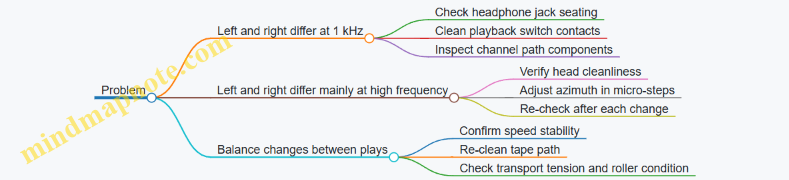
Example Workflow in One Pass
- Clean tape path, dry, and play mono 1 kHz: levels are close.
- Play high-frequency tone: left is dull.
- Make a micro azimuth adjustment toward improving left brightness.
- Re-check high-frequency tone: dullness reduces.
- Fine-tune until both channels sound equally crisp.
- Confirm mono 1 kHz still matches, then stop. That last check prevents “fixing” azimuth while accidentally worsening mid-band balance.
5.5 Adjusting Head Height and Tracking for Consistent Audio Output
Consistent audio output starts with two mechanical truths: the tape must ride the head at the right height, and it must stay centered on the head gap as it moves. If either condition is off, you’ll hear uneven channel balance, dull highs, or level changes that seem to “move” when you press the cassette or nudge the transport.
Foundational Concepts That Drive Adjustment
Head height is the vertical position of the head face relative to the tape path. Tracking is the lateral alignment of the tape across the head gap. On many cassette players, the head height is set by a screw or shim arrangement, while tracking is influenced by the tape’s guide geometry and the pinch roller/capstan alignment.
A useful mental model is to treat the tape as a moving “reference line.” If the line is too high, the tape contacts the upper part of the head face; too low, it contacts the lower part. If the line drifts left or right, one channel’s gap alignment improves while the other worsens.
Preparing the Transport for Reliable Measurements
Before touching adjustment screws, confirm the basics that affect both height and tracking:
- Tape path cleanliness: Clean head, guides, and capstan/pinch roller so friction and residue don’t change tape position mid-test.
- Speed stability: If wow/flutter is severe, your test tones will look like they’re “failing” even when alignment is correct.
- Rubber condition: A hardened pinch roller can change tape tension and effective tracking.
- Belt and idler health: Slipping transport components can cause intermittent contact and misleading symptoms.
Example: If left channel is louder only when the cassette is slightly tilted, don’t immediately chase head height. First check pinch roller grip and cassette loading consistency.
Symptoms Mapped to Likely Adjustment Targets
Use symptoms to choose the first adjustment to attempt:
- Both channels dull or low level: Often head height or head cleanliness.
- Highs roll off and channel balance is uneven: Often tracking or head azimuth, but head height can also contribute.
- One channel drops out at certain tape speeds or volumes: Often dirty contacts or a mechanical guide issue, but mis-tracking can mimic this.
- Level changes when you press the cassette door: Often transport alignment, not electronics.
Mind Map: Adjustment Logic and Decision Flow
Head Height and Tracking Adjustment Mind Map
Adjusting Head Height Systematically
- Set up a reference: Use a cassette with steady tones or a familiar recording with clear high-frequency content. If you have a test tape, use it; if not, pick something you know well and listen for specific, repeatable cues.
- Make small changes: Turn the head height screw in tiny increments. A quarter-turn can be too much; aim for changes you can feel but measure.
- Listen and measure together: Watch channel level meters if available, and listen for high-frequency clarity. The “best” point is usually where highs are most present without harshness.
- Check both channels: Head height affects both channels, but the optimum may not look identical if the head is worn. Choose the setting that maximizes clarity while keeping balance close.
Example: If highs improve but one channel becomes noticeably louder, you may have overshot height. Back off slightly and re-center.
Adjusting Tracking Without Guessing
Tracking adjustments vary by model, but the principle is consistent: you’re trying to center the tape over the head gap. If your player has a tracking screw or guide adjustment, use it after head height is reasonably correct.
- Choose a lateral indicator: Stereo balance at mid-to-high frequencies is usually the most sensitive indicator.
- Adjust in micro-steps: Move the tracking control slightly, then play the same segment again. Tape position can take a few seconds to settle.
- Confirm with multiple passages: Use at least two different sections of the tape. Some recordings have content that makes balance appear worse even when alignment is fine.
- Avoid “fixing” with force: If the cassette sits crooked, don’t compensate by extreme tracking. Correct the mechanical seating first.
Example: If left/right balance improves only for one cassette but not another, the issue may be cassette shell variation or guide wear rather than a single universal tracking setting.
Verification and Final Checks
After you finish, run a short verification routine:
- Repeatability: Play the same test segment three times. The best setting should sound the same each run.
- Stability under normal handling: Gently close the door and avoid pressing the cassette during playback. If sound changes when you press, you still have a mechanical seating or guide problem.
- No new distortion: A setting that boosts highs can also increase distortion if the tape is riding too aggressively on the head.
Common Pitfalls That Waste Time
- Adjusting while dirty: Cleaning after adjustment can shift the tape path and undo your work.
- Ignoring pinch roller grip: A slipping pinch roller changes tape tension and makes tracking seem “mysteriously wrong.”
- Chasing channel balance before tone is right: If overall tone is dull, fix head height first; otherwise you’ll tune tracking to compensate for the wrong vertical contact.
When head height and tracking are both correct, playback becomes boring in the best way: stable level, balanced channels, and predictable tone across cassettes that aren’t wildly out of spec.
6. Playback and Record Electronics Troubleshooting
6.1 Tracing Signal Flow From Tape Head To Amplifier And Output Stage
Start by treating the player like a chain with named links. The tape head is the first link, the preamp and tone network are the middle links, and the output stage is the final link that actually pushes current into headphones or a line output. When you trace, you’re not guessing—you’re checking that each link produces the expected signal level and behavior.
Foundational Signal Path
A typical cassette player playback path looks like this: tape head → playback preamp → equalization network → volume control and muting → output amplifier → headphone jack or line out. The head produces a small AC voltage that depends on tape flux, head condition, and tape speed. That tiny signal is then amplified and shaped so that high frequencies and low frequencies end up in the right balance.
Two practical rules keep tracing sane:
- Follow the signal direction physically. Don’t start at the output and “work backward” unless you can access test points easily.
- Use symptom-to-stage mapping. If you have no sound at all, the failure is often before or at the preamp input. If you have sound but it’s thin or muffled, the equalization or volume/mute path is a common culprit.
Mind Map: Playback Signal Flow
Playback Signal Flow Mind Map
Stepwise Tracing Method
Step 1: Confirm the transport is actually moving tape. If the capstan speed is wrong or the tape isn’t contacting the head properly, the “audio” you measure later will be misleading. A quick check is whether the player’s playback meter (if present) responds when you press play.
Step 2: Verify the head output exists. With a working cassette playing a known recording, measure AC voltage at the head leads or at the first preamp input. You’re looking for “something that changes with music,” not a perfect number. If one channel is silent at this point, the head coil, head wiring, or the immediate connection is the likely stage.
Step 3: Check preamp gain and bias. The preamp takes the tiny head signal and makes it usable. If you see head AC but no amplified signal after the preamp, suspect a failed transistor, a missing supply rail, or a bias network component. A multimeter can confirm supply presence; an oscilloscope (if available) shows whether the waveform is being amplified rather than flattened.
Step 4: Identify equalization behavior. Equalization networks boost and cut frequencies to match the recording standard. A fast way to test without specialized gear is to compare perceived tone: if bass is present but highs are missing, or vice versa, the equalization network is suspect. Electrically, you can probe around the RC network nodes and look for the expected frequency-dependent change.
Step 5: Inspect volume control and muting. Many players mute during mode changes using transistors or switch contacts. If the signal is present before volume but disappears after, the mute circuit or the volume element is the bottleneck. A common easy win is cleaning switch contacts and confirming the mute control voltage changes when you go from stop to play.
Step 6: Confirm the output amplifier is driving. At the output stage, the signal should be larger and capable of driving the load. If you have audio at the amplifier input but nothing at the headphone jack, the output IC or its coupling components are likely. If only one channel is weak, check channel-specific output devices and the jack contact that routes that channel.
Concrete Examples with Reasoning
Example 1: “Head AC exists, but no sound.” Measure head AC at both channels. If both show music-like AC but the preamp output is flat, the preamp stage is failing. The reasoning is simple: the head is producing signal, so the chain breaks after the head.
Example 2: “Sound is muffled and bass-heavy.” If head output is present and the preamp output is present, but the tone is wrong after the equalization network, suspect drifted capacitors or incorrect RC values. The reasoning is that equalization is the stage that shapes frequency balance.
Example 3: “One channel drops out when you move the plug.” If the signal is stable inside the unit but the headphone output changes with plug movement, the jack contacts or cable strain relief is the issue. The reasoning is that the internal chain is fine, and the failure is in the final connection.
Practical Tracing Tips That Prevent False Leads
Use a consistent reference point: pick a known ground and measure relative to it every time. Also, keep your probes steady and your hands off the volume control while measuring; a moving pot can create the illusion of a “bad stage.” Finally, when you find the stage where the signal stops changing with music, you’ve already narrowed the repair to a short list of components around that boundary.
6.2 Diagnosing No Sound, Low Volume, and Distorted Playback Symptoms
When a cassette player goes quiet, the fastest path is to treat symptoms as clues about where the signal chain is breaking. Playback audio should travel from the tape head, through switching and amplification, into the output stage and finally to the headphone or line output. If you keep that chain in mind, you can avoid random part swapping.
Foundational Symptom Map
Start by sorting the complaint into one of three buckets:
- No sound: silence in both channels, or silence in one channel only.
- Low volume: audio present but reduced, often with normal tone balance.
- Distorted playback: harshness, clipping, fuzzy highs, or “motorboating” that changes with volume.
A useful first rule: volume control problems usually affect both channels similarly, while head and transport problems often show up as channel imbalance or speed-related tone changes.
Mind Map: Symptom to Likely Stage
Stepwise Diagnosis from Power to Output
-
Confirm the player is actually in playback mode. Many Walkman-style units route audio differently for play vs. record, and some mute the output when the mode switch is not fully seated. A quick check is to move the mode selector firmly and observe whether any indicator changes state.
-
Verify the headphone jack switch behavior. Many designs use the headphone plug to disconnect the internal speaker or to enable the headphone amplifier. If the plug is missing or the jack contacts are oxidized, you can get silence. A practical test is to reseat the plug several times and gently inspect for bent contacts.
-
Check for mute circuit involvement. If you hear a brief click when switching modes but then nothing, the mute circuit may be stuck on. Measure the relevant control voltage at the amplifier input or mute transistor base if you have a schematic; otherwise, look for a stuck relay-like behavior on the board.
-
Assess the tape head contact and transport speed. No sound can be “no signal” because the head never gets a clean contact. Clean the tape path and confirm the capstan and pinch roller grip. If the player runs but playback sounds like it’s underwater or unstable, speed issues can masquerade as distortion.
-
Use a simple audio injection test if available. If you can safely inject a low-level signal at the amplifier input (or at the volume control output), you can separate “head/transport” problems from “amplifier/output” problems. If injected audio plays cleanly, the fault is upstream.
Examples That Map Cleanly to Causes
Example 1: Both channels silent, transport spins normally.
- Likely causes: mode switch not routing playback audio, headphone jack switch not enabling output, or head wiring open.
- What to do: reseat the headphone plug, confirm play mode latch, then inspect head connector solder joints for dull or cracked joints.
Example 2: One channel silent, the other plays at normal volume.
- Likely causes: head channel open, broken solder joint on that channel, or a dirty balance/volume track segment.
- What to do: clean the volume/balance controls carefully, then inspect the head wiring and the board pads for that channel.
Example 3: Low volume with clear but quiet audio.
- Likely causes: dirty volume control, resistive switch contacts, or a degraded coupling/bypass capacitor.
- What to do: compare headphone output with the internal output path if present; if both are low, suspect the common signal path like volume control or coupling capacitors.
Example 4: Distortion that worsens when you increase volume.
- Likely causes: amplifier gain stage instability, coupling capacitor failure, or incorrect biasing.
- What to do: reduce volume to confirm the distortion threshold; if distortion appears even at low volume, suspect head contact/azimuth or a partially conducting mute circuit.
Practical Decision Points
- If injected audio plays cleanly, focus on head signal delivery: head cleanliness, head wiring, mode routing, and tape contact.
- If injected audio is distorted, focus on amplification and output: coupling/bypass capacitors, transistor bias, and output muting behavior.
- If symptoms change with headphone plug insertion, treat the jack switch and its solder joints as suspects.
Quick Diagnostic Checklist
- Confirm play mode latch and indicator state.
- Reseat headphone plug and inspect jack switch behavior.
- Clean tape path and verify capstan/pinch roller grip.
- Inspect head connector and channel solder joints.
- Use injection at the amplifier input if you can to localize the fault.
- Compare both channels to decide between common-path vs channel-specific causes.
6.3 Checking Switch Contacts, Mute Circuits, and Mode Selectors
Portable cassette players often fail in ways that look like “audio electronics” problems, but the root cause is frequently mechanical switching. Switch contacts can oxidize, mode selectors can wear, and mute circuits can latch in the wrong state. This section gives a systematic path: confirm symptoms, isolate the switching layer, then verify the mute and mode logic with simple measurements and practical checks.
Foundational Concepts for Switching Failures
A cassette player’s audio path is usually gated by three layers:
- Power and mode selection: determines whether playback/record circuitry is enabled.
- Mute control: suppresses pops during mode changes and sometimes during tape motion transitions.
- Signal routing: selects which amplifier input is active and which output is connected.
When a switch contact fails, you may see symptoms like one channel dropping out, volume behaving oddly, or the unit staying silent only in certain modes. When a mute circuit fails, the player may power on normally but remain muted even after the tape is moving.
Mind Map: Switching and Mute Troubleshooting
Stepwise Isolation from Symptoms to Switch Layer
Start by reproducing the symptom in a controlled way. Try playback, record (if available), and headphone mode. Note whether the fault changes when you:
- move the mode selector slightly,
- press the cassette door,
- insert/remove headphones,
- gently wiggle the volume knob or output jack.
If the symptom changes with physical movement, you’re likely dealing with contacts or a latch in the mute control.
Next, inspect the switch hardware:
- Look for dark residue on metal contacts.
- Check for loose springs or bent contact arms.
- Examine solder joints at switch pins for dullness or cracks.
A quick mechanical check matters: a selector that feels gritty or inconsistent often has worn tracks or misalignment, which cleaning alone may not fix.
Checking Switch Contacts with Continuity and Mode Mapping
Before measuring, identify the switch terminals for each mode. Create a simple mode map on paper: for each mode (play, stop, record, radio/aux if present), list which switch contacts should connect.
Then use a multimeter in continuity mode:
- Probe across the expected “connected” terminals in the target mode.
- Probe across “should be open” terminals to confirm they are not shorted.
Example: If playback should route the left channel to the amplifier input, but continuity shows the path is open only in playback mode, the fault is in the playback contact set or the mode selector linkage.
If continuity is correct but audio is wrong, the switch may be passing signal but with high resistance. In that case, continuity mode can lie because it uses a small test current. Use a resistance measurement instead and compare readings between channels.
Mute Circuit Behavior and How to Test It
Mute circuits typically suppress output during transitions. They may be controlled by a transistor that grounds or disconnects the amplifier input/output, or by a logic line that enables audio after the circuit settles.
To test mute behavior systematically:
- Observe timing: does sound appear only after a delay, or never?
- Measure the mute control node: with the unit in the muted state, the node should be at a consistent voltage level.
- Switch modes while monitoring: if the voltage changes but audio doesn’t return, the mute element may be stuck or the audio routing after mute is faulty.
Example: In playback, the mute node voltage might indicate “muted” even after the tape is moving. That points to a control line issue (mode selector not enabling playback) or a mute transistor stuck due to a failed component or bad solder joint.
A practical wiggle test helps: while monitoring the mute node voltage, gently move the mode selector and any nearby connectors. If the voltage jumps, you’ve found an intermittent contact or cracked joint.
Mode Selectors and Jack-Switch Contacts
Many cassette players use jack-switch contacts to detect headphone insertion. If the headphone jack contacts oxidize, the player may mute the speaker output incorrectly or route audio to the wrong destination.
Example: With headphones inserted, you hear sound normally, but with headphones removed the speaker stays silent. That pattern strongly suggests the jack-switch contacts are not returning to the “speaker enabled” state.
For mode selectors, wear often shows up as partial engagement: the selector may physically reach the detent, yet the internal contact wiper may not fully contact the track. Continuity checks by mode will reveal this as “almost connected” paths or inconsistent resistance.
Integrated Fix Approach and Confirmation
Once you identify the faulty layer, fix in the smallest effective step:
- Clean oxidized contacts carefully and ensure the contact springs make firm pressure.
- Reseat connectors and reflow suspect switch-related solder joints.
- If the mode selector track is worn or the wiper is misaligned, replacement is often more reliable than repeated cleaning.
Finally, confirm with two checks:
- Switch logic: continuity/resistance matches the mode map for all modes.
- Mute release: audio returns consistently after mode change, without needing repeated pressing or tapping.
When these two checks pass, you’ve proven the switching layer is behaving, which prevents chasing phantom problems in the amplifier stage.
6.4 Testing Capacitors, Resistors, and Transistors for Out of Spec Behavior
When a cassette player misbehaves, the fault often hides in plain sight: a component that still “works,” but no longer behaves within the circuit’s expectations. The goal of this section is to test components in a way that matches how the circuit uses them—because a capacitor that measures “close enough” can still ruin biasing, muting, or equalization.
Foundational Concepts for Component Testing
Start by separating three kinds of problems:
- Value drift: capacitance, resistance, or gain changes over time.
- Leakage: current flows where it should not, often raising noise or shifting DC levels.
- Intermittence: the part fails only under vibration, heat, or movement.
A quick sanity check before measuring: confirm the player’s power rails are present and stable. If the supply is sagging, your readings can look like “bad parts” when the real issue is elsewhere.
Capacitors Testing for Leakage and Loss
Capacitors in Walkman-style circuits commonly fail in two ways: electrolytic leakage and loss of capacitance. Leakage shows up as wrong DC voltages, while loss of capacitance shows up as weak bass, altered tone, or unstable bias.
Practical approach:
- Visual and ESR hints: bulging, crusty tops, and cracked sleeves are obvious. Less obvious is a capacitor that looks fine but sits in a bias or coupling position.
- In-circuit DC voltage check: measure the DC voltage on both sides of the capacitor. If one side is correct and the other is “stuck,” the capacitor may be leaking or open.
- Out-of-circuit measurement: remove at least one lead for electrolytics in critical paths. Measure capacitance and, if available, ESR.
Example: If the headphone output is low and the player’s volume control seems normal, check electrolytics around the audio coupling and muting network. A leaking capacitor can reduce effective signal swing, making the audio feel “quiet” without obvious distortion.
Resistors Testing for Drift and Noise
Resistors usually fail by drifting upward (common) or changing value due to heat. In bias networks, even a small drift can shift operating points, which then causes distortion or channel imbalance.
Practical approach:
- Measure in-circuit only when safe: if the resistor is in parallel with others, readings can mislead.
- Use one-lead lift for accuracy: lift one end for resistors that sit in networks with multiple paths.
- Check for heat damage: discoloration near a resistor often means it ran hot and drifted.
Example: If one channel is louder and slightly “thin,” don’t jump straight to the head. Compare the resistors in the left and right preamp stages. A drifted resistor can change gain and frequency shaping, producing a consistent imbalance.
Transistors Testing for Gain Loss and Shorts
Transistors can fail as open, shorted, or leaky. The tricky part is that a transistor can still conduct but have reduced gain, causing weak amplification or incorrect bias.
Practical approach:
- DC bias mapping: measure collector, base, and emitter voltages relative to ground. Compare to the expected pattern from the schematic or to the working channel.
- Continuity checks: with power off, verify junction behavior using a diode test mode.
- In-circuit caution: surrounding components can mask a bad transistor. If bias voltages are wrong, lift the transistor or at least one leg.
Example: If playback is distorted only at higher volume, check the transistor(s) driving the audio output stage. A transistor with reduced gain or increased leakage can push the stage into non-linear operation earlier than it should.
Mind Map: Component Symptoms to Measurements
Systematic Test Sequence That Minimizes Rework
Use this order to avoid chasing ghosts:
- Confirm power rails under load (battery or adapter).
- Measure DC voltages at key nodes around coupling capacitors and bias networks.
- Test capacitors that connect signal stages or set bias time constants.
- Test resistors that define gain and bias ratios.
- Test transistors last, because they often look guilty when the bias network is actually off.
Example workflow: If DC at an audio stage base is too high, first check the resistors feeding that node and the capacitor that filters it. Only after those are verified should you condemn the transistor.
Practical Notes for Reliable Results
- Take measurements with the player in the mode that shows the fault (playback, record, or headphone output).
- When comparing channels, measure the same points in both channels before replacing anything.
- After replacing a part, re-check the surrounding DC voltages to confirm the circuit’s operating point returned to normal.
This approach keeps testing grounded in what the circuit is trying to do, not just what the multimeter happens to say.
7. Recapping, Component Replacement, and Common Failure Points
7.1 Choosing Replacement Capacitors for Correct Capacitance Voltage and ESR
Capacitors in early portable players often fail in predictable ways: capacitance drops, ESR rises, and ripple rejection gets worse. That shows up as weak audio, unstable bias, or a power rail that looks fine at idle but collapses under load. Choosing the right replacement is mostly about three numbers—capacitance (µF), voltage rating (V), and ESR (Ω)—plus a few practical constraints like temperature rating and physical fit.
Foundational Concepts That Drive Selection
Capacitance sets the “storage size.” If you replace 100 µF with 47 µF, the circuit may still play briefly, then sag when the amplifier draws current. A good rule is to match the original capacitance value exactly unless the service notes specify otherwise.
Voltage rating sets the “stress tolerance.” A capacitor rated higher than the original is usually safe because it runs cooler electrically. If the original is 6.3 V, a 10 V or 16 V replacement is typically fine, as long as it physically fits.
ESR sets the “losses under AC ripple.” ESR is what turns ripple current into heat. When ESR rises, the power rail ripple increases, which can modulate audio and bias points. This is why “same capacitance, same voltage” can still produce hum or distortion.
Mind Map: Capacitor Selection Logic
Stepwise Method for Real Repairs
-
Read the markings carefully. Electrolytics usually show capacitance, voltage, polarity stripe, and sometimes a temperature rating. If the board silkscreen indicates polarity, trust the board.
-
Match capacitance first. If the original says 220 µF, choose 220 µF. If you can’t find the exact value, use the closest standard value only when you understand the circuit’s time constants; otherwise, keep it exact.
-
Choose equal or higher voltage. If the original is 10 V, a 16 V part is generally acceptable. Higher voltage can mean a larger can, so check clearance before ordering.
-
Address ESR with the best available data. Many replacement listings include ESR or “ripple current” at a specified frequency and temperature. If ESR is listed, aim for the same or lower ESR at the relevant operating temperature. If ESR isn’t listed, ripple current is a useful proxy: a higher ripple current rating usually implies the capacitor can handle the same ripple without overheating.
-
Respect temperature rating. A 105°C capacitor is typically more reliable in warm electronics than an 85°C part. If the original is 85°C, replacing with 105°C is a straightforward reliability upgrade.
Example: Same Capacitance and Voltage, Different ESR
Suppose a Walkman has a 100 µF, 6.3 V electrolytic filtering the headphone amplifier supply. You replace it with another 100 µF, 6.3 V part from a different batch. The player powers up, but you hear a faint low-frequency hum that wasn’t there before.
- What likely changed: the new capacitor’s ESR is higher, so ripple on the supply rail increases.
- How to confirm quickly: measure the supply rail ripple with a scope if available, or compare behavior when the volume is raised (hum often grows with gain).
- Fix: replace with a capacitor that has equal capacitance, equal or higher voltage, and lower ESR or higher ripple current. Even without exact ESR numbers, choosing a “low ESR” style electrolytic for that position often resolves the symptom.
Example: Voltage Upgrade Without Fit Problems
A board uses a 47 µF, 6.3 V capacitor. You select a 47 µF, 16 V replacement because it’s available and rated for higher stress tolerance. It fits electrically, but the can height crowds nearby wiring.
- What to watch: clearance can force awkward lead bending, which can stress solder joints.
- Fix: choose a 16 V part with the same lead spacing and similar height, or step down to a 10 V part if it fits better while still meeting the circuit’s needs.
Common Pitfalls to Avoid
- Wrong polarity: electrolytics are not reversible; incorrect polarity can fail quickly.
- Capacitance mismatch: smaller capacitance can cause audible sag or unstable bias.
- Voltage rating too low: the capacitor runs closer to its limits, increasing leakage and heat.
- Ignoring ESR: “electrically similar” parts can still produce hum or distortion.
- Physical mismatch: a capacitor that barely fits can create mechanical stress and intermittent connections.
Quick Selection Checklist
- Capacitance: match µF exactly
- Voltage: equal or higher V
- ESR: same or lower when data is available; otherwise use ripple current rating as a proxy
- Temperature: equal or higher (prefer 105°C)
- Polarity and footprint: match board markings and lead spacing
Once these choices are right, the rest of the repair—head cleaning, transport alignment, and bias verification—has a much better chance of producing stable, repeatable audio output.
7.2 Replacing Electrolytic Capacitors in Power and Signal Paths
Electrolytic capacitors age in two main ways: their capacitance drifts and their leakage increases. In portable cassette players, that often shows up as weak bass, noisy headphone output, slow or unstable muting, or a power rail that sags under load. The goal of this section is to replace electrolytics in a way that restores the intended electrical behavior, not just the physical parts.
Foundational Concepts That Drive Good Replacements
Start by mapping what each capacitor is supposed to do. In power and audio circuits, electrolytics usually serve one of these roles:
- Power filtering: smooths a DC rail so the amplifier doesn’t “hear” the rectifier ripple.
- Decoupling: provides local charge near an IC or transistor so fast current changes don’t bounce the rail.
- Coupling: passes audio while blocking DC, setting a low-frequency cutoff with the input resistance.
- Bypass: improves gain stability by reducing AC impedance at a transistor emitter or similar node.
A quick mental check helps: if a capacitor is in the power rail, ripple and noise are the likely symptoms; if it’s in the audio path, distortion, channel imbalance, or low-volume issues are more common.
Systematic Identification and Selection
- Locate the capacitor and its job: follow the PCB traces from one pad to see whether it connects to a rail, an amplifier input, or a transistor stage.
- Record the markings: capacitance (µF), voltage rating (V), polarity, and any series/parallel arrangement.
- Match capacitance closely: a common safe rule is to keep the same µF value. If you must choose between two nearby values, prefer the one closer to the original.
- Use equal or higher voltage rating: higher voltage is usually fine because it doesn’t stress the part.
- Respect polarity: electrolytics are polarized. Reversing them can cause immediate failure.
Example: a 47µF 6.3V capacitor used as a rail filter can typically be replaced with a 47µF 10V or 16V part of the same polarity. The circuit benefits from the same capacitance while gaining voltage headroom.
Safe Removal and Clean Installation
Before desoldering, confirm the player is fully unpowered and the battery is disconnected. Then:
- Discharge large caps: if a capacitor is connected to a higher-voltage rail, measure across it and confirm it’s near 0V before touching.
- Use controlled heat: electrolytics tolerate heat poorly if you linger. Heat the joint, pull the lead, and move on.
- Remove residue: old flux and corrosion can create leakage paths. Clean the area after removal.
When installing the new capacitor:
- Match lead spacing: bend leads so the body sits flat without stressing pads.
- Keep wiring short: long leads add inductance and can slightly change filtering behavior.
- Verify polarity twice: one glance at the PCB silkscreen and one glance at the capacitor’s negative stripe prevents the classic “it fits, so it must be right” mistake.
Power Path Replacements with Reasoned Priorities
Not every electrolytic needs replacement at the same urgency. Prioritize in this order:
- Main rail filters: capacitors that smooth the supply before the audio stages.
- Decouplers near amplifier transistors or ICs: these stabilize local current demands.
- Coupling and bypass capacitors in the audio chain: these affect frequency response and gain.
Example: if the headphone output is noisy even when the tape is silent, start with rail filters and decouplers. If the noise follows the audio signal and changes with volume, then coupling/bypass capacitors are more likely.
Signal Path Replacements with Frequency Awareness
Coupling capacitors form a high-pass filter with the input resistance of the next stage. That means the replacement must preserve the intended cutoff.
- If you replace a coupling capacitor with a smaller capacitance, bass may disappear.
- If you replace it with a larger capacitance, bass may improve, but the DC operating point and turn-on behavior can change.
Example: a coupling capacitor feeding an input resistor of 10kΩ creates a cutoff roughly around 1/(2πRC). If the original was 10µF, the cutoff is about 1.6Hz—effectively flat for audio. Replacing it with 1µF raises the cutoff to about 16Hz, which can make low notes sound thin.
Mind Map: Capacitor Replacement Logic
Verification Steps That Confirm You Did the Right Thing
After soldering, do not jump straight to “it plays.” Use a small checklist:
- Visual inspection: no bridges, correct polarity, and clean joints.
- Power rail sanity: with the player on, confirm the rail doesn’t sag dramatically under playback.
- Audio symptom check: compare before/after behavior for hiss, hum, bass weight, and distortion at moderate volume.
- Channel balance: if only one side improves, the issue may be a related capacitor, a switch contact, or a connector problem.
Example: if replacing two rail capacitors reduces hum but the left channel still sounds dull, focus next on coupling or bypass capacitors in the left channel path rather than repeating power-rail work.
Common Failure Points and How to Avoid Them
- Wrong polarity: always re-check against the PCB marking.
- Capacitance mismatch: keep µF close to original unless you have a clear reason.
- Voltage too low: the part may run hot and leak again.
- Cold joints: a dull, cracked, or lifted pad can cause intermittent audio.
- Skipping decouplers: rail filters alone may not fix local noise at amplifier stages.
A good capacitor replacement feels boring in the best way: the player powers normally, the audio path behaves consistently, and the noise floor drops without changing the character of the circuit.
7.3 Handling Film Capacitors and Ceramic Components Without Overheating
Film capacitors and ceramics usually survive abuse better than electrolytics, but “usually” is not a repair strategy. Overheating damages insulation, shifts values, and can loosen internal connections. The goal is simple: apply enough heat to make a reliable joint, then stop.
Core Concepts for Heat Control
Film capacitors are typically polyester or polypropylene types. They tolerate heat better than many people expect, yet their leads and body can still suffer if you keep the iron on the joint too long. Ceramic capacitors are often stable, but they can crack if you stress the body while the solder is molten.
A practical rule: heat the joint, not the component. If the iron tip is too small or too cool, you compensate by holding longer, which is how you end up cooking the part. If the iron is too hot, you can still overheat quickly even with a short dwell.
Mind Map: Heat, Stress, and Failure Modes
Stepwise Method That Works in Real Repairs
- Prepare the pads first. Clean old solder and oxidation so the new joint can form quickly. If the pad is dirty, the iron has to work longer, and the capacitor pays the price.
- Pre-tin the leads lightly. A quick touch to each lead with solder helps the final joint reflow faster. You are not building a solder blob on the lead; you are just coating it.
- Use the right tip size. A tip that’s too narrow forces you to chase the pad, increasing dwell time. A tip that’s too large can spread heat into nearby plastic parts.
- Support the component body. Hold the capacitor by its leads near the body so the body doesn’t flex. Ceramics dislike bending at the exact moment the solder is soft.
- Make the joint in one controlled pass. Touch iron to pad and lead together, wait for reflow, then remove. If it doesn’t wet properly, stop and reassess rather than “trying again” by lingering.
Example: Replacing a Film Capacitor in the Audio Path
Suppose you’re swapping a film capacitor near the playback preamp. After removing the old part, you notice the pads are dull and slightly stained. If you solder immediately, you’ll likely need extra dwell time to get wetting.
Instead, scrape the pad lightly until it looks metallic, then pre-tin both pads with a thin layer. Pre-tin the capacitor leads, position the part, and solder each lead with a brief, single pass. When finished, the joint should look smooth and slightly concave, not grainy or blistered.
If you accidentally keep the iron on too long, you may see a darkened sleeve on the capacitor lead area or a subtle shift in how the part sits. That’s a sign to rework quickly, because the joint may still be electrically fine while the insulation is already stressed.
Example: Handling a Ceramic Capacitor Without Cracking
Ceramic capacitors often sit close to plastic shields or wiring. When you remove the old one, the pads may be fragile. During installation, keep the body supported and avoid twisting the leads after the capacitor is placed.
If the capacitor is a small disc or rectangular type, insert it so it sits flat. Solder one lead, let it cool, then solder the second. This reduces the chance that the body is forced into a new angle while the first joint is still cooling.
Verification and Quick Checks
After soldering, do a visual inspection: the joint should be shiny enough to indicate wetting, and the capacitor body should not show discoloration or cracks. Then perform continuity checks across the capacitor leads to confirm you did not bridge adjacent pads.
If the circuit is sensitive and you have a capacitance meter, measure the new capacitor and compare to the marked value within the expected tolerance. Film and ceramic parts are usually close, so a wildly off reading is a strong hint that the wrong part was installed or a solder bridge exists.
Practical Mindset for Overheating Prevention
Think of heat as a limited resource. Every extra second increases the chance of insulation stress or mechanical damage. Your job is to make solder flow quickly by preparing the surfaces and using the correct technique, not by extending the contact time.
That approach keeps film capacitors and ceramics doing what they do best: staying stable while the rest of the player gets the attention it actually needs.
7.4 Addressing Cold Solder Joints and Connector Oxidation
Cold solder joints and oxidized connectors cause the same symptoms—intermittent audio, crackles, one channel dropping out, or the player working only when you press the right spot. The difference is where the problem lives: cold joints are usually inside the soldered connection, while oxidation is typically at the mating surfaces of plugs, headers, and jacks.
Foundations First
Start by separating “mechanical” from “electrical” faults. If tapping the chassis changes volume or channel balance, you likely have a joint or connector that is losing contact under vibration. If the fault appears only after the player warms up, suspect a joint that expands slightly or a connector whose oxide layer becomes more resistive.
Before touching solder, inspect visually with good light. Look for dull, grainy solder, rings around component leads, and joints that look like they were “tacked on” rather than wetted. For connectors, look for dark green or gray film, especially on multi-pin headers and headphone jack contacts.
Mind Map: What to Check and in What Order
Cold Solder Joints: Systematic Rework
A cold joint often forms when the solder never fully melts and wets both the pad and the lead. Reflowing fixes it by restoring wetting and removing micro-cracks.
- Prepare the area. Remove dust and old flux residue with a suitable cleaner so you can see what you’re doing. If the joint is surrounded by plastic, protect nearby parts with gentle airflow and controlled heat.
- Add flux first. Flux lowers surface tension and helps the solder flow. Without flux, you can end up reheating the same dull solder without improving wetting.
- Reflow with the right heat. Heat the pad and lead together until the solder becomes shiny and flows. If you only heat the lead, the pad may stay too cool to re-wet.
- Use minimal fresh solder. Add a small amount to ensure the joint remelts and spreads. Overloading can create bridges, especially on fine-pitch boards.
- Inspect after cooling. A good joint looks smooth and slightly concave, with the lead centered and no visible cracks at the edge.
Example: One Channel Drops Out
If left audio cuts out when you move the volume knob, check the volume control pins and the nearby board joints. Reflow the suspect joints, then perform a wiggle test: gently move the control and harness while monitoring audio level. If the dropout disappears, you’ve likely restored a cracked joint.
Connector Oxidation: Cleaning and Reseating
Oxidation increases contact resistance and can create crackles that correlate with movement. Cleaning focuses on the mating surfaces, not the surrounding plastic.
- Unplug and inspect. Look for discoloration on pins and socket contacts. Bent pins should be corrected before cleaning, otherwise the connector never seats fully.
- Clean contacts carefully. Use a contact cleaner and a lint-free swab or soft contact tool. The goal is to remove film, not to polish away plating.
- Reseat firmly. Oxide can remain on one side of the interface; reseating wipes the surfaces against each other. Press evenly so all pins mate.
- Check for intermittent behavior. After reseating, test playback while gently moving the connector and cable strain relief.
Example: Headphone Jack Crackle
Headphone jacks often have oxidized contacts that cause channel imbalance. If you hear crackling when inserting the plug, clean the jack contacts and reseat the internal connector that feeds the jack board. Then test with the plug inserted and slightly rotated; stable output indicates the contact surfaces are now consistent.
Verification That Doesn’t Lie
Use continuity checks to confirm you fixed the right thing. For a cold joint, continuity between the pad and the lead should be stable. For a connector, continuity should remain stable while you gently wiggle the plug and harness.
A quick bench habit: after each rework, test before moving on. That way, when something improves, you know exactly which change caused it.
Common Mistakes to Avoid
- Reflowing without flux: the solder may remelt but not wet properly.
- Heating too long: you can lift pads or overheat nearby components.
- Cleaning connectors but not reseating: oxide can persist on the mating side.
- Assuming “looks fine” means “is fine”: micro-cracks can be invisible until you flex the board.
Mini Checklist for This Section
- Inspect for dull joints and connector discoloration.
- Reflow cold joints with flux and minimal fresh solder.
- Clean connector contacts, correct bent pins, and reseat firmly.
- Verify with continuity and a wiggle test, then confirm with playback.
7.5 Verifying Bias and DC Offset After Component Replacement
After you replace electrolytics, transistors, or any parts in the playback/record path, the circuit may still “work” while quietly drifting out of its intended operating point. Bias and DC offset are the two checks that catch that drift early: bias sets the amplifier’s small-signal operating region, while DC offset tells you whether the output stage is sitting at the correct voltage.
Foundational Concepts You Need Before Measuring
Bias in these players is usually the DC voltage that polarizes transistors or op-amp stages so the signal can swing both directions without clipping early. DC offset is the unwanted DC voltage that appears at an output node when no audio is present. In a Walkman-style circuit, a wrong bias can cause distortion, weak output, or channel imbalance; a wrong DC offset can cause popping in headphones, excessive hiss, or a “stuck” volume level.
A practical way to remember the relationship: bias is the cause (it sets the operating point), DC offset is the symptom (it shows how the operating point landed).
Measurement Setup That Prevents False Results
- Use the correct power source: If the unit runs on batteries during testing, use fresh cells or a stable bench supply. Low voltage can shift bias and make you chase ghosts.
- Warm up briefly: Let the player sit powered for 2–5 minutes so temperatures stabilize.
- Select the right test points: Prefer the original service test pads or known transistor emitter/collector nodes. If you must probe elsewhere, note the node name and keep the probe ground lead short.
- Set volume and mode: Use the same volume position each time, and keep the mode switch fixed (playback vs record). Mute circuits can mask DC offset.
Mind Map: Bias and DC Offset Verification
Bias Verification: Stepwise and Systematic
Start with bias because it determines how the stage behaves when signal arrives.
- Measure DC at the transistor reference nodes: For each channel, record base and emitter voltages (or the equivalent nodes in your schematic). Write them down in a two-column format: left vs right.
- Compare to expected values: If the service data lists exact voltages, use them. If not, compare to the other channel and to the values you measured before the recap.
- Check for symmetry: Many players are designed so left and right channels match closely. If one channel’s bias is consistently higher by a few hundred millivolts, suspect a resistor drift, a reversed transistor, or a solder joint that only looks fine.
Example: Suppose you replaced a transistor in the playback preamp and now the output sounds slightly crunchy at moderate volume. Bias measurement shows the emitter sits 0.25 V higher than the other channel. That points to a polarization issue rather than a head alignment problem. Recheck the resistor feeding that transistor and confirm the transistor orientation before touching anything else.
DC Offset Verification: What “Normal” Looks Like
DC offset is measured with no audio signal. The key is to measure at the right node.
- Choose the output node: If the headphone output is AC-coupled through a capacitor, the DC at the headphone jack may be near zero while the internal amplifier output may not. Measure where the schematic defines the output reference.
- Confirm settling behavior: After power-on, some circuits settle quickly; others take longer due to coupling networks. Record the time it takes to stabilize.
- Watch for large offset: Excessive DC can indicate leakage in a replaced electrolytic, a wrong capacitor value, or a mute transistor stuck partially on.
Example: After replacing a coupling electrolytic, the player produces a brief thump in headphones and then a steady low-level hiss. Bias readings look close to the original values, but the output node sits several hundred millivolts away from center. That pattern strongly suggests the coupling capacitor polarity or leakage rather than a transistor bias resistor.
Interpreting Combined Results Without Guessing
- Bias off, offset normal: The stage may still center correctly at the output, but gain and distortion behavior can be off. Expect changes in volume level or frequency response.
- Offset off, bias near spec: The output centering path is likely affected—commonly by a coupling capacitor leakage, a mute circuit component, or a resistor that feeds the output bias.
- Both off: Treat this as a wiring or assembly issue first. Common causes include reversed electrolytics, incorrect resistor values, or a solder bridge that ties a node to the wrong rail.
Fix Strategy and Re-Measurement Loop
After each correction, re-measure both bias and DC offset. Don’t jump straight to audio alignment; alignment can’t fix a stage that’s biased incorrectly.
A good loop is:
- Correct one suspected issue.
- Inspect with magnification for solder bridges and cold joints.
- Re-measure bias nodes.
- Re-measure the output DC offset.
- Only then proceed to playback/record verification.
Example: If you find one channel’s bias high and its DC offset also high, replace or reflow the resistor feeding that channel first, then confirm the transistor orientation and solder joints. After the bias returns to match, the DC offset usually follows. If it doesn’t, focus on the output coupling/mute components for that channel.
Quick Checklist for This Subsection
- Power stable and warm-up done
- Mode and volume fixed
- Bias measured at reference nodes for both channels
- DC offset measured at the correct output reference point
- Results recorded and compared left vs right
- One change at a time, with re-measurement after each fix
8. Audio Output Optimization for Headphone and Line Levels
8.1 Measuring Output Level and Frequency Response with Safe Test Loads
A cassette Walkman’s output can lie to you in two ways: it can be too quiet to measure cleanly, or it can be loud enough to clip the device under test. The goal of this section is to measure both output level and frequency response using loads that are safe for the headphone amplifier and realistic enough to reflect what you actually hear.
Foundational Concepts That Control Your Measurements
Start with three facts.
- Output level depends on load. Headphone outputs are not “voltage-only” sources; they deliver current into an impedance. If you change the load, the level can change.
- Frequency response depends on coupling and filtering. Small capacitors, muting circuits, and tone networks can behave differently at low and high frequencies, especially when the load changes.
- Clipping ruins frequency response. If the amplifier clips, the waveform flattens and the measured response becomes meaningless.
A practical measurement mindset is: set a safe load first, confirm you are not clipping, then sweep frequencies.
Selecting Safe Test Loads
Most portable players expect a headphone load in the ballpark of 16–32 Ω. Using a load that’s too low can over-stress the output stage; too high can make the amplifier behave differently.
Use one of these approaches:
- Preferred: a purpose-built headphone load box or resistor network that matches typical headphone impedance (for example, 32 Ω).
- Acceptable: a pair of power resistors mounted securely, one per channel, with a combined resistance matching your target load.
When choosing resistor power rating, use the conservative rule: if you expect up to a few hundred milliwatts peak into the load, pick resistors rated comfortably above that so they don’t run hot during testing.
Measurement Setup That Prevents “Accidental Clipping”
Use a signal source that can generate a sweep or stepped sine at a controlled level. Route it into the player’s playback path only if you have a test cassette or a way to inject a known signal at the correct point. For output measurements, you want the player to behave normally, so measure at the headphone output.
A typical chain is:
- Player headphone output → safe load → measurement input (oscilloscope or audio interface)
- Measurement input also captures the waveform so you can spot clipping
Before sweeping, do a quick level check at a mid frequency (like 1 kHz). Increase player volume until the waveform stays clean. If you see flat tops or a sudden rise in distortion, back off.
Mind Map: Output Level and Frequency Response Workflow
Measuring Output Level
Output level is usually reported as RMS voltage into the chosen load, or as dB relative to a reference. With a resistive load, RMS voltage is straightforward: measure the RMS voltage across the resistor.
A simple workflow:
- Set volume to a level where the waveform is not clipping at 1 kHz.
- Measure RMS voltage across the load for left and right.
- Convert to power if needed using P = V² / R.
If you want a dB number, pick a reference condition such as “1 kHz at this volume setting.” Then express other frequencies relative to that.
Measuring Frequency Response
For frequency response, use a sweep from low to high frequencies that the player can reproduce. Keep the test level controlled so the amplifier doesn’t clip at peaks.
Two common pitfalls:
- Low-frequency overload: bass tones can demand more current, causing clipping even when midrange looks fine.
- Mute or protection behavior: some players change gain at certain frequencies or during mode transitions.
To avoid these, run the sweep at a conservative level determined by the 1 kHz check, then verify the waveform at the lowest and highest points in the sweep.
Example: Interpreting a Typical Result
Suppose you measure into a 32 Ω load and find:
- At 1 kHz, RMS voltage is your reference.
- Below 100 Hz, level drops steadily.
- Above 8 kHz, level also drops.
That pattern often indicates coupling capacitor limits and headroom limits in the output stage. If the drop at high frequencies is steep while the waveform remains clean, it points more toward filtering or output bandwidth limits. If the waveform clips first at high frequencies, the “response” is actually a clipping artifact.
Example: Catching Channel Imbalance
Repeat the same sweep for left and right. If one channel is consistently 3–6 dB lower across most frequencies, suspect a dirty volume control track, a switch contact, or a failing coupling component. If only certain frequency regions differ, suspect filtering components or a channel-specific connection issue.
Practical Checklist Before You Trust the Graph
- Load matches typical headphone impedance and is power-rated.
- 1 kHz check tone shows no clipping.
- Sweep level is conservative enough that low-frequency peaks don’t clip.
- Left and right channels are measured separately.
- Results are consistent at two nearby volume settings.
With those guardrails in place, the frequency response curve becomes a useful diagnostic tool rather than a fancy way to measure distortion.
8.2 Cleaning and Restoring Volume Controls and Switchable Attenuators
Volume controls in cassette players do two jobs at once: they set loudness and they often sit in the middle of a switching network that changes signal routing. When they get dirty, you usually see symptoms like crackling, one channel fading first, volume that jumps from quiet to loud, or output that changes when you touch the knob. The goal is to restore reliable contact and stable resistance without damaging the control’s track or the surrounding switch contacts.
Foundations: What Usually Goes Wrong
Most early portable players use either a carbon track potentiometer or a sealed-ish rotary control with an integrated switch (for example, a “volume with power/mute” arrangement). Over time, oxidation and grime form on the wiper contact. The wiper then scrapes unevenly across the track, creating intermittent contact. If the control also switches modes, the same contamination can cause channel imbalance or “stuck” attenuation.
A practical way to think about the control is as two separate systems:
- Resistive path: the track and wiper that set volume.
- Switch contacts: the electrical contacts that select mute, line/headphone, or playback/record routing.
Treating both systems together prevents the classic mistake: cleaning the track but leaving the switch contacts unreliable.
Cleaning Strategy That Matches the Symptom
Start with observation before applying any cleaner. Rotate the knob slowly while listening. If crackling is loudest at certain volume positions, the resistive track is likely contaminated. If the sound drops out when you move the knob slightly or when you press the mode switch, the switch contacts are likely involved.
Step 1: Confirm the Control’s Role in the Circuit
Check whether the volume control is also part of a mute or output select circuit. You can often infer this from the player’s behavior: if the headphone output is silent while line output works, or vice versa, the control may be tied to a routing switch. If you have a multimeter, you can also compare resistance between the control terminals at different knob positions to see whether the switch changes state.
Step 2: Use the Right Cleaner and the Right Amount
For most carbon-track potentiometers, the safest approach is a contact cleaner designed for electronics, applied sparingly. Flooding can wash debris deeper into the mechanism or carry residue onto nearby plastic parts. A good rule is to apply only enough to reach the wiper area, then work the control repeatedly to distribute the cleaner.
If the control is clearly sealed and you cannot access the wiper area, focus on switch contacts and external terminals instead of trying to force cleaner through seams.
Step 3: Exercise the Control with Controlled Movement
After applying cleaner, rotate the knob through its full range repeatedly. This scrubbing action helps the wiper re-establish a consistent contact surface. Avoid rapid “spin and stop” movements; they can create uneven wiping and temporarily worsen crackle.
Restoring Switchable Attenuators and Mode Switches
Some players use a switchable attenuator network to change output level or to route audio to headphone versus line. These often use small slide or rotary contacts that oxidize. Cleaning here is less about the resistive track and more about contact surfaces.
A systematic approach:
- Identify the switch type: rotary wafer, slide switch, or integrated switch inside the volume control.
- Clean contact surfaces directly when accessible: gently remove oxidation from the contact area using a method appropriate for electronics-grade cleaning.
- Verify continuity across switch states: measure whether the expected terminals connect in each mode.
If you only clean the volume track, the attenuator may still behave like a “sometimes on” connection, causing sudden level changes when switching.
Mind Map: Cleaning and Restoring Volume Controls
Example Workflows
Example: Crackle Only at Low Volume
- Set volume to minimum and listen for crackle while gently turning upward.
- Apply a small amount of electronics contact cleaner to the control’s accessible wiper area.
- Rotate the knob slowly from minimum to maximum 20–30 times.
- Re-test: crackle should reduce across the range, not just at one position.
If crackle persists only at the very bottom, the wiper may not be contacting the track consistently at that end. In that case, focus on whether the control has an internal end-stop issue or whether the switch/mute circuit is engaging at minimum.
Example: One Channel Fades First
- Play a steady mono source or use a test tone if available.
- Turn volume to mid-range and compare left/right.
- Clean the control as above, then verify that the switch contacts (if integrated) change state reliably.
- If imbalance remains, the wiper contact for one channel may be more oxidized than the other, requiring additional careful cleaning cycles.
Example: Mode Switch Causes Sudden Level Drops
- Switch between headphone and line (or between playback and another output mode) while monitoring.
- Clean the switch contacts associated with the attenuator routing.
- Measure continuity in each mode to confirm the switch is actually making contact.
- Re-test audio: the level should change smoothly according to the intended attenuation, not abruptly due to intermittent contact.
Verification Checklist for Stable Output
After cleaning, the volume sweep should be smooth with no new crackle. Left and right should track closely at mid and high volume. Mode switching should produce consistent level changes without dropouts. If any of these fail, treat it as a switch-contact problem rather than assuming the resistive track is the only culprit.
8.3 Optimizing Output Coupling and Muting Behavior for Clean Transitions
Clean transitions are what you hear when the player switches modes, changes volume, or starts/stops playback without thumps, pops, or sudden hiss. In early portable cassette players, the “transition sound” usually comes from how the output is coupled (capacitors, muting transistors, and switching contacts) and how quickly those elements settle after signal paths change.
Foundational Signal Path and Why Coupling Matters
Most Walkman-style designs route the tape head signal through a playback amplifier, then into an output stage that is either directly driven or capacitively coupled. Output coupling typically uses a capacitor in series with the output, with a resistor to define the DC operating point. When the player enters playback, the capacitor may be at a different voltage than the new operating point, so the first moment can create a click.
A simple mental model: the coupling capacitor “remembers” its last charge. If muting is removed before the capacitor reaches the correct voltage, the output stage briefly sees a step. That step becomes an audible transient.
Muting Control: Timing, Thresholds, and Switch Contacts
Muting is often implemented with a transistor that either shunts the audio to ground, disconnects the signal, or controls the bias of the output stage. The key is timing: muting should stay active until the amplifier output has stabilized and the coupling capacitor has charged to the correct level.
Two common causes of messy transitions:
- Muting release too early: the muting transistor turns off while the output stage is still slewing.
- Switch contact bounce: mode switches (play/stop, tape select, headphone jack detect) can momentarily open/close the muting path, causing repeated small steps.
A practical example: when you press Play, the transport starts moving, the head signal appears, and the amplifier bias settles. If the muting circuit is controlled only by a mechanical switch without any delay, you get a pop right at the moment the head signal first arrives.
Output Coupling Capacitor Behavior During Transitions
The coupling capacitor forms a high-pass filter with the load. During steady playback, it settles and the bass response is stable. During transitions, the capacitor’s charge changes because the DC conditions at the amplifier output change.
To optimize behavior, you want:
- Stable DC at the amplifier output before unmuting
- A muting path that prevents audible steps from reaching the output
- Reasonable coupling time constants so the capacitor doesn’t take forever to settle
If the coupling capacitor has drifted (common with aging electrolytics), its effective capacitance can drop, making the settling slower and the low-frequency transient more noticeable. That’s why “it mostly works” can still produce clicks: the circuit is functional but the transient response is off.
Systematic Optimization Workflow
-
Confirm the symptom type
- Pop at Play/Stop only suggests coupling/muting timing.
- Crackle with volume changes suggests control contact or muting gating tied to the volume switch.
- Hiss that changes when plugging headphones suggests jack-detect muting or grounding.
-
Inspect muting control points
- Look for oxidized switch contacts and worn headphone jack leaf springs.
- Check for cracked solder joints near the muting transistor and its resistor network.
-
Verify coupling capacitor health
- If the output coupling capacitor is electrolytic, measure capacitance if possible.
- Replace with the correct polarity and appropriate voltage rating; keep lead dress similar to avoid introducing noise pickup.
-
Check muting release timing indirectly
- With the unit playing, switch modes and listen for whether the transient occurs at the exact moment muting releases.
- If you have a scope, observe the output node: the goal is that the output step is suppressed while muting is active.
-
Reduce switch bounce effects
- Clean and re-tension switches and jack contacts.
- Ensure the mechanical linkage fully actuates the muting-related contacts without partial travel.
Mind Map: Coupling and Muting for Clean Transitions
Example: Fixing a Pop at Play
A common scenario: the player plays normally once running, but pressing Play produces a short pop through the headphones.
- Observation: The pop happens exactly when the transport starts and the head signal begins.
- Likely cause: Muting releases before the coupling capacitor has settled to the new DC level.
- Integrated fix:
- Clean the play/stop switch contacts and confirm full mechanical travel.
- Inspect the muting transistor and its resistors for drift or cold joints.
- Replace the output coupling capacitor if it’s electrolytic and aged.
- Re-test by pressing Play repeatedly; the pop should shrink or disappear, and the bass should not “fade in” unnaturally.
Example: Eliminating Crackle When Plugging Headphones
If crackle appears when inserting the headphone plug, the jack-detect circuit is likely switching muting or grounding.
- Observation: Crackle occurs during insertion and stops once fully seated.
- Likely cause: Jack leaf contacts bounce or oxidize, causing rapid toggling of the muting path.
- Integrated fix:
- Clean the jack contacts carefully and ensure the leaf springs have tension.
- Check the headphone jack solder joints for movement.
- Confirm that the muting control node doesn’t float when the plug is partially inserted.
When coupling and muting are aligned—capacitor settles while muted, then audio is allowed through—the player stops sounding like it’s clearing its throat every time you press a button.
8.4 Reducing Noise and Hiss by Fixing Grounding and Shielding Issues
Hiss in cassette portables usually comes from small signals being forced through a messy reference point. In practice, you reduce noise by making the audio circuit share a clean, low-impedance ground and by preventing electric fields from turning into unwanted audio.
What “Ground” Means in a Walkman-Style Circuit
In these players, “ground” is not one wire—it’s a network. The headphone return, audio amplifier reference, motor supply return, and battery negative all meet somewhere. If any of those currents share a thin trace or corroded connector, the voltage drop becomes noise.
A quick diagnostic mindset: if the hiss changes when you touch the chassis, move a connector, or press the battery door, you’re likely dealing with ground impedance or shielding continuity.
Noise Sources You Can Actually Separate
Start by categorizing hiss behavior:
- Constant hiss at all volumes often points to amplifier input noise or a biasing issue, but grounding problems can also look constant.
- Hiss that increases with volume usually means the noise is entering before the volume control or is being amplified along with the signal.
- Hiss that changes with motor operation suggests motor current is modulating the audio ground.
Example: if the hiss is quiet when the transport is stopped but becomes louder during playback, suspect motor return paths, not head cleaning.
Mind Map: Grounding and Shielding Fix Path
Grounding Fixes That Work in the Real World
1) Clean and re-establish ground contact points. Corrosion at a screw post or spring contact can add tens to hundreds of milliohms. That’s enough to turn motor current into audio-band noise. Remove the contact, clean both surfaces until they look uniformly bright, and reassemble with firm pressure.
Example: a common failure is the battery door spring that also serves as a ground link. If it’s oxidized, the player may still power on, but the audio ground reference floats slightly.
2) Confirm ground continuity with a meter. With power off, measure resistance between:
- battery negative and the audio board ground
- headphone jack sleeve and audio ground
- motor return and audio ground
You want low resistance and consistent readings. If one path is much higher, the hiss will often correlate with that shared segment.
3) Avoid shared ground segments near the input. If the design routes motor return through the same narrow trace that feeds the preamp ground, you can sometimes improve matters by re-routing a wire or adding a short, clean jumper where the chassis provides a better return.
Example: if the head amplifier ground is near a motor connector, re-route the head lead harness so it doesn’t run parallel to the motor wires.
Shielding: Continuity Beats “Looks Shielded”
A shield only helps if it’s continuous and connected at the intended end(s). Broken braid strands or a shield that’s only touching at one point can convert interference into hiss.
1) Inspect head lead shields and solder joints. Look for dull, cracked, or partially detached solder. Reflowing a questionable joint often restores shielding continuity.
2) Check cable strain relief and movement. A cable that flexes during cassette insertion can intermittently break shield contact. After reassembly, gently move the harness while listening for hiss changes.
Example: if hiss spikes when you press the cassette door, the head lead shield may be flexing against a ground point or losing contact.
3) Route wires to reduce coupling. Keep head leads and their return close together, and keep them away from motor leads. Twisting the pair (where appropriate) reduces loop area, which reduces pickup.
A Systematic Test Sequence
- Transport off: verify baseline hiss with headphones connected.
- Transport on, no tape: compare hiss level. If it rises, focus on motor return and grounding.
- Move connectors: reseat and gently wiggle the headphone jack, battery connector, and audio board plugs while monitoring hiss.
- Re-route harness: adjust head lead placement and observe hiss changes.
- Re-check continuity: after any mechanical changes, confirm ground and shield continuity again.
Common Fix Patterns and What They Indicate
- Touching chassis reduces hiss: ground reference is unstable; clean the main ground contact and headphone sleeve connection.
- Hiss increases with transport: motor current is coupling into audio ground; improve return path separation and shielding continuity.
- Left/right hiss differs: a shield break or uneven ground contact on one channel path is likely.
A practical rule: fix the reference first, then the signal. Once the ground and shield behave, the remaining hiss is usually smaller and easier to trace to the amplifier stage.
8.5 Calibrating Headphone Output for Balanced Left and Right Channels
Balanced left and right headphone output is mostly about two things: matching the signal path for each channel and confirming that your measurement method isn’t lying to you. The goal is simple—when the same audio is played, both channels should land at the same loudness and stay that way across volume settings.
Foundations: What “Balanced” Means in Practice
Start by separating three common “imbalance” types:
- Level imbalance: one channel is consistently louder at all frequencies.
- Frequency-dependent imbalance: one channel is louder only in certain bands (often due to dirty controls, uneven head contact, or channel-specific filtering).
- Intermittent imbalance: the balance changes when you move the headphone plug, wiggle the volume knob, or press buttons.
A quick sanity check helps: play a mono source (or a mono test tone) and listen for a center image. If the center image drifts, you’re not balanced.
Preparing the Player for a Fair Test
Before calibration, make sure the transport and playback are stable. If wow, flutter, or speed drift is present, channel comparisons become meaningless because the head signal is time-varying.
- Use a cassette that is known-good for playback, or at least one you’ve already confirmed is not wildly off-speed.
- Clean the headphone jack contacts and the volume control area if you’ve had intermittent crackling.
- Set the player to a consistent mode: same tape type setting, same playback direction, same output mode.
Measurement Setup That Doesn’t Fool You
You need a repeatable method. Two practical approaches work well:
- Listening-based: use a mono track and adjust until the center image is stable. This is fast but less precise.
- Instrument-based: measure left and right output separately with a multimeter or audio interface and a known test signal.
If you measure, keep the headphone load consistent. Different headphone impedances can change the output behavior, especially on older headphone amps with simple coupling and limited drive.
Stepwise Calibration Procedure
Step 1: Establish a Baseline at One Volume Setting
Pick a mid volume position where the output stage is not near clipping and not so low that noise dominates. Play a mono test tone (for example, 1 kHz) and compare left vs right.
- If one channel is louder, note the direction and magnitude.
- If both channels are equal at 1 kHz but not at other frequencies, plan for a frequency-dependent check.
Step 2: Check Balance Across Frequencies
Repeat the comparison at a low tone (around 100 Hz), a mid tone (1 kHz), and a high tone (around 5–10 kHz). This reveals whether the imbalance is caused by:
- Head-related issues: uneven head contact or azimuth problems often show up as frequency-dependent differences.
- Control or switch issues: dirty volume pots or mode switches often create level imbalance that changes with frequency.
If the imbalance grows at high frequencies, suspect contact oxidation, a failing coupling capacitor in one channel, or uneven head alignment.
Step 3: Confirm Balance at Multiple Volume Settings
Move the volume control to a low, mid, and high setting. Balanced output should remain balanced. If the imbalance changes with volume, the volume control track or its switching network is likely uneven.
A useful trick: gently rotate the volume knob through the same range multiple times. If the balance “walks” around, you’re dealing with a control contact issue rather than a fixed gain mismatch.
Step 4: Inspect and Correct the Most Likely Causes
Work from easiest to most likely:
- Headphone jack and plug strain: intermittent channel dropouts often come from a worn jack sleeve or a cracked solder joint.
- Volume control and balance-related circuitry: even if there’s no dedicated balance knob, some designs use switching or resistor networks that can drift.
- Channel-specific components: a single bad capacitor, resistor, or transistor in the headphone amp can create a consistent offset.
- Head assembly and playback electronics: if the imbalance matches playback channel behavior (for example, it also appears on line out), the problem is upstream of the headphone stage.
Mind Map: Headphone Balance Calibration
Example: Interpreting Results and Choosing the Fix
Example 1: Left is louder at all frequencies and all volumes. This pattern points to a gain mismatch in the left channel path—often a resistor/capacitor drift or a headphone amp transistor issue. If line out shows the same imbalance, the fault is upstream of the headphone stage.
Example 2: Balance is correct at 1 kHz but high frequencies favor the right channel. That suggests a frequency-dependent problem. Dirty contacts in the signal path, uneven head contact, or azimuth-related playback differences are common culprits. If the imbalance also appears on record/playback monitoring, focus on the head assembly and playback electronics.
Example 3: Balance changes when you move the headphone plug. That’s a classic jack or cable strain relief issue. The fix is usually mechanical and electrical: inspect the jack solder joints, check for cracked wires, and confirm the plug tip/ring connections are solid.
Acceptance Checklist for Balanced Output
When you’re done, verify these points in order:
- Mono audio centers correctly with no obvious drift.
- Left and right match at low, mid, and high test tones.
- Balance stays stable across the volume range you actually use.
- No channel dropouts occur when you gently move the headphone plug and cable.
If any one item fails, treat it as a clue about where the imbalance lives—mechanical at the jack, electrical in the control network, or signal-path related in the playback chain.
9. Equalization, Bias, and Tape Type Handling
9.1 Understanding Tape Types and How Bias Affects Playback and Record
Tape type is mostly about how the magnetic coating is built, and bias is the circuit trick that makes that coating behave consistently. In a cassette Walkman, bias is applied during record to shape how the tape magnetizes; during playback, the same electronics are expecting a signal that matches the tape’s intended behavior. When tape type and bias don’t match, you get predictable symptoms: level shifts, high-frequency loss or harshness, and channel imbalance that feels like “something is off” rather than a total failure.
Core Tape Types and What Changes
Most cassette decks sort tape into a few families. Type I is “normal” ferric, Type II is chrome, and Type IV is metal. The coatings differ in coercivity and how they respond to magnetization. Practically, that means:
- High frequencies: Different tape types store and release high-frequency content differently, so the playback equalization curve must match.
- Record magnetization: The amount and shape of magnetization at high frequencies depends on bias current.
- Saturation behavior: Each tape type reaches “too much” at different levels, so distortion shows up at different points.
A simple way to think about it: tape type changes the tape’s “response curve,” and bias is the knob that helps the record electronics land on the right part of that curve.
Playback Equalization vs Record Bias
Playback equalization is mostly about correcting how the tape reproduces audio. Record bias is mostly about controlling how the tape is written. They are related, but not identical.
- Playback: The head picks up the recorded magnetization. The preamp applies an equalization network so the frequency response looks right for that tape family.
- Record: The bias oscillator and driver add a high-frequency component to the audio signal. That component linearizes magnetization and improves high-frequency recording.
If you record on one tape type and play back with the wrong playback setting, you’ll often hear a consistent tonal shift. If you record with the wrong bias setting, you’ll bake the tonal error into the tape, and playback can’t fully undo it.
Bias in Plain Terms
Bias is an ultrasonic signal mixed with the audio during recording. It pushes the tape’s magnetization into a more linear region so the audio signal modulates it more cleanly. Too little bias makes high frequencies under-recorded and distortion more obvious; too much bias can reduce output and soften highs.
On many cassette decks, the bias and equalization are tied together by the tape-type switch. That’s why a “tape type” selector isn’t just a label—it changes multiple parts of the record path.
Mind Map: Tape Types and Bias Effects
Integrated Examples You Can Hear
Example 1: Record on Type II, play as Type I Record a bright track with the deck set to chrome, then switch playback to normal. You’ll usually notice the top end changes first: either it sounds slightly muted (if the playback equalization is too conservative) or a bit edgy (if it overcompensates). The midrange often stays closer, which helps you localize the issue to frequency response rather than a dead channel.
Example 2: Record on Type I, play as Type II Now the tape was written with ferric-appropriate bias and equalization. When played back as chrome, the deck applies the chrome playback curve to a ferric recording. Expect a noticeable level and tonal mismatch, often with high-frequency emphasis or a “too crisp” feel.
Example 3: Wrong bias setting during record If the tape-type switch affects bias, then recording with the wrong setting changes the tape’s stored magnetization. Even if you later play it back with the correct playback setting, the distortion and high-frequency behavior won’t fully correct. A quick listening test is to compare the same source recorded on the correct setting versus the wrong one at the same volume; the difference usually shows up as either reduced sparkle or increased harshness at similar loudness.
Practical Takeaways for Repair and Setup
When restoring a Walkman, bias-related problems often show up as “the deck sounds off but not broken.” Before chasing random component swaps, confirm the tape-type switch works cleanly and that the record/playback mode logic routes the correct equalization and bias networks. Then use a known cassette you can trust for tonal balance, and compare left/right levels at moderate volume. If one channel is consistently worse, think head alignment and contact issues; if both channels share the same tonal shift, think tape-type switching, equalization, and bias path behavior.
Bias doesn’t just affect recording—it changes what the playback electronics are trying to correct. That’s why tape type and bias are best understood as a pair: one writes the tape’s behavior, the other expects that behavior when it turns magnetization back into sound.
9.2 Verifying Record Bias and Equalization Networks
Record bias and equalization networks decide how the player turns a microphone or line signal into magnetized tape. If either is off, you’ll see predictable symptoms: dull highs, harsh sibilance, weak level, or odd differences between playback and record. The goal here is to verify the networks systematically, using measurements and controlled test signals so you’re not guessing.
Foundations First
Start with what the circuit is supposed to do.
- Bias is a high-frequency signal added during recording. It linearizes the magnetic response and strongly affects high-frequency output.
- Record equalization shapes the frequency response so that tape’s physics and the electronics’ gain structure produce a consistent result.
- Mode switching selects different equalization and bias behavior for tape types (often Normal/Chrome/Metal). A wrong mode setting can look like a hardware fault.
A practical mental model: bias sets the “magnetization behavior,” while equalization sets the “frequency balance.” If you change only one, the other can’t fully compensate.
Verification Workflow That Doesn’t Skip Steps
-
Confirm the tape type and mode switch position Use a cassette that matches the selected mode. If the player has a “Metal” or “High” position, verify the switch physically clicks and the contacts aren’t intermittent.
-
Inspect the bias and EQ components before measuring Look for cracked solder joints around the record amplifier, mode switch, and any trimmer potentiometers. Clean flux residue if it’s conductive or sticky.
-
Measure DC operating points With power on and the unit in record-ready (not necessarily recording), check the bias oscillator or record amplifier supply rails and key transistor voltages. A bias network that’s starving or shorted will often still “make sound,” but the frequency response will be wrong.
-
Verify bias oscillator presence and stability Many cassette decks generate bias with a dedicated oscillator. If you have a scope, you can confirm a stable high-frequency waveform at the bias injection node. If you don’t, you can still infer bias health by recording a high-frequency test tone and comparing playback level trends.
-
Check equalization network integrity Equalization is usually implemented with resistor-capacitor networks around the record amplifier and sometimes with switching that changes RC values per tape type. Measure component values in-circuit only if you can isolate them reliably; otherwise, compare behavior by recording and analyzing results.
Mind Map: Bias and Equalization Verification
Concrete Examples with Reasoning
Example 1: Highs are weak on playback after recording
- Record a mid-frequency tone (for example, 1 kHz) and a high-frequency tone (for example, 10 kHz) at the same approximate input level.
- If 1 kHz playback level is normal but 10 kHz is low, bias is a prime suspect. Excess bias reduces high-frequency magnetization efficiency.
- Next, verify the tape type mode. If the cassette is Normal but the deck is set to Metal, the equalization and bias behavior won’t match, and the high end will often suffer.
Example 2: Sibilants sound spitty or distorted even at moderate levels
- Record a tone near the upper audio range and listen for harshness on playback.
- If distortion appears mainly in the high end while midrange remains acceptable, bias may be too low. Low bias can push the tape into a less linear region.
- Confirm the record amplifier isn’t clipping. A clipped record stage can mimic “too little bias,” so check record level indicators and DC voltages around the record path.
Example 3: Frequency tilt changes when you switch tape type
- Record the same tones on the same cassette while switching between Normal and Chrome/Metal modes.
- If the response changes drastically, the switching network is likely working, but the selected mode may be misaligned or the RC components for one mode may be out of spec.
- If switching barely changes anything, suspect a stuck mode switch, oxidized contacts, or a failed switching transistor.
Practical Measurement Targets
When you record and then immediately play back, you’re effectively measuring the combined effect of bias, equalization, and transport speed. Speed problems can also tilt frequency response, so keep the transport in good shape first.
Use a simple comparison approach:
- At low frequency: confirm the record path gain is reasonable.
- At mid frequency: confirm overall level and channel balance.
- At high frequency: confirm bias and high-frequency equalization are correct.
If low and mid are fine but high is off, bias and/or the high-frequency EQ network is the most likely culprit. If all frequencies tilt together, suspect record amplifier gain staging, mode switching, or a broader component failure.
What to Adjust and What to Leave Alone
If the unit has bias trimmers, adjust only after confirming the mode switch and DC operating points are correct. Adjusting bias while the equalization network is wrong just produces a new “wrong” that sounds different, not better.
When equalization components are adjustable, treat them as a matched system. Change one setting, record the same test tones, and compare playback results. Small, measured changes beat repeated guesswork every time—your ears are good, but your notes are better.
9.3 Testing Playback Equalization With Known Reference Recordings
Playback equalization in cassette players is a chain of small decisions: head output level, tape speed, head azimuth, and the equalizer network that shapes frequency response. To test it cleanly, you need a known reference recording and a repeatable measurement routine. The goal is not to “make it sound good,” but to confirm that the player’s playback curve matches what the reference was recorded with.
Foundational Concepts You Must Get Right First
Start with the two most common sources of “false equalization errors.” First, tape speed drift changes pitch and also shifts where frequency-dependent errors show up. If the capstan and pinch roller are slipping, the equalizer test becomes a blame game with the wrong suspect. Second, head azimuth affects left-right balance and high-frequency response. If the channels don’t track similarly, you may be correcting equalization for a mechanical alignment problem.
A practical approach is to confirm speed stability and channel balance before equalization testing. For example, play a reference cassette and listen for steady tone at a consistent pitch, then compare left and right at mid and high frequencies. If one channel is noticeably dull or noisy, fix that first.
Choosing a Reference Recording That Actually Helps
Use a reference cassette that contains tones or frequency sweeps recorded at a known level and with a known equalization standard. Many references include 1 kHz and higher-frequency tones (often 10 kHz or 15 kHz) plus a low-frequency tone. If the reference includes multiple levels, pick the one closest to normal listening level to avoid clipping in the player’s preamp.
If you only have a single-frequency reference, you can still test the overall curve, but you’ll have less confidence about whether an error is shelving (tilt) or a narrowband issue. A multi-tone reference makes the diagnosis more systematic.
Measurement Setup That Keeps Variables Under Control
Use the same output path each time: headphone jack or line output, but not a mix. If you use headphones, keep volume fixed and note that headphone impedance and coupling can slightly change perceived balance. For repeatability, prefer line output into a simple audio interface or oscilloscope with an AC measurement mode.
Keep the player warmed up for a few minutes so the transport and electronics settle. Then run the same sequence: reference cassette playback, record measurements, stop, and repeat once. If results differ wildly between runs, you likely have intermittent contacts, unstable speed, or a noisy output stage.
Systematic Test Procedure from Low to High
- Verify baseline at 1 kHz. Measure or note the output level at 1 kHz. This tone anchors your gain and helps you separate “wrong equalization” from “wrong overall amplification.”
- Check low-frequency behavior. Play a low-frequency tone (for example 100 Hz or 200 Hz if available). A strong bass roll-off suggests coupling capacitor issues or a muted low-end path, not just equalizer tilt.
- Check midrange continuity. Use another mid tone (like 2 kHz or 3.15 kHz if present). If midrange is off while 1 kHz is correct, suspect channel imbalance, head wear, or a switch contact affecting the equalizer network.
- Check high-frequency roll-off. Measure the highest tone available (10 kHz, 12.5 kHz, or 15 kHz). High-frequency loss can come from head contamination, azimuth error, or incorrect equalization components.
- Compare channel symmetry. Repeat the same measurements for left and right. Equalization errors often affect both channels similarly, while azimuth problems often show up as channel-specific high-frequency loss.
A useful rule of thumb: if 1 kHz matches but 10 kHz is low on both channels, equalization or head condition is likely. If 10 kHz is low on only one channel, azimuth or head alignment is more likely.
Mind Map: Playback Equalization Testing Logic
Example: Interpreting a Common Result
Suppose your 1 kHz tone matches the reference level within a small margin, but the 10 kHz tone measures 6 dB lower on both channels. That pattern points away from overall gain and toward the playback equalizer shaping or head-related high-frequency loss. If you also observe that the tape path is clean and the channels are balanced at midrange, the next step is to inspect the equalizer components in the playback preamp and verify their values.
Now consider a second scenario: 1 kHz matches, but 10 kHz is 8 dB lower on the left channel only. That strongly suggests azimuth or head alignment. Even if the equalizer network is correct, the head’s effective frequency response will differ by channel when azimuth is off.
Example: Turning Tones into a Quick Diagnostic Table
Use a simple checklist to keep your reasoning tight:
| Tone | Expected Relative Behavior | What It Suggests If Off |
|---|---|---|
| 1 kHz | Baseline gain matches | If wrong, suspect overall gain path |
| Low tone | Reasonable bass output | If weak, suspect coupling or low-end path |
| Mid tone | Tracks baseline | If mid shifts, suspect switch contacts or channel path |
| High tone | Near reference roll-off | If both channels low, suspect equalizer or head condition; if one channel low, suspect azimuth |
Closing the Loop with a Final Playback Check
After any adjustment, repeat the same tone sequence. Don’t stop at “it sounds better.” Confirm that the baseline at 1 kHz still matches and that the high-frequency tone returns toward the reference on the same output path. If the curve improves but channel symmetry worsens, you’ve likely traded one problem for another, and the next correction should target alignment rather than equalization.
9.4 Correcting Level Differences Between Tape Types and Speeds
Tape types and playback speeds change how much signal comes off the head and how the electronics interpret it. The goal is simple: make the perceived loudness and balance match what you expect, without “fixing” the machine into a different machine.
Foundational Concepts That Control Level
Bias and equalization change effective sensitivity. Bias affects how the tape responds to high-frequency content, which in turn changes the overall level the electronics see after filtering. Equalization networks shape frequency-dependent gain, so a tape that sounds “a bit quieter” may actually be quieter only in certain bands.
Speed changes both frequency response and head-to-tape timing. If a player runs slow, the tape plays at a lower pitch and the electronics’ equalization curves no longer line up with the tape’s recorded spectrum. That often shows up as reduced high-frequency energy and a level drop that feels like “less volume,” even when the amplifier is fine.
Tape formulation changes magnetization efficiency. Chrome and metal formulations typically reproduce differently than ferric, so the same recording level can read higher or lower depending on how the deck’s playback EQ and bias assumptions line up.
Mind Map: Level Differences Between Tape Types and Speeds
Systematic Workflow That Avoids Guessing
Step 1: Confirm speed before touching anything else. If the deck is running slow, every tape type will look wrong. Use a known reference tone recording or a test cassette, then check pitch stability. If you hear pitch drift or the tone is clearly off, correct speed first by addressing the transport (capstan/pinch roller and belt/idler condition).
Step 2: Verify the correct playback mode. Many Walkman-style decks have separate settings for ferric, chrome, and metal. If the mode is wrong, the playback EQ will be wrong, and level differences can be large. A quick sanity check is to play the same cassette in both modes and observe whether the tonal balance changes in a consistent way; if it does, the mode selection is likely the main culprit.
Step 3: Separate “overall level” from “frequency tilt.” A deck can be producing the correct overall gain while the EQ curve makes the highs too low, which your ears interpret as “quiet.” Measure or listen for whether the sound is dull, bright, or balanced. If it’s dull and low, speed or EQ mismatch is more likely than a dead gain stage.
Step 4: Use calibration recordings when possible. A calibration tape gives you a known reference level and frequency content. Play it on the deck at the correct speed, then compare output level to the expected reference. If you don’t have a calibration tape, you can still use a consistent “golden cassette” recorded on a similar deck, but keep in mind that it bakes in that deck’s own EQ and speed.
Step 5: Correct level differences with the right lever.
- If the deck is slow/fast, fix the transport.
- If the mode is correct but one tape type is consistently quieter, adjust playback EQ/bias-related trimmers only if the deck design provides them and you can verify with a reference.
- If both tape types are equally off but only at one output (headphone vs line), the output stage or coupling/mute circuitry is suspect.
Examples That Make the Logic Concrete
Example 1: Chrome cassette is 3–5 dB quieter, ferric is normal.
- Likely cause: playback mode set incorrectly or playback EQ mismatch for chrome.
- Check: play the chrome cassette in ferric mode and chrome mode. If the tonal balance shifts strongly between modes, the deck is responding to EQ selection.
- Action: set the correct chrome mode, then verify speed. If still quiet, use a calibration tape or a known reference recording made for chrome.
Example 2: All cassettes sound quieter and slightly dull.
- Likely cause: speed error or transport drag.
- Check: pitch reference tone is off, and wow/flutter is noticeable.
- Action: clean and restore capstan/pinch roller contact, replace worn belts/rollers, then re-check output level.
Example 3: Metal cassette sounds bright but low.
- Likely cause: EQ curve mismatch where highs are emphasized but overall gain is reduced, or the deck’s output/mute behavior is interacting with the playback path.
- Check: compare left/right balance and confirm the output isn’t being attenuated by a switch contact or mute circuit.
- Action: inspect mode switch contacts and output control path; then verify playback mode and speed.
Practical Targets for “Corrected” Level
Aim for consistent loudness across tape types when using the correct playback mode and a stable speed. Also aim for stable channel balance; if one channel is louder only on certain tapes, the issue is often head alignment, head cleanliness, or channel-specific contact problems rather than tape formulation alone.
Finally, document what you changed and what improved. Level correction is easiest when you can reproduce the same measurement conditions next time—same cassette, same mode, same output path, same volume setting.
9.5 Ensuring Proper Mode Switching for Normal Chrome and Metal Settings
Mode switching in cassette players is mostly about routing the right electronics to the head and the right bias and equalization values to the record/playback path. When it’s wrong, you don’t just get “slightly off” sound—you get consistent, measurable symptoms: level shifts, treble imbalance, and channel-to-channel differences that track the selected mode.
Foundational Concepts of Tape Mode Behavior
A cassette deck typically uses three related settings: playback equalization, record bias, and sometimes a playback filter network. “Normal (Type I)” usually expects one set of equalization and bias values; “Chrome (Type II)” expects a different treble emphasis and higher bias; “Metal (Type IV)” expects yet another set. Even if the player is only used for playback, the mode switch can still change the playback EQ network.
A practical way to think about it: the tape’s magnetic response is not flat across frequency. The deck compensates by shaping the signal. If you select the wrong mode, the compensation is applied for the wrong tape chemistry, so the frequency response becomes wrong in a repeatable way.
What Proper Switching Looks Like in Real Hardware
On many early portable players, the mode switch is implemented with a mechanical lever, a PCB switch, or a multi-position rotary contact. The switch then selects resistor networks and capacitor values that set EQ and bias. Proper switching means:
- The selected position makes electrical contact reliably.
- The switch does not leave parts of the previous network connected.
- Any muting circuit engages and releases at the right time so you don’t hear abrupt clicks.
A quick sanity check: when you change modes, you should hear a brief, controlled mute or a clean transition. If you hear loud pops or a long “stuck” sound, the switch contacts or muting logic are likely misbehaving.
Stepwise Verification Using Playback-Only Tests
Start with playback because it avoids record bias variables.
- Pick a known reference cassette recorded in the correct mode for its tape type. If you don’t have one, use any cassette you trust and treat it as your reference.
- Play it in the correct mode and note the balance: overall loudness, treble brightness, and whether the left/right channels feel equally “present.”
- Switch to the other mode (Chrome vs Metal) without changing volume. You should see a consistent change: typically, the wrong mode makes treble either too sharp or too dull, and level can shift.
- Repeat with a second cassette of the other type if available.
If the deck shows almost no difference between Chrome and Metal, the mode switch may not be selecting the intended network, or the EQ network may be bypassed by a fault.
Electrical Symptoms That Point to Specific Faults
Use the pattern of symptoms to narrow the cause.
- Treble is wrong but level is mostly right: likely playback EQ network not switching correctly.
- Both treble and level are off: could be EQ plus gain path selection, or a switch contact that intermittently changes resistor values.
- Only one channel is affected: suspect a channel-specific switch contact, cracked solder joint near the mode switch, or a connector that routes only one channel through the selected network.
- Mode change causes heavy distortion or silence: muting timing or a shorted component in the selected network.
Mind Map: Mode Switching Logic and Failure Modes
Example: Chrome vs Metal on Playback
Assume you have a cassette labeled “Chrome” that sounds balanced when played in Chrome mode. When you switch to Metal mode, you should hear a predictable shift: often the treble becomes less natural (either slightly dull or overly emphasized depending on the deck’s exact EQ network). If instead the sound barely changes, the Metal position may not be selecting its EQ components.
Now consider the opposite scenario: Metal mode sounds correct for a Chrome cassette, and Chrome mode sounds wrong. That can happen if the mode switch wiring is reversed or if one of the resistor networks is swapped due to a prior repair. The fix is not “adjusting by ear” but confirming which network is connected in each switch position.
Example: Record Mode Switching Without Guesswork
If you also record, use a simple two-step method:
- Record a short, steady passage onto the correct tape type using the matching mode.
- Play it back immediately in both modes.
A correct deck will make the playback in the matching mode sound closer to the original intent, while the wrong mode will show a consistent treble and level mismatch. If both playback modes sound nearly identical, the record bias or playback EQ selection is not being applied as intended.
Advanced Details That Prevent “It Works Sometimes”
Mode switching faults often appear only under certain conditions. To avoid that:
- Exercise the switch a few times during testing to reveal intermittent contacts.
- Inspect solder joints at the mode switch and at the first resistor network it drives; flexing during reassembly can crack joints.
- Check connector seating if the mode switch routes through a ribbon cable or multi-pin header.
A good rule: if the deck’s behavior changes with handling, treat it as an electrical contact or connection problem, not an audio calibration problem.
Mind Map: Practical Decision Flow
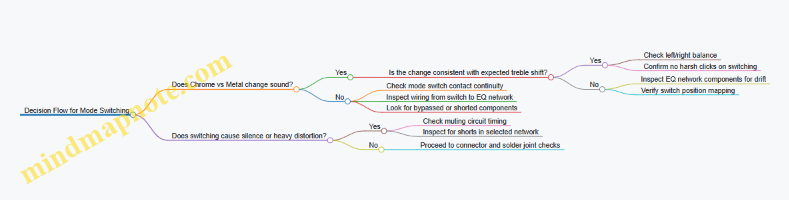
Proper mode switching is less about “choosing the right label” and more about ensuring the deck actually connects the correct EQ and bias networks for each position. When the switch is electrically correct, the audio differences between Normal, Chrome, and Metal become consistent, repeatable, and easy to diagnose.
10. Output Connectors, Cable Strain Relief, and Ground Integrity
10.1 Repairing Headphone Jacks and Eliminating Intermittent Channel Dropouts
Intermittent left/right dropouts usually come from the headphone jack, the wiring to the jack, or the small switch contacts that the jack uses to route audio. The goal is to restore a stable mechanical connection and confirm the signal path with simple measurements, not just “it sounds okay now.”
Foundational Symptoms and What They Usually Mean
Start by sorting the symptom into a pattern:
- One channel cuts out when you move the plug: jack contact wear, bent tip/ring, or cracked solder at the jack lugs.
- Both channels cut out when you wiggle the plug: strain relief failure, broken ground, or a jack switch contact that is not making.
- Channel drops only at certain volume settings: less likely the jack; more likely a volume pot track or mute circuit.
- Channel drops even with no plug inserted: the jack’s internal switch contacts may be oxidized or misaligned.
A quick example: if the right channel disappears only when the plug is angled upward, the plug is likely losing contact with the ring (right) contact, or the jack’s internal spring is weak.
Mind Map: Jack-Related Dropout Diagnosis
Stepwise Inspection Before You Touch the Solder
- Confirm the headphones are not the culprit: try a known-good pair. If both channels behave normally with another headset, focus on the player.
- Inspect the jack area with light and magnification: look for dull, cracked, or ring-shaped solder joints at the jack lugs. Also check for wire strain where the cable meets the player.
- Check for mechanical looseness: if the jack feels wobbly, the solder joints may have been stressed repeatedly.
A practical example: if you see a solder joint that looks “grainy” and slightly lifted from the pad, that joint often opens under plug pressure, causing a channel to vanish for a second.
Electrical Checks That Don’t Require Guesswork
Use a multimeter in continuity or resistance mode.
- Identify terminals: most headphone jacks have three main connections (tip, ring, sleeve) plus sometimes a switch contact used for routing.
- Check continuity from jack terminals to the amplifier input points: gently wiggle the cable and the jack body while watching the meter.
- Perform a “wiggle test”: move the plug slightly by hand while monitoring continuity between the ring terminal and the right-channel input node.
If continuity flickers only when you wiggle the plug, the issue is in the jack contact system or its immediate solder joints. If continuity is stable but audio still drops, the fault may be downstream (mute circuit, volume pot, or channel amplifier).
Repairing the Jack and Its Connections
Reflow and Re-seat
If the jack terminals are intact and the jack is mechanically solid:
- Heat each suspect lug and reflow solder until it wets the pad and the wire. Avoid overheating the plastic body.
- Re-seat any wire that looks slightly lifted from the pad before reflow.
- Route wires so they do not tug when the plug is inserted.
Example: a cracked solder joint can measure “okay” when the jack is still, then open when the plug presses the terminal. Reflow fixes the mechanical bond, not just the electrical reading.
Replace the Jack When the Terminal Is Loose
Replace the jack if any of these are true:
- The jack lug moves relative to the board.
- The spring tension feels weak or the plug doesn’t seat firmly.
- The solder pad is damaged or the terminal hole is enlarged.
When replacing, match the jack type and switching behavior. Some jacks include a normally-closed contact that routes speaker/line audio differently; using the wrong version can create silent output or constant muting.
Handling Strain Relief and Cable Breaks
Intermittent dropouts often come from a wire break inside the cable jacket near the player.
- Inspect the cable entry and any internal strain relief.
- If a wire is nicked or partially broken, repair it by re-terminating the conductor to the jack or board pad.
- Ensure the repaired cable is secured so movement is absorbed by the strain relief, not the solder joints.
A simple example: if the left channel fails only when the cable is pulled to one side, the conductor may be cracked under the jacket. Re-terminating the conductor restores continuity.
Cleaning Jack Switch Contacts Carefully
Some headphone jacks include internal switch contacts that route audio when a plug is inserted. If the player has dropouts even with no plug inserted:
- Clean the switch contacts only if the jack design allows access.
- Avoid flooding the jack with cleaner; excess fluid can migrate and cause new problems.
If you can’t access the contacts cleanly, replacement is usually more reliable than repeated cleaning.
Verification After Repair
- Continuity stability: repeat the wiggle test and confirm the meter reading stays steady.
- Audio test: play a mono track and confirm both channels stay present while you insert the plug and gently move it.
- Switch behavior check: test with no plug inserted and with the plug inserted to confirm routing is correct.
A good acceptance check: with a mono source, both channels should remain audible even when the plug is lightly rotated. If one channel still drops, the fault is likely either the jack contact system or a downstream channel connection.
10.2 Replacing Broken Cable Leads and Restoring Strain Relief Features
A cassette Walkman’s headphone cable is a high-flex part that lives a hard life: repeated bending at the plug, twisting in a pocket, and tugging when the player is moved. When the cable lead breaks, the symptoms are usually intermittent audio, one channel cutting out, crackling when you move the wire, or silence that returns when you press the connector. The goal is not only to reconnect wires, but to restore the mechanical “job” of the strain relief so the solder joints stop taking the stress.
Foundational Checks Before You Touch a Soldering Iron
Start by confirming the break location. Wiggle the cable near the plug, then near the player’s jack, then along the length. If the sound changes only at one region, you’ve narrowed the fault. If both channels drop together, the issue may be the common ground or the jack switch contact; if only one channel drops, suspect that channel’s conductor or its solder point.
Inspect the cable jacket for cuts, stiffness, or missing insulation. If the jacket is damaged near the plug, plan to replace the lead section rather than patching a tiny exposed spot. Also check whether the jack housing has cracked plastic; a cracked housing can defeat strain relief even after a good solder repair.
Cable Replacement Strategy That Prevents Repeat Failures
Choose a replacement cable with similar flexibility and conductor count. For stereo headphone leads, you typically need left, right, and a shared ground. If the original cable includes a shield, keep the shield concept: it helps reduce hum and keeps the headphone wiring from acting like an antenna.
Cut back to clean, undamaged wire. Strip insulation carefully so you don’t nick strands. Twist each conductor lightly before tinning; loose strands can break again under bending.
Restoring Strain Relief Features So the Cable Stops Pulling the Solder
Strain relief is the part that clamps the cable jacket (or a nearby internal tie-down), so movement is absorbed by the housing and not by the solder pads. If the original clamp is missing, use a new tie-down method that grips the jacket, not the bare conductors.
A common approach is to reuse the original cable clamp if it’s intact. If it’s broken, replace it with a small internal clamp or a secure knot-like tie using non-stretch thread or a cable tie designed for electronics. The key is that the jacket must be held firmly enough that pulling on the cable does not move the soldered conductors.
Step-by-Step Replacement Workflow
- Open the player and locate the jack wiring path. Take photos before disconnecting anything so you can match routing and avoid pinched wires.
- Remove the old lead. Desolder at the jack pads or connector, then free the jacket from the strain relief.
- Prepare the new lead. Cut to length with slack for service, then strip and tin the conductors.
- Solder with mechanical support. Hold the conductor so it doesn’t tug while cooling. Use minimal solder and avoid overheating pads.
- Verify channel mapping before reassembly. Use a multimeter continuity test from left/right pads to the corresponding wire colors. If the jack has a switch contact, confirm it with the plug inserted.
- Rebuild strain relief. Clamp or tie the jacket so any pull force is taken by the housing.
- Route the cable away from moving parts. Keep it clear of the cassette mechanism and any sharp edges.
- Close the case and test. Wiggle test again at the plug and along the cable.
Mind Map: Cable Lead Replacement and Strain Relief
Example: One Channel Drops When the Plug Is Moved
You notice left audio cuts out when you rotate the plug slightly, while right stays steady. After opening the unit, you find a cracked solder joint on the left pad and a strain relief that no longer grips the jacket. You replace the cable lead section, solder the left conductor to the correct pad, and re-clamp the jacket so the conductor cannot shift when the plug is rotated. After reassembly, the wiggle test shows stable left and right with no crackling.
Example: Both Channels Cut Out Together
Both channels go silent when you tug the cable. Continuity tests show the ground conductor is intermittent, and the jacket clamp is loose. You replace the lead, solder the ground to the common pad, and tighten the strain relief so the jacket is held firmly. The audio remains stable even when you apply gentle pulling force to the cable.
Practical Quality Checks That Catch Mistakes Early
A good solder joint looks smooth and shiny (not dull and grainy), and it should not flex when you gently move the wire. A good strain relief should prevent any movement at the solder pads when you tug the cable jacket. If either test fails, fix it before closing the case; once the mechanism is back in place, you’ll only be guessing where the problem moved.
10.3 Cleaning and Re-seating Internal Connectors and Ribbon Cables
Internal connectors and ribbon cables are the quiet culprits behind intermittent audio, channel dropouts, and “it works when I wiggle it” behavior. The goal here is simple: restore reliable electrical contact and mechanical alignment without damaging fragile plastics, thin traces, or solder joints.
Foundational Concepts for Reliable Contact
A connector fails for two main reasons: the metal surfaces oxidize or the mechanical pressure is uneven. Oxidation increases contact resistance, which can show up as crackling, low volume, or one channel going quiet. Uneven pressure often comes from a cable that is slightly skewed, a latch that isn’t fully engaged, or a connector housing that has been stressed during prior repairs.
Before touching anything, power the player off and remove batteries or unplug the adapter. Then discharge any large capacitors if the unit has been recently powered. A quick visual scan helps: look for discoloration, bent pins, frayed ribbon edges, or residue from old flux.
Cleaning Without Making Things Worse
Use cleaning methods that match the connector type.
- Pin-and-socket connectors (discrete pins): Remove oxidation with a contact cleaner safe for electronics. Apply sparingly to a lint-free swab, then wipe the mating surfaces. Avoid flooding the connector; excess liquid can creep into nearby areas.
- Board headers and sockets: Clean both sides of the mating interface if accessible. If you can only reach one side, re-seat after cleaning so the other side gets wiped by the mating contact.
- Ribbon cable contacts: Ribbon contacts are thin and easily bent. Clean the exposed contact area using a swab lightly moistened with electronics-safe cleaner. Do not scrub aggressively; you’re removing residue, not polishing metal.
A practical rule: if you see black or brown residue, clean first, then re-seat. If you only see dust, re-seat may be enough.
Re-seating with Correct Alignment and Pressure
Re-seating is not just “push it back in.” It’s about alignment, full engagement, and strain relief.
- Inspect the connector geometry. Many ribbon connectors have a keyed orientation. If it doesn’t slide in smoothly, stop and check alignment.
- Check for bent pins. For pin headers, compare left and right rows. If a pin is bent, straighten carefully before insertion; forcing can spread damage.
- Seat fully and evenly. For board headers, press near the connector body, not on the wires. For ribbon connectors, ensure the latch is fully closed.
- Verify cable routing. A cable that is routed under tension can slowly unseat itself. Route it so it lies flat and has gentle slack.
Example: Intermittent Left Channel
A common symptom is left channel dropping out when the unit is moved. After confirming the issue is present on playback (not just during headphone use), inspect the ribbon cable between the transport/audio board. Clean the ribbon contacts lightly, re-seat the cable with the latch fully engaged, and route the ribbon so it doesn’t tug. Test again while gently pressing the connector housing; if the dropout disappears, the contact resistance problem is resolved.
Systematic Workflow from Easy Checks to Deeper Fixes
Use a repeatable order so you don’t miss the real cause.
- Confirm the symptom pattern. Does it happen on both headphones and line output? Does it change with volume knob movement?
- Locate likely connectors. Start with the most flexed areas: headphone jack wiring, control board to main board, and any ribbon between transport and audio.
- Clean and re-seat one connection at a time. This prevents confusion about which change fixed the problem.
- Test after each change. A short playback test is enough to confirm progress.
- If problems persist, inspect for mechanical stress. Look for cracked solder joints at the connector pins or board flexing around the header.
Mind Map: Connector Cleaning and Re-seating
Practical Checklist for the Bench
- Connector surfaces look clean after wiping (no sticky residue).
- Ribbon cable sits flat with no twist.
- Latch clicks or visibly locks in place.
- No wire or ribbon is under tension.
- Playback test shows stable left/right balance.
When you treat connectors like precision parts rather than “plug it in and hope,” the repairs become predictable. The player may still need other work, but you’ve removed a frequent source of intermittent audio and made the rest of the troubleshooting far less annoying.
10.4 Checking Ground Paths and Shield Continuity for Reduced Hum
Hum in cassette players usually comes from a simple mismatch: the audio signal wants a quiet reference, but the circuit is using a reference that’s getting dragged around by current pulses and stray electromagnetic fields. Ground path checks focus on two questions: where is the “0V” reference actually, and does the shield do its job without creating extra loops.
Foundational Ground Concepts That Matter in Walkmans
A portable player has multiple “grounds” that are not always identical in practice. The chassis metal, battery negative, circuit ground plane, and shield terminations can be connected through different routes. If any route has resistance, the return current for the headphone amp or motor can create a small voltage drop. That drop then appears as hum at the audio output.
Shield continuity adds a second layer. A shield is meant to provide a low-impedance path for interference to return to the same reference point as the circuit ground. If the shield is open, the interference couples into the signal wiring. If the shield is connected at multiple points incorrectly, you can create a loop that picks up magnetic fields.
Systematic Inspection Order
Start with the least invasive checks, then move toward measurements.
- Visual and mechanical inspection: Look for cracked solder joints at the headphone jack, corroded battery contacts, and loose ground braid or spring fingers. A ground that “looks connected” can still be resistive.
- Connector and ribbon seating: Reseat internal connectors and inspect for bent pins. A partially seated ground pin can produce hum that changes when you press the case.
- Continuity checks with power removed: Use a multimeter in continuity or resistance mode to map which points are truly tied together.
- Shield checks: Confirm continuity from the shield to the intended termination point, and confirm the shield is not accidentally shorting to signal conductors.
- Load-aware verification: After repairs, test with headphones and with the volume control at several positions to confirm hum behavior is stable.
Mind Map: Ground Paths and Shield Continuity
Continuity Mapping That Finds the Real Reference
Pick a reference point and map outward. A practical choice is battery negative at the power switch input, because it’s the start of the return path. Then measure resistance to:
- circuit ground near the headphone amplifier
- the headphone jack sleeve
- any shield termination pads
- chassis metal (if the chassis is used as a return)
You’re looking for “near zero” resistance where a solid connection is expected. If you see tens of ohms where you expect less than an ohm, you likely found a resistive joint, corroded contact, or a broken trace.
Example: If battery negative to headphone jack sleeve measures high resistance, hum often appears even with the tape stopped. Fixing the ground solder joint at the jack typically reduces hum immediately.
Shield Continuity Checks Without Creating New Problems
Most Walkman-style wiring uses shielded leads for the audio path or for the headphone cable. The shield should connect to the correct termination point, often the circuit ground at the amplifier input or a designated shield pad.
Perform two checks:
- Shield-to-ground continuity: Measure from the shield conductor to the intended ground termination. You want continuity.
- Shield-to-signal isolation: Measure between the shield and the inner signal conductor. You want no continuity.
Example: If shield-to-ground is open, hum may increase when you move the headphone cable. If shield-to-signal shows continuity, the shield is shorting into the audio line, which can cause both hum and channel imbalance.
Ground Loop Avoidance Through Termination Discipline
A ground loop happens when the shield is tied to ground at two separated points that experience different return currents. In many repairs, the temptation is to “make it fit” by soldering the shield to the chassis and also leaving an existing shield termination on the PCB.
Example: After re-cabling, hum becomes louder only when the motor runs. That pattern suggests the shield is now carrying motor return currents into the audio reference. The fix is to ensure the shield terminates at one intended point, matching the original wiring scheme.
Advanced Detail: Hum Behavior as a Diagnostic Clue
Hum behavior helps you decide whether the problem is in the power return, the audio reference, or the shield.
- Hum changes with volume control: likely injected into the preamp or headphone amp input reference.
- Hum changes when the motor starts: likely return current coupling into ground or shield.
- Hum only on one channel: often a channel-specific ground or a shield termination issue near that channel’s wiring.
Example: If hum is present on both channels but becomes noticeably worse when you press the headphone jack area, the ground joint at the jack sleeve is a prime suspect.
Practical Repair Moves That Usually Work
- Reflow suspect ground solder joints at the headphone jack and PCB ground pads.
- Clean and re-tension any spring contacts that connect the PCB ground to the chassis.
- Replace corroded battery contacts rather than relying on “better pressure.”
- When re-routing shielded wire, keep the shield termination consistent with the original point and avoid extra chassis solder.
Quick Verification Checklist
- Battery negative to circuit ground shows low resistance.
- Headphone jack sleeve to circuit ground shows low resistance.
- Shield-to-ground continuity is present at the intended termination.
- Shield-to-signal shows no continuity.
- Hum level is stable across case movement and motor on/off tests.
11. Mechanical Reassembly, Alignment Verification, and Burn in Testing
11.1 Reassembling The Transport With Correct Screw Torque And Cable Routing
Reassembly is where “it worked on the bench” becomes “it works in the player.” The transport is a stack of mechanical relationships: screw tension affects chassis flatness, flatness affects alignment, and alignment affects speed and head tracking. Cable routing affects grounding, switch sensing, and whether the audio path stays quiet when the lid closes.
Start by laying out parts in the order they came off. Keep screws grouped by length and location; mixing lengths is the fastest route to a crooked chassis or a pinched ribbon. If your player uses different screw heads for different layers, separate them even if they look similar. A quick visual check now prevents a slow, frustrating re-open later.
Foundational Reassembly Sequence
- Transport base first: Set the transport onto the chassis without tightening fully. This lets you seat cables and align mounting points.
- Idler and belt path alignment: Confirm the belt sits in the intended grooves and the idler pivots move freely. If you feel resistance, stop and correct it before tightening screws.
- Head and guide clearance: Rotate the flywheel by hand and watch that the tape path components do not rub the chassis. Clearance should be consistent across the travel.
- Cable placement before final torque: Route cables so they do not cross moving parts, do not touch the flywheel, and do not get trapped under the transport lip.
- Final tightening in a pattern: Tighten mounting screws gradually in a cross pattern, alternating sides. This reduces the chance of warping the transport plate.
Correct Screw Torque Without a Torque Tool
Many portable players never had a torque spec printed on the case, so you use feel and repeatability. Use a screwdriver that fits the screw head cleanly, and stop when the screw seats and the chassis stops flexing. For most small screws, “snug plus a small fraction” is enough; overtightening can strip plastic bosses or pull the transport out of plane.
A practical method: tighten each screw to the same feel in two passes. First pass brings all screws to snug. Second pass adds a small, consistent increment. If you notice the transport plate lifting or the tape path alignment shifting during the second pass, loosen and re-seat before continuing.
Cable Routing That Prevents Noise and Intermittent Faults
Cable routing is not just about avoiding pinched wires. It also controls how grounds and signals behave when the player is moved. Keep signal cables away from motor and switch wiring when possible, and ensure ribbon cables are fully seated in their connectors.
Use these checks:
- No contact with moving parts: Spin the flywheel by hand after routing. If anything brushes, re-route.
- Strain relief stays functional: The cable should be supported by its clamp or channel, not by the connector.
- Connector seating: Ribbon cables should sit flat with no lifted corners.
- Switch travel clearance: Move the mode lever through its range and confirm the cable doesn’t tug or snag.
Mind Map: Transport Reassembly Priorities
Example: Two Common Reassembly Mistakes
Mistake 1: Tightening one corner fully before routing cables. The transport settles slightly, and the cable ends up under a lip. When the lid closes, the cable gets stressed and the audio intermittently cuts out. Fix: route cables first, then snug all screws, then tighten in a cross pattern.
Mistake 2: Using the wrong screw length in a plastic boss. The screw bottoms out early, leaving the transport plate slightly lifted on the opposite side. Symptoms show up as speed instability or uneven channel balance. Fix: match screw lengths to their original positions and do a second-pass tightening only after the plate sits flat.
Final Verification Before You Close It Up
Before the last cover screws, do three quick checks. First, rotate the flywheel by hand and confirm smooth motion with no cable drag. Second, move the mode lever and ensure it doesn’t pull on any connector. Third, close the lid gently and watch for any cable displacement. If any of these fail, reopen now; it’s faster than diagnosing a fault that was created during reassembly.
Once those checks pass, run a short playback test with a known-good cassette. Listen for stable volume and channel balance, and confirm the transport engages without hesitation. If something sounds off, do not keep cycling modes; re-open and verify alignment and cable routing first.
11.2 Performing Playback Verification with Multiple Cassette Conditions
Playback verification is where you prove the transport and audio chain behave across real-world variety. The goal is not just “it plays,” but “it plays consistently,” with speed, level, and channel balance staying within reasonable bounds.
Foundational Setup Before You Start
Start with a clean, reassembled unit and a known-good power source. If the player runs on batteries, use fresh cells or a stable bench supply; weak supply voltage can masquerade as audio faults. Set the volume control to a repeatable position and note the headphone or line output mode you will use.
Before testing multiple cassettes, confirm the basics with one cassette: the transport engages smoothly, the tape moves without obvious scraping, and both channels produce sound. If you skip this step, later results become hard to interpret.
Mind Map: Playback Verification Flow
Building a Multi-Cassette Matrix
Use at least three cassettes that differ in ways that matter to the player.
- Newer or well-preserved tape: helps confirm the transport and head surfaces are in good shape.
- Older tape with unknown storage: reveals issues like sticky reels, oxide shedding, or marginal speed control.
- A different tape type or recording style: if you have chrome vs. ferric, or a cassette recorded hot vs. conservatively, it stresses equalization and level handling.
If you only have one tape type, vary recorded content instead. Choose one cassette with steady tones or consistent speech, and another with louder passages that expose distortion.
What to Verify During Each Playback
For each cassette, run the same sequence: play for 30–60 seconds, pause briefly, then play again. This catches problems that appear after the tape warms up or after the reels settle.
Track these observations:
- Speed stability: Listen for pitch drift on sustained audio. If you have a reference tone recording, compare perceived pitch between the first and second play.
- Wow and flutter feel: Rapid pitch wobble is usually transport-related. Slow drift can be speed control or supply voltage.
- Channel balance: Switch between left and right by listening for equal loudness and similar clarity. Uneven balance often points to head alignment, dirty guides, or a channel-specific electronics issue.
- Output level and noise: Note hiss level at a consistent volume setting. A sudden increase in noise on one cassette can indicate head contamination or tape shedding.
- Distortion behavior: Pay attention to loud peaks. If distortion appears only on certain cassettes, the equalization or bias path may be off, or the tape’s recording level may be pushing the system.
A practical example: if cassette A plays cleanly, cassette B sounds muffled and slightly quieter, and cassette C is distorted on peaks, you likely have more than one issue. Transport problems usually affect all three similarly, while head or equalization issues often show up as “cassette-dependent.”
Interpreting Results Without Guessing
Use a simple rule set.
- Transport issues are consistent across cassettes: speed wobble, tape chewing, or repeated engagement failures show up regardless of tape.
- Head and alignment issues vary by cassette: one tape may sound fine while another loses high end or shows channel imbalance.
- Electronics issues persist regardless of tape: if both cassettes have the same low volume or same distortion pattern, the fault is more likely in the playback amplifier or output stage.
Also watch for reel friction. If one cassette takes longer to reach steady playback or has uneven take-up, the transport may be fine but the cassette itself is dragging.
Pass Criteria and Documentation
Define “pass” in terms you can repeat. For example: both channels audible immediately, no obvious speed wobble on sustained audio, no harsh distortion on loud passages beyond what the original recording likely contained, and stable hiss level at a fixed volume.
Record for each cassette: tape type, approximate condition, output mode, volume position, and your key observations. If you later adjust head height or clean the guides again, you can compare notes and see whether the change improved the cassette-dependent symptoms or the universal ones.
11.3 Confirming Speed Stability and Wow and Flutter Using Recorded Checks
Speed stability is the transport’s promise: the capstan and pinch roller should move the tape at a steady rate, and the rest of the mechanism should not introduce periodic speed errors. Wow and flutter are the audible symptoms of those errors—wow is slower, flutter is faster—so the goal of this section is to measure them using recorded checks you can play back repeatedly.
Foundational Concepts You Need Before Measuring
Start with what “stable speed” means in practice. A cassette deck typically targets a nominal speed (often 1 7/8 ips). If the speed is off by a small amount, pitch shifts; if the speed varies over time, pitch wobbles. Wow and flutter are not one number until you define the test signal and the measurement method.
A recorded check tape gives you a known reference signal. When you play it back, any deviation you hear or measure comes from the player, not from your ears guessing. If you do not have a dedicated wow/flutter tape, you can still use a well-known recording with steady tones, but the repeatability will be lower.
Mind Map: Speed Stability and Wow and Flutter Checks
Preparing the Player for Repeatable Checks
Before you test, standardize the conditions. Clean the tape path components you can reach without changing the mechanism’s alignment: capstan surface and pinch roller contact area. Then warm up the player by running a short playback cycle; rubber behavior can change slightly with temperature.
Set the deck to the correct tape type and playback EQ mode for the check tape. If the check tape expects a particular EQ curve and you use the wrong one, you may hear level changes that distract from speed issues. Keep volume controls at a fixed position so your recording level stays comparable.
Choosing a Recorded Check Signal
Use a tape segment that contains steady tones or a known frequency sweep. Steady tones are best for wow because the pitch should remain constant. A sweep can help you spot flutter because rapid pitch modulation shows up as a “thickness” in the tone rather than a single clean pitch.
If your check tape includes a reference tone at a known frequency, you can also estimate average speed error by comparing the tone’s perceived pitch or by measuring it in software. Even without software, a reference tone is useful for catching gross speed problems.
Performing the Recorded Check Step by Step
- Select the segment: Find a section with a long, steady tone. Avoid segments with music or fast transients.
- Play and listen first: Listen for slow pitch movement. If the pitch rises and falls over a second or two, that’s wow. If it jitters rapidly, that’s flutter.
- Record the output: Capture line/headphone output to a file at a consistent level. Use the same output jack each time.
- Repeat runs: Do at least three playbacks of the same segment. If one run sounds different, you may be hearing a mechanical intermittency rather than true speed modulation.
- Compare channels: If left and right channels show different wobble character, suspect channel-specific issues like output coupling or contact problems, not transport speed.
Mind Map: Interpreting What You Hear

Example: Diagnosing After Belt Replacement
Suppose you replaced a worn belt and the player now plays at the right average pitch, but the tone still wobbles. Run the steady-tone segment again and record it. If the wobble is mostly slow, focus on idler tension and belt seating; a belt that is slightly misrouted or idler that is not fully seated can create periodic speed variation. If the wobble is mostly fast, inspect the pinch roller surface for glazing and confirm it has firm contact pressure. A roller that looks “fine” can still slip microscopically, creating flutter.
Example: Spotting Mechanical Play
If repeated runs show inconsistent wobble, do a quick mechanical check. With the player open, observe the capstan and flywheel while the transport runs. Any visible hesitation, rubbing, or uneven motion suggests a mechanical issue such as bearing drag or misalignment. After correcting it, repeat the same recorded segment and compare the three recordings again.
Practical Pass Criteria for This Stage
You are not trying to win a lab contest; you are trying to confirm improvement and stability. A “pass” at this stage looks like: no obvious pitch drift during the steady tone, wobble that is reduced compared to before the repair, and consistent results across multiple runs. If the results are inconsistent, stop treating it as a speed problem and return to the transport and contact points until the behavior becomes repeatable.
11.4 Running Record and Playback Loop Tests for End to End Function
End-to-end testing answers one question: does the whole chain behave as expected when you force it to work continuously? For cassette Walkman repairs, that chain includes power stability, transport speed, head cleanliness and alignment, record and playback electronics, and output muting behavior. A loop test also catches “it works once” problems like marginal battery contact, intermittent switch contacts, or a transport that drifts after warm-up.
Loop Test Goal and Pass Criteria
Run the loop in two phases: record a controlled signal, then immediately play it back and compare results. Use pass criteria that are measurable, not vibes-based.
- Transport stability: playback pitch stays consistent across the loop.
- Channel balance: left and right levels remain close to each other.
- Noise and distortion: no sudden hiss spikes, crackles, or clipping.
- Mode correctness: record and playback modes do not bleed into each other.
- Output behavior: headphone output remains steady with no mute chatter.
A practical pass target is “no obvious change” over the full loop length, plus no new faults after the unit warms up.
Mind Map: End to End Loop Test Flow
Setup That Prevents False Failures
Start with a cassette that is either new-old-stock or one you already trust. If you use a mystery tape, you’re testing the tape as much as the player, and the results get messy.
Power matters. If you run on batteries, use a fresh set and keep the unit in the same orientation throughout the loop. If you use a mains adapter, confirm it matches the player’s expected voltage and polarity. A marginal supply can look like “audio distortion” when it’s really voltage sag.
Before recording, confirm the transport is clean and the pinch roller is gripping. A loop test will faithfully reproduce speed problems, which is great—just make sure you’re not blaming electronics for a mechanical slip.
Record Phase Procedure
Use a consistent source signal. A simple approach is a steady tone or a short music segment with stable content. Keep the record input level moderate so you can detect clipping if it appears.
Record for a fixed duration, such as 60 to 90 seconds, then stop and switch to playback without moving the unit. Immediate switching reduces the chance that you’re comparing two different mechanical states.
During recording, watch for record indicator behavior and any audible transport irregularities. If the unit starts strong and then gets worse mid-record, that often points to belt/idler behavior, capstan drag, or a control circuit that changes with temperature.
Playback Phase Procedure
Play the recorded segment immediately. Listen for three categories of issues:
- Pitch and speed: the tone should not noticeably rise or fall across the segment. If it does, focus on capstan/pinch roller and belt tension.
- Channel balance: left and right should track each other. If one channel is consistently lower, suspect head cleanliness, head wiring, output coupling components, or switch contacts.
- Distortion and noise: clipping sounds harsh and compressed; hiss spikes often correlate with intermittent contacts or grounding issues.
If you have a way to measure output, record a quick baseline level for the first 10 seconds and compare it to the last 10 seconds. Without measurement, you can still use a consistent listening position and volume setting, but measurement makes the comparison objective.
Loop Repeat and Warm-Up Check
Repeat the record/playback sequence once more. The second loop is where marginal repairs show up. For example, a slightly sticky pinch roller might still grip at the start, then slip after warming. Likewise, a switch contact that barely makes contact can fail only after repeated mode changes.
If you want a simple warm-up variation, run the loop twice back-to-back, then repeat a third time after a short pause. Keep the pause short and consistent so you’re not changing conditions randomly.
Troubleshooting Triggers and What They Usually Mean
- Speed drift only during playback: head alignment, transport drag, or playback EQ interaction.
- Speed drift during recording too: belt/idler tension, capstan/pinch roller wear, or flywheel drag.
- Hum that appears in both loops: grounding path, shield continuity, or output stage biasing.
- Intermittent muting or crackle during mode changes: mode switch contacts, headphone jack switch, or ribbon cable seating.
Documentation for Repeatability
Write down the exact settings used: power source, volume position, record input level, and which mode switches were engaged. Then log observations by time segment, such as “0–20 seconds stable, 40–60 seconds slight pitch rise.” That format makes it easier to connect symptoms to the repair work you performed earlier in the chapter.
A loop test is successful when the player behaves consistently across the whole chain, not just at the first second of playback. It’s the difference between “it plays” and “it plays the same way every time you ask it to.”
11.5 Creating a Final Acceptance Checklist with Measured Results
A final acceptance checklist turns “it seems fine” into “it meets targets.” The goal is to verify transport behavior, playback quality, and audio output with repeatable measurements, using the same cassette conditions each time. If you record results in a simple log, you can compare later repairs without guessing.
Foundational Setup and Test Conditions
Start by standardizing what you test. Use a fresh set of batteries or a stable DC supply, and let the player run for 2–3 minutes so the electronics settle. Choose one known-good reference cassette for playback checks and one blank cassette for record/playback loop tests. Clean the tape path immediately before the session, then avoid touching the head surfaces.
A practical rule: measure first, adjust second. For example, if wow and flutter are high, don’t immediately tweak head height; speed problems often come from transport friction, belt slip, or pinch roller condition.
Mind Map: Acceptance Checklist Flow
Transport Verification with Measured Targets
-
Playback start time: Start playback from stop and note time to stable audio. A consistent start indicates correct clutch engagement and capstan/pinch roller contact.
-
Speed stability: Use a recorded speed reference or a phone-based audio analysis method. Record a short segment and compare pitch stability across the segment. If the player has a service mode, use its speed reading; otherwise, compare relative stability before and after transport work.
-
Take-up tension: During playback, observe reel motion. Excessive slack can cause level wobble; excessive tension can increase friction and noise. If you see uneven reel behavior, re-check belt routing and idler condition.
-
Fast-wind behavior: Confirm that fast-forward and rewind stop reliably at end-of-tape. If the mechanism overshoots, the clutch or brake calibration may be off.
Audio Path Verification with Output Measurements
Use a consistent load and measurement point. For headphone output, measure at the headphone jack with a known dummy load or a headphone with stable impedance characteristics. For line output, measure at the line jack.
-
Output level: Play the reference cassette at a known track and set volume to a reference position you choose once for the session. Measure left and right output levels. Record both values.
-
Channel balance: Compute the difference between left and right. If one channel is consistently lower, suspect head azimuth, head cleanliness, or a channel-specific control contact.
-
Noise floor: With no signal (or during a quiet passage), measure hiss level at the same volume setting. A repair that fixed power or grounding issues should reduce hum and stabilize hiss.
-
Distortion check: Increase playback level to your chosen reference and look for clipping or harshness. If you have a scope, check waveform symmetry; if not, use a distortion meter app only as a rough indicator and rely on repeatability.
Record/Playback Loop Verification
Record/playback tests catch problems that pure playback checks miss, especially bias and equalization.
-
Level accuracy: Record a short tone or music segment on a blank cassette at a fixed input level. Play it back immediately and measure output level. If playback is consistently low or high, bias or record EQ may be incorrect.
-
Frequency response sanity check: If you can, record two tones (for example, one low and one midrange) and compare playback levels. Large differences suggest EQ network issues or head alignment problems.
-
Erase effectiveness: Record over a previously recorded section and confirm that old content is not audible during playback. Weak erase can leave residual noise and muddy levels.
Connector and Output Integrity
Intermittent faults often show up only when the player is moved or the cable is flexed.
- Headphone jack continuity: Wiggle the plug gently while monitoring output. Any sudden dropouts indicate worn contacts or cracked solder joints.
- Strain relief: Confirm the cable doesn’t pull on internal solder points. A simple test is to apply light tension to the cable while listening for level changes.
- Ground integrity: If hum appears only under certain volume settings, re-check ground paths and any shield connections near the output stage.
Example: One-Page Acceptance Log
Acceptance Log
Player: ________  Date: ________
Power: Battery / DC supply ________
Reference Cassette: ________  Blank Cassette: ________

Transport
- Playback start time: L/R stable after ____ s
- Speed stability: compare pitch over ____ s: ____
- Reel behavior: FF/REW stop reliably: Yes/No

Audio Output
- Volume reference position: ____
- Playback level L: ____ dBV (or ____ mV)
- Playback level R: ____ dBV (or ____ mV)
- Channel difference: ____ dB
- Noise floor at reference: ____
- Distortion at reference level: None / Mild / Severe

Record/Playback Loop
- Recorded tone level error: ____ dB
- Low tone vs mid tone difference: ____ dB
- Erase check: Old content audible Yes/No

Connector Checks
- Headphone jack dropout during gentle wiggle: Yes/No
- Cable strain relief test: Stable/Unstable

Pass/Fail: ________
Notes: ______________________________
Pass/Fail Criteria That Stay Honest
Set pass/fail thresholds based on what you can measure reliably. For example, channel difference should be within your typical measurement repeatability, and noise floor should not worsen compared to your pre-repair baseline. If you can’t measure a parameter confidently, mark it as “not verified” rather than pretending it’s fine.
When the checklist is complete, the player earns its “accepted” status because transport behavior, audio output, and record/playback performance all meet the same measured conditions you used from the start.
12. Practical Repair Case Studies and Troubleshooting Playbooks
12.1 Case Study: No Power and Intermittent Battery Contact Fix
A common complaint on early cassette Walkman-style players is “no power,” sometimes followed by “it works if I press here.” That second sentence is your clue: the fault is often mechanical or contact-related, not the amplifier or the tape mechanism.
Starting with the Symptom Pattern
First, separate the behavior into two buckets:
- No power consistently: the unit never starts, even after repeated attempts.
- Intermittent power: the unit starts briefly, then dies, or starts only when the battery door, DC jack, or a specific internal area is moved.
Example observation: the player turns on for 2–3 seconds, then shuts off when you release the battery door. That points to a contact that loses pressure, a corroded spring, or a switch that isn’t fully closing.
Mind Map: Fault Isolation Path
Step 1: Confirm the Basics Without Guessing
Begin with the simplest checks because they prevent wasted effort.
- Verify battery orientation and confirm the battery type matches the player’s expectations.
- Measure battery voltage with a multimeter. If you only measure open-circuit voltage, you can miss a battery that collapses under load.
- Perform a load test: measure voltage again while the player is attempting to power on. If voltage drops sharply, the battery or contact is failing.
Example: batteries read 1.55 V each at rest, but during power-on the reading falls to 0.9 V. That strongly suggests contact resistance or a switch issue rather than a “dead” battery.
Step 2: Eliminate the DC Jack Trap
Many portable players use the DC jack as a switch: inserting a plug disconnects the battery. If the jack is dirty or partially engaged, it can create intermittent power.
- Inspect the jack for debris.
- With no plug inserted, gently wiggle the jack area while watching the power LED or measuring the main rail.
Example: the LED flickers when you touch the jack housing. That’s a strong sign the jack contacts are oxidized or mechanically unstable.
Step 3: Inspect and Restore Battery Contacts
Intermittent power is frequently caused by high resistance at the battery springs or the flat terminals.
- Remove the battery door and inspect springs for dullness, pitting, or looseness.
- Look for corrosion: a whitish or greenish residue is a giveaway.
- Clean contacts using a non-aggressive method first (dry wipe), then a suitable contact cleaner if residue remains.
- If terminals are tarnished, lightly polish until you see consistent metal sheen.
Example: one spring has a dark spot and reduced tension. After cleaning, the spring still doesn’t press firmly. The fix is to restore tension by gently reshaping the spring or replacing it if it’s fatigued.
Step 4: Check the Power Switch Contacts
If battery contacts are clean but power still cuts out, the power switch may be dirty or worn.
- With the unit open, observe the switch movement.
- Use the multimeter to check continuity across the switch terminals while toggling.
- If continuity is intermittent, clean the switch contacts and confirm the lever fully travels.
Example: continuity appears only when the switch is held slightly forward. That indicates the switch isn’t making full contact, often due to grime or mechanical misalignment.
Step 5: Verify the Power Rail and Regulator Behavior
Once you suspect contacts and switching, confirm electrical health.
- Measure regulator input when the unit tries to start.
- Measure regulator output. If input is present but output is missing, the regulator or a downstream short may be the issue.
Example: regulator input stays steady at 3.0 V, but output is 0 V. That shifts the focus away from battery contact and toward the regulator circuit.
Step 6: Use a Wiggle Test to Prove the Fix
After cleaning and restoring contacts, prove stability.
- Reassemble enough to power on.
- Start the unit, then gently move the battery door, DC jack area, and power switch region.
- The unit should remain on without flicker.
Example acceptance criterion: the player runs through playback for 10 minutes without shutting off, and the LED remains steady while you press the battery door lightly.
Example Repair Outcome and What It Means
In one typical repair, cleaning battery springs removed corrosion, but intermittent power persisted until the spring tension was restored. After that, the regulator input stayed stable during power-on attempts, and the unit started reliably every time.
Practical Checklist for This Case Study
- Battery voltage under load measured
- DC jack not partially engaged
- Springs and terminals cleaned and tension verified
- Power switch continuity consistent through full travel
- Regulator input and output checked during start attempt
- Wiggle test passes and playback remains stable
12.2 Case Study: Tape Does Not Spin and Belt Idler Replacement Workflow
A common complaint sounds like: “It powers on, but the cassette won’t move.” In these players, the tape transport usually fails for one of three reasons: the belt is missing or slipping, the idler is seized or mis-tensioned, or the capstan/pinch roller path is mechanically blocked. This case study follows a workflow that separates electrical causes from mechanical ones quickly, then replaces the belt and idler with checks that prevent repeat failures.
Symptom Breakdown and Fast Triage
Start by observing what the player does when you press Play.
- Spindle motion absent, motor sound normal: belt/idler/transport linkage is likely.
- Spindle motion absent, motor sound weak or changes pitch: belt is binding or a clutch is stuck.
- Spindle motion present but tape doesn’t move smoothly: pinch roller hardening, capstan contamination, or head/tape path drag.
Example: If the reels do not turn at all, but the motor clearly runs, you can treat this as a belt/idler problem first. That’s efficient because the belt and idler are the mechanical “gear ratio” between motor and spindles.
Mind Map: Tape Does Not Spin Root Causes
Tools, Parts, and Setup
Use a multimeter for quick continuity checks, but keep the main effort mechanical.
- Correct belt size for the model
- Replacement idler (or idler cleaning materials if reusing)
- Isopropyl alcohol for cleaning metal parts
- Lint-free swabs and cotton buds
- Small screwdrivers and tweezers
- A flashlight and a phone camera for “before” photos
Example: Before removing anything, photograph the belt routing and idler position. Even experienced techs benefit because one swapped pulley is enough to make a “new belt” behave like a dead belt.
Step 1: Confirm the Motor Drives the Transport
With the cassette door open (and the player safely supported), press Play and watch for motion at the motor pulley or flywheel.
- If the motor pulley spins but the spindles do not, the belt/idler path is the bottleneck.
- If the motor pulley does not spin, stop and re-check power contacts, mode switch, and motor drive.
Example: A motor pulley that spins steadily but an idler that doesn’t rotate points to a seized idler rather than a belt that’s simply stretched.
Step 2: Inspect Belt Condition Without Guessing
Look for belt glazing, cracks, or goo. If the belt is intact but shiny and slack, it may be slipping.
- Cracked belt: replace.
- Loose belt: replace and verify routing.
- Belt turned tacky: replace and clean any residue from pulleys.
Example: A belt that looks “present” can still be ineffective if it’s hardened and can’t transmit torque.
Step 3: Remove Belt and Evaluate Idler Freedom
Remove the belt carefully so you don’t stress plastic posts. Then test the idler by gently rotating it by hand.
- No smooth rotation: the idler is seized; replace or thoroughly clean and re-lubricate if the design allows.
- Rotation feels gritty: clean and inspect the rubber tire surface.
Example: If the idler tire is smooth and shiny, it may not grip even with a new belt. In that case, replacement is usually the cleanest fix.
Step 4: Replace Belt and Set Idler Tension
Install the new belt following your photos. Ensure the belt sits in the pulley grooves rather than riding on edges.
Then set idler tension by aligning the idler so it contacts the belt with consistent pressure. If the idler is spring-loaded, confirm the spring is seated and not stretched.
Example: A belt routed one pulley groove off can still “move,” but it will slip under load, causing no-spin symptoms that appear only when the cassette is inserted.
Step 5: Clean Capstan and Pinch Roller Contact Points
Even when the belt is the culprit, transport drag can mask the improvement.
- Clean the capstan shaft with alcohol on a swab, rotating it gently.
- Clean the pinch roller surface if it’s contaminated, then let it dry fully.
Example: If the pinch roller is glazed, the motor may spin and the belt may be new, yet the tape won’t advance smoothly.
Step 6: Verify Transport Engagement with a Test Cassette
Use a known cassette and run Play.
Checks:
- Reels rotate smoothly
- Tape speed looks steady
- No squeal or chatter from the idler
- Mode switching to Stop and Fast Forward works without belt derailment
Example: If reels turn briefly then stop, the belt may be mis-seated or the idler tension may be too low.
Step 7: Common Failure Points and Corrections
- Belt rides off the pulley: re-route and confirm groove seating.
- Idler not contacting belt: check spring seating and idler alignment.
- Still no spin after replacement: inspect reel clutches and motor pulley condition.
Example: A new belt won’t fix a seized reel clutch. The motor can spin, but the reel won’t accept torque.
Mind Map: Belt and Idler Replacement Checks
Acceptance Criteria
You’re done when the player reliably spins tape in Play, stops cleanly, and fast-forward/rewind engage without belt derailment. The best sign is repeatability: multiple insertions and mode changes should behave the same, because belt and idler alignment errors tend to show up consistently once the transport is loaded.
12.3 Case Study: Plays but Distorts and How to Isolate the Audio Path
A common complaint is “it plays, but it sounds wrong,” usually meaning one of three things: the signal is being overdriven, the frequency balance is off, or the waveform is being clipped by a failing stage. The fastest path to clarity is to isolate where the distortion is introduced, moving from mechanical and magnetic causes to electronics causes.
Foundations to Confirm Before Probing
Start with the tape path because distortion can be mechanical even when the electronics are fine.
- Check speed stability: if wow and flutter are severe, the pitch warps and the sound can seem “fuzzy” or “smeared.” A quick test is to play a familiar cassette and listen for pitch wobble during steady passages.
- Confirm head cleanliness and demagnetization status: a dirty head can cause high-frequency loss and uneven output that resembles distortion. Clean the head and guides, then retry.
- Verify correct tape type mode: if the deck is set for the wrong tape type, bias and equalization mismatch can produce harshness and level imbalance.
If the distortion persists after these checks, treat it as an audio-path problem.
Mind Map: Audio Distortion Isolation
Stepwise Isolation Using Observable Differences
Use comparisons to avoid guessing.
- Headphone vs line output: If both outputs distort the same way, the issue is upstream of the output selection. If only the headphone output distorts, suspect the headphone amplifier or its coupling components.
- Left vs right channel: If distortion is stronger on one channel, focus on that channel’s head connection, preamp components, or the volume control’s track and switch contacts.
- Playback vs record monitoring: If record monitoring is clean but playback is distorted, the playback EQ, coupling capacitors, or head-to-preamp path is the likely culprit.
Practical Tests That Narrow the Fault Fast
- Volume control sweep: Slowly rotate volume from low to high while listening. If distortion “appears” only at certain positions, the volume pot or its series resistors are likely. A dirty wiper can create abrupt gain changes that sound like clipping.
- Battery/load sensitivity: If distortion gets worse as the battery weakens, measure the supply under load. Many portable players run preamp and output stages close to their limits; a sagging rail can push the output stage into clipping.
- Channel-level sanity check: With a multimeter, measure DC voltages at the preamp and output stage transistors relative to ground. A channel with a noticeably wrong bias voltage often points to a leaky coupling capacitor or a drifted resistor.
Common Root Causes and What They Sound Like
- Leaky coupling capacitors: They can shift DC operating points, causing asymmetrical clipping. The distortion often sounds “thick” and present across most of the volume range.
- EQ network drift or wrong values: Playback equalization shapes the treble and midrange. If the highs are harsh while bass seems thin, suspect the playback EQ capacitors/resistors.
- Mute or mode switch faults: A partially engaged mute can distort by starving the signal path or creating uneven attenuation. The distortion may change when toggling modes.
- Output stage instability: If distortion is loudest at higher volumes and resembles flattening of peaks, suspect the output transistor, emitter resistor, or a power rail issue.
Example: Isolating a Distorted Playback in a Two-Session Repair
Session 1: After cleaning the head and confirming tape type mode, distortion remains. Headphone and line outputs both distort similarly, and both channels are affected. Volume sweep shows distortion increases smoothly with volume, suggesting gain-stage or power-stage behavior rather than a single-channel contact.
Session 2: Measure supply voltage under playback load; it is low compared to expected. Replace the power switch contacts and inspect the DC jack for intermittent resistance. Retest: distortion reduces significantly, but a mild harshness remains at the top end. That remaining treble harshness points to the playback EQ path, so the next step is to check the playback coupling and EQ capacitors in the preamp section for correct values and leakage.
Decision Point for the Next Action
If distortion tracks battery/load, fix power delivery first. If it tracks volume position, fix the volume control and switch network. If it tracks playback only and not record monitoring, focus on playback EQ and coupling components. This ordering keeps the troubleshooting grounded in what the player is actually doing, not what we hope it is doing.
12.4 Case Study: Low Volume and Uneven Channels with Control Cleaning and Bias Checks
A common complaint on restored cassette Walkmans is “it plays, but one channel is quieter,” or “volume is low even with the knob up.” The trap is chasing the amplifier first when the real culprit is often earlier in the signal chain: dirty controls, oxidized mode contacts, or bias/equalization mismatch that makes one channel behave differently.
Foundational Symptom Map
Start by sorting symptoms into three buckets. This prevents random part swapping.
- Low volume overall: likely power rail sag, mute circuit stuck, volume control track issues, or head output reduced by contamination.
- Uneven channels: often head cleanliness/alignment, channel-specific switch contacts, volume/balance control track wear, or a channel-specific bias/equalization component problem.
- Distortion that changes with tape type: frequently bias or equalization network issues, sometimes worsened by dirty mode contacts.
Mind Map: Where Uneven Volume Usually Comes From
Step 1: Confirm It’s Not a Speed or Head Contamination Issue
Before touching electronics, do two quick checks.
- Try two cassettes: one known-good and one “mystery.” If both show the same left/right imbalance, suspect controls or electronics. If only one cassette is bad, suspect head cleanliness, azimuth, or tape condition.
- Clean the tape path and head: use proper head/tape path cleaning on the capstan, pinch roller surface, guides, and head faces. After cleaning, re-test. If the imbalance improves but doesn’t vanish, continue.
Example: After cleaning, the right channel rises closer to the left, but the left still sounds slightly muffled. That pattern often points to control switching or channel-specific attenuation rather than pure head contamination.
Step 2: Control Cleaning with a “Contact vs Track” Mindset
Volume controls can fail in two ways: the resistive track gets dirty, or the wiper contact oxidizes. Mode switches can also create channel imbalance by routing signals through different contact sets.
- Volume control test: rotate the volume knob slowly while listening. If you hear crackles, sudden jumps, or channel changes at specific knob angles, the potentiometer track or wiper is suspect.
- Balance behavior: if the unit has a balance control, move it through its range. Uneven response that tracks the control position is a strong clue.
- Mode switch test: switch between playback modes (and record/play if applicable) while monitoring. If the imbalance changes with mode, clean the relevant switch contacts.
Practical example: Cleaning the volume potentiometer restores overall loudness, but left remains slightly lower. That suggests the volume track is now mostly healthy, yet another contact path still attenuates the left channel.
Step 3: Bias Checks Without Guessing
Bias problems usually show up as level and distortion changes that depend on tape type and sometimes channel. Even in playback-only faults, bias-related circuitry can affect switching and equalization networks.
Use a systematic approach:
- Verify playback equalization components: if one channel is consistently lower across tape types, compare the channel circuitry around the playback EQ stage. Look for mismatched resistors or capacitors that could drift.
- Check bias oscillator and bias network only if symptoms match: bias issues are more likely when you see distortion or level collapse that varies with tape type (normal vs chrome vs metal).
- Measure DC conditions at the relevant stage: confirm the amplifier’s operating points are similar between channels. Large DC differences can indicate a leaky coupling capacitor or a failed transistor in one channel.
Example: After control cleaning, the left channel is still quieter, but distortion is minimal and doesn’t change much with tape type. That reduces the odds of bias being the main cause and shifts focus back to channel-specific switching or the playback EQ path.
Mind Map: Decision Path for This Case

Step 4: Isolate the Channel Path
To avoid “spray and pray,” isolate where the attenuation begins.
- Compare channel voltages at the playback preamp output: if one channel is already low before the final output stage, the issue is upstream.
- Inspect solder joints and connectors: a cracked joint can behave like a partial open circuit, often affecting one channel more than the other.
- Check output coupling components: a leaky or failing coupling capacitor can reduce level and alter frequency response in one channel.
Example: Measurements show the left channel is low at the preamp output but normal at the headphone jack after the output stage. That points to the left channel’s preamp path, not the headphone driver.
Step 5: Confirm with a Repeatable Test
Once you clean controls and verify bias/equalization where appropriate, re-test in a consistent way.
- Use the same cassette for at least three playback runs.
- Keep volume setting fixed and listen for channel balance stability.
- If possible, compare left/right at a mid-volume position where the potentiometer is not at its extremes.
Example: After cleaning the mode contacts and confirming the left-channel preamp operating point, both channels match within a small, stable margin across multiple runs. The “low volume” complaint becomes “normal volume,” and the imbalance stops tracking knob movement.
Practical Summary
In this case, the winning sequence is: clean tape path and head, clean controls with attention to whether the symptom tracks knob or mode position, then only investigate bias/equalization when the behavior changes with tape type or distortion patterns. This keeps the repair grounded in evidence instead of guesswork.
12.5 Case Study: Hum and Noise Reduction Through Ground and Output Stage Repair
This case starts with a familiar symptom: a steady 50/60 Hz hum that gets louder when you touch the headphone plug, plus a faint hiss that changes when you move the volume knob. The goal is to separate “ground-related” noise from “signal-path” noise, then fix the most likely physical causes: corroded grounds, broken shields, leaky coupling capacitors, and output stage bias drift.
Foundational Concepts for Hum Localization
Hum usually comes from one of three places: (1) magnetic pickup into the head/transport wiring, (2) ground loops or high-impedance ground returns, or (3) power-supply ripple coupling into the audio path. Hiss that follows the volume control often points to the preamp or output input, while hiss that stays constant suggests later-stage noise or a noisy bias network.
A quick, disciplined test order prevents random part swapping. First, listen with the cassette door open and the head still connected; then listen with the headphone plug inserted but no cassette playing. If hum is present with no tape motion, the transport motor and head wiring are less likely culprits.
Mind Map: Hum and Noise Reduction Workflow
Stepwise Diagnosis in the Bench
- Touch test on the headphone plug: With the player on, gently touch the metal ring of the headphone plug. If hum changes immediately, the headphone jack ground or its shield connection is suspect. In this case, hum jumped and the hiss changed slightly, suggesting both ground and input coupling issues.
- Volume sweep: Turn volume from minimum to maximum while listening. If hum remains nearly constant but hiss rises with volume, the hum is likely injected before the volume control, while hiss is injected after or near the volume pot.
- Mode comparison: Switch between playback and stop. If hum persists in stop, the motor wiring is not the main source; focus on grounding and power ripple.
Ground Repair That Actually Works
Start by locating the audio ground reference: often the headphone jack sleeve, the preamp ground pin, and the main chassis ground are tied together through a small number of points. On early portables, those points are frequently held by screws that loosen over time.
- Clean and re-tension ground points: Remove the board, clean mating surfaces, and reassemble with firm screw contact. A common “it looks clean” failure is oxidized plating under a screw head.
- Inspect the headphone jack solder joints: If the jack has a ground lug, reflow it and check for a cracked joint that only opens under vibration.
- Verify shield continuity: The head leads and any shielded cable should have a continuous shield-to-ground path. If the shield is floating at one end, it behaves like an antenna.
Example: In this player, the headphone jack ground lug measured continuity to chassis at first glance, but under light flex it opened. Reflowing the lug and adding a small strain-relief tie restored stable continuity and immediately reduced the 50/60 Hz hum.
Output Stage Fixes for Residual Hum and Hiss
After ground repairs, residual hum often comes from power ripple coupling into the output stage.
- Check coupling capacitors near the output: A leaky electrolytic can pass DC unevenly, shifting bias and increasing hum. Replace the suspect capacitor(s) in the output coupling or mute path.
- Inspect the mute circuit and switch contacts: Many portables mute during mode changes using transistor logic and a capacitor or resistor network. Dirty contacts can leave the output partially unmuted, raising noise.
- Confirm DC offset after repair: Measure DC at the output node (relative to audio ground). Large offset can indicate a bias problem or a capacitor with high leakage.
Example: After ground restoration, hum dropped but hiss remained. The volume pot wiper showed intermittent contact when rotated slowly. Cleaning the pot track and reflowing nearby switch solder joints reduced hiss and stabilized channel balance.
Practical Acceptance Checks
- No-cassette playback mode: Hum should be minimal and stable.
- Headphone plug movement: Hum should not noticeably change when you gently wiggle the plug.
- Channel balance: Left and right should match within normal expectations at mid volume.
- Record/play comparison: If playback is quiet but recording is noisy, the issue is likely in the record path rather than the output ground.
This case ends with a simple rule: treat ground as a circuit component, not a background detail. When the ground reference is solid and the output stage bias is healthy, hum becomes boring—exactly what you want from a repaired Walkman.