Extended Reality Workspaces for Immersive Collaboration
1. Introduction to Extended Reality Workspaces
1.1 Understanding Extended Reality (XR): Definitions and Components
Extended Reality (XR) is an umbrella term that encompasses all real-and-virtual combined environments and human-machine interactions generated by computer technology and wearables. It includes Virtual Reality (VR), Augmented Reality (AR), and Mixed Reality (MR). XR is transforming how we interact with digital content, blending the physical and virtual worlds to create immersive experiences.
Definitions:
-
Virtual Reality (VR): A fully immersive digital environment that replaces the physical world. Users wear headsets to enter and interact within a completely virtual space.
-
Augmented Reality (AR): Overlays digital content onto the physical world, enhancing the real environment with contextual information, graphics, or objects.
-
Mixed Reality (MR): Combines elements of both VR and AR, allowing digital and physical objects to coexist and interact in real-time.
Components of XR:
-
Hardware: Devices such as VR headsets (Oculus Quest, HTC Vive), AR glasses (Microsoft HoloLens, Magic Leap), sensors, cameras, and haptic feedback tools.
-
Software: Platforms and applications that create, render, and manage XR content, including 3D engines (Unity, Unreal Engine), collaboration tools, and spatial mapping software.
-
Content: The digital assets, environments, avatars, and interactive elements that populate XR experiences.
-
User Interface (UI) & User Experience (UX): The design principles and interaction models that enable users to navigate and manipulate XR environments intuitively.
Mind Map: Overview of Extended Reality (XR)
Practical Examples:
-
Virtual Reality (VR) Example: A product manager uses a VR headset to enter a fully simulated workspace where they can review 3D prototypes of a new device, manipulate components in real-time, and conduct immersive user testing without physical models.
-
Augmented Reality (AR) Example: A digital workplace designer employs AR glasses during a team meeting to overlay project timelines and task assignments onto the physical conference table, enabling everyone to see updates in context.
-
Mixed Reality (MR) Example: Cross-functional teams collaborate using MR devices to co-create a building design; digital blueprints are anchored to the physical space, and team members can interact with both the virtual model and real-world surroundings simultaneously.
Additional Mind Map: XR Hardware and Use Cases
Understanding these foundational definitions and components is critical for product managers and digital workplace designers aiming to harness XR technologies effectively. By grasping how VR, AR, and MR differ and complement each other, teams can design immersive collaboration experiences that enhance productivity, creativity, and engagement in the future of work.
1.2 The Evolution of Workspaces: From Physical to Virtual
The workspace has undergone a profound transformation over the decades, evolving from traditional physical offices to dynamic virtual environments powered by Extended Reality (XR). Understanding this evolution is critical for Product Managers and Digital Workplace Designers aiming to create immersive collaboration experiences.
Historical Progression of Workspaces
-
Traditional Physical Offices
- Centralized locations
- Fixed desks and meeting rooms
- Face-to-face communication
- Example: Classic corporate office with cubicles and conference rooms
-
Remote Work and Digital Tools
- Rise of email, instant messaging, and video conferencing
- Distributed teams working from home or satellite offices
- Example: Using Zoom and Slack for daily standups and collaboration
-
Hybrid Work Models
- Combination of physical presence and remote participation
- Flexible schedules and shared workspaces
- Example: Employees alternating between office days and remote days
-
Extended Reality Workspaces
- Fully immersive or augmented virtual environments
- Spatial interaction and presence regardless of location
- Example: Teams collaborating inside a virtual 3D design studio
Mind Map: Evolution of Workspaces
Key Drivers Behind the Evolution
-
Technological Advances
- Faster internet, mobile devices, cloud computing
- XR hardware improvements (headsets, sensors)
-
Changing Workforce Expectations
- Desire for flexibility and work-life balance
- Demand for engaging and interactive collaboration
-
Globalization
- Distributed teams across time zones
- Need for seamless communication regardless of geography
-
Pandemic Impact
- Accelerated remote work adoption
- Highlighted limitations of traditional video calls
Example: From Physical Meeting Room to XR Workspace
-
Physical Meeting Room
- Participants gather around a table
- Use of whiteboards and printed documents
- Limited to those physically present
-
Video Conference
- Participants join via screens
- Screen sharing replaces physical documents
- Challenges with engagement and spatial cues
-
XR Workspace
- Participants represented as avatars in a virtual room
- Interactive 3D whiteboards and models
- Spatial audio and gestures enhance presence
This progression illustrates how XR workspaces address many limitations of earlier models by creating a sense of co-presence and richer interaction.
Mind Map: Benefits of XR Workspaces Compared to Traditional Models
Practical Example: A Product Manager’s Journey
Before XR: Sarah, a Product Manager, struggled coordinating design reviews across offices. Video calls lacked spatial context, and screen sharing made it hard to discuss 3D prototypes.
After XR Adoption: Sarah’s team uses an XR workspace where everyone can manipulate 3D models together, annotate in real-time, and read body language cues via avatars. This leads to faster decision-making and higher engagement.
Summary
The evolution from physical to virtual workspaces is a journey shaped by technology, culture, and global trends. XR workspaces represent the next frontier, offering immersive, flexible, and inclusive environments that redefine collaboration. Embracing this shift allows product managers and digital workplace designers to craft future-ready work experiences.
1.3 Why XR Matters for Future Work Collaboration
Extended Reality (XR) is rapidly transforming how teams collaborate by breaking down traditional barriers of time, space, and physical presence. As organizations embrace hybrid and remote work models, XR offers immersive environments that foster deeper engagement, creativity, and productivity.
Key Reasons XR Matters for Future Work Collaboration
- Enhanced Presence and Engagement: XR creates a sense of physical presence even when participants are remote, enabling more natural interactions and reducing the cognitive load of video calls.
- Spatial Collaboration: Unlike flat screens, XR enables 3D spatial arrangements where teams can organize ideas, data, and workflows in ways that mimic real-world collaboration.
- Breaking Geographical Barriers: XR workspaces allow global teams to meet in a shared virtual environment, eliminating travel costs and time zone constraints.
- Improved Creativity and Innovation: Immersive environments stimulate creative thinking by allowing hands-on manipulation of virtual prototypes and visual brainstorming.
- Inclusive and Accessible Collaboration: XR can be tailored to accommodate diverse needs, making collaboration more inclusive for people with disabilities or language differences.
Mind Map: Why XR Matters for Future Work Collaboration
Practical Examples
-
Enhanced Presence and Engagement:
- Example: A product team uses an XR meeting room where avatars can gesture and use spatial audio, making discussions feel more like in-person meetings. This reduces misunderstandings and increases focus compared to traditional video calls.
-
Spatial Collaboration:
- Example: During a design sprint, team members arrange virtual sticky notes on a 3D Kanban board that everyone can interact with simultaneously, allowing for dynamic task prioritization and progress tracking.
-
Breaking Geographical Barriers:
- Example: A multinational company holds quarterly all-hands meetings in an XR auditorium where employees from different continents gather as avatars, fostering a shared experience without travel.
-
Improved Creativity and Innovation:
- Example: Engineers collaborate on a virtual prototype of a new product, manipulating 3D models in real-time to identify design flaws and improvements before physical manufacturing.
-
Inclusive and Accessible Collaboration:
- Example: An XR platform offers real-time language translation and customizable avatar expressions, enabling a diverse team to communicate effectively despite language and cultural differences.
Additional Mind Map: Benefits of XR in Collaboration
By integrating XR into future work collaboration, organizations empower teams to work together more naturally and effectively, regardless of physical location. This paradigm shift not only enhances day-to-day productivity but also unlocks new possibilities for innovation and inclusivity.
1.4 Overview of XR Technologies: VR, AR, and MR
Extended Reality (XR) is an umbrella term encompassing Virtual Reality (VR), Augmented Reality (AR), and Mixed Reality (MR). Each technology offers unique ways to blend the physical and digital worlds, enabling immersive collaboration in workspaces. Understanding their distinctions and applications is crucial for product managers and digital workplace designers aiming to create effective XR environments.
Virtual Reality (VR)
VR fully immerses users in a computer-generated environment, shutting out the physical world. Users wear head-mounted displays (HMDs) like Oculus Quest or HTC Vive, enabling complete sensory immersion.
-
Key Features:
- Fully digital environment
- Immersive 3D visuals and spatial audio
- Interaction via controllers, gloves, or hand tracking
-
Example: A product team uses VR to conduct a fully immersive design sprint, where participants manipulate 3D prototypes in a virtual room, regardless of their physical location.
-
Mind Map:
Augmented Reality (AR)
AR overlays digital content onto the physical world, enhancing real-world environments with virtual objects or information. Devices include smartphones, tablets, or AR glasses like Microsoft HoloLens or Magic Leap.
-
Key Features:
- Real-world environment with digital overlays
- Contextual information display
- Interaction via touch, gestures, or voice
-
Example: A digital workplace designer uses AR glasses during a team meeting to display project timelines and annotations directly onto physical whiteboards, enhancing real-time collaboration.
-
Mind Map:
Mixed Reality (MR)
MR blends physical and digital worlds more interactively than AR, allowing virtual objects to coexist and interact with the real environment in real time. MR devices sense and map the physical space to anchor digital content realistically.
-
Key Features:
- Real and virtual objects interact
- Spatial mapping and environment understanding
- Immersive and context-aware experiences
-
Example: Product managers use MR to collaboratively review a virtual product prototype placed on a physical table, manipulating it with hand gestures while discussing improvements.
-
Mind Map:
Summary Table of XR Technologies
| Technology | Environment | Interaction Methods | Typical Devices | Collaboration Example |
|---|---|---|---|---|
| Virtual Reality | Fully virtual | Controllers, hand tracking | Oculus Quest, HTC Vive | Virtual design sprint with 3D prototypes |
| Augmented Reality | Real world + digital overlay | Touch, gestures, voice | Smartphones, HoloLens, Magic Leap | Annotating physical whiteboards with project data |
| Mixed Reality | Real and virtual interaction | Hand gestures, voice | HoloLens 2, Magic Leap | Manipulating virtual prototypes on physical surfaces |
Practical Example: Choosing the Right XR Technology for Your Workspace
A product manager at a distributed software company wants to enhance collaboration during sprint planning. They consider:
- VR: Great for fully immersive sessions but requires all team members to have VR headsets and a dedicated virtual space.
- AR: Useful for augmenting existing physical meeting rooms with digital notes and timelines, accessible via smartphones or tablets.
- MR: Ideal for hybrid teams where some members are co-located and others remote, enabling shared interaction with virtual objects anchored in physical space.
By understanding these distinctions, the product manager can select the technology that best fits their team’s needs and infrastructure.
This foundational knowledge of XR technologies empowers product managers and digital workplace designers to craft immersive collaboration experiences tailored to their teams’ workflows and environments.
1.5 Practical Example: A Day in the Life of an XR Workspace User
To truly understand the transformative potential of Extended Reality (XR) workspaces, let’s walk through a typical day of Maya, a Product Manager who leverages XR to collaborate with her global team.
Morning: Immersive Stand-Up Meeting
Maya starts her day by putting on her mixed reality headset. She enters the virtual workspace designed to mimic a modern conference room with a panoramic cityscape view.
- Mind Map: Morning Stand-Up Meeting Workflow
Example: Maya reviews the sprint backlog on a virtual Kanban board floating in front of her. She drags a task from “In Progress” to “Review” while discussing it with her teammate’s avatar, who is in Tokyo.
Midday: Collaborative Design Review
Later, Maya joins a design review session with UX designers and engineers. They gather around a 3D prototype of the new app interface.
- Mind Map: Collaborative Design Review
Example: Maya points to a button on the 3D prototype using her virtual hand and leaves a sticky note: “Consider increasing size for accessibility.” The team votes with hand gestures to prioritize this change.
Afternoon: One-on-One Coaching Session
Maya meets with a junior product owner for a one-on-one coaching session in a quiet virtual office.
- Mind Map: One-on-One Coaching in XR
Example: Maya shares her screen showing product metrics dashboards. She highlights key areas and uses voice and gestures to explain insights, while her colleague reacts with nods and thumbs-up gestures.
Late Afternoon: Cross-Functional Workshop
Maya facilitates a workshop with marketing, sales, and engineering teams to brainstorm the upcoming product launch.
- Mind Map: Cross-Functional Workshop
Example: Participants add ideas to a 3D mind map. Maya clusters related ideas by dragging them together. The team uses virtual sticky dots to vote on top priorities, instantly generating a heat map.
End of Day: Reflective Wrap-Up and Asynchronous Collaboration
Before logging off, Maya records a quick video update in the XR workspace for team members in different time zones.
- Mind Map: End of Day Wrap-Up
Example: Maya records a walkthrough of the day’s decisions and updates the Kanban board accordingly. Team members can watch and comment asynchronously, ensuring continuous collaboration.
Summary
This example illustrates how XR workspaces integrate multiple collaboration modes—synchronous and asynchronous, visual and auditory, individual and group—into a seamless experience. By leveraging spatial interactions, immersive environments, and real-time feedback, Maya and her team enhance productivity, creativity, and connection despite geographical distances.
Through this practical lens, product managers and digital workplace designers can envision how to craft XR experiences that truly support the future of work.
2. Designing XR Workspaces for Immersive Collaboration
2.1 Principles of XR Workspace Design: User-Centered and Context-Aware
Designing effective Extended Reality (XR) workspaces hinges on two foundational principles: being user-centered and context-aware. These principles ensure that XR environments not only meet the technical requirements but also resonate with the users’ needs, workflows, and environments, fostering seamless and immersive collaboration.
User-Centered Design in XR Workspaces
User-centered design (UCD) prioritizes the needs, preferences, and limitations of the end users throughout the design process. In XR workspaces, this means crafting environments that are intuitive, accessible, and adaptable to diverse user profiles.
Key Aspects of User-Centered XR Design:
- Empathy and User Research: Understanding users’ roles, tasks, pain points, and goals.
- Iterative Prototyping and Testing: Rapidly developing XR workspace concepts and refining them based on user feedback.
- Accessibility: Designing for users with varying abilities, including customizable controls and interfaces.
- Personalization: Allowing users to tailor their workspace layout, tools, and avatars.
- Comfort and Ergonomics: Minimizing motion sickness, eye strain, and fatigue through thoughtful design.
Example:
A digital workplace designer creates an XR meeting room where users can customize the seating arrangement, lighting, and tool placement. During user testing, participants report that having control over these elements reduces cognitive load and increases engagement.
Context-Aware Design in XR Workspaces
Context-aware design means the XR workspace dynamically adapts to the user’s environment, tasks, and social context to enhance relevance and usability.
Key Aspects of Context-Aware XR Design:
- Environmental Awareness: XR systems detect physical surroundings to avoid collisions and optimize spatial layouts.
- Task Sensitivity: Tools and features adjust based on the current activity (e.g., brainstorming vs. presentation).
- Social Context: The workspace adapts to the number and roles of participants, facilitating appropriate interaction modes.
- Device and Network Conditions: Adjusting fidelity and features based on hardware capabilities and connectivity.
Example:
A product manager enters an XR workspace that automatically switches to a sprint planning mode, displaying Kanban boards and task lists, while avatars adjust to a more formal posture for focused discussion.
Mind Map: Principles of XR Workspace Design
Mind Map: User-Centered Design Focus Areas
Mind Map: Context-Aware Design Focus Areas
Integrated Example: Designing a User-Centered, Context-Aware XR Workspace
Imagine a digital workplace designer tasked with creating an XR workspace for a global product team. Applying these principles:
- User Research: Conduct interviews with product managers, designers, and engineers to understand their collaboration challenges.
- Prototyping: Build a virtual room with customizable seating and tool panels.
- Accessibility: Include voice commands and adjustable UI elements.
- Context Awareness: The workspace detects when a brainstorming session starts and automatically provides sticky notes and whiteboards, while avatars display relaxed postures to encourage creativity.
- Environmental Adaptation: The system scans users’ physical rooms to avoid virtual objects overlapping with real furniture.
Users report increased satisfaction and productivity, highlighting how the workspace feels natural and responsive to their needs.
Practical Tips for Product Managers and Digital Workplace Designers
- Engage users early and often to gather feedback.
- Prioritize simplicity in interactions to reduce learning curves.
- Design XR workspaces that can dynamically adapt to different meeting types and user roles.
- Test XR environments in diverse physical settings to ensure safety and comfort.
- Incorporate personalization features to empower users and increase adoption.
By embedding user-centered and context-aware principles into XR workspace design, organizations can create immersive collaboration environments that truly enhance productivity, creativity, and user satisfaction.
2.2 Spatial Layouts and Virtual Environment Planning
Designing spatial layouts and planning virtual environments are foundational to creating effective Extended Reality (XR) workspaces that foster immersive collaboration. Unlike traditional 2D interfaces, XR workspaces leverage three-dimensional space, enabling users to interact naturally and intuitively. This section explores best practices for spatial design, supported by mind maps and practical examples to guide product managers and digital workplace designers.
Understanding Spatial Layouts in XR
Spatial layout refers to how virtual elements, tools, and collaborators are arranged within the XR environment. Proper spatial planning ensures that users can navigate easily, access resources efficiently, and collaborate seamlessly.
Key considerations include:
- Proximity: Positioning collaborators and tools close enough to encourage interaction but not so close as to cause clutter or discomfort.
- Zones: Defining distinct areas for different activities (e.g., brainstorming, presentation, private work).
- Scalability: Designing spaces that can adapt to varying numbers of participants.
- Accessibility: Ensuring all users can reach and interact with virtual objects comfortably.
Mind Map: Core Elements of Spatial Layouts
Virtual Environment Planning Best Practices
-
Define Purpose-Driven Zones: Create dedicated zones within the XR workspace tailored to specific tasks. For example, a “Collaboration Zone” with a virtual roundtable encourages open discussion, while a “Presentation Zone” with a large screen supports demonstrations.
-
Use Natural Spatial Cues: Incorporate familiar real-world spatial cues such as doors, windows, and furniture to help users orient themselves and reduce cognitive load.
-
Optimize for Movement and Interaction: Ensure ample space for users to move and interact without obstruction. Avoid overcrowding virtual objects or avatars.
-
Implement Clear Navigation Aids: Use visual markers, arrows, or teleportation nodes to help users move efficiently between zones.
-
Support Multi-User Scalability: Design environments that can dynamically expand or contract based on the number of participants, maintaining comfort and interaction quality.
-
Prioritize Accessibility: Consider users with mobility limitations by providing seated and standing options, adjustable object heights, and alternative navigation methods.
Mind Map: Virtual Environment Planning
Practical Example: Designing a Virtual Brainstorming Room
Scenario: A product team needs a virtual space to brainstorm ideas effectively.
Spatial Layout Approach:
- Collaboration Zone: A circular virtual table at the center with floating whiteboards around it.
- Presentation Zone: A large screen wall for displaying reference materials.
- Navigation: Teleport points near the entrance and whiteboards.
- Interaction: Users can grab and write on sticky notes, move objects freely.
- Accessibility: Adjustable seating heights and voice commands for users with limited mobility.
Outcome: The spatial layout encourages equal participation, easy idea sharing, and smooth transitions between discussion and presentation.
Mind Map: Virtual Brainstorming Room Layout
Additional Example: Remote Design Review Space
Scenario: A digital workplace designer creates an XR environment for remote design reviews.
Spatial Layout Features:
- Focus Zone: Central area where 3D prototypes are displayed.
- Discussion Zone: Surrounding seating arranged in a semicircle for team members.
- Annotation Tools: Virtual laser pointers and markup pens.
- Navigation: Users can teleport between prototype views.
This layout supports detailed examination of designs while facilitating group discussion.
Summary
Effective spatial layouts and virtual environment planning are critical for immersive XR workspaces. By thoughtfully organizing zones, incorporating natural cues, optimizing navigation, and prioritizing accessibility, product managers and digital workplace designers can create collaborative spaces that feel intuitive and engaging.
Using mind maps helps visualize these concepts and supports iterative design. Practical examples demonstrate how these principles translate into real-world XR workspace solutions.
2.3 Best Practice: Creating Intuitive Navigation and Interaction Models
Creating intuitive navigation and interaction models in Extended Reality (XR) workspaces is essential to ensure users can focus on collaboration rather than struggling with controls or spatial orientation. This section explores best practices, supported by mind maps and practical examples, to help Product Managers and Digital Workplace Designers craft seamless XR experiences.
Why Intuitive Navigation and Interaction Matter
- User Comfort: Reduces cognitive load and motion sickness.
- Efficiency: Speeds up task completion and collaboration.
- Adoption: Encourages wider acceptance among diverse users.
Core Principles for Intuitive XR Navigation and Interaction
- Consistency: Use familiar gestures and controls across environments.
- Feedback: Provide immediate visual, auditory, or haptic responses.
- Affordance: Design elements that clearly indicate how they can be used.
- Simplicity: Avoid overwhelming users with too many options.
- Accessibility: Ensure controls are usable by people with different abilities.
Mind Map: Key Elements of Intuitive XR Navigation
Mind Map: Interaction Models in XR Workspaces
Practical Examples
Example 1: Teleportation with Visual Waypoints
In a virtual brainstorming room, users can teleport by pointing to glowing waypoints on the floor. This method prevents motion sickness common with smooth locomotion. Visual feedback highlights the selected waypoint before teleportation, reassuring users about their destination.
Example 2: Radial Menu for Tool Selection
A digital workplace designer implements a radial menu that appears when users press a button on their controller. The menu displays icons for tools like pens, erasers, and sticky notes arranged in a circle, allowing quick selection with minimal hand movement.
Example 3: Gesture-Based Object Manipulation
Users can grab, move, and resize virtual objects using natural hand gestures detected by XR gloves or controllers. For instance, pinching two fingers to grab an object and spreading fingers to resize it. This direct manipulation feels intuitive and mirrors real-world interactions.
Example 4: Voice Commands for Hands-Free Interaction
In a collaborative XR workspace, voice commands like “Open calendar” or “Share screen” enable users to perform actions without interrupting their workflow. This is especially useful when users’ hands are occupied or for accessibility purposes.
Tips for Designing Intuitive Navigation and Interaction
- Start with Familiarity: Leverage common VR/AR interaction patterns users might already know.
- Provide Tutorials and Onboarding: Use guided tours or interactive tutorials to teach navigation.
- Use Environmental Cues: Incorporate landmarks, lighting, and textures to help users orient themselves.
- Allow Customization: Let users adjust movement speed, control schemes, and interaction sensitivity.
- Test with Diverse Users: Gather feedback from users with varying XR experience levels and abilities.
Summary
Creating intuitive navigation and interaction models in XR workspaces is a blend of thoughtful design, user-centered principles, and iterative testing. By integrating spatial orientation aids, familiar movement methods, clear feedback, and multiple interaction modalities, Product Managers and Digital Workplace Designers can craft immersive collaboration environments that feel natural and engaging.
For further reading and tools, consider exploring XR design frameworks like Microsoft’s Fluent Design for XR, and platforms such as Spatial or Horizon Workrooms that exemplify these best practices in action.
2.4 Incorporating Real-World Ergonomics into XR Design
Ergonomics—the science of designing environments that fit the users’ needs—is a critical factor in creating effective and comfortable XR workspaces. While XR environments are virtual, the physical and cognitive comfort of users must be prioritized to ensure prolonged productivity and reduce fatigue or injury.
Why Ergonomics Matter in XR
- Physical comfort: XR users often wear headsets and use controllers or hand tracking, which can cause strain if not designed with ergonomics in mind.
- Cognitive load: Poorly designed interfaces can overwhelm users, leading to mental fatigue.
- Posture and movement: XR encourages movement, but repetitive or awkward postures can cause discomfort.
Key Ergonomic Principles for XR Workspace Design
Ergonomics in XR Design Mind Map
Best Practices with Examples
-
Optimize Headset Fit and Weight Distribution
- Example: The Varjo XR-3 headset features adjustable straps and balanced weight to reduce neck strain during long sessions.
- Practice: Encourage users to customize headset fit before sessions and provide adjustable virtual environments that accommodate seated or standing postures.
-
Design Controllers and Interaction Tools for Natural Use
- Example: The Oculus Quest 2 controllers are ergonomically shaped to fit comfortably in the hand, reducing grip fatigue.
- Practice: Use hand tracking where possible to minimize reliance on physical controllers, allowing more natural gestures.
-
Create Interfaces with Minimal Cognitive Load
- Example: Spatial interfaces like Spatial.io use clean layouts with contextual menus appearing only when needed.
- Practice: Limit the number of simultaneous interactive elements and use progressive disclosure to avoid overwhelming users.
-
Promote Natural Postures and Movements
- Example: In Microsoft Mesh meetings, avatars mimic natural head and hand movements, encouraging users to maintain upright posture.
- Practice: Design tasks that encourage users to shift positions or take micro-breaks, reducing static postures.
-
Ensure Visual Comfort with Appropriate Lighting and Contrast
- Example: VR design tools like Gravity Sketch use dark backgrounds with high-contrast elements to reduce eye strain.
- Practice: Avoid overly bright or flickering visuals and provide adjustable brightness settings.
-
Incorporate Audio Ergonomics
- Example: 3D spatial audio in platforms like Engage VR helps users localize sound naturally, reducing cognitive effort.
- Practice: Use volume normalization and avoid sudden loud noises.
Mind Map: Ergonomic Interaction Design in XR
Practical Example: Designing an XR Workspace for Ergonomics
Imagine a virtual product design room where team members collaborate for hours. To incorporate ergonomics:
- The environment allows users to toggle between seated and standing modes.
- Virtual desks and tools are positioned within comfortable reach zones, avoiding excessive arm extension.
- The interface uses large, easily selectable buttons to reduce precision strain.
- Break reminders appear after 45 minutes to encourage movement.
- Avatars reflect users’ real postures to promote awareness.
This approach reduces physical strain and cognitive overload, enabling longer, more effective collaboration sessions.
Summary
Incorporating real-world ergonomics into XR design is essential for creating immersive workspaces that are comfortable, efficient, and sustainable. By focusing on physical comfort, cognitive ease, natural movement, and environmental factors, product managers and digital workplace designers can craft XR experiences that truly support the future of work.
2.5 Example: Designing a Virtual Brainstorming Room for Product Teams
Designing a virtual brainstorming room in an Extended Reality (XR) workspace requires a thoughtful blend of spatial design, interactive tools, and user experience principles tailored to foster creativity and collaboration among product teams. Below, we explore a comprehensive example that integrates best practices with practical features, supported by mind maps to visualize the design elements.
Objectives for the Virtual Brainstorming Room
- Encourage free-flowing idea generation
- Support multi-modal collaboration (voice, gesture, visual)
- Enable easy organization and prioritization of ideas
- Provide an immersive environment that reduces distractions
- Facilitate asynchronous and synchronous participation
Key Design Components
Virtual Brainstorming Room Design Mind Map
Step-by-Step Example Scenario
-
Entering the Room: Each product team member logs in via their XR headset or desktop XR client. They appear as customizable avatars in a spacious virtual room designed with soft blue tones and natural light to reduce cognitive fatigue.
-
Starting the Session: The facilitator activates the brainstorming mode, which opens a large XR whiteboard floating in the center. The whiteboard supports multi-user input, allowing everyone to add sticky notes, sketches, or text.
-
Idea Generation: Team members use voice-to-text to quickly add ideas or draw freehand sketches with XR controllers. Gesture controls allow users to grab, move, or resize notes and drawings intuitively.
-
Organizing Ideas: Using 3D idea clusters, participants group related concepts by physically moving sticky notes into floating spheres. This spatial grouping helps visualize themes and connections.
-
Prioritization: The team votes on ideas using virtual tokens they drag onto preferred notes. A voting widget tallies results in real time.
-
Session Wrap-Up: The facilitator exports the whiteboard content and voting results directly into the team’s project management tool for follow-up.
Mind Map: Interaction Flow During Brainstorming
Interaction Flow Mind Map
Best Practices Highlighted in This Example
-
User-Centered Design: The room’s calming environment and intuitive controls reduce cognitive load and encourage participation.
-
Multi-Modal Interaction: Combining voice, gesture, and visual inputs caters to diverse user preferences and accessibility needs.
-
Spatial Grouping: Using 3D clusters leverages XR’s unique spatial capabilities to enhance idea organization beyond flat whiteboards.
-
Seamless Integration: Exporting session data into existing project management tools ensures continuity and practical follow-through.
-
Inclusivity: Customizable avatars and accessibility features ensure all team members can engage fully.
Additional Example: Using XR Avatars to Enhance Brainstorming
In this virtual room, avatars are not static; they express emotions through subtle animations (nodding, hand-raising) to simulate real-life cues. For example, when a team member shares an idea, others can nod or give a thumbs-up gesture, creating a feedback loop that encourages more sharing.
Summary
Designing a virtual brainstorming room for product teams in XR involves creating an immersive, interactive, and inclusive environment that supports diverse collaboration styles. By integrating spatial design, multi-modal tools, and seamless workflows, product managers and digital workplace designers can foster creativity and productivity in their teams.
This example serves as a blueprint to inspire your own XR workspace designs that transform how teams ideate and innovate.
3. Tools and Platforms for XR Collaboration
3.1 Overview of Leading XR Collaboration Platforms
Extended Reality (XR) collaboration platforms are transforming how teams interact, innovate, and execute projects by providing immersive, spatial environments that go beyond traditional video calls and chat tools. In this section, we explore some of the leading XR collaboration platforms, highlighting their unique features, use cases, and how they enable immersive teamwork.
Key XR Collaboration Platforms
-
Spatial
- Focus: Virtual meetings, brainstorming, and co-creation
- Features: 3D avatars, spatial audio, integration with productivity tools like Slack and Google Drive
- Example: A product team uses Spatial to conduct a virtual design sprint where members manipulate 3D prototypes collaboratively.
-
Horizon Workrooms (Meta)
- Focus: Remote meetings with VR and mixed reality support
- Features: Hand tracking, whiteboards, spatial audio, seamless integration with Oculus Quest devices
- Example: A digital workplace designer hosts a cross-departmental workshop using Horizon Workrooms, leveraging virtual whiteboards and real-time note-taking.
-
Microsoft Mesh
- Focus: Enterprise-grade mixed reality collaboration
- Features: HoloLens support, holographic avatars, integration with Microsoft Teams and Dynamics 365
- Example: Product managers conduct sprint planning sessions with holographic Kanban boards visible to all participants.
-
Glue
- Focus: Professional VR collaboration for distributed teams
- Features: Persistent virtual rooms, customizable avatars, spatial audio, document sharing
- Example: A remote engineering team uses Glue to review 3D CAD models together, annotating and discussing changes in real time.
-
MeetinVR
- Focus: VR meetings and workshops
- Features: Interactive whiteboards, breakout rooms, 3D object manipulation
- Example: Facilitators run immersive training sessions, enabling participants to engage actively through VR tools.
Mind Map: XR Collaboration Platforms Overview
Example Use Case: Product Team Collaboration Using Spatial
Imagine a product manager and their team scattered across different continents. Using Spatial, they enter a shared virtual workspace where each member is represented by a lifelike avatar. The team gathers around a 3D model of their new product prototype. They manipulate the model, annotate features, and brainstorm improvements in real time. The spatial audio allows natural conversation flow, making it feel like they are in the same room. Integration with Google Drive means they can pull in documents and presentations seamlessly.
This immersive experience reduces misunderstandings, accelerates decision-making, and fosters creativity.
Best Practice: Selecting the Right XR Platform
- Assess Team Needs: Consider the size, location, and technical proficiency of your team.
- Hardware Compatibility: Ensure the platform supports devices your team already uses or plans to adopt.
- Integration Capabilities: Look for platforms that integrate with your existing digital workplace tools.
- User Experience: Prioritize intuitive interfaces to minimize onboarding friction.
- Security and Compliance: Verify the platform meets your organization’s data privacy requirements.
In summary, choosing the right XR collaboration platform is foundational to creating immersive, productive workspaces. Each platform offers unique strengths, and understanding these helps product managers and digital workplace designers craft tailored solutions that enhance team collaboration.
3.2 Integrating XR with Existing Digital Workplace Tools
As organizations adopt Extended Reality (XR) workspaces, seamless integration with existing digital workplace tools becomes critical to ensure productivity, continuity, and user adoption. XR environments should not operate in isolation but rather complement and enhance the current digital ecosystem.
Why Integration Matters
- Continuity of Workflows: Teams rely on tools like Slack, Microsoft Teams, Jira, Confluence, and Google Workspace daily. XR should enhance, not disrupt, these workflows.
- Data Synchronization: Real-time updates between XR and traditional tools prevent information silos.
- User Adoption: Familiar tools embedded in XR reduce learning curves and resistance.
Key Integration Strategies
- APIs and SDKs: Many XR platforms provide APIs or SDKs to connect with popular workplace tools.
- Single Sign-On (SSO): Unified authentication ensures smooth access across XR and existing apps.
- Cloud-Based Data Sharing: Leveraging cloud storage (e.g., OneDrive, Google Drive) enables shared access to documents within XR.
- Cross-Platform Notifications: Syncing notifications from tools like Slack or email into XR keeps users informed.
Mind Map: Integrating XR with Digital Workplace Tools
Practical Examples
Example 1: Embedding Microsoft Teams in an XR Workspace
A digital workplace designer integrates Microsoft Teams into an XR collaboration platform such as Spatial or Horizon Workrooms. Users can see Teams chat windows as floating panels within the virtual environment, enabling them to read messages, join calls, or share files without removing their headset. This integration uses Microsoft Graph API to sync messages and calendar events.
Example 2: Using Jira Boards in VR for Agile Sprint Planning
Product managers bring Jira boards into XR by embedding interactive Kanban boards inside the virtual room. Team members can move task cards using hand gestures, update statuses, and assign tasks collaboratively. The changes sync back to Jira in real-time, ensuring consistency across platforms.
Example 3: Real-Time Google Docs Collaboration in XR
Designers and product managers open Google Docs within XR workspaces, allowing multiple users to edit documents simultaneously while discussing changes face-to-face via avatars. The integration leverages Google Drive APIs and web rendering inside XR browsers.
Best Practices for Integration
- Start Small: Pilot integrations with one or two key tools before scaling.
- Prioritize User Needs: Focus on tools your teams use most frequently.
- Ensure Security Compliance: Verify that data sharing and authentication meet organizational policies.
- Optimize Performance: Avoid heavy integrations that cause latency or degrade XR experience.
- Provide Training: Help users understand how XR and traditional tools work together.
Mind Map: Best Practices for XR Integration
Summary
Integrating XR with existing digital workplace tools is essential for creating immersive yet practical collaboration environments. By leveraging APIs, cloud services, and thoughtful design, product managers and digital workplace designers can build XR workspaces that enhance productivity without disrupting established workflows. Real-world examples like embedding Microsoft Teams chats, Jira boards, and Google Docs demonstrate how XR can complement and elevate traditional collaboration tools.
3.3 Best Practice: Choosing the Right Hardware for Your Team
Selecting the appropriate hardware for your XR workspace is critical to ensure seamless immersive collaboration, user comfort, and productivity. The right hardware choice depends on your team’s specific needs, budget, use cases, and technical environment. Below, we explore key considerations, provide mind maps to visualize decision factors, and share practical examples.
Key Considerations When Choosing XR Hardware
- Use Case Requirements: What type of collaboration will your team engage in? (e.g., design reviews, brainstorming, training)
- User Comfort & Ergonomics: Duration of use, weight, adjustability, and fit.
- Performance & Capabilities: Resolution, field of view, tracking accuracy, latency.
- Compatibility & Integration: Support for software platforms and existing tools.
- Mobility & Setup: Tethered vs. standalone devices, ease of deployment.
- Budget Constraints: Initial cost, maintenance, and upgrade paths.
- User Diversity: Accessibility features and adaptability for different users.
Mind Map: XR Hardware Selection Factors
Types of XR Hardware and When to Use Them
| Hardware Type | Description | Best For | Example Devices |
|---|---|---|---|
| VR Headsets (Tethered) | High-performance, connected to PC or console | High-fidelity design reviews, simulations | Oculus Rift S, HTC Vive Pro |
| VR Headsets (Standalone) | All-in-one devices without external PC | Mobility, quick deployment, casual meetings | Oculus Quest 2, Pico Neo 3 |
| AR Glasses | Overlay digital content on real world | Fieldwork, remote assistance, data overlays | Microsoft HoloLens 2, Magic Leap |
| Mixed Reality Devices | Blend of VR and AR capabilities | Complex collaboration with physical and virtual elements | Varjo XR-3, HoloLens 2 |
| XR Input Devices | Controllers, gloves, trackers for interaction | Enhancing precision and interaction | Valve Index Controllers, Manus VR Gloves |
Example 1: Choosing Hardware for a Distributed Product Team
Scenario: A product team spread across multiple locations needs to conduct immersive brainstorming sessions and design reviews.
Solution:
- Use standalone VR headsets like Oculus Quest 2 for easy deployment and mobility.
- Supplement with XR-compatible wireless controllers for natural interaction.
- Integrate with XR collaboration platforms that support cross-device connectivity.
Outcome: Team members can join sessions from anywhere without complex setup, fostering creativity and real-time collaboration.
Example 2: Hardware Selection for a Digital Workplace Designer Focused on Training
Scenario: Designing immersive training modules requiring high-fidelity visuals and precise tracking.
Solution:
- Deploy tethered VR headsets like HTC Vive Pro for superior graphics and tracking.
- Use mixed reality devices like HoloLens 2 for scenarios requiring interaction with physical objects.
- Incorporate haptic gloves for enhanced tactile feedback.
Outcome: Trainees experience realistic simulations that improve learning retention and skill acquisition.
Mind Map: Hardware Decision Workflow
Practical Tips
- Pilot Before Purchase: Test hardware with a small group to gather feedback on comfort and usability.
- Consider Hybrid Approaches: Mix hardware types to accommodate different roles and tasks.
- Plan for Updates: XR hardware evolves rapidly; choose devices with upgrade paths.
- Train Users: Provide onboarding sessions to reduce adoption friction.
Choosing the right XR hardware is a strategic decision that balances technical capabilities, user experience, and organizational goals. By carefully evaluating these factors and learning from practical examples, product managers and digital workplace designers can create immersive collaboration environments that truly empower their teams.
3.4 Case Study: How a Digital Workplace Designer Implemented Spatial Chat in XR
Introduction
In this case study, we explore how a Digital Workplace Designer, Emma, successfully implemented Spatial Chat within an Extended Reality (XR) workspace to enhance team collaboration, communication, and engagement. This implementation demonstrates best practices, challenges faced, and practical outcomes.
Background
Emma was tasked with improving remote collaboration for a globally distributed product team of 25 members. The team struggled with traditional video conferencing fatigue, lack of informal interactions, and difficulties in managing breakout discussions during meetings.
Emma proposed integrating Spatial Chat within an XR environment to simulate natural, spatially-aware conversations and foster immersive collaboration.
Objectives
- Enable natural, proximity-based conversations mimicking real-world interactions.
- Facilitate seamless transitions between group discussions and private side conversations.
- Reduce meeting fatigue by creating an engaging and intuitive communication environment.
- Integrate with existing collaboration tools for workflow continuity.
Implementation Steps
-
Platform Selection
- Evaluated XR platforms supporting Spatial Chat features.
- Chose a platform that supported VR headsets and desktop access to accommodate varying user hardware.
-
Workspace Design
- Designed a virtual office layout with multiple zones: open collaboration area, private meeting rooms, and casual lounge spaces.
- Incorporated visual landmarks and signage for easy navigation.
-
User Onboarding and Training
- Created step-by-step tutorials and live demo sessions.
- Emphasized etiquette for spatial voice usage and avatar interactions.
-
Integration with Tools
- Linked Spatial Chat with project management and document sharing tools.
- Enabled quick access to shared resources within the XR environment.
-
Pilot Testing and Feedback
- Ran a 4-week pilot with the product team.
- Collected qualitative and quantitative feedback to refine the experience.
Mind Map: Spatial Chat Implementation Workflow
Best Practices Demonstrated
-
User-Centered Design: Emma involved team members early in the design process, gathering preferences on workspace layout and communication styles.
-
Flexible Access: By supporting both VR and desktop users, the solution ensured inclusivity regardless of hardware availability.
-
Clear Communication Norms: Establishing guidelines for spatial voice helped avoid overlapping conversations and ensured respectful interactions.
-
Iterative Feedback Loop: Continuous feedback allowed rapid adjustments, improving user satisfaction and adoption.
Example: Spatial Chat in Action
During a sprint planning meeting, the team gathered in the virtual collaboration area. As the Product Manager discussed priorities, smaller groups naturally formed around different virtual tables for focused discussions. Team members could move their avatars closer to a group to join the conversation or step away for private chats without disrupting others.
This proximity-based audio enabled multiple parallel conversations, mimicking an in-person office environment, which was impossible in traditional video calls.
Challenges and Solutions
-
Challenge: Some users experienced initial disorientation navigating the virtual space.
- Solution: Added clear signage and a mini-map overlay to assist navigation.
-
Challenge: Background noise from overlapping conversations.
- Solution: Implemented spatial audio attenuation and recommended use of noise-cancelling headsets.
-
Challenge: Resistance from team members unfamiliar with XR.
- Solution: Conducted hands-on training sessions and provided desktop access as a low-barrier entry point.
Outcomes
- Increased meeting engagement and participation by 30%.
- Reduced meeting fatigue reported by 40% in post-pilot surveys.
- Enhanced informal interactions leading to improved team cohesion.
- Positive feedback on ease of use and natural communication flow.
Summary
Emma’s implementation of Spatial Chat in an XR workspace highlights how thoughtful design, user involvement, and iterative refinement can transform remote collaboration. By leveraging spatial audio and immersive environments, teams can recreate the dynamics of physical offices, fostering richer communication and collaboration.
Additional Mind Map: Benefits of Spatial Chat in XR
This case study serves as a practical example for Digital Workplace Designers and Product Managers aiming to implement immersive collaboration tools that enhance productivity and team experience.
3.5 Example: Using XR Whiteboards for Real-Time Idea Sharing
Extended Reality (XR) whiteboards are revolutionizing how teams brainstorm, collaborate, and visualize ideas in real time. Unlike traditional 2D whiteboards or digital equivalents, XR whiteboards immerse participants in a shared 3D space where ideas can be spatially organized, manipulated, and explored collaboratively.
What Makes XR Whiteboards Unique?
- Spatial Interaction: Users can place notes, drawings, and objects anywhere within a 3D environment.
- Multi-User Collaboration: Multiple participants can interact simultaneously, seeing each other’s gestures and contributions in real time.
- Integration with Other XR Tools: Whiteboards can be combined with 3D models, video, and data visualizations.
Practical Example: Brainstorming Session Using an XR Whiteboard
Imagine a product team distributed across different locations using an XR platform like Spatial or Microsoft Mesh. They gather in a virtual meeting room equipped with a large XR whiteboard.
Step-by-step process:
- Setup: Each participant dons their XR headset or uses a compatible device.
- Idea Generation: Team members add sticky notes, sketches, and voice memos to the whiteboard.
- Organization: Ideas are grouped by themes using spatial clusters.
- Prioritization: Voting stickers or icons are placed next to favored ideas.
- Action Items: Tasks are assigned by dragging notes into designated “To-Do” zones.
Mind Map: Features of XR Whiteboards
Mind Map: Benefits of Using XR Whiteboards for Idea Sharing
Example Use Case: Product Manager Leading a Sprint Planning
A product manager uses an XR whiteboard to facilitate sprint planning with a remote development team:
- The team places user stories as virtual cards on the whiteboard.
- Developers add estimates by attaching virtual tags.
- The manager groups stories into sprint buckets by dragging cards.
- Team members use voice chat to discuss dependencies while pointing to relevant cards.
- The session ends with a shared snapshot of the whiteboard saved to the project management tool.
This immersive approach helps the team visualize the sprint backlog dynamically, fostering clearer communication and stronger alignment.
Best Practices for Using XR Whiteboards
- Keep the Space Organized: Use spatial zones or color coding to categorize ideas.
- Encourage Active Participation: Use avatars and gestures to make collaboration feel natural.
- Integrate with Existing Tools: Link whiteboard content to project management or documentation platforms.
- Use Templates: Pre-built templates for brainstorming, SWOT analysis, or roadmapping accelerate sessions.
- Record Sessions: Capture audio and whiteboard changes for asynchronous review.
Additional Example: Creative Agency Ideation Session
A digital workplace designer hosts a creative ideation session with marketing and design teams:
- Participants sketch logos and concepts directly on the XR whiteboard.
- Mood boards with images and videos are pinned around the workspace.
- Team members vote on concepts by placing virtual stars.
- The designer exports the final concept map as a PDF for client presentation.
This XR-enabled approach enhances creativity by blending multiple media types in one immersive space.
In summary, XR whiteboards transform real-time idea sharing by combining spatial computing, multi-user collaboration, and rich media integration. For product managers and digital workplace designers, leveraging these tools can unlock new levels of engagement, clarity, and productivity in distributed teams.
4. Enhancing Team Communication in XR Workspaces
4.1 Leveraging 3D Audio and Spatial Voice for Natural Conversations
Extended Reality (XR) workspaces aim to replicate and enhance real-world interactions, and one of the most critical elements to achieve this is 3D audio and spatial voice technology. These technologies create immersive soundscapes where voices and sounds are perceived as coming from specific directions and distances, mimicking how we naturally hear in physical spaces. This section explores how leveraging 3D audio and spatial voice can foster natural conversations, improve collaboration, and reduce cognitive load in XR environments.
What is 3D Audio and Spatial Voice?
- 3D Audio: A sound technology that simulates how sound waves interact with the environment and the listener’s ears, creating a perception of sound coming from all around (including above and below).
- Spatial Voice: A subset of 3D audio focused on positioning voices in a virtual environment so users can identify who is speaking and from where, enhancing conversational context.
Why 3D Audio Matters in XR Collaboration
- Enhanced Presence: Users feel physically present in the virtual space.
- Improved Directionality: Ability to locate speakers by sound direction, reducing confusion.
- Natural Turn-Taking: Mimics real-life conversational cues, making discussions smoother.
- Reduced Cognitive Load: Less mental effort needed to track who is speaking.
Mind Map: Benefits of 3D Audio and Spatial Voice in XR
Best Practices for Implementing 3D Audio and Spatial Voice
- Accurate Sound Positioning: Ensure voices are mapped precisely to avatar locations in the virtual space.
- Dynamic Volume Adjustment: Volume should decrease with distance and adjust based on environmental factors.
- Occlusion and Reflection: Simulate how virtual objects affect sound propagation (e.g., walls muffle voices).
- User-Controlled Audio Settings: Allow users to customize spatial audio intensity and mute/unmute easily.
- Support for Multiple Conversations: Use spatial separation to enable side conversations without interference.
Example: Facilitating a Cross-Functional Team Meeting
Imagine a product team meeting in an XR workspace designed like a virtual conference room. Each participant’s avatar sits around a virtual table. When the UX designer speaks, their voice emanates clearly from their avatar’s position. The product manager, sitting across the table, hears the designer’s voice coming from that direction, making it easy to identify who is speaking without looking directly at them.
During breakout sessions, smaller groups move to different virtual corners of the room. Thanks to spatial voice, conversations in one corner don’t interfere with others, allowing multiple discussions to happen simultaneously without confusion.
Mind Map: Example Scenario - Cross-Functional Meeting
Additional Practical Examples
- Virtual Brainstorming Sessions: Participants can spontaneously jump into conversations by moving their avatars closer to a speaker, with volume and direction adjusting naturally.
- Remote Pair Programming: Developers can hear each other’s voices spatially while focusing on shared virtual screens, creating a more intimate and focused collaboration.
- Large-Scale Conferences: Spatial audio helps attendees navigate crowded virtual spaces by following conversations or locating friends based on voice direction.
Tips for Product Managers and Digital Workplace Designers
- Test 3D audio in various XR hardware setups to ensure consistent experience.
- Incorporate user feedback loops to fine-tune spatial audio parameters.
- Educate users on how to leverage spatial audio controls for optimal collaboration.
- Combine spatial voice with visual cues (e.g., avatar lip-syncing) to reinforce communication clarity.
Summary
Leveraging 3D audio and spatial voice in XR workspaces transforms virtual meetings from flat, confusing audio streams into rich, natural conversations that closely mimic real-life interactions. By carefully designing and implementing these audio technologies, product managers and digital workplace designers can significantly enhance collaboration, engagement, and productivity in immersive environments.
4.2 Visual Cues and Avatars: Building Presence and Identity
In extended reality (XR) workspaces, visual cues and avatars are fundamental tools for establishing presence and identity, which are critical for effective collaboration. Unlike traditional video calls or text-based chats, XR environments leverage 3D representations and spatial interactions that help users feel physically co-present, fostering more natural communication and stronger team connections.
Why Visual Cues and Avatars Matter
- Presence: Avatars give users a sense of “being there” with others, bridging the gap between physical and virtual interaction.
- Identity: Customizable avatars allow individuals to express personality, role, and status, which helps in recognition and relationship building.
- Non-verbal Communication: Visual cues such as gestures, eye contact, and proxemics enrich communication beyond words.
Key Components of Visual Cues and Avatars
Best Practices for Using Visual Cues and Avatars in XR Workspaces
-
Enable Avatar Customization: Allow users to personalize avatars to reflect their identity, including gender, attire, and accessories.
Example: In the virtual collaboration platform “Spatial,” users can upload photos or select from diverse avatar styles to represent themselves authentically.
-
Use Realistic and Expressive Animations: Incorporate facial tracking and hand gestures to convey emotions and reactions naturally.
Example: Microsoft Mesh uses eye tracking and hand gestures to enable avatars to maintain eye contact and perform natural gestures during meetings.
-
Leverage Role-Based Visual Indicators: Use badges, colors, or icons to denote roles such as facilitator, presenter, or note-taker.
Example: In the VR meeting app “Engage,” facilitators have a glowing halo around their avatar to signal their role clearly.
-
Implement Spatial Audio and Proxemics: Combine visual cues with audio that changes based on distance and orientation to mimic real-world interactions.
Example: Virbela’s virtual campus adjusts voice volume and directionality based on avatar proximity, enhancing immersion.
-
Provide Interaction Feedback: Use subtle animations or highlights when users are being addressed or when they interact with objects.
Example: In “Mozilla Hubs,” avatars glow briefly when someone points at them or when they speak, helping focus attention.
Practical Examples
Example 1: Facilitating Cross-Functional Team Meetings with XR Avatars
In a cross-functional product team, avatars help members quickly identify each other’s roles and departments through color-coded attire and badges. During brainstorming sessions, participants use hand-raising gestures to signal they want to speak, and facilitators can visually spot these cues to manage turn-taking smoothly.
Example 2: Virtual Onboarding with Personalized Avatars
New hires join an XR workspace where their avatars are customized to match their preferences. Mentors use visual cues like pointing and nodding to guide them through virtual tours, making the onboarding experience engaging and interactive.
Mind Map: Visual Cues and Avatars Interaction Flow
Tips to Reduce Cognitive Load
- Avoid overly complex avatars that distract from collaboration.
- Use consistent visual language for roles and statuses.
- Provide users with simple controls to toggle avatar animations or visual effects.
Summary
Visual cues and avatars are more than just digital representations; they are the foundation for building presence, identity, and effective communication in XR workspaces. By thoughtfully designing and implementing these elements, product managers and digital workplace designers can create immersive environments that foster collaboration, engagement, and a sense of belonging.
4.3 Best Practice: Managing Meeting Etiquette and Turn-Taking in XR
In extended reality (XR) workspaces, managing meeting etiquette and turn-taking is crucial to ensure smooth, productive, and inclusive collaboration. Unlike traditional video calls or physical meetings, XR introduces new interaction paradigms that require adapted social norms and technical strategies.
Why Meeting Etiquette and Turn-Taking Matter in XR
- Immersion amplifies social presence: Participants feel more ‘present’ and engaged, which can lead to more natural but also potentially more distracting interactions.
- Spatial audio and avatars: These features simulate real-world conversations but can cause overlapping speech or confusion without clear turn-taking.
- New interaction tools: Gestures, virtual pointers, and spatial cues require etiquette to avoid chaos.
Key Principles for Managing Meeting Etiquette and Turn-Taking in XR
- Establish clear communication norms upfront
- Leverage XR-specific tools to signal speaking turns
- Encourage use of non-verbal cues and spatial positioning
- Moderate actively to maintain flow and inclusivity
Mind Map: Managing Meeting Etiquette and Turn-Taking in XR
Practical Examples
Example 1: Virtual Hand-Raising and Speaking Queue
In an XR product design review, participants use a virtual hand-raise gesture to signal their intent to speak. The system automatically adds them to a visible speaking queue displayed in the virtual room. The moderator calls on speakers in order, ensuring no interruptions and giving everyone a chance to contribute.
This practice reduces cross-talk and helps manage large groups where audio overlaps can be confusing.
Example 2: Avatar Gestures for Non-Verbal Feedback
During a sprint planning session, team members use avatar nodding and thumbs-up gestures to indicate agreement without interrupting the speaker. This allows the meeting to flow smoothly while still capturing consensus and reactions.
Example 3: Spatial Positioning to Signal Engagement
In a brainstorming XR workspace, participants physically move their avatars closer to the speaker or the virtual whiteboard to show engagement or readiness to contribute. Those who want to listen quietly position themselves slightly back, helping moderators gauge participation levels visually.
Tips for Product Managers and Digital Workplace Designers
- Integrate built-in turn-taking tools: Choose XR platforms with native hand-raising, speaking queues, and moderator controls.
- Train users on XR etiquette: Provide onboarding sessions or quick guides on how to use gestures and respect turn-taking.
- Assign a meeting moderator: This role is critical in XR to manage flow and intervene when conversations overlap.
- Encourage use of non-verbal cues: Promote avatar gestures and spatial positioning as part of meeting culture.
- Use visual indicators: Spotlight active speakers or highlight avatars to reduce confusion.
Summary
Managing meeting etiquette and turn-taking in XR requires a blend of clear social norms and leveraging XR-specific tools. By establishing structured communication protocols, encouraging non-verbal cues, and actively moderating sessions, teams can harness the full potential of immersive collaboration without the chaos of overlapping conversations or disengagement.
This approach not only improves meeting efficiency but also fosters inclusivity and engagement in the XR workspace.
4.4 Example: Facilitating Cross-Functional Team Meetings with XR Avatars
In extended reality (XR) workspaces, avatars serve as digital representations of team members, enabling a more immersive and engaging collaboration experience. Facilitating cross-functional team meetings using XR avatars helps break down communication barriers, fosters presence, and enhances understanding across diverse disciplines.
Why Use XR Avatars for Cross-Functional Meetings?
- Presence & Engagement: Avatars create a sense of physical presence, making remote participants feel more connected.
- Non-verbal Communication: Body language, gestures, and spatial positioning are captured, enriching communication.
- Inclusivity: Avatars can be customized to represent diverse identities and accessibility needs.
- Contextual Interaction: Teams can interact with virtual objects and data collaboratively in real-time.
Mind Map: Key Benefits of XR Avatars in Cross-Functional Meetings
Practical Example: Facilitating a Product Launch Meeting
Scenario: A product manager, UX designer, software engineer, and marketing lead from different locations gather in an XR workspace to align on the upcoming product launch.
Steps:
- Avatar Setup: Each participant customizes their avatar to reflect their identity and role.
- Virtual Meeting Room: The team enters a virtual room designed with relevant tools — a shared whiteboard, product mockups, and timeline charts.
- Spatial Audio: Conversations flow naturally as participants turn towards whoever is speaking.
- Non-Verbal Gestures: The UX designer points to a prototype, the engineer nods in agreement, and the marketing lead uses hand gestures to emphasize launch milestones.
- Interactive Collaboration: The product manager drags and drops tasks on a virtual Kanban board visible to all.
- Breakout Discussions: The team splits into smaller groups using virtual breakout spaces for focused discussions.
Outcome: The immersive environment and avatar interactions foster clearer communication, faster decision-making, and stronger team cohesion.
Mind Map: Steps to Facilitate Cross-Functional Meetings with XR Avatars
Additional Examples
-
Design Review: A cross-functional team uses avatars to walk through a 3D product prototype, with designers highlighting features and engineers noting technical constraints.
-
Sprint Planning: Product managers and developers collaborate in an XR room, moving virtual sticky notes on a sprint board while discussing priorities.
-
Customer Journey Mapping: Marketing, sales, and support teams co-create a journey map using XR avatars to place touchpoints and pain points in a shared virtual space.
Best Practices for Using XR Avatars in Cross-Functional Meetings
- Encourage Natural Gestures: Promote the use of hand and head movements to improve communication clarity.
- Set Meeting Norms: Define etiquette for avatar interactions to avoid interruptions and ensure everyone is heard.
- Leverage Spatial Audio: Use 3D sound to replicate real-world conversational dynamics.
- Customize Avatars Thoughtfully: Allow personalization but maintain professionalism to foster comfort and trust.
- Integrate Collaboration Tools: Embed whiteboards, Kanban boards, and document viewers within the XR space.
By leveraging XR avatars thoughtfully, product managers and digital workplace designers can transform cross-functional meetings into dynamic, engaging, and productive sessions that transcend physical boundaries.
4.5 Practical Tips for Reducing Communication Fatigue in XR
Extended Reality (XR) workspaces offer immersive collaboration opportunities but can also lead to communication fatigue due to sensory overload, constant engagement, and the novelty of the medium. Here are practical tips to help Product Managers and Digital Workplace Designers mitigate communication fatigue and sustain productive, enjoyable XR collaboration.
Limit Session Duration and Include Breaks
Long XR meetings can be mentally and physically exhausting. Encourage shorter sessions with scheduled breaks to reduce strain.
- Example: A product team schedules 45-minute XR stand-ups followed by 10-minute breaks where participants remove headsets and relax.
Optimize Audio Settings and Use Spatial Audio
Poor audio quality or constant background noise can increase cognitive load.
-
Use spatial audio to mimic natural conversation flow.
-
Provide mute/unmute controls easily accessible.
-
Example: In a virtual design review, spatial audio allows team members to focus on the speaker closest to them, reducing auditory clutter.
Simplify Visual Environments
Overly complex or cluttered virtual spaces can overwhelm users.
-
Use minimalist design principles.
-
Limit moving or flashing objects.
-
Example: A virtual meeting room uses neutral colors and simple textures to keep focus on content and participants.
Encourage Non-Verbal Communication and Gestures
Non-verbal cues reduce the need for constant verbal explanations.
-
Use expressive avatars with gestures and facial expressions.
-
Implement quick reaction icons (e.g., thumbs up, hand raise).
-
Example: During a sprint planning session, team members use avatar hand raises to indicate they want to speak, reducing interruptions.
Provide Clear Meeting Agendas and Roles
Structured meetings reduce uncertainty and unnecessary dialogue.
-
Share agendas beforehand.
-
Assign roles like moderator or timekeeper.
-
Example: A digital workplace designer sends an XR meeting agenda with time allocations and assigns a moderator to keep discussions on track.
Use Asynchronous Collaboration When Possible
Not all communication needs to happen in real-time.
-
Leverage XR platforms that support asynchronous comments, annotations, and recordings.
-
Example: Product managers review a virtual prototype asynchronously and leave voice notes, reducing the need for lengthy synchronous meetings.
Encourage Physical Comfort and Ergonomics
Physical discomfort can exacerbate fatigue.
-
Promote proper headset fit and posture.
-
Suggest standing or stretching during breaks.
-
Example: Teams receive ergonomic guidelines and reminders to adjust their XR gear and take micro-breaks.
Summary Mind Map
By integrating these practical tips, Product Managers and Digital Workplace Designers can create XR collaboration experiences that are immersive yet comfortable, helping teams stay engaged and productive without succumbing to communication fatigue.
5. Collaborative Workflows and Task Management in XR
5.1 Integrating Project Management Tools within XR Environments
In the evolving landscape of extended reality (XR) workspaces, integrating project management (PM) tools directly into immersive environments is a game-changer for teams aiming to enhance collaboration, transparency, and productivity. XR offers spatial, interactive, and multi-dimensional capabilities that traditional 2D PM tools cannot match. This section explores how to effectively embed PM tools within XR environments, supported by practical examples and mind maps to visualize key concepts.
Why Integrate Project Management Tools in XR?
- Enhanced Visualization: XR enables teams to visualize project timelines, dependencies, and workflows in 3D space, improving comprehension.
- Real-Time Collaboration: Team members can interact with PM data simultaneously, fostering synchronous updates and decision-making.
- Contextual Awareness: Embedding PM tools in XR workspaces allows users to link tasks with virtual assets, documents, or environments.
- Increased Engagement: Immersive environments reduce distractions and increase focus on project goals.
Core Components of XR PM Integration
Best Practices for Integration
- Choose Compatible Tools: Select PM tools with APIs or SDKs that support XR integration (e.g., Jira, Trello, Asana).
- Leverage Native XR UI Elements: Use spatial menus, floating dashboards, and interactive widgets to display PM data.
- Enable Multi-Modal Interaction: Support voice commands, hand gestures, and controller inputs for seamless task management.
- Maintain Data Synchronization: Ensure real-time syncing between XR and traditional PM platforms to avoid data silos.
- Design for Scalability: Allow customization of workspace layouts to accommodate different team sizes and project complexities.
Example: Using an XR Kanban Board for Visual Task Management
Imagine a product team using an XR workspace where a large Kanban board floats in the virtual room. Team members wearing VR headsets can:
- Drag and drop task cards with hand gestures.
- Attach 3D models or screenshots directly to task cards.
- Use voice commands to update task statuses or assign owners.
- See color-coded progress indicators spatially arranged for quick status checks.
This immersive Kanban board replaces traditional screens, making task management more intuitive and collaborative.
Example: Integrating Jira into an XR Workspace
A digital workplace designer integrates Jira into an XR environment used by a software development team. Key features include:
- 3D Sprint Planning Room: Virtual sticky notes represent user stories and tasks arranged on a wall.
- Interactive Backlog: Team members can prioritize and estimate tasks using hand gestures.
- Real-Time Updates: Changes sync instantly with Jira’s cloud platform.
- Embedded Dashboards: Progress charts and burndown graphs float nearby for quick reference.
This integration helps product managers and developers stay aligned without switching contexts.
Mind Map: Steps to Integrate PM Tools in XR
Practical Tips
- Start with pilot projects to test integration feasibility and gather user feedback.
- Prioritize intuitive controls to minimize XR learning curves.
- Use analytics to monitor how teams interact with PM tools in XR and optimize accordingly.
- Combine XR PM tools with other collaboration features like virtual whiteboards and video conferencing for a holistic experience.
By thoughtfully integrating project management tools within XR environments, organizations can unlock new levels of immersive collaboration, enabling teams to manage complex projects more effectively and creatively.
5.2 Best Practice: Designing XR Workspaces to Support Agile and Scrum
Agile and Scrum methodologies emphasize flexibility, collaboration, and iterative progress, making them a natural fit for Extended Reality (XR) workspaces. Designing XR environments that effectively support these frameworks can significantly enhance team productivity, engagement, and transparency.
Key Principles for XR Agile and Scrum Workspace Design
- Visual Transparency: Agile thrives on visibility of work items and progress.
- Real-Time Collaboration: Enable synchronous communication and decision-making.
- Flexibility: Support quick adaptation to changing sprint goals and backlog priorities.
- Engagement: Foster team presence and motivation through immersive interaction.
- Integration: Seamlessly connect with existing Agile tools and workflows.
Mind Map: Designing XR Workspaces for Agile & Scrum
Practical Examples
Example 1: Virtual Kanban Board with Drag & Drop
In an XR workspace, teams can interact with a large, floating Kanban board where task cards are tangible objects. Product Managers and developers can pick up, move, and update cards in real time during daily standups or sprint planning. This tactile interaction mimics physical boards but adds the flexibility of instant digital updates and integration with tools like Jira.
Example 2: Immersive Daily Standups Using Spatial Audio and Avatars
Team members join a virtual scrum room where spatial audio allows natural conversation flow—voices come from the direction of avatars, reducing crosstalk and improving focus. Avatars can use hand gestures to indicate task status or blockers, making communication richer and more intuitive.
Example 3: Breakout Rooms for Pair Programming and Collaboration
During sprint sessions, the XR workspace can dynamically create breakout rooms where pairs or small groups collaborate on specific tasks. These rooms can be customized with relevant tools, code editors, or whiteboards, enabling focused work without losing the sense of team cohesion.
Mind Map: Agile Scrum Workflow in XR
Tips for Product Managers and Digital Workplace Designers
- Prioritize Usability: Ensure XR interactions are intuitive to avoid steep learning curves.
- Leverage Familiar Agile Artifacts: Replicate physical Scrum tools digitally to ease adoption.
- Encourage Presence: Design avatars and spaces that foster psychological safety and team bonding.
- Integrate Analytics: Use XR data to track engagement and sprint progress.
- Iterate the XR Workspace: Apply Agile principles to the workspace design itself, continuously improving based on user feedback.
By thoughtfully designing XR workspaces around Agile and Scrum principles, teams can unlock new levels of immersive collaboration, transparency, and productivity that traditional digital tools struggle to achieve.
5.3 Example: Using XR Kanban Boards for Visual Task Tracking
Extended Reality (XR) offers a transformative approach to traditional task management by bringing Kanban boards into immersive 3D environments. This section explores how XR Kanban boards enhance visual task tracking, improve team collaboration, and provide intuitive workflow management.
What is an XR Kanban Board?
An XR Kanban board is a virtual, spatially organized task management tool that replicates the classic Kanban methodology within a mixed or virtual reality workspace. Unlike flat digital boards, XR Kanban boards allow users to interact with tasks and workflows in a 3D space, enabling natural gestures, spatial arrangement, and immersive collaboration.
Benefits of XR Kanban Boards
- Spatial Organization: Tasks can be grouped and arranged in 3D space, allowing teams to cluster related work or prioritize visually.
- Enhanced Collaboration: Team members can interact with the board simultaneously, moving cards, adding notes, or assigning tasks in real-time.
- Contextual Awareness: XR environments can integrate additional data layers, such as timelines, dependencies, or resource availability.
- Engagement: Immersive interaction reduces cognitive load and increases focus.
Mind Map: Core Features of XR Kanban Boards
Practical Example: Managing a Product Development Sprint
Imagine a product manager and a digital workplace designer collaborating in an XR workspace using a Kanban board to manage a two-week sprint.
- Setup: The XR Kanban board is arranged in front of the team in a semicircle, with columns labeled “Backlog,” “In Progress,” “Review,” and “Done.”
- Task Cards: Each card represents a user story or task, containing details, attachments, and assigned team members.
- Interaction: Team members use hand gestures to drag tasks across columns, voice commands to add new tasks, and controllers to zoom in on details.
- Collaboration: Remote team members join as avatars, pointing to cards and adding comments in real-time.
This immersive setup allows the team to visualize progress dynamically and quickly adapt to changes.
Mind Map: Sprint Workflow Using XR Kanban
Example Use Case: Feature Prioritization Meeting
During a feature prioritization meeting, the product manager uses the XR Kanban board to:
- Pull up all feature requests in the “Backlog” column.
- Use spatial grouping to cluster features by customer segment.
- Invite stakeholders to join the XR space remotely.
- Vote on features by moving cards into a “High Priority” zone.
- Assign owners and deadlines directly on cards.
This hands-on, visual approach accelerates decision-making and ensures alignment.
Best Practices for Using XR Kanban Boards
- Keep the Board Organized: Use spatial zones and color coding to reduce clutter.
- Leverage Multi-Modal Interaction: Combine gestures, voice, and controllers for efficient navigation.
- Encourage Real-Time Collaboration: Promote active participation from all team members.
- Integrate with Existing Tools: Sync XR Kanban boards with platforms like Jira, Trello, or Asana.
- Regularly Update and Review: Use the immersive space for daily stand-ups and retrospectives.
Mind Map: Best Practices Summary
Conclusion
Using XR Kanban boards for visual task tracking revolutionizes how product managers and digital workplace designers manage workflows. By combining immersive technology with proven agile methodologies, teams can experience improved clarity, engagement, and productivity in their collaborative efforts.
5.4 Real-Time Document Collaboration and Version Control in XR
Extended Reality (XR) workspaces offer a transformative approach to real-time document collaboration and version control by merging immersive environments with powerful collaboration tools. This section explores how XR can enhance these workflows, best practices to implement them, and practical examples to illustrate their impact.
Why Real-Time Document Collaboration Matters in XR
In traditional digital workplaces, teams collaborate on documents through screens and keyboards, often facing challenges like version conflicts, delayed feedback, and lack of contextual awareness. XR workspaces overcome these by enabling users to interact with documents in 3D space, fostering natural collaboration and immediate updates.
Key Features of Real-Time Document Collaboration in XR
- Immersive Document Interaction: Users can manipulate documents as 3D objects — resizing, annotating, or linking them spatially.
- Multi-User Editing: Multiple collaborators can edit simultaneously with live updates visible in real time.
- Contextual Awareness: Documents can be anchored to virtual spaces or objects, providing context to discussions.
- Integrated Communication: Voice, gestures, and spatial cues enhance understanding during collaboration.
- Version Control Integration: Seamless tracking of changes, branching, and rollback within the XR environment.
Best Practices for Real-Time Document Collaboration and Version Control in XR
-
Anchor Documents to Meaningful Virtual Locations
- Place documents near relevant virtual objects or areas to provide context.
- Example: In a virtual product design room, the product spec sheet is pinned next to the 3D prototype.
-
Use Visual Indicators for Edits and Comments
- Highlight changes with color-coded markers or avatars’ pointers.
- Example: When a teammate highlights a paragraph, their avatar’s name appears next to the edit.
-
Implement Clear Version History Access
- Allow users to easily view, compare, and revert to previous versions without leaving XR.
- Example: A floating timeline UI lets users scrub through document revisions.
-
Enable Role-Based Permissions
- Control who can edit, comment, or view documents to prevent conflicts.
- Example: Product managers have edit rights, while stakeholders have view-only access.
-
Facilitate Seamless Switching Between XR and Traditional Interfaces
- Support cross-platform collaboration where some users may prefer desktop or mobile.
- Example: Edits made in XR sync instantly with cloud-based document platforms like Google Docs or Microsoft 365.
Mind Map: Real-Time Document Collaboration Workflow in XR
Example 1: Collaborative Product Requirements Document
Imagine a product manager and design team working in an XR workspace. The product requirements document floats in front of them as a large virtual screen. Each team member’s avatar can highlight sections, add sticky notes, or draw diagrams directly on the document.
- As the product manager updates a feature description, the design lead immediately sees the change and adds a comment.
- The version control panel is accessible via a wrist-mounted UI, allowing quick rollback if needed.
- The document is anchored near the 3D prototype model, so discussions are contextually grounded.
This immersive setup reduces miscommunication and accelerates decision-making.
Mind Map: Version Control Features in XR
Example 2: Cross-Functional Sprint Planning Document
During a sprint planning session, product managers, developers, and QA specialists gather in an XR workspace. The sprint backlog document is collaboratively edited in real time:
- Developers add technical notes directly onto user stories.
- QA adds test case checklists as annotations.
- Product managers update priorities and deadlines.
All changes are tracked with clear version history. If a conflict arises, the team uses an XR-based merge tool that visually compares differences side-by-side.
The document syncs instantly with their cloud project management tool, ensuring stakeholders outside XR remain updated.
Practical Tips for Implementing Real-Time Document Collaboration in XR
- Start with familiar document formats (e.g., PDFs, Word docs) and gradually introduce XR-native formats.
- Use lightweight annotation tools to avoid overwhelming users.
- Train teams on version control concepts within XR to minimize errors.
- Regularly back up documents to secure cloud storage.
- Encourage feedback to refine collaboration workflows.
By integrating real-time document collaboration and robust version control within XR workspaces, product managers and digital workplace designers can unlock new levels of productivity, clarity, and engagement in immersive collaboration.
5.5 Case Study: Product Managers Coordinating Sprints in an XR Workspace
In this case study, we explore how a team of product managers leveraged an Extended Reality (XR) workspace to coordinate agile sprints effectively across distributed locations. The immersive environment enabled real-time collaboration, enhanced visibility into tasks, and fostered stronger team cohesion.
Background
The product management team at InnovateX, a mid-sized software company, faced challenges coordinating sprint planning and execution due to remote work and time zone differences. Traditional video calls and project management tools lacked the immersive and interactive qualities needed for deep collaboration.
To address this, InnovateX adopted an XR workspace platform that combined virtual meeting rooms, interactive Kanban boards, and 3D spatial audio.
XR Workspace Setup
- Virtual Sprint Room: A dedicated virtual space designed to mimic a physical war room, with walls displaying sprint backlogs, burndown charts, and team calendars.
- Interactive Kanban Board: A 3D board where tasks could be moved between columns (To Do, In Progress, Review, Done) using hand gestures or controllers.
- Avatar Presence: Each team member had a customizable avatar, enabling non-verbal cues and spatial positioning around the board.
- Integrated Communication: 3D spatial audio allowed natural conversation flow, reducing cross-talk and improving clarity.
Sprint Coordination Workflow in XR
Mind Map: Sprint Coordination Workflow in XR
Example: Sprint Planning Session
During sprint planning, the product manager invited the team into the virtual sprint room. Using the interactive Kanban board, they dragged prioritized user stories into the sprint backlog column. Team members used virtual sticky notes to add acceptance criteria and estimates.
The XR environment allowed participants to point at tasks, highlight dependencies, and even pull up linked documents or prototypes within the space.
Benefits Observed
- Enhanced Engagement: The immersive nature reduced distractions common in video calls.
- Improved Clarity: Visualizing tasks in 3D space helped team members understand priorities and dependencies better.
- Real-Time Collaboration: Instant updates on task status and seamless communication accelerated decision-making.
- Cross-Time Zone Flexibility: Avatars and asynchronous notes allowed team members to catch up and contribute outside synchronous meetings.
Best Practices Illustrated
Mind Map: Best Practices for XR Sprint Coordination
Example: Managing Blockers
During daily stand-ups, team members used their avatars to signal blockers by placing red flags on tasks in the Kanban board. The product manager could immediately identify issues and assign resources or schedule follow-ups, reducing sprint delays.
Lessons Learned
- Initial onboarding is crucial; some team members needed dedicated sessions to get comfortable with XR controls.
- Maintaining a balance between immersive sessions and traditional tools helped avoid fatigue.
- Customizing the virtual environment to reflect familiar physical workspace elements eased adoption.
Conclusion
This case study demonstrates that XR workspaces can transform sprint coordination by creating an engaging, interactive, and transparent environment. Product managers benefit from enhanced oversight and team alignment, while team members experience richer collaboration despite physical distances.
By integrating best practices and leveraging XR’s unique affordances, organizations can elevate their agile processes and drive better product outcomes.
6. Fostering Creativity and Innovation through XR
6.1 Immersive Brainstorming Techniques in XR
Immersive brainstorming in Extended Reality (XR) workspaces transforms traditional ideation sessions by leveraging spatial computing, 3D visualization, and real-time collaboration. This section explores effective techniques to harness XR’s unique capabilities to boost creativity, engagement, and idea generation.
Key Techniques for Immersive Brainstorming in XR
Spatial Idea Mapping
Use the 3D space to organize ideas spatially rather than linearly. Participants can place ideas in clusters or zones, creating a visual hierarchy and relationships that are easier to comprehend and manipulate.
Virtual Sticky Notes and 3D Objects
Instead of flat notes, XR allows sticky notes to be attached to virtual objects or environments. For example, ideas can be pinned to a virtual whiteboard, 3D models, or even floating in space.
Multi-User Interaction
Multiple users can interact simultaneously with the environment, moving ideas, voting, or annotating in real-time, fostering dynamic and inclusive collaboration.
Gesture-Based Controls
Leverage hand tracking and gestures to manipulate ideas naturally—grabbing, resizing, grouping, or linking concepts without traditional input devices.
Immersive Scenario Visualization
Bring ideas to life by creating immersive prototypes or scenarios within the XR environment, allowing participants to experience concepts firsthand and iterate quickly.
Audio and Spatial Anchoring
Attach audio notes or discussions to specific ideas or zones, enabling asynchronous brainstorming and richer context.
Mind Map: Immersive Brainstorming Techniques
Practical Examples
Example 1: Virtual Brainstorming Room with Spatial Clustering
A product team uses an XR platform to brainstorm features for a new app. Each participant adds virtual sticky notes representing ideas and groups them around thematic zones (e.g., “User Experience,” “Security,” “Performance”). The spatial arrangement helps the team quickly identify priority areas and gaps.
Example 2: 3D Object Annotation for Design Ideas
Designers upload a 3D model of a product prototype into the XR workspace. Team members attach notes and sketches directly onto the model, highlighting areas for improvement or innovative features. This direct interaction accelerates feedback loops.
Example 3: Gesture-Driven Idea Manipulation
During a brainstorming session, participants use hand gestures to resize idea bubbles, link related concepts with virtual strings, and vote by ‘grabbing’ ideas and placing them in a “Top Priority” zone. This natural interaction increases engagement and reduces friction.
Example 4: Immersive Scenario Walkthrough
A marketing team creates an immersive scenario simulating a customer journey inside XR. As ideas are proposed, they are integrated into the scenario, allowing the team to experience potential impacts and refine concepts collaboratively.
Mind Map: Example Workflow for XR Brainstorming Session
Best Practice Tips
- Encourage Movement: XR allows participants to move around ideas physically; encourage this to stimulate creativity.
- Use Color Coding: Differentiate idea categories with colors for quick visual parsing.
- Limit Overcrowding: Manage the number of ideas visible at once to avoid cognitive overload.
- Record Sessions: Capture audio and spatial data for review and asynchronous collaboration.
- Facilitate Inclusivity: Ensure all participants have equal access and comfort with XR tools.
Immersive brainstorming in XR workspaces is a powerful way to unlock creativity and collaboration beyond traditional methods. By combining spatial organization, natural interactions, and multi-sensory engagement, teams can generate richer ideas and foster stronger alignment.
6.2 Best Practice: Using XR to Break Down Geographical Barriers for Innovation
Extended Reality (XR) offers a transformative approach to overcoming the traditional challenges posed by geographical distances in collaborative innovation. By creating immersive, shared virtual spaces, XR enables teams across the globe to ideate, prototype, and solve problems together as if they were physically co-located.
Why Geographical Barriers Matter in Innovation
- Time zone differences delay communication and decision-making.
- Cultural and language differences can hinder understanding.
- Lack of physical presence reduces spontaneous interactions and serendipitous creativity.
XR workspaces help address these by providing a synchronous, immersive environment where participants feel present and engaged.
Key Best Practices for Using XR to Break Down Geographical Barriers
-
Create Persistent Virtual Spaces for Continuous Collaboration
- Design XR environments that remain accessible 24/7, allowing team members in different time zones to leave ideas, annotations, or prototypes for asynchronous review.
- Example: A virtual innovation hub where team members drop in anytime to add sticky notes or 3D sketches.
-
Leverage Spatial Audio and Realistic Avatars to Enhance Presence
- Use spatial audio to simulate natural conversations, making remote participants feel physically close.
- Customize avatars to reflect individual identities, fostering connection and trust.
-
Facilitate Cross-Cultural Communication Through XR Tools
- Integrate real-time translation or captioning services within XR meetings.
- Use visual aids and interactive 3D models to transcend language barriers.
-
Enable Hands-On Virtual Prototyping and Testing
- Provide tools for collaborative 3D modeling and manipulation.
- Example: Product teams from different countries co-designing a prototype in a shared XR space.
-
Schedule Overlapping XR Sessions with Flexibility
- Use XR to maximize engagement during overlapping working hours, supplemented by asynchronous collaboration.
Mind Map: Breaking Down Geographical Barriers with XR
Example 1: Global Product Design Sprint
A product manager coordinates a week-long XR design sprint involving teams from San Francisco, Berlin, and Tokyo. Using an XR workspace:
- Teams gather in a virtual room with 3D whiteboards and prototyping tools.
- Spatial audio allows natural conversation despite distance.
- Real-time translation captions help non-native speakers.
- Designers manipulate a shared 3D prototype, iterating live.
- Persistent space allows team members to continue work asynchronously.
This approach reduces delays caused by time zones and enhances creative synergy.
Mind Map: Global Product Design Sprint Workflow
Example 2: XR Hackathon Across Continents
A digital workplace designer organizes an XR hackathon where developers from multiple continents collaborate on innovative solutions. The XR platform provides:
- Virtual breakout rooms for focused team discussions.
- Shared coding environments and 3D visualization tools.
- Avatar gestures and spatial audio to simulate in-person teamwork.
- A virtual stage for demo presentations accessible globally.
This immersive format fosters a sense of community and accelerates innovation despite physical distances.
Summary
Using XR to break down geographical barriers empowers distributed teams to innovate more effectively by creating immersive, inclusive, and flexible collaboration environments. By following these best practices and leveraging XR’s unique capabilities, product managers and digital workplace designers can unlock new levels of creativity and productivity across borders.
6.3 Example: Virtual Prototyping and Design Reviews in XR
Virtual prototyping and design reviews within Extended Reality (XR) environments have revolutionized the way product managers and digital workplace designers collaborate on product development. By immersing stakeholders in a shared 3D space, XR enables real-time interaction with prototypes, fostering deeper understanding, faster iteration, and more inclusive feedback.
What is Virtual Prototyping in XR?
Virtual prototyping in XR refers to creating and interacting with digital models of products or environments within immersive virtual or mixed reality spaces. Unlike traditional 2D screens, XR allows users to perceive scale, depth, and spatial relationships naturally.
Benefits of XR for Design Reviews:
- Enhanced Spatial Understanding: Stakeholders can walk around, inspect, and manipulate prototypes as if they were physical objects.
- Real-Time Collaboration: Teams across geographies can join the same virtual space simultaneously.
- Faster Iterations: Immediate feedback loops reduce the time between design changes and validation.
- Cost Efficiency: Reduces the need for physical mockups and travel.
Mind Map: Key Components of Virtual Prototyping and Design Reviews in XR
Practical Example: Conducting a Virtual Design Review for a New Wearable Device
Scenario: A product manager and design team are preparing to launch a new smartwatch. Instead of traditional video calls and 2D presentations, they use an XR workspace to review the prototype.
-
Setup: Team members don VR headsets and enter a shared virtual room where the 3D model of the smartwatch floats in the center.
-
Interaction: Participants use hand controllers to rotate, zoom, and disassemble the prototype, examining internal components.
-
Annotation: The lead designer highlights areas needing adjustment by drawing virtual annotations directly on the model.
-
Discussion: Using spatial audio, the team discusses ergonomics and button placement naturally, as if in the same physical room.
-
Iteration: Feedback is captured in real-time, and the 3D model is updated on the spot by the CAD specialist, visible to all.
-
Outcome: The team finalizes design decisions faster, with shared understanding and documented action items.
Mind Map: Workflow of a Virtual Prototyping Session
Additional Examples of XR Virtual Prototyping
- Architecture: Architects and clients walk through a virtual building prototype, adjusting layouts and materials collaboratively.
- Automotive: Engineers and designers inspect a car’s interior design, ergonomics, and safety features in VR before physical production.
- Consumer Electronics: Teams prototype smart home devices, testing form factors and user interactions in mixed reality.
Best Practices for Virtual Prototyping and Design Reviews in XR
- Ensure High-Quality 3D Models: Use optimized, realistic models to avoid lag and maintain immersion.
- Facilitate Clear Communication: Use spatial audio and visual cues to replicate natural conversation flow.
- Leverage Annotation Tools: Enable participants to mark up prototypes directly for precise feedback.
- Schedule Focused Sessions: Keep meetings concise to reduce XR fatigue.
- Train Participants: Provide onboarding to XR tools to maximize engagement and effectiveness.
By integrating virtual prototyping and design reviews into XR workspaces, product managers and digital workplace designers can unlock new levels of collaboration, creativity, and efficiency, ultimately accelerating product innovation and improving team alignment.
6.4 Collaborative Storytelling and Scenario Planning in XR
Extended Reality (XR) offers unprecedented opportunities for teams to engage in collaborative storytelling and scenario planning by immersing participants in shared, interactive environments. This immersive approach enhances creativity, empathy, and strategic foresight, enabling teams to co-create narratives and explore future possibilities with greater clarity and engagement.
Why Collaborative Storytelling and Scenario Planning Matter in XR
- Enhanced Engagement: XR environments captivate participants, making storytelling more vivid and memorable.
- Shared Context: Immersive spaces provide a common frame of reference, reducing misunderstandings.
- Empathy Building: Experiencing scenarios firsthand fosters empathy and deeper understanding.
- Iterative Exploration: Teams can quickly prototype, modify, and test scenarios in real time.
Best Practices for Collaborative Storytelling and Scenario Planning in XR
- Define Clear Objectives: Start with a well-defined goal for the storytelling or scenario session.
- Create a Flexible Virtual Environment: Design spaces that can be easily adapted to different story elements or scenarios.
- Use Visual and Interactive Story Elements: Incorporate 3D objects, avatars, and environmental cues to enrich narratives.
- Encourage Role-Playing: Allow participants to embody characters or stakeholders to explore different perspectives.
- Facilitate Real-Time Collaboration: Use XR tools that support simultaneous input, annotation, and feedback.
- Document and Export Outcomes: Capture key insights and story versions for future reference.
Mind Map: Key Components of Collaborative Storytelling in XR
Example: Virtual Crisis Response Scenario Planning
A product team uses an XR workspace to simulate a cybersecurity breach scenario. Participants assume roles such as IT security lead, PR manager, and CEO. The virtual environment includes a simulated control room with live data feeds and communication channels.
- Process:
- The team collaboratively builds the narrative of the breach timeline.
- They role-play responses, making decisions in real time.
- The XR environment adapts to their choices, showing consequences.
- After the session, the team reviews recorded interactions and refines their incident response plan.
This immersive approach helps the team uncover blind spots and improve coordination under pressure.
Mind Map: Scenario Planning Workflow in XR
Example: Product Launch Storytelling Workshop
A digital workplace designer facilitates a storytelling workshop in XR to craft the narrative for an upcoming product launch. The virtual space is designed as a futuristic cityscape where different zones represent customer segments, marketing channels, and product features.
- Process:
- Participants move through zones, adding story elements via virtual sticky notes and 3D models.
- They collaboratively build customer journey stories, visualizing pain points and delight moments.
- The XR environment allows layering of alternate storylines to compare strategies.
- The team finalizes a compelling, unified launch story that aligns marketing and product teams.
Tips for Effective Collaborative Storytelling and Scenario Planning in XR
- Use mind mapping tools within XR to visually organize story elements and scenario branches.
- Encourage multi-sensory inputs like sound effects and haptic feedback to deepen immersion.
- Schedule regular checkpoints to summarize progress and realign the narrative.
- Leverage avatars and expressions to convey emotions and reactions authentically.
- Integrate external data sources (e.g., analytics dashboards) to ground scenarios in reality.
By embracing collaborative storytelling and scenario planning in XR, product managers and digital workplace designers can unlock richer, more dynamic ways to envision the future, align teams, and drive innovation.
6.5 Case Study: How an XR Workspace Sparked a Product Breakthrough
In this case study, we explore how a leading consumer electronics company leveraged an Extended Reality (XR) workspace to accelerate innovation and achieve a major product breakthrough. The company was developing a next-generation wearable device but faced challenges in cross-functional collaboration, rapid prototyping, and user feedback integration.
Background
- Traditional collaboration methods were slowing down the product development cycle.
- Teams were distributed globally, causing communication delays.
- Physical prototyping was costly and time-consuming.
XR Workspace Implementation
The company introduced an immersive XR collaboration environment designed specifically for product development teams, including product managers, designers, engineers, and marketers.
Key features included:
- Virtual Prototyping Room: A shared 3D space where teams could visualize and manipulate product models in real-time.
- Integrated Feedback Tools: Voice, gesture, and annotation capabilities to capture ideas instantly.
- Cross-Functional Meeting Spaces: Designed to simulate real-world meeting dynamics with spatial audio and avatar presence.
Mind Map: XR Workspace Components for Product Innovation
Process and Best Practices Applied
-
Immersive Brainstorming Sessions: Teams used the XR space to ideate freely, with the ability to sketch concepts directly onto virtual prototypes.
- Example: Designers annotated a 3D model of the wearable to suggest ergonomic improvements.
-
Rapid Virtual Prototyping: Engineers iterated on product designs in real-time, reducing the need for physical mockups.
- Example: Adjusting the size and shape of the device while receiving immediate feedback from marketing on aesthetics.
-
Cross-Functional Collaboration: Product managers coordinated sprint planning within the XR workspace, ensuring alignment across departments.
- Example: Using an XR Kanban board visible to all participants to track progress and blockers.
-
User Testing Simulations: The XR environment simulated real-world usage scenarios, allowing remote user experience researchers to observe interactions.
- Example: Testing the wearable’s interface in a virtual jogging scenario to assess usability.
-
Inclusive Feedback Loops: The platform supported multiple input methods, enabling all team members to contribute regardless of technical expertise.
- Example: Non-technical stakeholders used voice commands and annotations to provide input.
Mind Map: Workflow of XR-Enabled Product Development
Outcome and Impact
- Time to Market Reduced by 30%: Faster iterations and decision-making accelerated the development cycle.
- Enhanced Creativity: The immersive environment fostered more dynamic idea exchange.
- Improved Product Quality: Early detection of design flaws through virtual testing.
- Stronger Team Alignment: Real-time collaboration broke down silos.
Example: Specific Breakthrough Moment
During a virtual design review, a marketing lead noticed that the device’s virtual prototype did not visually stand out against common backgrounds. Using the XR workspace’s annotation tool, they suggested a color scheme change. Designers immediately applied the change, and engineers assessed feasibility on the spot. This rapid feedback loop led to a unique, market-differentiating design feature that was incorporated into the final product.
Lessons Learned
- Invest in User-Friendly XR Tools: Ease of use encourages adoption across diverse teams.
- Encourage Open Communication: XR’s immersive nature helps replicate in-person dynamics.
- Leverage XR for Remote Inclusion: Distributed teams can collaborate as effectively as co-located ones.
- Integrate XR with Existing Workflows: Seamless integration with project management tools maximizes efficiency.
This case study exemplifies how XR workspaces can transform product development by enabling immersive, collaborative, and agile workflows that spark innovation and deliver breakthrough products.
7. Accessibility and Inclusivity in XR Workspaces
7.1 Designing for Diverse Abilities and Needs
Designing XR workspaces that accommodate diverse abilities and needs is crucial to creating inclusive, effective, and engaging environments. Extended Reality offers unique opportunities to tailor experiences for users with varying physical, cognitive, sensory, and technological capabilities. This section explores best practices, practical examples, and mind maps to help Product Managers and Digital Workplace Designers build XR collaboration spaces that empower everyone.
Key Considerations for Designing Inclusive XR Workspaces
- Accessibility: Ensure XR environments are usable by people with disabilities, including visual, auditory, motor, and cognitive impairments.
- Customization: Allow users to personalize avatars, controls, and interfaces to suit their preferences and needs.
- Multimodal Interaction: Support multiple input and output methods (voice, gesture, controller, eye-tracking).
- Clear Visual and Audio Design: Use high-contrast visuals, readable fonts, and spatial audio cues.
- Assistive Technologies Integration: Incorporate screen readers, captioning, and haptic feedback.
Mind Map: Designing for Diverse Abilities in XR Workspaces
Practical Examples
Example 1: High Contrast and Scalable UI for Users with Visual Impairments
In an XR workspace designed for a global product team, the interface includes a toggle for high-contrast mode and scalable text sizes. A user with low vision can switch to a black background with bright text and enlarge menu items, ensuring they can navigate the virtual environment without strain.
Example 2: Voice Command Integration for Motor-Impaired Users
A digital workplace designer implements voice commands to control virtual whiteboards and navigate meeting rooms. This allows team members with limited hand mobility to participate fully without needing physical controllers.
Example 3: Captioning and Visual Alerts for Hearing-Impaired Participants
During an XR team meeting, live speech-to-text captions appear below the speaker’s avatar. Additionally, visual alerts notify users when someone raises a virtual hand or when a new participant joins, ensuring hearing-impaired users stay informed.
Example 4: Simplified Navigation and Consistent Layouts for Cognitive Accessibility
The XR workspace uses a consistent room layout with clear signage and minimal distractions. Step-by-step onboarding tutorials guide new users through collaboration tools, reducing cognitive load and improving usability for those with cognitive impairments.
Example 5: Customizable Avatars to Reflect Identity and Comfort
Users can customize avatars to reflect their gender identity, cultural background, or comfort level with visibility. For example, a user who prefers anonymity can select a simplified avatar with minimal facial features, enhancing psychological safety.
Best Practices Summary
- Conduct accessibility audits and user testing with diverse participants.
- Provide multiple ways to interact with the XR environment.
- Offer customization options to accommodate individual preferences.
- Use clear, consistent visual and audio design principles.
- Integrate assistive technologies and support tools.
- Educate teams about inclusive design principles and empathy.
By embedding these practices into XR workspace design, product managers and digital workplace designers can create immersive collaboration environments that are welcoming and effective for all team members, regardless of their abilities or needs.
7.2 Best Practice: Implementing Customizable Avatars and Interfaces
In extended reality (XR) workspaces, avatars and user interfaces (UIs) serve as the primary means for users to express identity, interact with the environment, and collaborate effectively. Customizability in these elements is essential to foster inclusivity, enhance user comfort, and improve engagement.
Why Customizable Avatars and Interfaces Matter
- Personal Identity & Expression: Users feel more connected and present when they can represent themselves authentically.
- Accessibility: Customizable interfaces accommodate diverse needs, including visual, motor, and cognitive differences.
- Cultural Sensitivity: Diverse avatar options prevent exclusion and promote global collaboration.
- User Comfort: Tailored controls and UI layouts reduce fatigue and cognitive load.
Key Components of Customizable Avatars
- Appearance Options: Skin tone, facial features, hairstyles, clothing, accessories.
- Body Types & Sizes: Inclusive range to represent diverse physiques.
- Animations & Gestures: Customizable expressions and body language.
- Voice Customization: Pitch, tone, and language options.
- Accessibility Features: Options for simplified avatars or symbolic representations.
Key Components of Customizable Interfaces
- Layout Flexibility: Ability to rearrange tools and panels.
- Input Methods: Support for voice commands, hand gestures, controllers, eye tracking.
- Visual Themes: Color contrast, font size, and style adjustments.
- Feedback Customization: Haptic, audio, and visual feedback settings.
- Assistive Features: Screen readers, subtitles, and simplified modes.
Mind Map: Customizable Avatars
Mind Map: Customizable Interfaces
Practical Examples
Example 1: Inclusive Avatar Creation in a Global XR Team
A multinational company deploying an XR collaboration platform allowed team members to customize avatars with a wide range of skin tones, cultural clothing options, and mobility aids like wheelchairs or prosthetics. One team member, who uses a wheelchair, was able to select an avatar that accurately reflected their mobility, which fostered a sense of belonging and normalized diverse representations.
Example 2: Adaptive Interface for Neurodiverse Users
A digital workplace designer implemented an XR interface that allowed users to switch between a minimalistic mode with fewer distractions and a detailed mode with full toolsets. A team member with ADHD preferred the minimalistic UI during brainstorming sessions to maintain focus, while switching to the detailed mode for task management.
Example 3: Voice and Gesture Customization for Remote Collaboration
In an XR product design review, users customized voice pitch and selected preferred hand gestures for common commands (e.g., thumbs-up for approval). This customization helped reduce misunderstandings and made interactions feel more natural, especially for non-native speakers.
Implementation Tips
- User Research: Engage diverse user groups early to understand customization needs.
- Modular Design: Build avatars and interfaces in modular components for easy updates.
- Preset Templates: Provide default avatar and UI presets for quick setup.
- Real-Time Preview: Allow users to see changes live as they customize.
- Save & Share: Enable saving and sharing of avatar and UI configurations.
- Performance Optimization: Ensure customization options do not degrade system performance.
By prioritizing customizable avatars and interfaces, product managers and digital workplace designers can create XR workspaces that are welcoming, accessible, and effective for all users, driving better collaboration and inclusion.
7.3 Example: XR Features Supporting Remote Workers with Disabilities
Extended Reality (XR) offers transformative opportunities to create inclusive workspaces that empower remote workers with disabilities. By leveraging XR’s immersive and adaptable environments, organizations can break down traditional barriers, enabling equitable participation and productivity.
Key XR Features Supporting Accessibility
XR Accessibility Features Mind Map
Visual Accessibility in XR Workspaces
- High-Contrast and Color Customization: XR platforms like Spatial and Horizon Workrooms allow users to switch to high-contrast modes or customize color palettes to accommodate color blindness or low vision.
- Screen Reader and Object Highlighting: Integration with screen readers enables visually impaired users to receive audio descriptions of virtual objects and interface elements. For example, Microsoft Mesh supports object labeling that can be read aloud.
Example: A remote worker with low vision uses an XR workspace where all buttons and menus are highlighted with bright outlines, and a screen reader describes each interface element as they navigate using voice commands.
Auditory Accessibility
- Real-Time Captioning: Platforms like MeetinVR and Glue provide live transcription services, converting spoken words into captions visible in the XR environment.
- Sign Language Avatars: Emerging XR tools incorporate avatars that can perform sign language, assisting deaf or hard-of-hearing users.
- 3D Spatial Audio Customization: Users can adjust audio positioning and volume to better perceive conversations, reducing auditory fatigue.
Example: In a virtual team meeting, a deaf employee follows the conversation through real-time captions and a sign language avatar translating the speaker’s words, ensuring full engagement.
Mobility Accessibility
- Voice Commands: XR workspaces support voice-activated controls, enabling users with limited hand mobility to navigate and interact without physical controllers.
- Gesture Recognition: For users who can perform limited gestures, XR systems can be customized to recognize specific movements to trigger commands.
- Hands-Free Navigation: Eye-tracking technology allows for cursor control and selection without hand use.
Example: A remote worker with limited arm mobility uses voice commands to open files, switch virtual rooms, and annotate documents within the XR workspace.
Cognitive Accessibility
- Simplified User Interfaces: XR environments can offer modes with reduced complexity, fewer distractions, and clear visual hierarchy to support users with cognitive disabilities.
- Contextual Help and Tutorials: Interactive guides and prompts help users understand how to use XR tools effectively.
- Task Reminders and Prompts: Visual or audio cues assist in task management and focus.
Example: A team member with ADHD uses a simplified XR workspace layout with built-in task reminders and step-by-step tutorials to stay organized during collaborative sessions.
Customizable Avatars for Representation and Comfort
- XR platforms allow users to create avatars that reflect their identities and disabilities, such as wheelchairs, prosthetics, or assistive devices.
- Emotional expression features help convey feelings, reducing communication barriers.
Example: A remote employee who uses a wheelchair customizes their avatar to include a virtual wheelchair and uses facial expression tracking to convey emotions during meetings, fostering authentic interactions.
Integrated Example Scenario
Scenario: Sarah is a remote product manager with a hearing impairment who participates in daily XR collaboration sessions.
- She uses an XR platform with real-time captioning and a sign language avatar.
- Her avatar is customized to reflect her hearing aids.
- She navigates the workspace using voice commands and eye-tracking.
- The environment is set to high-contrast mode to reduce eye strain.
- During brainstorming, she uses XR whiteboards with simplified UI and task prompts to stay focused.
This combination of features enables Sarah to collaborate seamlessly with her team, contributing fully without physical or communication barriers.
Summary
XR technologies provide a rich toolkit to support remote workers with disabilities by adapting to their unique needs. By integrating visual, auditory, mobility, and cognitive accessibility features into immersive workspaces, organizations can foster inclusive collaboration that benefits everyone.
Additional Resources
- Microsoft Inclusive Design Principles
- XR Access Initiative
- Web Content Accessibility Guidelines (WCAG) Overview
7.4 Addressing Language Barriers with XR Translation Tools
In the globalized digital workplace, language barriers can significantly hinder collaboration, especially in immersive Extended Reality (XR) workspaces where communication is key. XR translation tools offer innovative solutions to bridge these gaps, enabling seamless, real-time multilingual interactions that foster inclusivity and productivity.
Understanding Language Barriers in XR Workspaces
- Diverse teams often speak different native languages.
- Traditional text-based translation tools may disrupt immersive experiences.
- XR environments require natural, fluid communication to maintain presence and engagement.
How XR Translation Tools Work
- Real-time Speech Translation: Converts spoken language instantly into the listener’s preferred language.
- Subtitles and Captions: Display translated text within the XR environment.
- Avatar Lip-Syncing and Gestures: Some advanced tools adjust avatar mouth movements and gestures to match translated speech.
- Text Translation: Translating written content on virtual whiteboards, documents, or chat.
Mind Map: XR Translation Tools Overview
Best Practices for Implementing XR Translation Tools
- Choose Platforms with Built-in Multilingual Support: Select XR collaboration tools that natively support multiple languages and translation features.
- Leverage AI-Powered Translation Engines: Utilize AI models trained for context-aware translations to reduce misunderstandings.
- Customize Translation Settings: Allow users to select preferred languages and adjust subtitle visibility.
- Test Across Accents and Dialects: Ensure the tool accurately recognizes and translates diverse speech patterns.
- Train Teams on XR Translation Features: Educate users on how to enable and optimize translation tools during collaboration.
Mind Map: Best Practices for XR Translation Tools
Practical Examples
-
Virtual Global Team Meeting:
- A product manager in the US hosts a sprint planning session with team members from Japan, Germany, and Brazil.
- Using an XR platform with real-time speech translation, each participant hears the meeting in their native language.
- Subtitles appear above avatars, and chat messages are auto-translated.
- This reduces misunderstandings and speeds up decision-making.
-
Cross-Cultural Design Review:
- A digital workplace designer collaborates with international stakeholders on a virtual prototype.
- The XR workspace integrates text translation on virtual whiteboards, allowing annotations in multiple languages.
- Voice commands are translated in real-time, enabling fluid discussion despite language differences.
-
Training and Onboarding:
- New hires from different countries join an immersive orientation session.
- XR translation tools provide simultaneous interpretation, ensuring all participants understand company policies and culture.
Mind Map: Example Scenario - Virtual Global Team Meeting
Challenges and Considerations
- Latency: Real-time translation may introduce slight delays; optimizing performance is crucial.
- Accuracy: Machine translation can struggle with idioms, technical jargon, or slang.
- Privacy: Voice data used for translation must be securely handled.
- User Experience: Overloading the XR environment with subtitles or translation indicators can distract users.
Future Directions
- Integration of neural machine translation with natural avatar expressions.
- Personalized language models adapting to individual speech patterns.
- Multimodal translation combining speech, text, and gestures.
By thoughtfully integrating XR translation tools, product managers and digital workplace designers can create truly inclusive immersive collaboration spaces that empower diverse teams to communicate effortlessly, driving innovation and productivity across language boundaries.
7.5 Case Study: Inclusive XR Workspace Deployment in a Global Team
Overview
This case study explores how a multinational technology company successfully deployed an inclusive Extended Reality (XR) workspace to enhance collaboration among its globally distributed teams. The initiative focused on accessibility, inclusivity, and cultural diversity to ensure all employees, regardless of physical ability, location, or language, could participate fully in immersive collaboration.
Background
The company had teams spread across North America, Europe, and Asia, working on complex product development cycles. Traditional video conferencing and chat tools were insufficient for deep collaboration, especially for remote employees with disabilities or language barriers. The leadership decided to pilot an XR workspace that would address these challenges.
Objectives
- Create an XR workspace accessible to employees with diverse abilities.
- Support multilingual communication and cultural inclusivity.
- Foster a sense of presence and belonging despite geographical distances.
- Integrate existing digital workplace tools for seamless workflows.
Implementation Highlights
- Customizable Avatars & Interfaces: Employees could personalize avatars to reflect their identity and accessibility needs (e.g., adjustable text sizes, color contrast, sign language gestures).
- Real-time Translation: Integrated AI-powered translation enabled live subtitles and voice translation for cross-language meetings.
- Assistive Technologies: Voice commands, eye-tracking navigation, and haptic feedback supported users with mobility impairments.
- Cultural Zones: Virtual spaces designed with cultural elements to celebrate diversity and create comfort zones for different teams.
- Training & Support: Comprehensive onboarding sessions ensured all team members could use the XR tools effectively.
Mind Map: Inclusive XR Workspace Deployment
Practical Examples
-
Customizable Avatars:
- An employee with color blindness adjusted the workspace UI to a high-contrast mode, enabling clear visibility of virtual whiteboards and menus.
- A team member who uses sign language selected an avatar with hand-tracking capabilities that accurately represented their gestures in meetings.
-
Real-time Translation:
- During a sprint planning session, a French-speaking product manager and a Japanese developer communicated seamlessly using live voice translation and subtitles, eliminating previous language barriers.
-
Assistive Technologies:
- A team member with limited hand mobility used eye-tracking to navigate the XR environment and control presentations, maintaining full participation without physical strain.
-
Cultural Zones:
- The European team’s virtual meeting room featured artwork and ambient sounds reflecting their region, creating a familiar and welcoming atmosphere that boosted morale.
Results & Impact
- Engagement: Surveys showed a 35% increase in participation from remote and disabled employees.
- Collaboration: Cross-functional teams reported faster decision-making and richer brainstorming sessions.
- Employee Satisfaction: Positive feedback highlighted feelings of inclusion and empowerment.
Lessons Learned
- Early involvement of diverse user groups in design ensures accessibility needs are met.
- Continuous training and support are critical for adoption.
- Cultural sensitivity in virtual design fosters stronger team bonds.
Conclusion
This case study demonstrates that with thoughtful design and technology integration, XR workspaces can break down barriers of ability, language, and culture, enabling truly inclusive and immersive global collaboration.
Additional Mind Map: Key Takeaways for Product Managers & Digital Workplace Designers
8. Security, Privacy, and Ethical Considerations
8.1 Understanding Data Security in XR Environments
Extended Reality (XR) environments blend virtual and physical realities, creating immersive experiences that rely heavily on data collection, transmission, and storage. Understanding data security in XR is critical to protect sensitive information, maintain user trust, and comply with regulations.
Key Security Challenges in XR Environments
- Data Sensitivity: XR captures diverse data types including biometric data, spatial mapping, user behavior, and communication.
- Complex Attack Surfaces: XR systems integrate hardware, software, networks, and cloud services, expanding potential vulnerabilities.
- Privacy Risks: Continuous data collection can expose personal and corporate information.
- Real-time Data Transmission: XR requires low-latency communication, increasing exposure to interception risks.
Mind Map: Core Components of XR Data Security
Example: Biometric Data Security in XR
In an XR workspace, eye-tracking data is used to understand user attention and improve collaboration. This biometric data is highly sensitive as it can reveal personal cognitive patterns.
Best Practice: Implement end-to-end encryption for biometric data both at rest and in transit. For example, a product manager designing an XR collaboration tool ensures that eye-tracking data is encrypted using AES-256 encryption before being sent to cloud servers.
Mind Map: Data Security Lifecycle in XR
Example: Securing Real-Time Communication
During an XR virtual meeting, voice and gesture data are transmitted in real-time. Without proper security, attackers could intercept these streams.
Best Practice: Use secure communication protocols such as DTLS (Datagram Transport Layer Security) for real-time media streams. A digital workplace designer integrates DTLS-SRTP (Secure Real-time Transport Protocol) to encrypt voice and video data, ensuring confidentiality and integrity.
Common Threats and Mitigation Strategies
| Threat Type | Description | Mitigation Example |
|---|---|---|
| Data Breach | Unauthorized access to stored data | Implement strong encryption and access controls |
| Man-in-the-Middle (MitM) | Interception of data during transmission | Use end-to-end encryption and secure protocols |
| Malware | Malicious software targeting XR devices | Regular software updates and endpoint protection |
| Insider Threats | Malicious or accidental data leaks by employees | Role-based access and activity monitoring |
Example: Role-Based Access Control (RBAC) in XR Workspaces
A product manager sets up an XR workspace where only certain team members can access sensitive project files. By implementing RBAC, the system restricts access based on roles, preventing unauthorized viewing or editing.
Summary
Data security in XR environments requires a holistic approach covering data collection, transmission, storage, and access. By understanding the unique challenges of XR and applying best practices such as encryption, secure protocols, and access controls, product managers and digital workplace designers can build secure immersive collaboration spaces that protect users and organizational assets.
8.2 Best Practice: Protecting Sensitive Information in Virtual Workspaces
In Extended Reality (XR) workspaces, protecting sensitive information is paramount due to the immersive and interconnected nature of these environments. XR platforms often involve real-time data sharing, spatial interactions, and integration with multiple tools, increasing the risk surface for data breaches or inadvertent information leaks. This section outlines best practices to safeguard sensitive data while maintaining seamless collaboration.
Key Areas to Focus On:
Access Control
Best Practice: Implement strict role-based access control (RBAC) within XR workspaces. Define user roles clearly (e.g., viewer, editor, admin) and assign permissions accordingly.
Example: A product team uses an XR collaboration platform where only project managers can access sensitive roadmap documents, while other team members have view-only access. Multi-factor authentication (MFA) is required to enter the workspace, reducing unauthorized access risks.
Data Encryption
Best Practice: Ensure all communication within the XR workspace is encrypted end-to-end. Data stored on servers or devices should also be encrypted to prevent unauthorized access.
Example: During a virtual design review, the XR platform encrypts video streams and shared files so that even if intercepted, the data remains unreadable.
Secure Network Practices
Best Practice: Encourage users to connect via secure networks only. Use VPNs or private networks to add an extra layer of security.
Example: A digital workplace designer mandates that all remote XR sessions occur over company VPNs, preventing data interception on public Wi-Fi.
User Awareness and Training
Best Practice: Conduct regular training sessions to educate users on recognizing phishing attempts, social engineering, and safe data sharing practices within XR.
Example: Before launching an XR workspace, the IT team runs workshops demonstrating how to avoid sharing sensitive information inadvertently during virtual meetings.
Platform Security Features
Best Practice: Choose XR platforms that provide robust security features such as automatic updates, audit logs, and real-time activity monitoring.
Example: The product manager selects an XR collaboration tool that logs all file accesses and changes, enabling quick investigation if a data leak is suspected.
Privacy by Design
Best Practice: Design XR workspaces to collect only necessary data. Use anonymization techniques where possible to protect user identities.
Example: An XR workspace anonymizes user avatars and chat logs during open brainstorming sessions to protect participant privacy.
Incident Response
Best Practice: Establish clear protocols for responding to security incidents, including immediate containment, communication with affected parties, and remediation.
Example: When suspicious activity is detected in an XR workspace, the security team immediately revokes access, notifies users, and conducts a forensic analysis.
Mind Map: Protecting Sensitive Information in XR Workspaces
Summary
Protecting sensitive information in XR workspaces requires a multi-layered approach combining technical controls, user education, and proactive incident management. By integrating these best practices, product managers and digital workplace designers can create immersive collaboration environments that are both innovative and secure.
8.3 Example: Managing User Permissions and Access Controls in XR
Managing user permissions and access controls in Extended Reality (XR) workspaces is critical to maintaining security, privacy, and smooth collaboration. XR environments often involve sensitive data, proprietary designs, or confidential discussions, making it essential to define who can access what, and what actions they can perform.
Understanding Access Control in XR Workspaces
Access control in XR extends beyond traditional digital platforms because users interact in immersive 3D spaces. Permissions govern not only data access but also spatial presence, interaction capabilities, and virtual object manipulation.
Key access control dimensions in XR:
- User Authentication: Verifying identity before entering the XR workspace.
- Role-Based Permissions: Assigning roles like Admin, Moderator, Participant, or Guest, each with different privileges.
- Spatial Access: Controlling which virtual rooms or zones a user can enter.
- Interaction Rights: Defining who can create, edit, move, or delete virtual objects.
- Communication Controls: Managing who can speak, share video, or broadcast.
Mind Map: Components of XR User Permissions and Access Controls
Practical Example: Implementing Permissions in a Virtual Product Design Review
Imagine a product manager organizing a virtual design review in an XR workspace. The team includes designers, engineers, executives, and external consultants.
Step 1: Define Roles and Permissions
| Role | Permissions |
|---|---|
| Admin | Full access: manage users, control rooms, edit/delete any object, moderate communication |
| Designer | Create and edit design prototypes, move objects, speak and chat |
| Engineer | View and comment on designs, limited object interaction, participate in voice chat |
| Executive | View-only access, observe meetings, limited communication (listen only) |
| Consultant | Guest access, restricted room entry, view and comment, no object editing |
Step 2: Spatial Access Control
- Designers and engineers can enter the “Design Lab” room where prototypes are displayed.
- Executives have access to the “Executive Observation” room with view-only permissions.
- Consultants are restricted to a “Consultant Lounge” with limited interaction.
Step 3: Interaction Rights
- Designers can manipulate 3D models, annotate, and create new prototypes.
- Engineers can add comments and highlight issues but cannot alter designs.
- Executives can only observe and listen.
Step 4: Communication Controls
- Admins moderate the voice chat to avoid interruptions.
- Executives have muted microphones by default.
Step 5: Audit and Monitoring
- All actions are logged for compliance and review.
Mind Map: Role-Based Access Control Workflow in XR
Additional Example: Using Access Controls to Protect Sensitive Data
In an XR workspace used by a financial services company, sensitive client data is displayed during a collaborative session.
- Only verified employees with “Financial Analyst” or “Manager” roles can access the “Confidential Data Room.”
- Guests and interns are blocked from entering this room.
- Interaction rights are limited to viewing; no data export or screenshot capabilities are allowed.
- Voice communication is encrypted, and all sessions are recorded for compliance.
This layered approach ensures that sensitive information is protected while enabling collaboration.
Best Practices for Managing Permissions in XR
- Use Role-Based Access Control (RBAC): Simplifies permission management by grouping users.
- Implement Multi-Factor Authentication (MFA): Enhances security for XR login.
- Define Clear Spatial Boundaries: Use virtual zones to segregate access.
- Enable Real-Time Permission Updates: Allow dynamic changes during sessions.
- Audit User Activity: Maintain logs for security and compliance.
- Educate Users: Train teams on access policies and security protocols.
By carefully managing user permissions and access controls, product managers and digital workplace designers can create secure, efficient, and user-friendly XR collaboration environments that protect sensitive assets while fostering immersive teamwork.
8.4 Ethical Implications of Immersive Collaboration
Immersive collaboration through Extended Reality (XR) workspaces offers transformative opportunities for teamwork, creativity, and productivity. However, it also raises a host of ethical considerations that product managers and digital workplace designers must carefully navigate to ensure responsible, inclusive, and fair use of these technologies.
Key Ethical Dimensions in XR Collaboration
Privacy & Data Protection
XR platforms often collect extensive data, including biometric indicators like eye movement, facial expressions, and gestures. This data can reveal sensitive information about users’ emotions, health, and behavior.
Best Practice: Implement clear, granular consent mechanisms that inform users about what data is collected and how it will be used. For example, a virtual meeting platform might provide a dashboard showing what biometric data is being tracked and allow users to opt out of specific data streams.
Example: A company deploying an XR workspace for remote collaboration ensures that all biometric data is anonymized and encrypted. Users receive periodic reminders about data usage policies, fostering trust and compliance.
Psychological Impact
Extended immersion can blur the lines between virtual and real worlds, potentially causing disorientation, fatigue, or emotional distress.
Best Practice: Design XR sessions with natural breaks and encourage users to monitor their wellbeing. Incorporate features that allow users to easily exit or pause immersive experiences.
Example: An XR brainstorming app includes a “mindfulness mode” that gently reminds participants to take breaks after 45 minutes, reducing cognitive overload and enhancing sustained creativity.
Equity & Accessibility
Not all users have equal access to XR hardware or the ability to use certain interaction modalities.
Best Practice: Ensure XR workspaces support multiple input methods and customizable avatars to accommodate diverse needs.
Example: A digital workplace designer integrates voice commands and simplified controls for users with limited mobility, alongside customizable avatars that reflect diverse ethnicities and gender identities.
Consent & Boundaries
Virtual environments can create new challenges around personal boundaries and consent, such as unwanted proximity or interactions.
Best Practice: Establish clear codes of conduct and implement technical features like personal space bubbles that prevent avatars from intruding.
Example: In a virtual conference room, users can activate “privacy zones” that restrict others from approaching closer than a set distance, helping prevent harassment and ensuring comfort.
Intellectual Property & Ownership
Collaborative XR environments often involve co-creation of virtual assets, raising questions about ownership and rights.
Best Practice: Define clear policies on intellectual property ownership and sharing before collaboration begins.
Example: A product team using XR for prototyping agrees on a shared license model where all contributors retain joint ownership of virtual designs, preventing disputes.
Transparency & Accountability
Algorithms powering XR collaboration tools (e.g., avatar behavior, moderation bots) must be transparent to avoid hidden biases or unfair treatment.
Best Practice: Provide users with explanations of how AI features work and channels to report issues.
Example: An XR platform includes a “transparency center” where users can review how moderation decisions are made and appeal actions if needed.
Cultural Sensitivity
XR environments can unintentionally appropriate or misrepresent cultural symbols and practices.
Best Practice: Engage diverse stakeholders in design and review processes to ensure respectful representation.
Example: Before launching a global XR workspace, designers consult with cultural experts to adapt virtual meeting spaces that honor local customs and avoid stereotypes.
Mind Map: Ethical Implications of Immersive Collaboration
Summary
Ethical considerations in immersive collaboration are multifaceted and critical to the success and sustainability of XR workspaces. By proactively addressing privacy, psychological wellbeing, equity, consent, intellectual property, transparency, and cultural sensitivity, product managers and digital workplace designers can create immersive environments that are not only innovative but also responsible and inclusive.
Embedding these ethical best practices into the design and deployment of XR collaboration tools helps build trust, fosters positive user experiences, and supports the future of work in a diverse and connected world.
8.5 Case Study: Compliance Challenges and Solutions in XR Workspaces
Introduction
As Extended Reality (XR) workspaces become integral to modern digital workplaces, organizations face unique compliance challenges. These challenges span data privacy, user consent, intellectual property, and regulatory adherence. This case study explores how a multinational technology company, TechNova, navigated these complexities to deploy a secure and compliant XR collaboration environment.
Compliance Challenges Faced by TechNova
- Data Privacy and Protection: XR environments collect vast amounts of personal and behavioral data, including biometric inputs (eye tracking, gestures).
- User Consent and Transparency: Ensuring users understand what data is collected and how it is used.
- Cross-Jurisdictional Regulations: Operating across regions with differing laws (GDPR in Europe, CCPA in California).
- Intellectual Property (IP) Security: Protecting sensitive designs and documents shared in XR.
- Access Control and Authentication: Preventing unauthorized access in immersive environments.
Mind Map: Compliance Challenges in XR Workspaces
Solutions Implemented by TechNova
-
Privacy-First Design Approach
- Minimized biometric data collection to only essential inputs.
- Implemented end-to-end encryption for all XR communications and stored data.
-
Comprehensive User Consent Framework
- Developed clear, accessible consent dialogs within the XR interface.
- Provided users with real-time control to pause or restrict data sharing.
-
Regulatory Compliance Automation
- Integrated compliance checks aligned with GDPR and CCPA.
- Automated data residency controls to ensure regional data stays within jurisdiction.
-
Robust IP Protection Measures
- Applied Digital Rights Management (DRM) to XR-shared assets.
- Enabled watermarking and usage tracking on sensitive documents.
-
Enhanced Access Controls
- Used biometric authentication combined with traditional credentials.
- Role-based access control (RBAC) to limit workspace permissions.
- Continuous session monitoring to detect anomalies.
Mind Map: Compliance Solutions in XR Workspaces
Practical Example: Consent Dialog in XR
TechNova designed an immersive consent dialog that appears when users first enter the XR workspace:
- The dialog uses spatial audio and visual cues to explain data collection in simple terms.
- Users can interact with virtual toggles to enable or disable specific data streams (e.g., eye tracking).
- A “Privacy Dashboard” is accessible anytime within the XR environment for ongoing control.
This approach increased user trust and compliance adherence by making privacy transparent and manageable.
Lessons Learned
- Early Involvement of Legal and Compliance Teams: Integrating compliance considerations from the design phase avoids costly retrofits.
- User Education is Key: Immersive training sessions helped users understand compliance features.
- Continuous Monitoring and Updates: Compliance is an ongoing process, especially as regulations evolve.
Summary
TechNova’s experience highlights that while XR workspaces introduce novel compliance challenges, a combination of privacy-first design, transparent user consent, automated regulatory adherence, strong IP protections, and rigorous access controls can effectively address these issues. This case study serves as a blueprint for product managers and digital workplace designers aiming to implement compliant XR collaboration solutions.
Additional Resources
- GDPR Compliance Guidelines for XR
- CCPA and XR Data Privacy
- NIST Digital Identity Guidelines
- XR Security Best Practices
9. Measuring Productivity and ROI of XR Workspaces
9.1 Key Metrics for Evaluating XR Collaboration Effectiveness
Evaluating the effectiveness of XR collaboration workspaces is essential to ensure that these immersive environments are delivering value, enhancing productivity, and improving team dynamics. For Product Managers and Digital Workplace Designers, understanding and tracking the right metrics can guide continuous improvement and justify investment.
Core Categories of XR Collaboration Metrics
To comprehensively evaluate XR collaboration, metrics can be grouped into several key categories:
- User Engagement
- Session Duration
- Frequency of Use
- Active Participation Rate
- Collaboration Quality
- Number of Interactions
- Communication Clarity
- Meeting Effectiveness
- Productivity Impact
- Task Completion Time
- Decision-Making Speed
- Number of Ideas Generated
- User Experience (UX)
- User Satisfaction Scores
- Comfort and Fatigue Levels
- Accessibility Feedback
- Technical Performance
- Latency and Load Times
- System Stability
- Hardware Compatibility
Mind Map: Key Metrics for XR Collaboration Effectiveness
Detailed Explanation and Examples
1. User Engagement Metrics
-
Session Duration: Measures how long users stay in the XR workspace during each session. Longer sessions can indicate higher engagement but must be balanced against potential fatigue.
- Example: A product team averages 90-minute XR collaboration sessions, indicating deep immersion.
-
Frequency of Use: Tracks how often team members enter the XR environment.
- Example: Weekly usage increases from 2 to 5 sessions per user after introducing XR whiteboards.
-
Active Participation Rate: Percentage of users actively contributing (e.g., speaking, annotating, manipulating objects).
- Example: In a virtual design review, 80% of attendees interact with 3D models or leave comments.
2. Collaboration Quality Metrics
-
Number of Interactions: Counts communication exchanges, shared files, or collaborative edits.
- Example: A sprint planning session sees 150+ chat messages and 30+ virtual sticky notes added.
-
Communication Clarity: Assessed via post-session surveys rating how clearly ideas were conveyed.
- Example: 90% of participants report clear understanding of tasks after XR meetings.
-
Meeting Effectiveness: Measured by goal achievement rate and time adherence.
- Example: XR meetings consistently end 10% faster than traditional video calls, with all agenda items covered.
3. Productivity Impact Metrics
-
Task Completion Time: Time taken to complete collaborative tasks before and after XR adoption.
- Example: Product roadmap finalization time reduced from 3 days to 1 day using XR collaboration.
-
Decision-Making Speed: Time from discussion start to consensus.
- Example: Cross-functional teams reach decisions 25% faster in XR environments.
-
Number of Ideas Generated: Quantity of brainstormed ideas captured during XR sessions.
- Example: Virtual brainstorming yields 40% more ideas than in-person meetings.
4. User Experience (UX) Metrics
-
User Satisfaction Scores: Collected via surveys rating overall XR experience.
- Example: Average satisfaction score of 4.5/5 reported by digital workplace designers.
-
Comfort and Fatigue Levels: Self-reported measures of physical and cognitive comfort.
- Example: 70% of users report low fatigue after 60-minute XR sessions with ergonomic design.
-
Accessibility Feedback: Insights from users with disabilities on usability.
- Example: Positive feedback on customizable avatars improving inclusivity.
5. Technical Performance Metrics
-
Latency and Load Times: Measures responsiveness of XR applications.
- Example: Average latency maintained under 50ms to ensure smooth interaction.
-
System Stability: Frequency of crashes or glitches.
- Example: Less than 1% crash rate during peak collaboration hours.
-
Hardware Compatibility: Percentage of users able to access XR workspace with their devices.
- Example: 95% compatibility achieved across company-issued VR headsets and AR glasses.
Mind Map: Example Metrics with Practical Application
Summary
By systematically tracking these key metrics, Product Managers and Digital Workplace Designers can:
- Identify strengths and weaknesses in XR collaboration setups.
- Make data-driven decisions to optimize workspace design and tools.
- Demonstrate tangible benefits to stakeholders.
- Enhance user experience and inclusivity.
Regularly combining quantitative data (usage stats, latency) with qualitative feedback (surveys, interviews) provides a holistic view of XR collaboration effectiveness.
Call to Action
Start by selecting 3-5 metrics most relevant to your team’s goals. Use built-in analytics from XR platforms or integrate third-party tools to collect data. Pair this with user feedback sessions to continuously refine your immersive collaboration environment.
9.2 Best Practice: Collecting User Feedback and Usage Analytics
Collecting user feedback and usage analytics is a cornerstone for understanding how Extended Reality (XR) workspaces are adopted, how effectively they support collaboration, and where improvements are needed. For Product Managers and Digital Workplace Designers, establishing a robust feedback and analytics system enables data-driven decisions that enhance user experience and maximize ROI.
Why Collect User Feedback and Usage Analytics?
- Identify Pain Points: Understand where users struggle or feel friction.
- Measure Engagement: Track how often and how long users interact with XR features.
- Validate Features: Confirm which tools and workflows add value.
- Guide Iterations: Prioritize enhancements based on real user data.
Key Components of an Effective Feedback and Analytics Strategy
Mind Map: Components of Feedback & Analytics Strategy
Methods for Collecting User Feedback in XR Workspaces
-
In-App Feedback Prompts:
- Triggered contextually after specific actions (e.g., after a meeting ends).
- Example: A prompt asking “How effective was the virtual whiteboard session?” with rating stars and optional comments.
-
Periodic Surveys:
- Sent via email or integrated within the digital workplace platform.
- Example: Quarterly pulse surveys measuring overall satisfaction and feature requests.
-
Focus Groups and User Interviews:
- Small groups or one-on-one sessions to dive deeper into user experiences.
- Example: Interviewing product teams after sprint planning sessions held in XR to gather qualitative insights.
-
Usability Testing Sessions:
- Observing users as they complete tasks in XR environments.
- Example: Testing a new avatar customization feature to assess intuitiveness.
Usage Analytics to Track in XR Workspaces
Mind Map: Key Usage Analytics Metrics
Tools and Technologies for Analytics Collection
- Built-in XR Platform Analytics: Many XR platforms (e.g., Spatial, Horizon Workrooms) offer dashboards tracking user activity.
- Third-Party Analytics Integrations: Tools like Mixpanel, Amplitude, or Google Analytics adapted for XR environments.
- Custom Telemetry: Embedding telemetry SDKs to capture detailed interaction data.
Example: Implementing Feedback and Analytics in an XR Workspace
Scenario: A digital workplace designer implements an XR collaboration platform for a product team.
- Step 1: Integrate in-app feedback prompts after virtual meetings asking users to rate collaboration effectiveness.
- Step 2: Deploy a monthly survey to collect qualitative feedback on workspace usability.
- Step 3: Use platform analytics to monitor session lengths and feature usage (e.g., whiteboard, 3D model interaction).
- Step 4: Analyze data to identify underused features and common user pain points.
- Step 5: Prioritize UX improvements, such as simplifying navigation or enhancing avatar expressiveness.
Best Practices Summary
- Combine qualitative feedback (surveys, interviews) with quantitative analytics (usage data) for a holistic view.
- Use contextual feedback prompts to capture immediate user impressions.
- Regularly review and share insights with stakeholders to align on priorities.
- Respect user privacy and be transparent about data collection.
- Iterate continuously based on feedback to foster user trust and adoption.
By systematically collecting and analyzing user feedback and usage analytics, Product Managers and Digital Workplace Designers can ensure XR workspaces evolve in ways that truly enhance immersive collaboration and drive the future of work forward.
9.3 Example: Tracking Time Savings and Engagement Improvements
In the realm of Extended Reality (XR) workspaces, measuring the tangible benefits such as time savings and engagement improvements is crucial for demonstrating value and guiding future investments. This section explores practical methods and examples to track these metrics effectively.
Understanding Time Savings in XR Workspaces
Time savings refer to the reduction in time spent on tasks or processes due to the efficiencies introduced by XR collaboration tools. These can arise from faster decision-making, reduced travel time, or streamlined workflows.
Mind Map: Factors Contributing to Time Savings
Example: Virtual Design Review Meeting
A product team traditionally spends 3 hours weekly in physical design review meetings, including setup and travel time. After adopting an XR workspace with immersive 3D models and real-time annotation tools, the meeting duration dropped to 1.5 hours, with no travel required. This resulted in a weekly time saving of 1.5 hours per participant.
Measuring Engagement Improvements
Engagement improvements indicate increased participation, collaboration quality, and user satisfaction within XR workspaces.
Mind Map: Indicators of Engagement Improvements
Example: Interactive Brainstorming Sessions
A digital workplace designer implemented XR whiteboards with spatial audio for brainstorming. Compared to previous video calls, participants contributed 40% more ideas, and surveys showed a 30% increase in perceived meeting effectiveness.
Practical Methods to Track Time Savings and Engagement
-
Pre- and Post-Implementation Time Logs
- Track time spent on key collaborative activities before and after XR adoption.
- Example: Logging average meeting durations and preparation times.
-
User Surveys and Feedback
- Collect qualitative data on user satisfaction and perceived efficiency.
- Example: Post-session questionnaires rating engagement and ease of collaboration.
-
Analytics from XR Platforms
- Utilize built-in analytics to monitor attendance, interaction frequency, and session lengths.
- Example: Tracking number of active participants and usage of collaboration tools.
-
Task Completion Rates and Velocity
- Measure how quickly teams complete tasks or sprints within XR environments.
- Example: Comparing sprint velocity before and after XR workspace integration.
Mind Map: Tracking Methods
Case Example: Product Manager Tracking XR Workspace Impact
A product manager introduced an XR collaboration platform for cross-functional teams. They implemented the following tracking approach:
- Baseline Measurement: Recorded average weekly meeting times and task completion rates over 4 weeks.
- XR Adoption: Teams used XR workspaces for meetings, brainstorming, and task management.
- Data Collection: Leveraged platform analytics and conducted bi-weekly user surveys.
- Results:
- Meeting times reduced by 25%.
- Task completion velocity increased by 15%.
- User engagement scores improved by 20%.
This data was presented to stakeholders to justify further investment in XR technologies.
Summary
Tracking time savings and engagement improvements in XR workspaces involves a combination of quantitative data collection and qualitative feedback. By leveraging analytics tools, structured surveys, and comparative time logs, product managers and digital workplace designers can clearly demonstrate the value of immersive collaboration environments.
Additional Resources
- XR Platform Analytics Dashboards (e.g., Spatial, MeetinVR)
- Survey Tools for Remote Teams (e.g., SurveyMonkey, Google Forms)
- Time Tracking Software Integration with XR Workflows
9.4 Case Study: Demonstrating ROI to Stakeholders with XR Data
Introduction
Demonstrating the return on investment (ROI) of Extended Reality (XR) workspaces is crucial for gaining stakeholder buy-in and securing ongoing support. This case study explores how a mid-sized technology company successfully measured and presented XR collaboration benefits to its leadership team using data-driven insights.
Background
The company implemented an XR workspace to enhance cross-functional collaboration among product managers, designers, and engineers distributed across multiple locations. Initial goals included reducing meeting times, increasing engagement, and accelerating product development cycles.
Step 1: Defining Key Metrics
To quantify ROI, the team identified relevant metrics aligned with business objectives:
- Time Efficiency
- Average meeting duration before and after XR adoption
- Number of meetings required to reach decisions
- Engagement and Participation
- Active participation rate in XR meetings (measured by interaction logs)
- Number of collaborative sessions per week
- Productivity Gains
- Time to market for new features
- Number of design iterations completed within deadlines
- Cost Savings
- Reduction in travel expenses
- Decreased need for physical meeting spaces
Step 2: Collecting Data
The company leveraged built-in analytics from their XR platform combined with traditional project management tools:
- XR platform provided detailed logs of session durations, participant interactions, and feature usage.
- Project management software tracked sprint completion times and task throughput.
- Finance department supplied data on travel and facility costs.
Step 3: Analyzing and Visualizing Data
Using the collected data, the team created mind maps to visualize the impact areas and their interconnections.
ROI Mind Map for XR Workspace Implementation
Another mind map focused on stakeholder interests:
Step 4: Presenting the Findings
The team crafted a compelling presentation combining quantitative data with qualitative feedback:
-
Example 1: Meeting Duration Reduction
- Average meeting length dropped from 60 minutes to 40 minutes, a 33% reduction.
- Resulted in 20% more meetings conducted weekly without increasing total meeting time.
-
Example 2: Increased Engagement
- Interaction logs showed 45% higher active participation compared to traditional video calls.
- Survey feedback indicated 85% of users felt more connected and focused.
-
Example 3: Cost Savings
- Travel expenses reduced by 40% within six months.
- Savings on physical meeting room bookings estimated at $25,000 annually.
-
Example 4: Accelerated Product Development
- Time to market shortened by 15%, attributed to faster iteration cycles enabled by XR collaboration.
Step 5: Actionable Recommendations
Based on the data, the team recommended:
- Scaling XR workspace usage to additional departments.
- Investing in user training to maximize engagement.
- Integrating XR analytics with broader business intelligence tools.
Conclusion
This case study highlights how combining XR platform data with traditional business metrics can effectively demonstrate ROI to stakeholders. By aligning XR benefits with stakeholder priorities and presenting clear, data-backed results, organizations can justify XR investments and drive future adoption.
Additional Mind Map: Steps to Demonstrate XR ROI
This structured approach, supported by clear examples and visual tools like mind maps, empowers product managers and digital workplace designers to communicate the tangible value of XR workspaces effectively.
9.5 Future Trends in XR Workspace Analytics
As Extended Reality (XR) workspaces become more integral to the future of work, analytics will play a pivotal role in optimizing collaboration, productivity, and user experience. The future of XR workspace analytics is poised to leverage advanced technologies and innovative methodologies to deliver deeper insights and actionable intelligence.
Key Future Trends in XR Workspace Analytics
-
AI-Powered Behavioral Analytics
- Leveraging machine learning to analyze user interactions, gestures, and movement patterns.
- Predicting collaboration bottlenecks and suggesting workflow improvements.
-
Real-Time Sentiment and Emotion Analysis
- Using biometric sensors and facial recognition to gauge user emotions during meetings.
- Adjusting virtual environments dynamically to enhance engagement and reduce fatigue.
-
Spatial Analytics and Heatmaps
- Tracking user movement and interaction hotspots within virtual spaces.
- Optimizing virtual room layouts based on usage patterns.
-
Cross-Platform Data Integration
- Combining XR workspace data with traditional workplace tools (e.g., calendars, project management).
- Providing holistic views of team productivity and collaboration effectiveness.
-
Privacy-Preserving Analytics
- Implementing federated learning and anonymization to protect user data.
- Balancing insight generation with ethical data practices.
-
Predictive Collaboration Analytics
- Forecasting project risks and team dynamics based on historical XR interaction data.
- Enabling proactive interventions to keep projects on track.
-
Adaptive Workspace Personalization
- Using analytics to tailor XR environments to individual work styles and preferences.
- Enhancing user comfort and productivity.
Mind Map: Future Trends in XR Workspace Analytics
Example 1: AI-Powered Behavioral Analytics in Action
A product team using an XR workspace platform integrates AI analytics that track hand gestures and gaze focus during virtual meetings. The system identifies that certain team members frequently disengage during brainstorming sessions. Based on this insight, the platform suggests shorter, more interactive sessions with embedded polls and visual aids, resulting in a 20% increase in active participation.
Example 2: Real-Time Sentiment Analysis Enhancing Collaboration
During a cross-functional XR meeting, biometric sensors detect rising stress levels among participants. The XR environment automatically shifts to a calming virtual setting with softer lighting and ambient sounds. Additionally, the meeting facilitator receives a prompt to introduce a short break, improving overall team morale and reducing fatigue.
Mind Map: AI-Powered Behavioral Analytics Workflow
Example 3: Spatial Analytics Optimizing Virtual Workspace Layout
A digital workplace designer analyzes heatmaps generated from XR workspace usage, noticing that users tend to cluster around a virtual whiteboard but rarely use a designated brainstorming corner. By repositioning key collaboration tools and redesigning the virtual space based on these analytics, the team experiences smoother workflows and increased creative output.
Mind Map: Privacy-Preserving Analytics Techniques
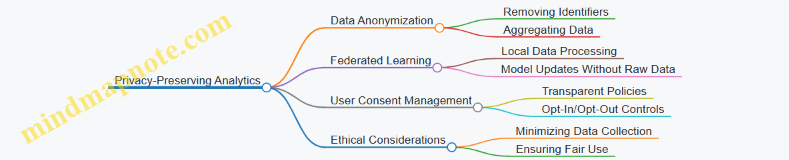
Final Thoughts
The integration of advanced analytics into XR workspaces will empower product managers and digital workplace designers to create more effective, engaging, and adaptive virtual collaboration environments. By embracing these future trends, organizations can unlock the full potential of immersive workspaces while maintaining ethical standards and user trust.
10. Implementing XR Workspaces: Roadmap and Change Management
10.1 Planning and Piloting XR Workspace Initiatives
Planning and piloting XR workspace initiatives is a critical first step toward successfully integrating immersive collaboration into your organization’s workflow. This phase involves careful consideration of goals, stakeholders, technology, and user experience to ensure the initiative delivers value and gains adoption.
Key Steps in Planning XR Workspace Initiatives
- Define Clear Objectives: Understand what problems the XR workspace aims to solve (e.g., improving remote collaboration, enhancing creativity, reducing travel).
- Identify Stakeholders: Engage product managers, digital workplace designers, IT teams, and end-users early.
- Assess Technology Needs: Evaluate hardware (VR headsets, AR glasses), software platforms, and integration capabilities.
- Develop Use Cases: Create realistic scenarios where XR collaboration adds value.
- Set Success Metrics: Define KPIs such as user engagement, meeting efficiency, or innovation output.
- Plan Pilot Scope: Determine pilot size, duration, and resources.
- Prepare Training and Support: Develop onboarding materials and support channels.
Mind Map: Planning XR Workspace Initiatives
Example: Planning a Pilot for a Virtual Brainstorming XR Workspace
Objective: Enable distributed product teams to brainstorm ideas more effectively using immersive XR environments.
Stakeholders: Product managers, digital workplace designers, and a select group of 10 product team members.
Technology: Oculus Quest 2 headsets paired with an XR collaboration platform supporting 3D whiteboards and spatial audio.
Use Case: Weekly brainstorming sessions where team members interact with virtual sticky notes, 3D models, and real-time voting.
Success Metrics: Increase in ideas generated per session by 30%, user satisfaction scores above 80%, and reduction in meeting time by 20%.
Pilot Scope: 6-week pilot with weekly sessions and feedback collection.
Training: Two onboarding workshops and a quick-start guide.
Mind Map: Pilot Execution and Feedback Loop
Best Practice: Start Small, Iterate Fast
Begin with a small, focused pilot group to minimize risk and gather detailed insights. Use iterative cycles to refine the XR workspace based on real user feedback before scaling to larger teams.
Additional Example: Piloting XR for Agile Sprint Planning
A digital workplace designer collaborates with product managers to pilot an XR workspace where sprint planning happens in a virtual room. Features include virtual Kanban boards, avatar presence for each team member, and integrated timers to keep meetings on track. Over a 4-week pilot, the team reports improved focus and clearer task understanding.
By carefully planning and piloting XR workspace initiatives with clear goals, stakeholder engagement, and iterative feedback, organizations can pave the way for successful immersive collaboration adoption.
10.2 Best Practice: Training and Onboarding Teams for XR Adoption
Successfully integrating Extended Reality (XR) into your workplace hinges on effective training and onboarding. This ensures that teams not only understand the technology but also feel confident and motivated to use it for immersive collaboration.
Key Components of XR Training and Onboarding
XR Training and Onboarding Mind Map
Preparation: Setting the Stage for Success
Before training begins, assess your team’s current familiarity with XR and digital tools. Define clear learning objectives tailored to roles (e.g., Product Managers focusing on sprint coordination, Digital Workplace Designers on environment customization).
Example: A product team was surveyed to understand their XR experience. Based on results, training was customized into beginner and advanced tracks, ensuring relevance and engagement.
Training Content: Building Core Competencies
Training should cover:
- XR Technology Basics: Understanding VR, AR, MR distinctions and hardware.
- Navigation and Interaction: How to move, select, and manipulate objects in XR.
- Collaboration Tools Usage: Using XR whiteboards, avatars, spatial audio.
- Troubleshooting and Support: Basic problem-solving and where to find help.
Example: A Digital Workplace Designer created interactive tutorials demonstrating how to use XR whiteboards for brainstorming, enabling hands-on learning.
Delivery Methods: Engaging and Effective Learning
Use a mix of delivery methods to accommodate different learning styles:
- Live Workshops: Real-time sessions with Q&A.
- Self-Paced Tutorials: Videos and guides accessible anytime.
- Hands-On Practice Sessions: Scheduled XR workspace time for experimentation.
- Peer Learning and Mentorship: Pairing experienced users with newcomers.
Example: A company hosted weekly XR drop-in sessions where employees could practice and ask questions, fostering a supportive learning culture.
Reinforcement: Ensuring Long-Term Adoption
Training doesn’t end after initial sessions. Reinforce learning through:
- Follow-up refresher workshops.
- Collecting feedback to improve training materials.
- Providing continuous learning resources like FAQs, forums, and update newsletters.
Example: After rollout, a product manager team received monthly tips on advanced XR collaboration features, increasing usage and proficiency.
Adoption Support: Sustaining Engagement
Support mechanisms encourage ongoing use:
- Dedicated help desks or XR champions.
- User communities for sharing best practices.
- Incentives such as recognition programs for XR power users.
Example: An XR ambassador program was launched, where selected employees received advanced training and helped colleagues, accelerating adoption.
Additional Mind Map: XR Training Journey
XR Training Journey Mind Map
Practical Example: Onboarding a Cross-Functional Team
Scenario: A product manager and digital workplace designer team needed to adopt an XR workspace for sprint planning.
Steps Taken:
- Assessment: Surveyed team XR familiarity.
- Customized Training: Created beginner and intermediate tracks.
- Hands-On Practice: Scheduled XR sprint simulations.
- Mentorship: Paired less experienced members with XR champions.
- Feedback Loop: Collected feedback after each sprint to refine training.
Outcome: The team reported increased confidence and smoother sprint planning sessions within the XR environment.
Summary
Effective training and onboarding for XR adoption require thoughtful preparation, engaging content, varied delivery methods, ongoing reinforcement, and strong support systems. By following these best practices, product managers and digital workplace designers can drive successful immersive collaboration adoption across their teams.
10.3 Example: Overcoming Resistance and Building XR Champions
Implementing Extended Reality (XR) workspaces often encounters resistance from employees and stakeholders who may be skeptical, uncomfortable, or unfamiliar with immersive technologies. Successfully overcoming this resistance and cultivating XR champions within your organization is critical for adoption and long-term success.
Understanding Resistance to XR Adoption
Resistance can stem from various sources:
- Fear of the unknown: Concerns about new technology disrupting familiar workflows.
- Skill gaps: Anxiety about lacking the skills to use XR tools effectively.
- Perceived complexity: Belief that XR systems are too complicated or time-consuming.
- Cultural inertia: Preference for traditional collaboration methods.
- Physical discomfort: Concerns about headset fatigue or motion sickness.
Mind Map: Sources of Resistance
Strategies to Overcome Resistance
-
Education and Awareness: Conduct workshops and demos to demystify XR technology.
-
Hands-On Training: Provide accessible training sessions tailored to different skill levels.
-
Pilot Programs: Start with small, low-risk XR projects to showcase tangible benefits.
-
Feedback Loops: Encourage open communication to address concerns and iterate on solutions.
-
Leadership Support: Secure buy-in from senior leaders to champion XR initiatives.
-
Highlight Success Stories: Share real-world examples and case studies within the organization.
-
Address Physical Comfort: Offer ergonomic guidance and allow flexible usage to minimize discomfort.
Mind Map: Strategies to Overcome Resistance
Building XR Champions: Definition and Importance
XR champions are enthusiastic early adopters who advocate for XR technology, assist peers, and help drive cultural change. They serve as trusted voices and bridge the gap between technical teams and end-users.
Characteristics of Effective XR Champions
- Passionate about technology and innovation.
- Good communicators and influencers.
- Patient and supportive trainers.
- Problem solvers who can troubleshoot issues.
- Respected by their peers.
Example: Building XR Champions in a Product Team
Scenario: A product management team at a mid-sized tech company is transitioning to an XR workspace for sprint planning and collaboration. Initial resistance is high due to unfamiliarity and skepticism.
Steps Taken:
-
Identify Potential Champions: The digital workplace designer surveys the team to find members excited about XR.
-
Provide Specialized Training: Champions attend advanced XR workshops and receive direct support from XR platform vendors.
-
Empower Champions: They are given the role of ‘XR Ambassadors’ responsible for onboarding colleagues and troubleshooting.
-
Create a Support Network: Champions meet weekly to share experiences and strategies.
-
Recognize Contributions: The company publicly acknowledges champions’ efforts through internal newsletters and awards.
Outcome:
- Increased adoption rates within the product team.
- Reduced resistance as peers trust champions’ guidance.
- Continuous feedback improves XR workspace usability.
Mind Map: Building XR Champions
Additional Practical Examples
-
Example 1: Cross-Departmental XR Champions Network
- A global enterprise forms an XR champions network across departments to share best practices and coordinate training efforts, fostering a community of practice.
-
Example 2: Gamification to Encourage Champions
- A company introduces gamified incentives where employees earn badges for XR usage and peer training, motivating participation and champion development.
-
Example 3: Executive XR Champions
- Senior leaders actively participate in XR meetings and share their positive experiences, modeling adoption and reducing stigma.
Summary
Overcoming resistance and building XR champions is a multi-faceted process that requires empathy, education, empowerment, and recognition. By understanding the root causes of resistance and strategically nurturing champions, organizations can accelerate XR workspace adoption and unlock the full potential of immersive collaboration.
10.4 Scaling XR Workspaces Across Departments and Locations
Scaling Extended Reality (XR) workspaces beyond pilot teams to multiple departments and geographically dispersed locations is a critical step toward realizing the full potential of immersive collaboration in the enterprise. This section explores best practices, challenges, and practical examples to help Product Managers and Digital Workplace Designers successfully scale XR environments.
Key Considerations for Scaling XR Workspaces
- Infrastructure Readiness: Ensuring network bandwidth, hardware availability, and platform compatibility across offices.
- Cross-Departmental Alignment: Understanding unique workflows and collaboration needs of different teams.
- User Training & Support: Developing scalable onboarding programs and ongoing support mechanisms.
- Governance & Security: Maintaining consistent policies and data protection standards.
- Change Management: Addressing cultural adoption and resistance at scale.
Mind Map: Scaling XR Workspaces - Core Components
Step 1: Assess Departmental Needs and Customize XR Environments
Each department has unique collaboration styles and requirements. For example, the Marketing team may prioritize creative brainstorming spaces with XR whiteboards and mood boards, while Engineering may need virtual prototyping rooms integrated with CAD tools.
Example: A multinational company conducted workshops with HR, Sales, and R&D teams to map out their workflows. Based on insights, they customized XR workspaces with tailored toolsets and interaction models, improving engagement and productivity.
Step 2: Establish Scalable Infrastructure and Hardware Deployment
Scaling XR requires robust infrastructure:
- Network: Upgrade office networks to support high-bandwidth XR streaming.
- Hardware: Deploy standardized XR headsets and peripherals across locations.
- Platform: Use cloud-based XR collaboration platforms for seamless updates and access.
Example: A global consulting firm partnered with IT to roll out standalone XR headsets with pre-configured profiles, reducing setup time and ensuring consistency.
Mind Map: Infrastructure Scaling Checklist
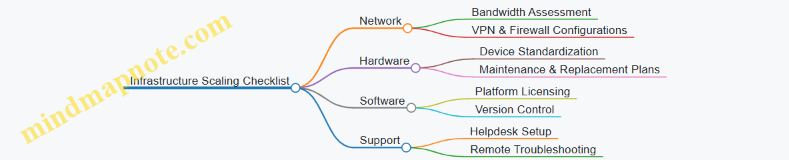
Step 3: Develop Comprehensive Training and Support Programs
Scaling means training hundreds or thousands of users:
- Create modular, role-specific training content.
- Use XR itself as a training medium for immersive onboarding.
- Establish peer support groups and XR champions within departments.
Example: A technology company launched an XR training hub where new users could practice navigation and collaboration skills in a safe virtual environment before joining live sessions.
Step 4: Implement Governance, Security, and Compliance at Scale
Consistent policies are vital:
- Define data access levels per department.
- Monitor XR workspace usage for compliance.
- Ensure GDPR and other regional regulations are met.
Example: A financial services firm integrated XR workspace access with their existing identity management system, enabling role-based permissions and audit trails.
Step 5: Drive Change Management and Foster a Collaborative Culture
Scaling XR workspaces requires cultural shifts:
- Communicate benefits clearly and frequently.
- Engage leadership as XR ambassadors.
- Recognize early adopters and success stories.
Example: An enterprise-wide XR launch included an internal XR hackathon, encouraging employees from different departments to co-create XR experiences, boosting enthusiasm and adoption.
Mind Map: Change Management for XR Scaling
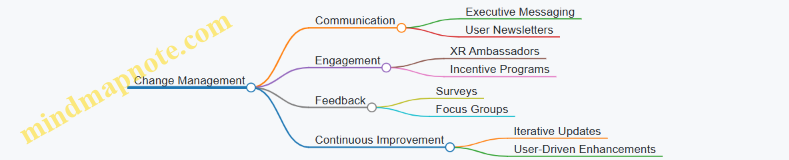
Practical Example: Scaling XR Collaboration at “Globex Corporation”
Background: Globex Corporation piloted an XR workspace with their Product Development team. After successful results, they planned to scale to Sales, Customer Support, and HR across three continents.
Approach:
- Conducted cross-departmental needs assessments.
- Standardized hardware and network upgrades in all offices.
- Developed tailored XR environments: immersive sales demo rooms, virtual customer support training centers, and HR onboarding lounges.
- Rolled out a global XR training program using XR simulations.
- Established a governance framework aligned with international data laws.
- Launched a company-wide XR launch event with leadership participation.
Outcome:
- 75% adoption rate within six months.
- 40% reduction in cross-location meeting times.
- Increased employee engagement scores related to collaboration.
Summary
Scaling XR workspaces across departments and locations is a multifaceted endeavor that requires strategic planning, infrastructure investment, user-centric design, and strong change management. By customizing environments, ensuring robust support, and fostering an inclusive culture, organizations can unlock the transformative power of immersive collaboration at scale.
10.5 Case Study: Successful Enterprise-Wide XR Workspace Rollout
Overview
This case study explores how a multinational technology company successfully implemented an enterprise-wide Extended Reality (XR) workspace to enhance collaboration, innovation, and productivity across its global teams. The rollout involved careful planning, stakeholder engagement, training, and iterative improvements to ensure adoption and measurable impact.
Company Background
- Industry: Technology & Software Development
- Employees: 15,000+ worldwide
- Locations: North America, Europe, Asia-Pacific
- Challenge: Disconnected teams, inefficient collaboration, and limited innovation due to geographical and cultural barriers.
Objectives of the XR Workspace Rollout
- Foster immersive collaboration across distributed teams
- Enable real-time, spatially aware communication
- Support agile workflows and creative brainstorming
- Increase employee engagement and reduce meeting fatigue
- Ensure accessibility and inclusivity for diverse workforce
Rollout Phases Mind Map
Best Practices Applied
-
Comprehensive Needs Assessment
- Conducted surveys and interviews with product managers, digital workplace designers, and end-users to identify pain points and collaboration needs.
- Example: Product teams highlighted the need for immersive brainstorming spaces and real-time task tracking.
-
Technology Selection Based on Use Cases
- Chose a mixed reality platform supporting VR and AR to accommodate various hardware preferences.
- Example: VR headsets for immersive meetings; AR glasses for on-site collaboration.
-
Pilot with Cross-Functional Teams
- Deployed XR workspaces to a pilot group including product managers, designers, and developers.
- Example: A pilot sprint planning session using XR Kanban boards improved task visibility and engagement.
-
Role-Based Training and XR Champions
- Developed tailored training modules for different roles.
- Identified and empowered XR champions to support peers.
- Example: Digital workplace designers received advanced training on customizing XR environments.
-
Integration with Existing Tools
- Seamlessly integrated XR platforms with project management and communication tools like Jira and Slack.
- Example: Automatic task updates in XR reflected in Jira, ensuring consistency.
-
Accessibility and Inclusivity Focus
- Customized avatars and adjustable interfaces to accommodate diverse user needs.
- Example: Voice-to-text features for hearing-impaired users.
-
Continuous Feedback and Iteration
- Established feedback loops via surveys and in-XR feedback tools.
- Example: Users requested better spatial audio controls, which were implemented in the next update.
Example: Sprint Planning in XR Workspace
-
Scenario: A product manager leads a sprint planning meeting with remote and onsite team members.
-
XR Features Used:
- Virtual Kanban board with drag-and-drop task cards
- 3D avatars representing each participant
- Spatial audio enabling natural conversation flow
- Real-time voting on task prioritization
-
Outcome:
- Increased engagement and clarity on sprint goals
- Reduced meeting time by 25%
- Enhanced team cohesion despite geographical distance
Mind Map: Key Success Factors
Lessons Learned
- Early and ongoing stakeholder engagement is critical for buy-in.
- Piloting with diverse teams uncovers unique needs and use cases.
- Training must be continuous and role-specific to maximize adoption.
- Integration with existing workflows reduces friction.
- Accessibility features improve inclusivity and user satisfaction.
- Monitoring usage and gathering feedback drives meaningful improvements.
Final Impact Metrics
- 80% of employees actively using XR workspaces within 6 months
- 30% improvement in cross-team collaboration scores (survey-based)
- 20% reduction in project cycle times
- Positive feedback on engagement and creativity from 85% of users
Conclusion
This enterprise-wide XR workspace rollout demonstrates that with strategic planning, user-focused design, and continuous iteration, organizations can successfully leverage immersive technologies to transform collaboration and productivity. Product managers and digital workplace designers play a pivotal role in championing these initiatives, ensuring that XR becomes an integral and effective part of the future of work.
11. The Future of Work with Extended Reality
11.1 Emerging Technologies Shaping XR Workspaces
Extended Reality (XR) workspaces are rapidly evolving, driven by a convergence of cutting-edge technologies that enhance immersion, collaboration, and productivity. Understanding these emerging technologies is essential for product managers and digital workplace designers aiming to create future-ready XR environments.
Key Emerging Technologies in XR Workspaces
Artificial Intelligence (AI) & Machine Learning (ML)
AI is transforming XR workspaces by enabling smarter interactions and personalized experiences. For example, AI-driven virtual assistants can help schedule meetings, summarize discussions, or suggest relevant documents during collaboration.
Example: In an XR product design review, an AI assistant listens to the conversation and automatically highlights design inconsistencies or suggests alternative components, accelerating decision-making.
5G and Edge Computing
The rollout of 5G networks combined with edge computing drastically reduces latency and increases bandwidth, enabling seamless multi-user XR experiences even on mobile devices.
Example: A distributed product team uses a 5G-enabled XR workspace to co-create a prototype in real time, with minimal lag, despite being spread across continents.
Haptic Feedback and Advanced Sensors
Advanced haptic devices and sensors allow users to feel textures, resistance, and spatial presence, making collaboration more natural and intuitive.
Example: During a virtual assembly training session, users feel the resistance of components as they fit parts together, improving skill transfer and reducing errors.
Spatial Computing and Digital Twins
Spatial computing enables XR environments to understand and interact with the physical world, while digital twins replicate real-world assets virtually.
Example: A digital twin of a manufacturing floor is used in XR to simulate workflow changes collaboratively before physical implementation, reducing downtime.
Brain-Computer Interfaces (BCI)
Though still emerging, BCI technologies promise hands-free control and cognitive state monitoring, enhancing accessibility and reducing fatigue.
Example: An XR workspace equipped with BCI allows a user to navigate menus and manipulate objects using thought commands, enabling faster workflows for users with mobility impairments.
Cloud XR and Streaming Technologies
Cloud XR allows complex XR applications to run on remote servers and stream to lightweight devices, democratizing access and simplifying updates.
Example: A company deploys a cloud-based XR collaboration platform accessible via smartphones and lightweight headsets, enabling broad adoption without heavy hardware investments.
Blockchain and Decentralized Identity
Blockchain technologies can secure XR workspace data, manage digital identities, and maintain transparent collaboration records.
Example: In a multi-organization XR project, blockchain verifies user credentials and logs changes to shared virtual assets, ensuring trust and accountability.
Advanced Avatars and Realistic Rendering
Photorealistic avatars with emotion tracking enhance social presence, making remote collaboration feel more personal and engaging.
Example: Product managers use avatars that mirror facial expressions and gestures during XR meetings, improving empathy and communication clarity.
Summary
The fusion of these emerging technologies is creating XR workspaces that are more immersive, intuitive, and effective for collaboration. Product managers and digital workplace designers should monitor these trends to harness their potential and design future-proof immersive work environments.
Actionable Insight
- Experiment with AI-powered XR tools to enhance meeting productivity.
- Leverage 5G and edge computing to enable seamless remote collaboration.
- Incorporate haptic feedback devices to improve user engagement.
- Explore digital twins for realistic simulation and planning.
- Stay informed about BCI advancements for accessibility innovations.
- Consider cloud XR platforms for scalable deployments.
- Evaluate blockchain solutions for secure and transparent collaboration.
- Invest in realistic avatars to boost social presence.
By integrating these technologies thoughtfully, XR workspaces can become powerful hubs for immersive collaboration and innovation.
11.2 Best Practice: Staying Agile and Adaptive in a Rapidly Evolving Landscape
In the rapidly evolving landscape of Extended Reality (XR) workspaces, agility and adaptability are paramount for product managers and digital workplace designers. XR technologies, platforms, and user expectations continuously shift, requiring teams to remain flexible and responsive to change. This section explores best practices to stay agile and adaptive, supported by practical examples and mind maps to visualize key concepts.
Why Agility Matters in XR Workspaces
- Technology Evolution: XR hardware and software improve quickly, with new interaction models, devices, and capabilities emerging regularly.
- User Expectations: As users become more familiar with XR, their demands for seamless, intuitive, and immersive experiences grow.
- Business Needs: Market dynamics and organizational goals can shift, requiring XR solutions to pivot accordingly.
Core Principles for Staying Agile and Adaptive
- Iterative Development: Embrace short development cycles with frequent feedback loops.
- User-Centered Design: Continuously involve end-users to validate assumptions and refine experiences.
- Cross-Functional Collaboration: Foster communication between product managers, designers, developers, and stakeholders.
- Modular Architecture: Build XR workspaces with flexible components that can be updated independently.
- Continuous Learning: Stay informed about emerging XR trends, tools, and best practices.
Mind Map: Agile Practices for XR Workspace Development
Example: Iterative Prototyping in an XR Brainstorming Tool
A digital workplace designer working on an XR brainstorming tool implemented a two-week sprint cycle where:
- Initial low-fidelity prototypes were created using simple 3D shapes and interactions.
- User feedback sessions were held with cross-functional teams to identify pain points.
- Based on feedback, interaction models were refined to improve intuitiveness.
- Accessibility features like voice commands and adjustable UI scales were added iteratively.
This iterative approach allowed the team to adapt quickly to user needs and technology constraints, resulting in a highly usable and engaging XR collaboration space.
Mind Map: Adapting to Emerging XR Trends
Example: Pivoting to Support New XR Hardware
When a new lightweight AR headset with advanced hand tracking was released, a product manager quickly organized a pilot project to explore its capabilities within their XR workspace. The team:
- Adjusted their product roadmap to integrate hand tracking features.
- Conducted user testing sessions to evaluate interaction improvements.
- Updated training materials to include new hardware usage.
This proactive adaptation ensured the product stayed competitive and leveraged the latest technology to enhance collaboration.
Practical Tips for Maintaining Agility
- Establish Feedback Channels: Use surveys, in-app feedback, and regular user interviews.
- Adopt Agile Frameworks: Scrum or Kanban can help manage iterative development.
- Encourage Experimentation: Allocate time and budget for innovation sprints.
- Stay Connected to XR Communities: Engage with forums, social media groups, and industry events.
- Document Learnings: Maintain a knowledge base of lessons learned and best practices.
Summary
Staying agile and adaptive in XR workspace development is essential to meet evolving technological capabilities and user expectations. By embracing iterative development, user-centered design, modular architectures, and continuous learning, product managers and digital workplace designers can create immersive collaboration environments that remain relevant and impactful.
References & Resources:
- Agile Alliance: https://www.agilealliance.org/
- XR Association: https://xra.org/
- Nielsen Norman Group on User-Centered Design: https://www.nngroup.com/articles/user-centered-design/
- XR Developer Community Forums (e.g., Unity, Unreal Engine)
11.3 Example: Integrating AI and XR for Smarter Collaboration
The fusion of Artificial Intelligence (AI) with Extended Reality (XR) is revolutionizing how teams collaborate by creating smarter, more intuitive, and highly personalized immersive workspaces. This integration enhances productivity, streamlines workflows, and fosters creativity by leveraging AI-driven insights and automation within XR environments.
Key Areas Where AI Enhances XR Collaboration
Example 1: AI-Powered Virtual Meeting Facilitator in XR
Imagine a product team collaborating in a virtual XR workspace. An AI-powered virtual assistant named “CollabBot” is embedded within the environment to facilitate the meeting.
- Real-time transcription and summarization: As team members discuss, CollabBot transcribes conversations and generates concise summaries, highlighting key decisions and action items.
- Sentiment analysis: It detects the emotional tone of the discussion, alerting the facilitator if tensions rise or if engagement drops.
- Task assignment: Based on the discussion, CollabBot suggests task assignments and deadlines, integrating directly with project management tools.
This AI integration reduces administrative overhead, allowing the team to focus on creative problem-solving.
Example 2: AI-Driven Spatial Whiteboard in XR
In an XR brainstorming session, the AI-enhanced whiteboard analyzes participants’ sketches and notes in real-time.
- Content recognition: The AI converts hand-drawn diagrams into clean, editable digital formats.
- Idea clustering: It groups related ideas automatically, helping the team visualize themes and connections.
- Suggestion engine: Based on the content, the AI proposes relevant resources, previous project data, or potential next steps.
This seamless assistance accelerates ideation and decision-making.
Mind Map: AI-Enhanced XR Collaboration Workflow
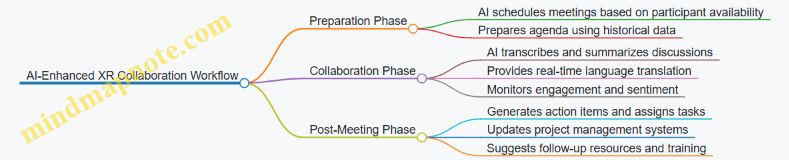
Example 3: Personalized XR Workspace Adaptation Using AI
A digital workplace designer creates an XR environment that adapts dynamically to each user.
- Behavioral analysis: AI tracks user preferences, interaction patterns, and productivity metrics.
- Environment customization: Based on data, the workspace adjusts lighting, layout, and tool accessibility to optimize comfort and efficiency.
- Proactive assistance: AI anticipates user needs, such as opening frequently used apps or suggesting breaks to reduce fatigue.
This personalized approach enhances user satisfaction and collaboration effectiveness.
Mind Map: Benefits of AI Integration in XR Workspaces
Summary
Integrating AI with XR creates smarter collaboration spaces that not only simulate physical presence but also augment human capabilities. By automating administrative tasks, enhancing communication, and personalizing experiences, AI-powered XR workspaces empower product managers and digital workplace designers to foster more effective and engaging teamwork.
Embracing these technologies today sets the stage for the future of immersive, intelligent collaboration.
11.4 Predictions: How XR Will Transform Leadership and Culture
Extended Reality (XR) is poised to fundamentally reshape leadership paradigms and organizational culture by enabling immersive, inclusive, and highly interactive experiences. As XR technologies mature, leaders and teams will experience new ways to connect, collaborate, and innovate that transcend traditional physical and digital boundaries.
Key Predictions on XR’s Impact on Leadership and Culture
Detailed Exploration with Examples
1. Enhanced Presence and Empathy
XR enables leaders to project a more authentic presence through avatars that capture facial expressions, gestures, and tone. This heightened presence fosters empathy and deeper connection, even when teams are distributed globally.
Example: A product manager uses VR to walk through a virtual replica of a manufacturing floor with frontline workers, experiencing challenges firsthand and gaining insights that inform leadership decisions.
2. Democratization of Leadership
XR flattens traditional hierarchies by providing equal virtual space and voice to all participants. Interactive XR features like real-time polling and breakout rooms empower employees at all levels to contribute meaningfully.
Example: During a digital workplace redesign, a digital workplace designer facilitates an XR town hall where junior team members can directly interact with executives, fostering open dialogue and trust.
3. Culture of Continuous Learning and Experimentation
Immersive XR environments allow leaders to practice skills through simulations and role-playing without real-world risks. Gamification elements encourage ongoing development and innovation.
Example: A leadership development program integrates XR crisis simulations, enabling product managers to rehearse responses to hypothetical market disruptions.
4. Global and Diverse Collaboration
XR transcends geographical and cultural barriers by creating shared immersive spaces where diverse teams collaborate naturally. Cultural nuances can be better understood through shared virtual experiences.
Example: A multinational team uses XR to co-design a product prototype, leveraging 3D models and spatial collaboration tools to iterate rapidly.
5. Transparency and Trust Building
Leaders can use XR to create open forums where organizational data is visualized in 3D, making complex information accessible and fostering transparency.
Example: Executives present quarterly results in an XR environment where employees can explore interactive data dashboards and ask questions in real-time.
6. New Norms for Work-Life Integration
XR workspaces can be personalized to support individual work styles and wellness, helping leaders model balanced work-life integration.
Example: A digital workplace designer creates virtual wellness rooms within the XR workspace where leaders and employees can take mindfulness breaks together.
7. Ethical Leadership in Immersive Environments
As XR blurs lines between physical and virtual, ethical considerations around privacy, behavior, and psychological safety become paramount. Leaders must establish clear guidelines and foster respectful virtual cultures.
Example: An organization implements a code of conduct for XR interactions, enforced through platform features like behavior monitoring and reporting tools.
Mind Map: XR Leadership Transformation
Final Thoughts
The integration of XR into leadership and organizational culture will not only enhance collaboration but also redefine how leaders inspire, engage, and empower their teams. By embracing XR’s immersive capabilities, product managers and digital workplace designers can pioneer new leadership models that are more empathetic, inclusive, and adaptive to the future of work.
11.5 Preparing Your Team for the Next Generation of Immersive Workspaces
As extended reality (XR) technologies rapidly evolve, preparing your team for the next generation of immersive workspaces is critical to maintaining competitive advantage and fostering a culture of innovation. This preparation involves not only technical readiness but also cultural adaptation, skill development, and strategic planning.
Key Areas to Focus On
- Technology Familiarization: Ensuring team members understand XR hardware and software basics.
- Skill Development: Training in XR collaboration tools and immersive interaction techniques.
- Cultural Shift: Encouraging openness to new ways of working and virtual presence.
- Change Management: Managing adoption challenges and resistance.
- Infrastructure Readiness: Ensuring network, hardware, and security support.
Mind Map: Preparing Your Team for Next-Gen XR Workspaces
Detailed Breakdown
Technology Familiarization
Start by demystifying XR technology for your team. Organize introductory workshops that cover the basics of VR, AR, and MR, highlighting how these technologies enhance collaboration. Provide hands-on demos where team members can experience XR devices like headsets, controllers, and spatial audio systems.
Example: A digital workplace designer hosts a “XR Experience Day” where product managers try out an immersive virtual meeting room, exploring avatar interactions and spatial whiteboards.
Skill Development
Equip your team with the skills needed to thrive in XR environments. This includes training on specific XR collaboration platforms (e.g., Spatial, Horizon Workrooms) and soft skills such as virtual communication etiquette and spatial awareness.
Use scenario-based learning where teams simulate real work situations in XR, such as sprint planning or design reviews.
Example: Product managers participate in a virtual sprint planning session using XR Kanban boards, learning how to assign tasks and track progress in 3D space.
Cultural Shift
Foster a culture that embraces immersive collaboration. Communicate the benefits clearly—such as reduced travel, enhanced creativity, and improved engagement. Encourage experimentation and normalize early-stage failures as part of learning.
Identify and empower XR champions within teams who can advocate for and support peers during the transition.
Example: A digital workplace designer creates an internal XR ambassadors program, where selected team members receive advanced training and help others onboard.
Change Management
Develop a structured change management plan. Maintain open communication channels to address concerns and gather feedback. Use surveys and focus groups to understand adoption barriers.
Recognize and reward early adopters and innovative uses of XR to motivate wider participation.
Example: After rolling out XR collaboration tools, leadership hosts monthly “XR Feedback Forums” to collect user experiences and iterate on workspace design.
Infrastructure Readiness
Ensure your IT infrastructure supports immersive workspaces. This includes upgrading network bandwidth to handle high data loads, provisioning XR devices to team members, and implementing robust security protocols to protect virtual environments.
Example: The IT team conducts an audit to identify network bottlenecks and deploys VPN solutions optimized for XR traffic.
Continuous Learning
XR technologies evolve quickly. Establish a community of practice where team members share tips, challenges, and innovations. Provide access to online courses, webinars, and XR industry news.
Example: A monthly “XR Innovation Hour” is scheduled where teams demo new XR tools or workflows they have experimented with.
Additional Mind Map: Change Management in XR Adoption
Final Example: Preparing a Cross-Functional Team for XR Collaboration
A product manager and digital workplace designer collaborate to prepare their cross-functional team for XR adoption. They start with a kickoff workshop introducing XR concepts, followed by hands-on sessions using VR headsets. They identify XR champions from engineering and design teams to lead peer training. The IT department upgrades network infrastructure and sets up secure XR environments. Throughout the rollout, they collect feedback via surveys and adjust training materials accordingly. Within three months, the team successfully conducts immersive sprint planning and design reviews, reporting increased engagement and faster decision-making.
By systematically addressing technology, skills, culture, change management, and infrastructure, product managers and digital workplace designers can effectively prepare their teams for the transformative potential of next-generation immersive workspaces.
12. Conclusion and Key Takeaways
12.1 Recap of Best Practices for XR Workspace Design and Collaboration
Extended Reality (XR) workspaces represent a transformative shift in how teams collaborate, innovate, and communicate. To harness their full potential, it’s essential to apply best practices that ensure immersive, inclusive, and productive experiences. Below is a comprehensive recap of these best practices, enriched with mind maps and practical examples to solidify understanding.
Mind Map: Best Practices Overview
User-Centered XR Workspace Design
Best Practice: Prioritize intuitive navigation and ergonomic spatial layouts to reduce cognitive load and physical discomfort.
Example: Designing a virtual brainstorming room where product managers can easily move between idea boards using simple hand gestures and teleportation controls, ensuring users don’t feel lost or fatigued during long sessions.
Mind Map:
Enhancing Team Communication
Best Practice: Use 3D spatial audio and expressive avatars to replicate natural conversations and build presence.
Example: In a cross-functional XR meeting, team members use spatial voice so that when someone moves closer, their voice becomes louder, mimicking real-life interactions. Avatars display hand gestures and facial expressions to enrich communication.
Mind Map:
Supporting Collaborative Workflows
Best Practice: Integrate project management tools like Kanban boards and real-time document editing directly into XR environments.
Example: Product managers coordinate sprints by moving virtual task cards on an XR Kanban board, while developers simultaneously edit design documents projected in the workspace.
Mind Map:
Fostering Accessibility and Inclusivity
Best Practice: Implement customizable avatars and interfaces, plus language translation tools to accommodate diverse teams.
Example: A remote worker with limited mobility uses voice commands and a personalized avatar that highlights their presence. Simultaneously, live translation features enable seamless communication between team members speaking different languages.
Mind Map:
Ensuring Security and Privacy
Best Practice: Protect sensitive data with strict access controls and educate users on ethical XR collaboration.
Example: A digital workplace designer configures role-based permissions so only authorized users can access confidential project rooms, while also providing training on responsible XR usage.
Mind Map:
Driving Adoption and Change Management
Best Practice: Provide comprehensive training, address resistance proactively, and scale XR deployments thoughtfully.
Example: Before rolling out an XR workspace enterprise-wide, product managers run pilot sessions, gather feedback, and identify XR champions who advocate for the technology within their teams.
Mind Map:
Summary
By weaving these best practices into your XR workspace strategy, product managers and digital workplace designers can create immersive, effective, and inclusive environments that truly transform collaboration. The examples provided demonstrate how these principles translate into real-world applications, ensuring your XR initiatives are both visionary and practical.
Next Steps: Reflect on your current digital workplace and identify which best practices can be integrated or enhanced through XR. Use the mind maps as guides to structure your design and collaboration approach, and continuously iterate based on user feedback and evolving technology.
12.2 Summary of Practical Examples and Case Studies
In this section, we revisit the practical examples and case studies woven throughout the blog to consolidate key insights on implementing Extended Reality (XR) workspaces for immersive collaboration. These real-world illustrations provide actionable inspiration for Product Managers and Digital Workplace Designers aiming to harness XR technologies effectively.
Practical Examples and Mind Maps
A Day in the Life of an XR Workspace User
- Scenario: A product manager starts their day by entering a virtual XR workspace where they can interact with team members’ avatars, review project dashboards, and attend stand-ups.
- Key Takeaway: XR enables seamless integration of daily tasks with immersive presence, enhancing engagement.
Designing a Virtual Brainstorming Room for Product Teams
- Scenario: A digital workplace designer creates a virtual room with interactive whiteboards, 3D sticky notes, and spatial audio zones to facilitate creative sessions.
- Key Takeaway: Thoughtful spatial design and interaction models boost creativity and participation.
Using XR Whiteboards for Real-Time Idea Sharing
- Scenario: Teams across locations use XR whiteboards to sketch concepts, annotate designs, and vote on ideas in real-time.
- Key Takeaway: XR tools can replicate and enhance familiar collaboration methods with added immersion.
Facilitating Cross-Functional Team Meetings with XR Avatars
- Scenario: Avatars equipped with expressive gestures and spatial voice enable natural communication among marketing, engineering, and design teams.
- Key Takeaway: Avatars and spatial audio foster presence and reduce communication friction.
Using XR Kanban Boards for Visual Task Tracking
- Scenario: Agile teams manage sprints using XR Kanban boards that update in real-time and allow drag-and-drop task movement.
- Key Takeaway: XR can enhance traditional project management with immersive visualization.
Virtual Prototyping and Design Reviews in XR
- Scenario: Designers and engineers collaborate on 3D models within XR, enabling immersive walkthroughs and instant feedback.
- Key Takeaway: XR accelerates design iteration and stakeholder alignment.
XR Features Supporting Remote Workers with Disabilities
- Scenario: Customizable avatars, adjustable interface elements, and voice commands empower remote workers with diverse abilities.
- Key Takeaway: Accessibility features in XR promote inclusivity and equal participation.
Case Studies
Case Study 1: Digital Workplace Designer Implements Spatial Chat in XR
- Context: A digital workplace designer integrated a spatial chat platform into their company’s XR workspace.
- Outcome: Enhanced informal conversations and serendipitous interactions led to increased team cohesion.
- Best Practice Highlighted: Selecting hardware and software that support natural social interactions.
Case Study 2: Product Managers Coordinating Sprints in an XR Workspace
- Context: Product managers used XR environments to conduct sprint planning and retrospectives with distributed teams.
- Outcome: Improved engagement and clearer task visualization accelerated sprint cycles.
- Best Practice Highlighted: Embedding project management workflows directly into XR spaces.
Case Study 3: Inclusive XR Workspace Deployment in a Global Team
- Context: A multinational company deployed XR workspaces with accessibility and multilingual support.
- Outcome: Remote employees with disabilities and language differences reported higher collaboration satisfaction.
- Best Practice Highlighted: Prioritizing inclusivity through customizable avatars and integrated translation tools.
Case Study 4: Successful Enterprise-Wide XR Workspace Rollout
- Context: An enterprise scaled XR workspaces from pilot to company-wide adoption.
- Outcome: Adoption was accelerated through comprehensive training, change management, and champion networks.
- Best Practice Highlighted: Structured onboarding and addressing resistance early in the process.
Summary
These examples and case studies collectively demonstrate that successful XR workspace implementation hinges on thoughtful design, technology integration, accessibility, and change management. By learning from these practical insights, Product Managers and Digital Workplace Designers can craft immersive collaboration environments that truly transform the future of work.
12.3 Actionable Steps for Product Managers and Digital Workplace Designers
To successfully implement and optimize Extended Reality (XR) workspaces for immersive collaboration, Product Managers and Digital Workplace Designers need a clear, actionable roadmap. This section provides practical steps, illustrated with mind maps and real-world examples, to guide your journey.
Step 1: Understand Your Team’s Needs and Workflow
- Conduct surveys and interviews to gather insights on collaboration pain points.
- Map existing workflows to identify opportunities where XR can add value.
Mind Map: Understanding Team Needs
Example: A product team discovered that remote brainstorming sessions lacked engagement and decided to pilot an XR brainstorming room with virtual sticky notes and 3D models to boost participation.
Step 2: Define Clear Objectives and Success Metrics
- Set specific goals such as reducing meeting times, increasing engagement, or improving decision-making speed.
- Establish KPIs like user adoption rate, collaboration frequency, and qualitative feedback.
Mind Map: Defining Objectives & Metrics
Example: A digital workplace designer set a goal to reduce project update meetings by 30% by integrating XR Kanban boards, measuring success through time tracking and team surveys.
Step 3: Select the Right XR Tools and Hardware
- Evaluate XR platforms based on compatibility, scalability, and ease of use.
- Choose hardware that balances performance with user comfort.
Mind Map: Tool & Hardware Selection
Example: A product manager chose a mixed reality platform that integrated seamlessly with existing project management software, enabling users to switch between XR and desktop environments effortlessly.
Step 4: Design Immersive and Intuitive XR Workspaces
- Apply user-centered design principles focusing on ergonomics and accessibility.
- Create spatial layouts that mirror natural collaboration settings.
Mind Map: XR Workspace Design
Example: A digital workplace designer developed a virtual brainstorming room with zones for different activities, such as quiet reflection, group discussion, and prototyping, enhancing workflow clarity.
Step 5: Pilot and Iterate with User Feedback
- Launch a small-scale pilot with a representative user group.
- Collect qualitative and quantitative feedback to refine the experience.
Mind Map: Pilot & Iteration
Example: After piloting an XR collaboration platform, a team identified that avatar customization was limited, leading to reduced presence. The designers enhanced avatar options in the next iteration.
Step 6: Train and Support Users for Adoption
- Develop onboarding materials including tutorials and best practice guides.
- Provide ongoing support channels such as help desks and community forums.
Mind Map: Training & Support
Example: A digital workplace designer created a series of short video tutorials demonstrating how to use XR whiteboards effectively, resulting in faster adoption and higher user confidence.
Step 7: Scale and Integrate XR Workspaces Across Teams
- Develop a rollout plan that includes phased deployment and change management.
- Ensure integration with existing digital workplace ecosystems.
Mind Map: Scaling & Integration
Example: An enterprise gradually expanded XR workspace usage from the product team to marketing and sales, integrating XR meeting notes with CRM systems to maintain continuity.
Step 8: Continuously Evaluate and Evolve XR Workspaces
- Regularly review performance against KPIs.
- Stay informed about emerging XR technologies and trends.
Mind Map: Continuous Evaluation
Example: A product manager instituted quarterly reviews of XR workspace usage, identifying opportunities to incorporate AI-driven transcription and meeting summarization tools.
Summary Table of Actionable Steps
| Step | Action | Example |
|---|---|---|
| 1 | Understand team needs and workflows | Survey remote teams to identify collaboration gaps |
| 2 | Define objectives and metrics | Set goal to reduce meeting time by 30% |
| 3 | Select XR tools and hardware | Choose mixed reality platform compatible with existing tools |
| 4 | Design immersive workspaces | Create virtual brainstorming zones |
| 5 | Pilot and iterate | Collect feedback to improve avatar customization |
| 6 | Train and support users | Develop video tutorials for XR whiteboards |
| 7 | Scale and integrate | Roll out XR across departments, integrate with CRM |
| 8 | Continuously evaluate | Quarterly KPI reviews and AI tool integration |
By following these actionable steps, Product Managers and Digital Workplace Designers can confidently lead their organizations into the future of immersive collaboration with XR workspaces.
12.4 Resources for Continued Learning and Exploration
To thrive in the evolving landscape of Extended Reality (XR) workspaces, continuous learning and exploration are essential. Below is a curated collection of resources, including books, online courses, communities, tools, and mind maps to help Product Managers and Digital Workplace Designers deepen their expertise and stay ahead.
Books & Publications
-
“Augmented Human: How Technology Is Shaping the New Reality” by Helen Papagiannis
- Explores the impact of AR and XR on human experience and work.
-
“Learning Virtual Reality” by Tony Parisi
- A practical guide to VR development and design principles.
-
“The Fourth Transformation: How Augmented Reality & Artificial Intelligence Change Everything” by Robert Scoble & Shel Israel
- Insight into how XR and AI are reshaping industries.
-
Research Papers & Journals:
- IEEE VR Conference Proceedings
- Journal of Virtual Reality and Broadcasting
Online Courses & Tutorials
-
Coursera – Virtual Reality Specialization (University of London)
- Comprehensive course covering VR fundamentals, design, and development.
-
Udemy – Augmented Reality Development with Unity
- Hands-on course focused on AR app creation.
-
LinkedIn Learning – XR for Business: Designing Immersive Workspaces
- Tailored for professionals integrating XR into workplaces.
-
Mozilla Hubs Tutorials
- Guides on building and customizing social VR spaces.
Communities & Forums
-
XR Association (XRA)
- Industry body offering resources, best practices, and networking.
-
Reddit r/virtualreality and r/augmentedreality
- Active discussions, news, and project sharing.
-
Spatial Chat Community
- Focused on spatial collaboration tools and use cases.
-
LinkedIn Groups:
- “Extended Reality for Business”
- “Future of Work and XR”
Tools & Platforms to Explore
- Spatial – Immersive collaboration platform for meetings and workshops.
- Horizon Workrooms (Meta) – VR meeting space integrating with existing workflows.
- Microsoft Mesh – Mixed reality platform for shared virtual experiences.
- Miro & MURAL – While not XR-native, these tools integrate with XR platforms for visual collaboration.
Mind Maps for XR Workspace Mastery
Mind Map 1: XR Workspace Design Fundamentals
Mind Map 2: XR Collaboration Best Practices
Mind Map 3: XR Tools & Platforms Exploration
Example: Using Mind Maps to Plan an XR Workspace Rollout
A Product Manager can use the “XR Workspace Design Fundamentals” mind map to identify key focus areas before launching a pilot. For instance, they might prioritize “Accessibility” and “Hardware” to ensure inclusivity and technical feasibility. Simultaneously, the Digital Workplace Designer can leverage the “XR Collaboration Best Practices” mind map to establish communication norms and workflow integrations.
Additional Exploration
-
Conferences & Events:
- IEEE VR
- AWE (Augmented World Expo)
- VR/AR Global Summit
-
Podcasts:
- Voices of VR
- XR for Business
-
Blogs & News Sites:
- Road to VR
- UploadVR
- XR Today
By immersing yourself in these resources and actively engaging with the XR community, you can continuously refine your approach to designing and managing immersive collaboration workspaces that drive innovation and productivity.
12.5 Final Thoughts: Embracing the XR Future of Work
As we conclude our deep dive into Extended Reality (XR) workspaces for immersive collaboration, it’s clear that XR is not just a futuristic concept but a transformative tool reshaping how teams connect, create, and collaborate. For Product Managers and Digital Workplace Designers, embracing XR means more than adopting new technology—it requires a mindset shift towards designing experiences that blend the physical and digital seamlessly, fostering inclusivity, creativity, and productivity.
Mind Map: Embracing the XR Future of Work
Key Reflections and Examples
1. Technology Integration is Foundational:
The backbone of XR workspaces lies in the seamless integration of VR, AR, and MR technologies with emerging capabilities like AI and 5G. For example, a product team might use AI-driven virtual assistants within an XR environment to automate routine tasks, freeing up time for creative problem-solving.
2. Prioritizing User Experience:
Designing XR workspaces with accessibility in mind ensures no team member is left behind. Consider a digital workplace designer who implements customizable avatars and adjustable UI scales, enabling users with visual impairments to participate fully in virtual meetings.
3. Enhancing Collaboration and Communication:
Spatial audio and expressive avatars create a sense of presence that traditional video calls lack. For instance, a cross-functional team spread across continents can hold a virtual design review where members naturally turn towards speakers, read body language, and collaborate on 3D models in real time.
4. Organizational Readiness and Change Management:
Successful XR adoption hinges on thoughtful change management. A product manager might pilot XR collaboration tools with a small team, gather feedback, and develop training programs before scaling, ensuring smoother transitions and higher adoption rates.
5. Driving Innovation and Creativity:
XR unlocks new avenues for ideation and prototyping. Imagine a marketing team using an immersive brainstorming session to storyboard a campaign, manipulating virtual elements together to spark fresh ideas that would be difficult to visualize on flat screens.
6. Upholding Security and Ethical Standards:
With immersive data comes responsibility. Implementing strict access controls and transparent data policies protects sensitive information. For example, an enterprise deploying XR workspaces might enforce encrypted communications and anonymized user data to maintain trust.
Mind Map: Steps to Embrace XR in Your Organization
Final Example: From Vision to Reality
Consider a global software company that struggled with remote collaboration across time zones and cultures. By adopting an XR workspace, they created virtual hubs where teams could meet asynchronously or synchronously, leveraging spatial audio and shared 3D whiteboards. Product managers coordinated sprints visually with XR Kanban boards, while digital workplace designers tailored environments for accessibility. Over six months, the company reported a 30% increase in meeting engagement and a significant reduction in project delays.
This example illustrates that embracing XR is not merely about technology adoption but about reimagining work itself—making it more human, connected, and effective.
Takeaway
The future of work is immersive, collaborative, and inclusive. By thoughtfully integrating XR into your workplace strategy, you empower your teams to transcend physical boundaries, unlock creativity, and drive meaningful outcomes. As Product Managers and Digital Workplace Designers, your role is pivotal in shaping this future—leading with empathy, innovation, and a clear vision for what immersive collaboration can achieve.